
1. Rhagymadrodd
Thank you for choosing the Dexnor Keyboard Case. This manual provides essential information for setting up, operating, and maintaining your new keyboard case. Designed to enhance your Samsung Galaxy Tab experience, this case features a magnetic attachment, a precise multi-touch trackpad, a 7-color backlit QWERTZ keyboard, and convenient S Pen storage. Please read this manual thoroughly before use to ensure optimal performance and longevity of your device.
2. Cydweddoldeb
Mae'r cas bysellfwrdd hwn wedi'i gynllunio'n gyfan gwbl ar gyfer y modelau Samsung Galaxy Tab canlynol:
- Samsung Galaxy Tab S10 Lite (Model SM-X400, SM-X406B)
- Samsung Galaxy Tab S10 FE 10.9" 2025 (Model SM-X520, SM-X526, SM-X526B)
- Samsung Galaxy Tab S9 FE 10.9" 2023 (Model SM-X510/SM-X516B/SM-X518U)
- Samsung Galaxy Tab S9 11" 2023 (Model SM-X710/SM-X716B/SM-X718U)
Note: This case is NOT compatible with Samsung Galaxy Tab S9+/S9 FE+ 12.4" or Samsung Galaxy Tab S11 (2025) 11". Please verify your tablet model before purchase.

Figure 2.1: Compatible and incompatible tablet models.
3. Cynnwys Pecyn
Gwiriwch y pecyn am yr eitemau canlynol:
- Dexnor Keyboard Case
- Cebl Codi Tâl USB-C
- Canllaw Cychwyn Cyflym
- Llawlyfr Defnyddiwr (y ddogfen hon)
4. Gosod
4.1 Attaching Your Tablet
The keyboard case features a strong magnetic hinge for secure attachment. Simply align your Samsung Galaxy Tab with the magnetic area on the case. The tablet will snap into place, transforming your device into a laptop-like setup.

Figure 4.1: Magnetic attachment and adjustable viewongl ing.
4.2 Pairing the Keyboard via Bluetooth
- Gwnewch yn siŵr bod y bysellfwrdd wedi'i wefru'n ddigonol.
- Turn on the keyboard by pressing the power button (usually located on the side or top edge of the keyboard). The indicator light will flash, indicating it's in pairing mode.
- On your Samsung Galaxy Tab, go to Gosodiadau > Dyfeisiau cysylltiedig > Bluetooth a throi Bluetooth YMLAEN.
- Your tablet will search for available devices. Select "Dexnor Keyboard" (or similar name) from the list.
- Follow any on-screen prompts to complete the pairing process. Once paired, the indicator light on the keyboard will stop flashing.
5. Cyfarwyddiadau Gweithredu
5.1 Addasu Viewing Angles
The robust aluminum alloy hinge allows for flexible viewing angles, transforming your tablet into a versatile workstation. Adjust the tablet's position to your preferred angle for typing, reading, or viewing cynnwys.

Figure 5.1: Tablet in floating cantilever position for optimal viewing.
Pad Trac Aml-Gyffwrdd 5.2
The integrated high-precision multi-touch trackpad supports various gestures for seamless navigation. Use multi-finger gestures for actions such as scrolling, swiping, and zooming, enhancing your productivity.

Figure 5.2: Multi-touch trackpad for precise control.
Bysellfwrdd Cefn-oleuedig 5.3
The keyboard features 7 different backlight colors and 3 adjustable brightness levels for comfortable typing in any lighting condition. Use the dedicated backlight key (often a sun icon or Fn + light key combination) to cycle through colors and adjust brightness.

Figure 5.3: Backlit QWERTZ keyboard with adjustable colors.
Deiliad Pen S 5.4
The case provides two convenient locations for your S Pen: an integrated magnetic holder within the keyboard for secure storage and a cutout slot at the rear of the case for charging and additional storage. This design ensures quick access and prevents loss.
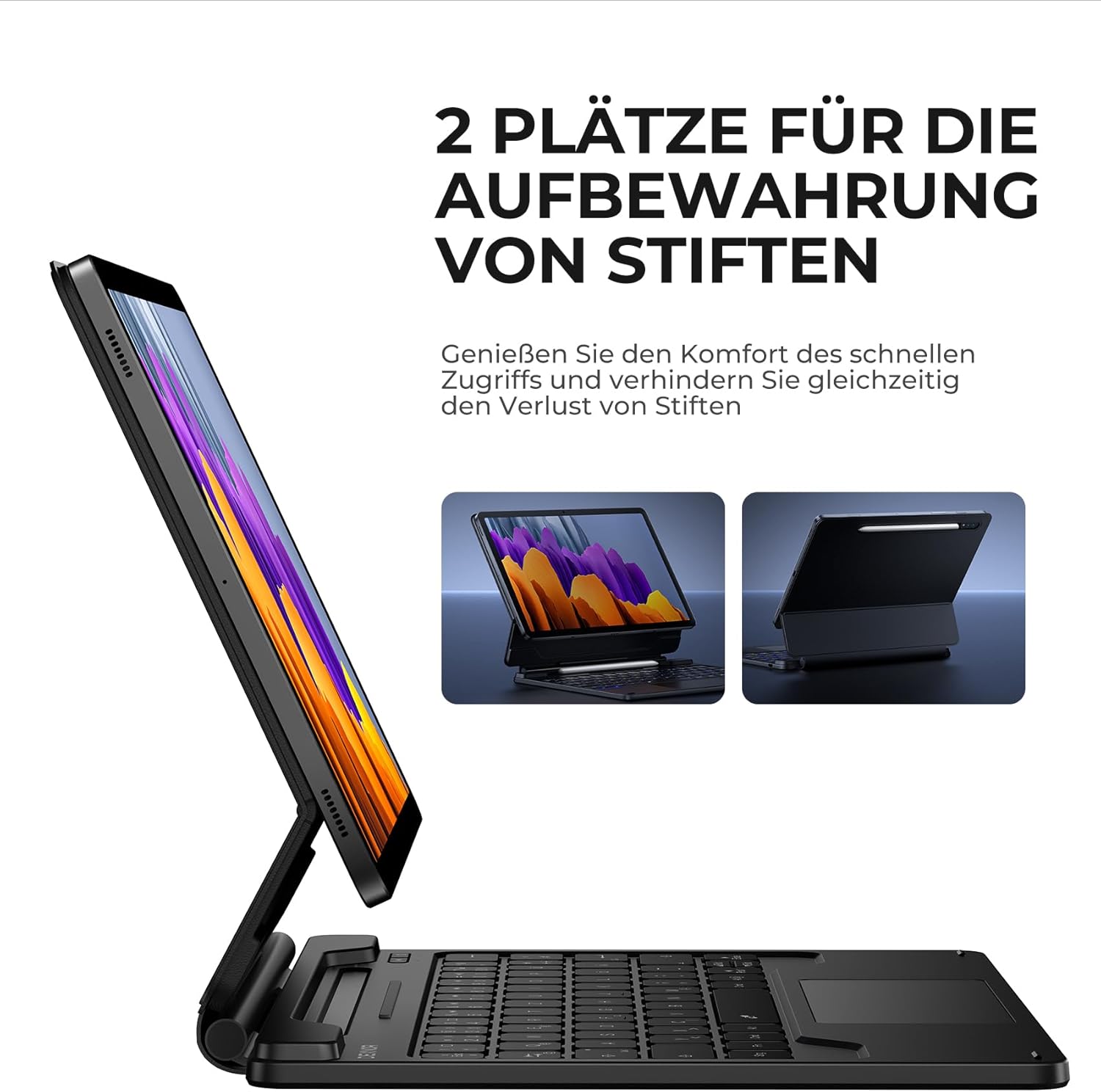
Figure 5.4: Dual S Pen storage options.
5.5 DEX Mode
Combine your tablet with the keyboard case and activate Samsung DEX mode to transform your tablet into a desktop-like experience. This allows for enhanced multitasking and productivity, similar to a traditional laptop setup.
5.6 Allwedd Byrlwybr
The keyboard includes a series of convenient shortcut keys for quick control over media playback, volume, and other tablet functions. Refer to the keyboard layout for specific key functions.

Figure 5.5: Keyboard layout with shortcut keys.
5.7 Swyddogaeth Cysgu/Deffro Awtomatig
The case supports automatic sleep/wake functionality. Closing the case will put your tablet to sleep, and opening it will wake it up, conserving battery life for both your tablet and the keyboard.
6. Gwefru'r Bysellfwrdd
The keyboard is equipped with a long-lasting 650 mAh battery. To charge the keyboard:
- Connect the provided USB-C charging cable to the charging port on the keyboard.
- Cysylltwch ben arall y cebl ag addasydd pŵer USB (heb ei gynnwys) neu borthladd USB cyfrifiadur.
- The charging indicator light will illuminate during charging and turn off once fully charged. A full charge takes approximately 3.5 hours.
A single charge provides up to 200 hours of working time and 1200 hours of standby time.

Figure 6.1: USB-C charging port.
7. cynnal
To ensure the longevity and optimal performance of your Dexnor Keyboard Case:
- Glanhau: Defnyddiwch feddal, damp cloth to wipe the exterior of the case. For the keyboard keys, use a soft, dry cloth or a specialized keyboard cleaner. Avoid harsh chemicals or abrasive materials.
- Storio: When not in use for extended periods, store the keyboard case in a cool, dry place. Ensure the case is closed to protect the tablet and keyboard.
- Osgoi hylifau: Cadwch y bysellfwrdd i ffwrdd o hylifau i atal difrod i gydrannau mewnol.
- Ymdrin â Gofal: While durable, avoid dropping the case or subjecting it to excessive force.
8. Datrys Problemau
8.1 Bysellfwrdd Ddim yn Cysylltu
- Gwirio Batri: Gwnewch yn siŵr bod y bysellfwrdd wedi'i wefru.
- Ail-baru: Delete the keyboard from your tablet's Bluetooth device list and attempt to pair it again (refer to Section 4.2).
- Ailgychwyn Dyfeisiau: Restart both your tablet and the keyboard.
- Ymyrraeth: Symud i ffwrdd o ddyfeisiau diwifr eraill a allai achosi ymyrraeth.
8.2 Trackpad Not Responding
- Gwirio Cysylltiad: Gwnewch yn siŵr bod y bysellfwrdd wedi'i gysylltu'n iawn trwy Bluetooth.
- Clean Trackpad: Ensure the trackpad surface is clean and free of debris.
- Ailgychwyn: Ailgychwynwch y bysellfwrdd a'r dabled.
8.3 Goleuadau Cefn Ddim yn Gweithio
- Gwirio Batri: Low battery can affect backlight functionality. Charge the keyboard.
- Togglo Goleuadau Cefn: Press the backlight key (or Fn + backlight key) to ensure it's not turned off or at the lowest brightness setting.
8.4 Materion Codi Tâl
- Gwirio cebl: Ensure the USB-C cable is securely connected to both the keyboard and the power source. Try a different USB-C cable if available.
- Ffynhonnell Pwer: Rhowch gynnig ar addasydd pŵer USB neu borthladd gwahanol.
9. manylebau
| Brand | Dexnor |
| Rhif Model | DK005 |
| Technoleg Cysylltedd | Bluetooth |
| Nodweddion Arbennig | Multi-Touch Trackpad, Backlit Keyboard, S Pen Holder |
| Dyfeisiau Cydnaws | Samsung Galaxy Tab S10 Lite 10.9", Samsung Galaxy Tab S9 11", Samsung Galaxy Tab S9 FE/S10 FE 10.9" |
| Cyfansoddiad Batri | Lithiwm-ion |
| Gallu Batri | 650 mAh |
| Amser Codi Tâl | Tua. 3.5 awr |
| Amser Gweithio | Hyd at 200 awr |
| Amser Wrth Gefn | Hyd at 1200 awr |
| Cynllun Bysellfwrdd | QWERTZ (Almaeneg) |
| Dimensiynau Cynnyrch | 25.9L x 20.5W x 1.9H cm |
10. Gwarant a Chefnogaeth
Dexnor provides a 1-year manufacturer's warranty for this product. Additionally, lifetime technical support is available.
For warranty claims, technical assistance, or any product-related inquiries, please contact Dexnor customer support through the retailer's platform or visit the official Dexnor websafle ar gyfer gwybodaeth cyswllt.