
Core Innovations CTP500SB
Core Innovations Wireless Mini Portable Thermal Printer User Manual
Model: CTP500SB
1. Rhagymadrodd
Thank you for choosing the Core Innovations Wireless Mini Portable Thermal Printer. This compact and versatile device allows you to print monochrome documents, labels, designs, and photos directly from your Android or iOS smartphone or tablet via Bluetooth. Its inkless thermal printing technology ensures clean, smudge-free results, making it perfect for on-the-go use. This manual provides essential information for setting up, operating, maintaining, and troubleshooting your printer.

Delwedd 1.1: Blaen view of the Core Innovations Wireless Mini Portable Thermal Printer.
2. Gosod
2.1 Cynnwys Pecyn
- Core Innovations Wireless Mini Portable Thermal Printer
- 3 Adhesive Paper Rolls
- 2 Non-Adhesive Paper Rolls
- Cebl Codi Tâl USB-C
- Llawlyfr Defnyddiwr (y ddogfen hon)
2.2 Gwefru'r Argraffydd
Before first use, fully charge the printer. Connect the provided USB-C charging cable to the USB-C port on the side of the printer and plug the other end into a compatible USB power adapter (not included). The Status Light will be solid red while charging and turn off when fully charged.
2.3 Pweru Ymlaen/Diffodd
To power on the printer, press and hold the Power Button located on the top of the device until the Indicator Light begins blinking green. To power off, press and hold the Power Button again until the light turns off.
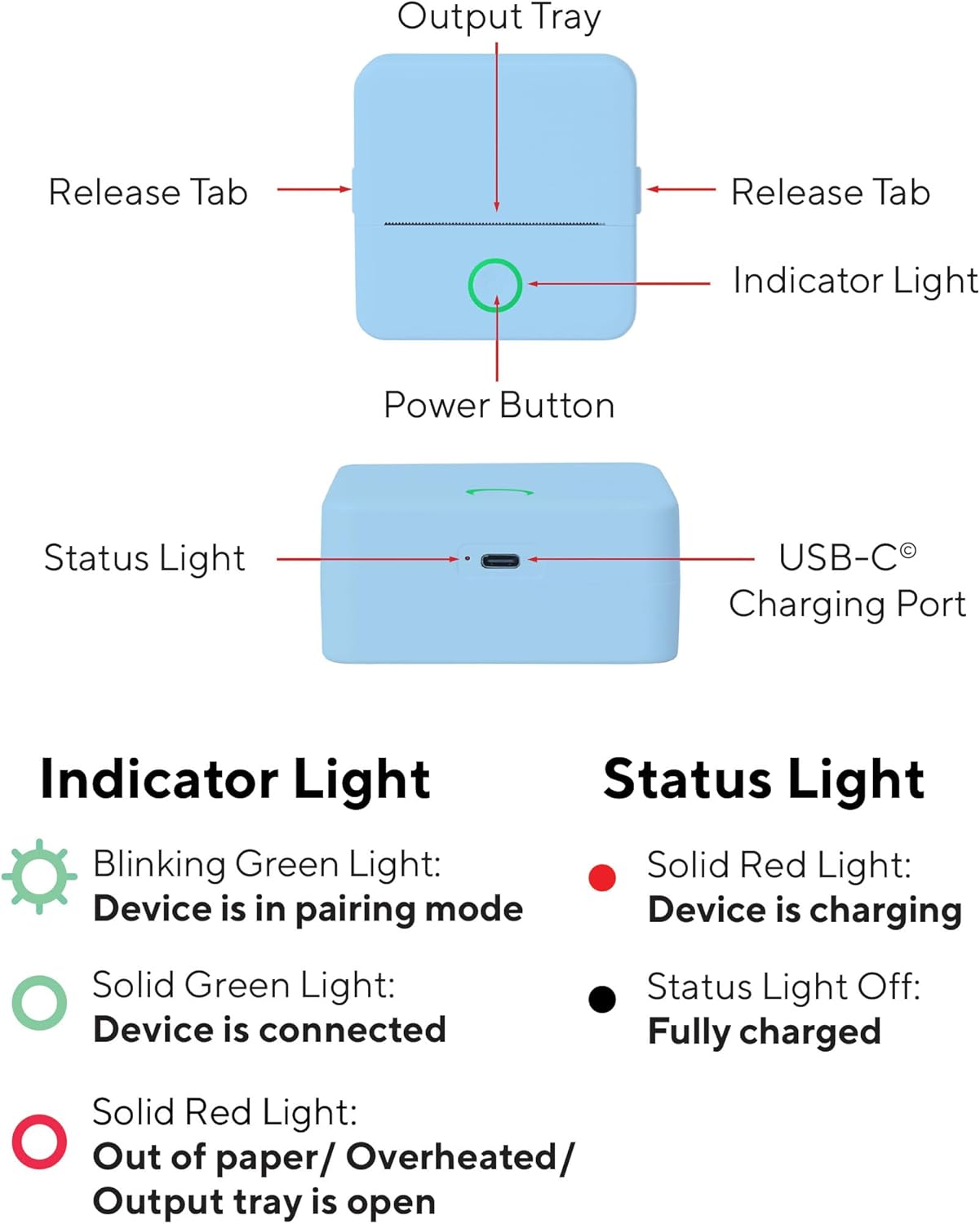
Image 2.1: Printer components and indicator light guide. The top view shows the Output Tray, Release Tabs, Indicator Light, and Power Button. The side view shows the Status Light and USB-C Charging Port. The guide explains that a Blinking Green Light means the device is in pairing mode, a Solid Green Light means the device is connected, a Solid Red Light means the device is charging, and Status Light Off means it is fully charged. A Solid Red Light on the Indicator Light means out of paper, overheated, or output tray is open.
2.4 Lawrlwytho'r Ap
The Core Innovations printer requires the "InstaPrint" app for operation. Download the free app from the Apple App Store (for iOS devices) or Google Play Store (for Android devices).

Image 2.2: Download the free InstaPrint app from your device's app store to enable printing.
2.5 Papur Llwytho
Follow these steps to load paper into your printer:
- Press the release tabs on both sides of the printer and open the lid.
- Insert a paper roll into the compartment, ensuring the paper feeds out from the top and is aligned correctly.
- Close the lid firmly until it clicks into place. Ensure the paper is slightly protruding from the output slot.

Image 2.3: Step-by-step guide for loading paper. Maximum paper size: 2.25", Minimum paper size: 2.0".
3. Cyfarwyddiadau Gweithredu
3.1 Cysylltu trwy Bluetooth
Ensure your printer is powered on and the Indicator Light is blinking green (pairing mode). Open the InstaPrint app on your device. The app will automatically search for and connect to your printer. Once connected, the Indicator Light on the printer will turn solid green.
3.2 Printing from the App
- Open the InstaPrint app on your connected device.
- Select the content you wish to print (e.g., photo, text, label design).
- Customize print settings such as darkness (shallow, middle, dark, custom) and size within the app.
- Cynview your print to ensure it looks as desired.
- Tap the "Print" button. The printer will begin printing your content.

Image 3.1: The printer producing a monochrome printout.
3.3 Fideo Cynnyrch Swyddogol
Video 3.1: This video demonstrates the Core Innovations Wireless Portable Thermal Printer in action, showcasing its compact size, ease of use, and the quality of its prints. It highlights the inkless printing technology and the ability to print photos and designs quickly.
4. cynnal
4.1 Replacing Paper Rolls
When the paper roll is depleted or you wish to change paper types, follow the steps outlined in Section 2.5 "Loading Paper" to replace the roll. Ensure the new roll is properly seated before closing the lid.
4.2 Glanhau'r Argraffydd
To maintain optimal print quality, periodically clean the print head and paper path. Use a soft, lint-free cloth slightly dampened with isopropyl alcohol to gently wipe the print head. Ensure the printer is off and completely dry before use.
5. Datrys Problemau
5.1 Materion ac Atebion Cyffredin
- Nid yw'r argraffydd yn troi ymlaen: Ensure the printer is fully charged. Connect it to a power source using the USB-C cable.
- Methu cysylltu trwy Bluetooth:
- Ensure the printer is powered on and the Indicator Light is blinking green.
- Make sure Bluetooth is enabled on your smartphone/tablet.
- Restart both the printer and your device, then try connecting again through the InstaPrint app.
- Poor print quality / Faint prints:
- Check the paper roll to ensure it is thermal paper and loaded correctly.
- Adjust the print darkness setting in the InstaPrint app to "Dark" or "Custom".
- Clean the print head as described in Section 4.2.
- Printer not printing / Paper jam:
- Ensure there is paper loaded and it is not jammed. Open the lid and re-seat the paper roll.
- Check the Indicator Light. A solid red light may indicate out of paper, overheating, or the output tray is open.
- Sicrhewch fod y caead wedi'i gau'n ddiogel.
6. manylebau
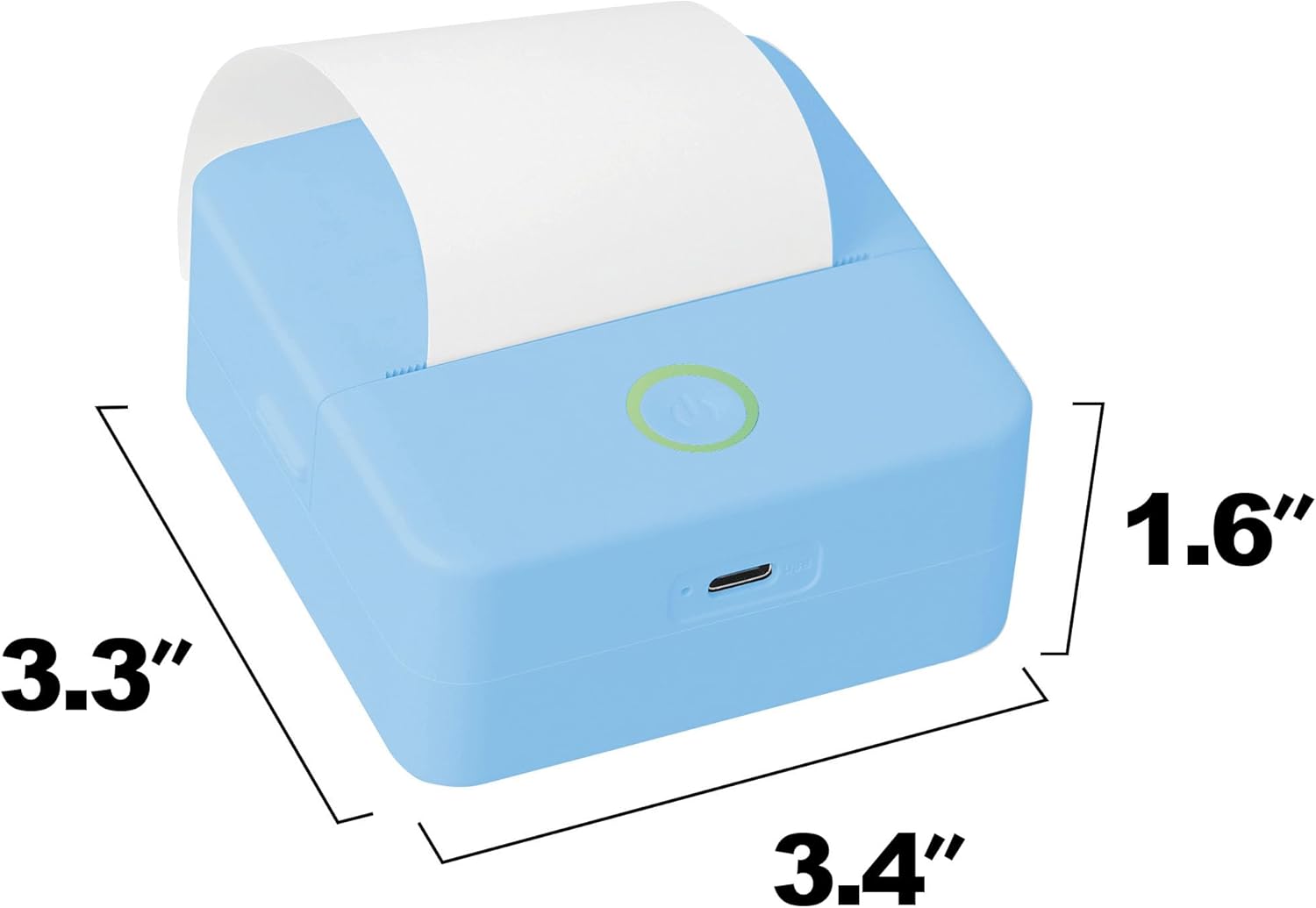
Image 6.1: Dimensions of the Core Innovations Wireless Mini Portable Thermal Printer.
| Nodwedd | Manylyn |
|---|---|
| Enw Model | CTP500SB |
| Technoleg Argraffu | Thermol |
| Technoleg Cysylltedd | Bluetooth, USB |
| Allbwn Argraffydd | Unlliw |
| Datrysiad | 200 x 200 DPI |
| Cyflymder Argraffu Uchaf Unlliw | 12 ppm |
| Dyfeisiau Cydnaws | Android, iOS Smartphones/Tablets |
| Dull Rheoli | Ap |
| Bywyd Batri | Hyd at 1.5 awr o ddefnydd parhaus |
| Dimensiynau Cynnyrch | 3.31 x 3.31 x 1.46 modfedd |
| Pwysau Eitem | 11.7 owns |
| UPC | 810111502603 |
7. Gwarant
This product comes with a Limited Warranty. Please refer to the product packaging or the manufacturer's official websafle am delerau ac amodau gwarant manwl.
8. Cefnogaeth
For further assistance, technical support, or to purchase additional paper rolls, please visit the Core Innovations official website or contact their customer service. You can also find more information and FAQs within the InstaPrint app.
Am ragor o wybodaeth, ewch i: Core Innovations Support
Ask a question about this manual
Ask about setup, troubleshooting, compatibility, parts, safety, or missing instructions. Manuals+ will review the question and use this page’s manual context to help answer it.