
Rhagymadrodd
This manual provides detailed instructions for the setup, operation, and maintenance of your Prechen 10.1 inch Portable Touchscreen Monitor, Model HD-101. Please read this manual thoroughly before using the device to ensure proper functionality and to prevent damage.
Nodweddion Cynnyrch
- Portable Touchscreen: This 10.1-inch monitor is compact and lightweight, designed for portability. The touchscreen functionality allows for intuitive navigation and interaction, enhancing productivity on the go.
- High-Resolution IPS Display: Features a 1920x1200 resolution with a 16:10 aspect ratio, delivering clear and vibrant visuals. IPS technology provides wide viewing angles and accurate color reproduction, suitable for various applications.
- Cysylltedd Amlbwrpas: Equipped with HDMI and USB-C ports, offering flexible connection options. It can be easily connected to Windows PCs, laptops, and gaming consoles like Xbox. Note: USB-C is for touch functionality and power.
- Siaradwyr Integredig: Built-in speakers provide clear and dynamic audio, eliminating the need for external speakers during media consumption, gaming, or virtual meetings.
- Cyd-fynd â Mount VESA: The monitor supports VESA mounting standards, allowing for attachment to compatible stands or arms for customized workspace setups and comfortable viewing onglau.
Gosod
Cynnwys Pecyn
Gwiriwch fod yr holl eitemau yn bresennol yn y pecyn:
- Prechen 10.1 inch Portable Touchscreen Monitor
- Cebl HDMI
- Cebl USB-C i USB-C
- USB-A to USB-C Cable (for power/touch)
- Addasydd Pŵer
- Llawlyfr Defnyddiwr (y ddogfen hon)
Cysylltu'r Monitor
- Cysylltiad Pwer: Connect the provided power adapter to the DC Power Port on the monitor and plug it into a power outlet. Alternatively, if your device supports power delivery, connect a USB-C to USB-C cable to the USB-C (Power & Touch) port for both power and signal.
- Cysylltiad Fideo:
- HDMI: Connect one end of the HDMI cable to the HDMI port on the monitor and the other end to the HDMI output of your computer or device.
- USB-C (DisplayPort Alternate Mode): If your device supports DisplayPort Alternate Mode over USB-C, connect a USB-C to USB-C cable to the USB-C (Power & Touch) port on the monitor and your device. This single cable can provide video, power, and touch functionality.
- Ymarferoldeb Cyffwrdd: For touch functionality, ensure the USB-C (Power & Touch) port is connected to your device. If using HDMI for video, you will also need to connect a USB-A to USB-C cable from your device's USB-A port to the monitor's USB-C (Power & Touch) port.
- Allbwn sain: If you wish to use external headphones or speakers, connect them to the 3.5mm Audio Port on the monitor.
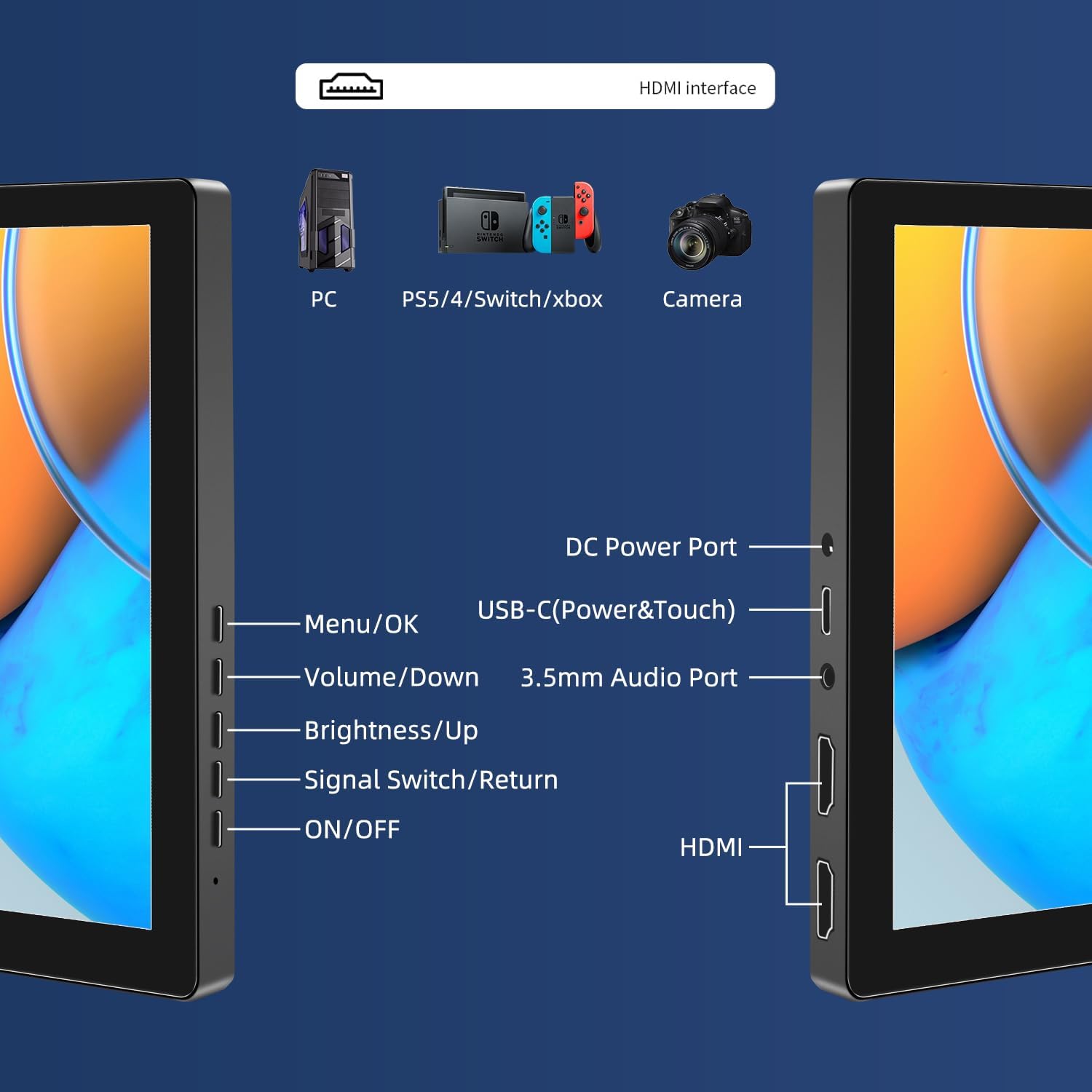
Delwedd: Drosoddview of the monitor's ports including DC Power, USB-C (Power & Touch), 3.5mm Audio, HDMI, and control buttons.
Cyfarwyddiadau Gweithredu
Pweru Ymlaen/Diffodd
- To power on the monitor, press the YMLAEN / I FFWRDD botwm.
- I bweru i ffwrdd, pwyswch a dal y YMLAEN / I FFWRDD button for a few seconds until the screen turns off.
Gan ddefnyddio'r Ddewislen Arddangos Ar y Sgrin (OSD)
The OSD menu allows you to adjust various display settings.
- Gwasgwch y Dewislen / Iawn button to open the OSD menu.
- Defnyddiwch y Cyfrol / Lawr a Disgleirdeb / I fyny botymau i lywio trwy opsiynau'r ddewislen.
- Gwasgwch Dewislen / Iawn to select an option or confirm a setting.
- Gwasgwch y Signal Switch/Return button to go back to the previous menu or exit the OSD.
Adjusting Display Modes
The monitor supports multiple display modes when connected to a computer:
- Modd Dyblyg: Displays the same content on both your primary screen and the portable monitor.
- Ymestyn Modd: Extends your desktop across both screens, providing more workspace.
- Ail Modd Sgrin: Uses only the portable monitor as the display.
These modes are typically configured through your operating system's display settings (e.g., Windows Display Settings, macOS System Preferences).
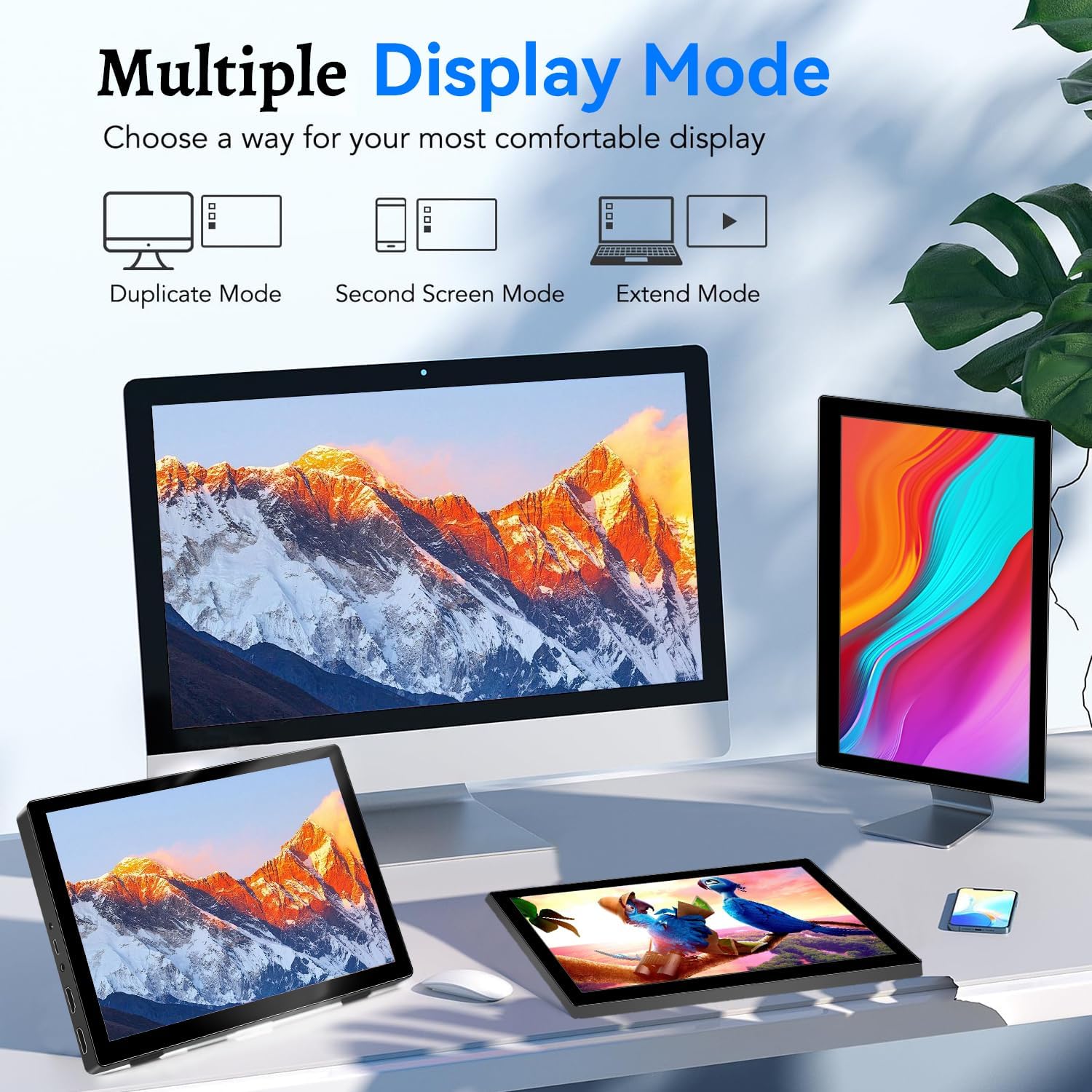
Image: Visual representation of Duplicate, Second Screen, and Extend display modes.
Using Touchscreen Functionality
The monitor supports 10-point touchscreen technology. Ensure the USB-C (Power & Touch) port is correctly connected to your device for touch input to function.

Delwedd: Examples of 10-point touchscreen gestures for interaction.
Cynnal a chadw
- Glanhau'r sgrin: Defnyddiwch frethyn meddal, di-lint ychydig dampened with water or a non-abrasive screen cleaner. Do not spray cleaner directly onto the screen.
- Glanhau'r Casing: Sychwch y monitor casing gyda lliain meddal, sych. Osgowch ddefnyddio glanedyddion neu doddyddion cryf.
- Storio: When not in use, store the monitor in a cool, dry place, away from direct sunlight and extreme temperatures.
- Trin: Avoid dropping or subjecting the monitor to strong impacts. Do not place heavy objects on top of the monitor.
Datrys problemau
| Problem | Achos Posibl | Ateb |
|---|---|---|
| Dim arddangosfa/sgrin ddu |
|
|
| Sgrin gyffwrdd ddim yn ymateb |
|
|
| Dim sain o'r siaradwyr |
|
|
| Image quality issues (blurry, distorted) |
|
|
Manylebau
| Nodwedd | Manylyn |
|---|---|
| Brand | Prechen |
| Rhif Model | HD-101 |
| Maint Sgrin | 10.1 modfedd |
| Datrysiad | 1920 x 1200 (UXGA Wide) |
| Cymhareb Agwedd | 16:10 |
| Math o Banel | IPS |
| Cyfradd Adnewyddu | 60 Hz |
| Amser Ymateb | 1 ms |
| Cysylltedd | 1x HDMI, 1x USB-C (Power & Touch), 1x 3.5mm Audio Jack, 1x DC Power Port |
| Dimensiynau (L x W x H) | 21.8 x 15.8 x 1.4 cm |
| Pwysau | 990 gram |
| Gwneuthurwr | Shenzhen Kenowa Electronics Co., LTD |
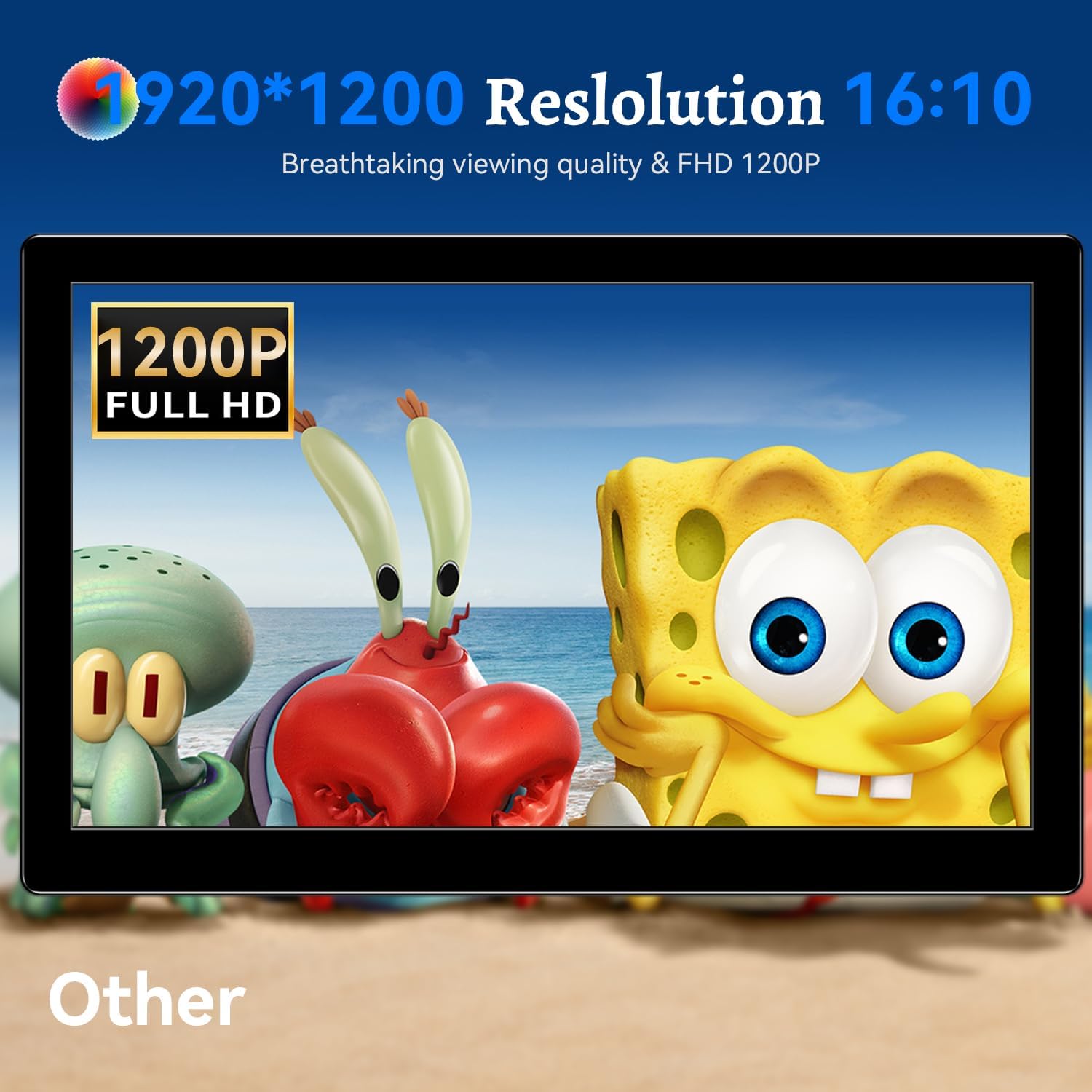
Delwedd: Y monitor yn dangosasing its 1920x1200 Full HD resolution.

Image: The monitor's IPS panel offering wide viewing angles and rich colors.
Gwarant a Chefnogaeth
For warranty information and technical support, please refer to the warranty card included with your product or contact Prechen customer service through their official website. Please have your model number (HD-101) and purchase details ready when contacting support.