
Rapoo M300G
Rapoo M300G Silent Wireless Mouse User Manual
Model: M300G
Rhagymadrodd
This manual provides detailed instructions for the setup, operation, and maintenance of your Rapoo M300G Silent Wireless Mouse. Please read this manual thoroughly to ensure proper use and to maximize the performance of your device.
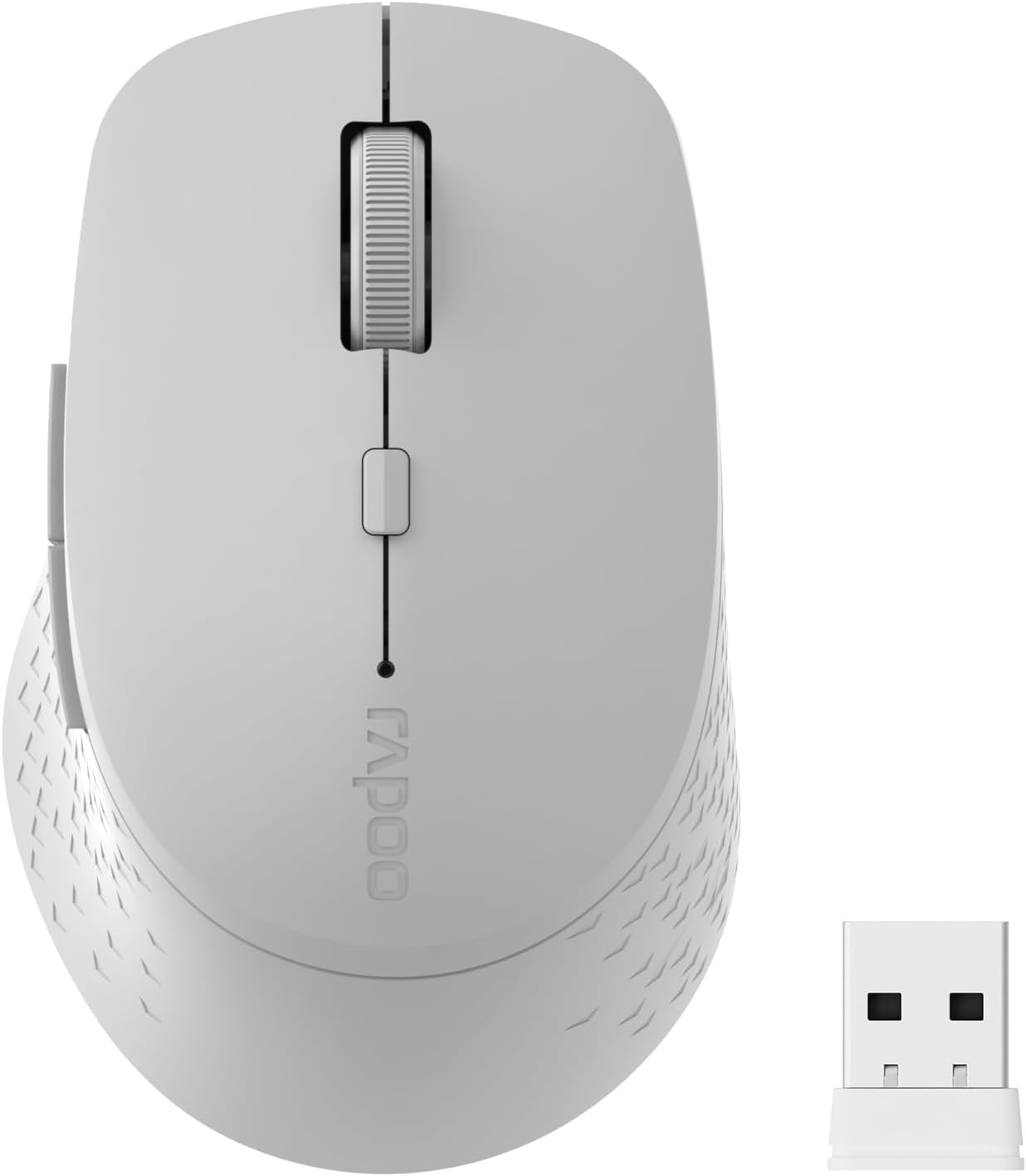
Image: The Rapoo M300G Silent Wireless Mouse in light grey, shown with its accompanying USB receiver.
Cynnwys Pecyn
Gwiriwch fod yr holl eitemau yn bresennol yn y pecyn:
- Rapoo M300G Wireless Mouse (x1)
- USB Receiver (x1)
- Batri AA (x1)
- Llawlyfr Cynnyrch (x1)
Cynnyrch Drosview
Familiarize yourself with the components of your Rapoo M300G mouse.
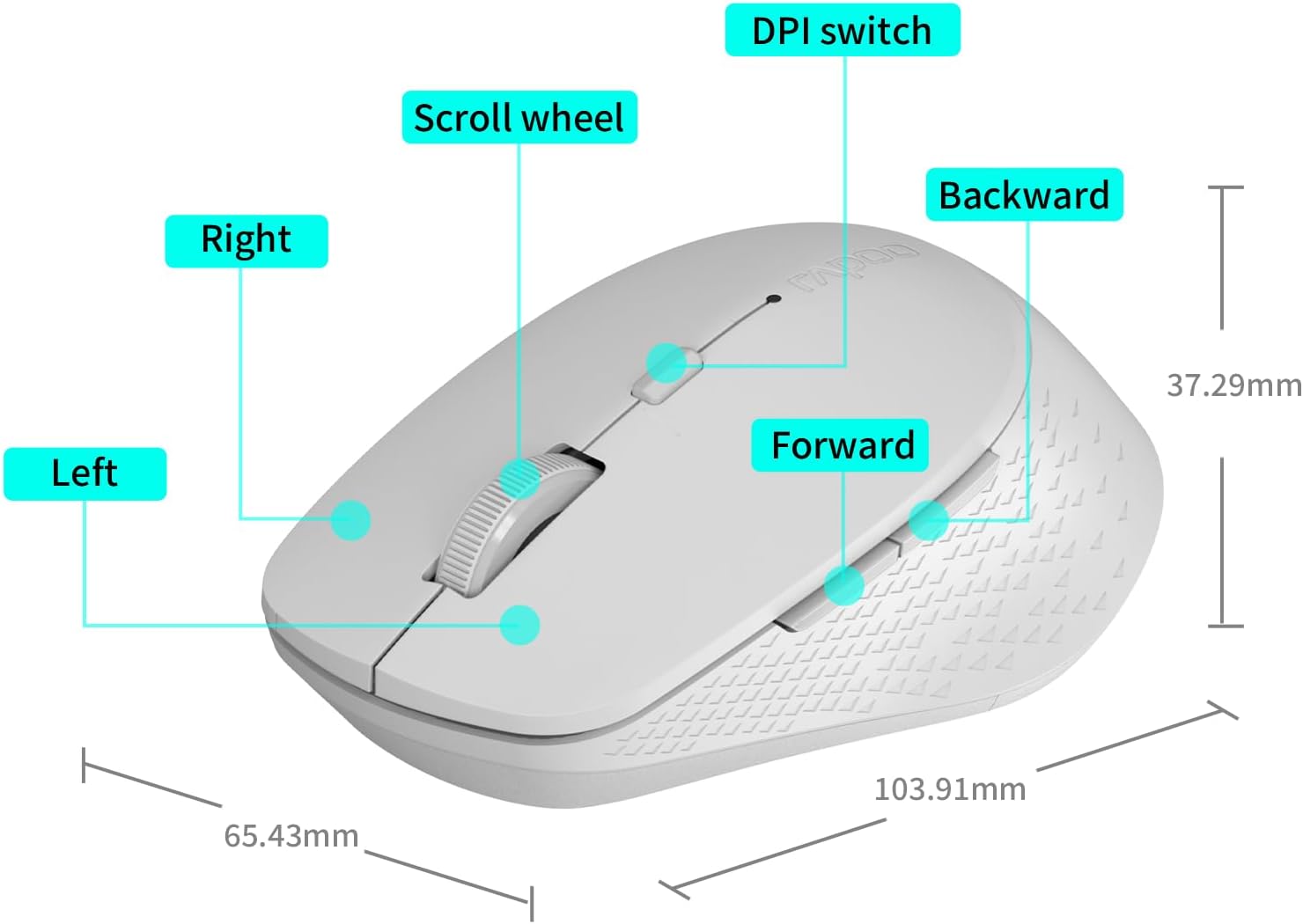
Image: A diagram illustrating the various parts of the Rapoo M300G mouse, including the left and right click buttons, scroll wheel, DPI switch, and forward/backward side buttons.
- Botwm Chwith: Swyddogaeth clicio safonol.
- Botwm De: Context menu function.
- Olwyn Sgroliwch: For vertical scrolling and middle-click.
- Switsh DPI: Yn addasu sensitifrwydd y cyrchwr.
- Botwm Ymlaen: Yn llywio ymlaen yn web porwyr neu file fforwyr.
- Botwm Yn ôl: Yn llywio yn ôl i mewn web porwyr neu file fforwyr.
Cyfarwyddiadau Gosod
The Rapoo M300G mouse supports both 2.4GHz wireless and Bluetooth connectivity. Choose the method that best suits your device.
1. Gosod Batri
Open the battery compartment on the underside of the mouse. Insert the provided AA battery, ensuring correct polarity. Close the compartment.

Image: Illustration of the mouse's underside, highlighting the battery compartment and the integrated USB receiver storage slot.
2. Connecting via 2.4GHz Wireless Mode
- Locate the USB receiver inside the mouse's battery compartment.
- Remove the USB receiver and plug it into an available USB port on your computer.
- Trowch y llygoden ymlaen gan ddefnyddio'r switsh pŵer ar yr ochr isaf.
- The mouse should automatically connect to your computer. No additional drivers are typically required.
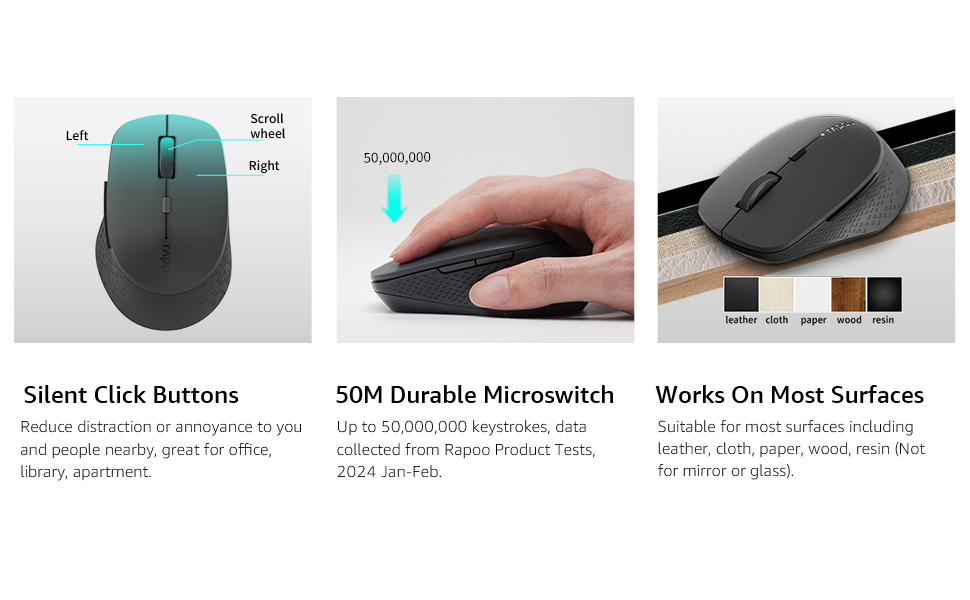
Image: Visual guide for connecting the mouse. The 2.4GHz mode shows the USB receiver being inserted into a computer.
3. Connecting via Bluetooth Mode
The mouse supports Bluetooth 5.0 and 4.0.
- Trowch y llygoden ymlaen gan ddefnyddio'r switsh pŵer ar yr ochr isaf.
- Press and hold the multifunction button on the underside of the mouse for 3-5 seconds until the indicator light flashes slowly. This indicates pairing mode.
- Ar eich cyfrifiadur neu ddyfais, agorwch osodiadau Bluetooth.
- Chwiliwch am new devices and select "Rapoo M300G" (or similar) from the list.
- Follow any on-screen prompts to complete the pairing process. The indicator light will stop flashing once connected.

Image: Diagram detailing the multifunction button on the mouse's underside, explaining its use for DPI adjustment (short press) and Bluetooth pairing (long press).
Image: Visual guide for connecting the mouse. The Bluetooth mode shows the mouse pairing with a laptop.
Cyfarwyddiadau Gweithredu
1. Switching Between Devices (Multi-Mode)
The Rapoo M300G can connect to two devices simultaneously (one via 2.4GHz, one via Bluetooth). To switch between connected devices, briefly press the multifunction button on the underside of the mouse. The indicator light will change to confirm the active connection mode.

Image: The Rapoo M300G mouse demonstrating its ability to connect to two devices simultaneously, one via 2.4GHz and another via Bluetooth.
2. Addasu DPI (Sensitifrwydd)
The mouse offers 5 adjustable DPI levels: 800, 1000, 1200, 1600, and 2400. To change the DPI, press the DPI switch button located on the top of the mouse, below the scroll wheel. Each press cycles through the available DPI settings.

Image: A visual representation of the mouse's adjustable DPI settings, ranging from 800 to 2400, with an arrow pointing to the DPI switch button.
3. Nodwedd Clic Tawel
The Rapoo M300G features silent click buttons, reducing operational noise by 90%. This design is intended for quiet environments, minimizing disturbance to others.

Image: The Rapoo M300G mouse, emphasizing its silent click functionality, suitable for quiet environments.

Delwedd: Manwl view of the mouse's silent click buttons, durable microswitches, and its ability to function on various surfaces.
4. Cydnawsedd Arwyneb
The advanced optical tracking engine allows the mouse to operate effectively on various surfaces, including leather, cloth, paper, wood, and resin, without requiring a mouse pad. Performance may vary on glass or mirrored surfaces.

Image: The Rapoo M300G mouse positioned on different materials, highlighting its capability to track on diverse surfaces.
Cynnal a chadw
1. Amnewid Batri
When the mouse performance degrades or the indicator light signals low battery, replace the AA battery. The mouse is designed for low power consumption, offering up to 12 months of battery life under normal conditions.

Image: An illustration emphasizing the Rapoo M300G mouse's extended battery life of up to 12 months.
2. Glanhau
I lanhau'r llygoden, defnyddiwch frethyn meddal, sych. Ar gyfer baw ystyfnig, defnyddiwch frethyn ychydig yn sych.amp cloth can be used, ensuring no moisture enters the internal components. Avoid using harsh chemicals or abrasive materials.
Datrys problemau
Llygoden Ddim yn Ymateb
- Gwirio Batri: Ensure the AA battery is correctly installed and has sufficient charge. Replace if necessary.
- Newid Pwer: Verify the mouse is turned on.
- USB Receiver (2.4GHz Mode): Gwnewch yn siŵr bod y derbynnydd USB wedi'i blygio'n ddiogel i borthladd USB sy'n gweithio. Rhowch gynnig ar borthladd USB gwahanol.
- Bluetooth Connection (Bluetooth Mode):
- Sicrhewch fod Bluetooth wedi'i alluogi ar eich dyfais.
- Re-enter pairing mode on the mouse (long press multifunction button) and re-pair with your device.
- Remove the mouse from your device's Bluetooth list and attempt to pair again.
- Ymyrraeth: Symudwch y llygoden yn agosach at y derbynnydd/dyfais. Osgowch ddefnyddio'r llygoden ger dyfeisiau diwifr eraill a allai achosi ymyrraeth.
Mae Symud Cyrchwr yn Anghywir
- Synhwyrydd Glân: Ensure the optical sensor on the underside of the mouse is clean and free from dust or debris.
- Arwyneb: Try using the mouse on a different surface. While the mouse works on many surfaces, some highly reflective or uneven surfaces may affect tracking.
- Lleoliad DPI: Adjust the DPI setting using the DPI switch button to see if a different sensitivity improves performance.
Manylebau
| Model | M300G |
| Technoleg Cysylltedd | Bluetooth 5.0, Bluetooth 4.0, 2.4GHz Wireless |
| Technoleg Canfod Symudiad | Optegol |
| DPI addasadwy | 800/1000/1200/1600/2400 |
| Nodweddion Arbennig | Silent Clicks, Multi-Device Switching, Portable, Ergonomic Design |
| Math Batri | 1 x Batri AA (wedi'i gynnwys) |
| Bywyd Batri | Hyd at 12 mis |
| Dimensiynau Cynnyrch | 4.09 x 2.57 x 0.04 modfedd (103.91 x 65.43 x 37.29 mm) |
| Pwysau Eitem | 3.52 owns (100g) |
| Cydweddoldeb | Windows, Mac OS, Linux, iOS, Android, Chrome OS |
Gwarant a Chefnogaeth
Your Rapoo M300G Silent Wireless Mouse comes with a gwarant blwyddyn o ddyddiad y pryniant. Yn ogystal, a 30-day return and refund or replacement policy is offered. For warranty claims, technical support, or product inquiries, please contact your retailer or visit the official Rapoo websafle am gymorth.
Am ragor o wybodaeth, gallwch ymweld â'r Rapoo Brand Store on Amazon.
Ask a question about this manual
Ask about setup, troubleshooting, compatibility, parts, safety, or missing instructions. Manuals+ will review the question and use this page’s manual context to help answer it.