
1. Rhagymadrodd
This manual provides essential information for the installation, operation, and maintenance of your KOOTION 256GB NVMe M.2 PCIe 3.0 Solid State Drive. This internal SSD is designed to enhance the performance of compatible laptops and desktop PCs by offering high-speed data transfer and improved system responsiveness.
The drive features an NVMe PCIe Gen3x4 interface, delivering sequential read speeds up to 3,000 MB/s and sequential write speeds up to 2,400 MB/s. Its M.2 2280 form factor ensures broad compatibility with modern systems.

Image 1.1: Visual representation of the KOOTION NVMe M.2 SSD highlighting its sequential read and write speeds.
2. Gwybodaeth Diogelwch
- Always handle the SSD by its edges to avoid touching the gold connectors or components.
- Wear an anti-static wrist strap or discharge static electricity by touching a grounded metal object before handling the SSD.
- Ensure your computer is powered off and unplugged from the power source before installation.
- Avoid exposing the SSD to extreme temperatures, moisture, or direct sunlight.
- Do not attempt to disassemble or modify the SSD, as this will void the warranty and may cause damage.
3. Cynnwys Pecyn
Verify that your package contains the following item:
- 1 x KOOTION 256GB PCIe 3.0 M.2 Internal Solid State Drive
4. Gosod a Gosod
This section outlines the general steps for installing your M.2 NVMe SSD. Specific steps may vary depending on your computer's motherboard or laptop model. Refer to your computer's manual for detailed instructions.
4.1 Rhestr Wirio Cyn-Gosod
- A compatible M.2 slot (Key M, PCIe Gen3x4) on your motherboard or laptop.
- Sgriwdreifer pen Phillips bach.
- Strap arddwrn gwrth-statig (argymhellir).
- Your computer's user manual for M.2 slot location and screw type.
4.2 Installation Steps (Desktop PC)
- Pwer i ffwrdd: Diffoddwch eich cyfrifiadur yn llwyr a datgysylltwch y cebl pŵer.
- Achos Agored: Agorwch eich cas cyfrifiadur.
- Lleoli Slot M.2: Identify an available M.2 slot on your motherboard. It is typically labeled 'M.2' or 'NVMe'.
- Remove Standoff Screw: If present, remove the small screw and standoff from the M.2 slot.
- Mewnosodwch SSD: Gently insert the KOOTION NVMe SSD into the M.2 slot at a 30-degree angle. The gold contacts should disappear into the slot.
- SSD Diogel: Push the SSD down until it is parallel with the motherboard. Secure it with the standoff and screw.
- Cau'r Achos: Caewch gas eich cyfrifiadur ac ailgysylltwch y cebl pŵer.
4.3 Installation Steps (Laptop)
- Pwer i ffwrdd: Shut down your laptop completely and unplug the power adapter. Remove the battery if it is external.
- Panel Mynediad: Locate and open the access panel for the storage drive or the entire bottom cover of your laptop.
- Lleoli Slot M.2: Identify an available M.2 slot.
- Remove Standoff Screw: If present, remove the small screw and standoff.
- Mewnosodwch SSD: Gently insert the KOOTION NVMe SSD into the M.2 slot at a 30-degree angle.
- SSD Diogel: Push the SSD down and secure it with the standoff and screw.
- Cau'r Panel: Reattach the access panel or bottom cover and reinsert the battery (if applicable).

Image 4.1: The KOOTION NVMe M.2 SSD correctly installed in a motherboard's PCIe Gen3x4 M.2 slot.
4.4 Initializing and Formatting the SSD
After physical installation, the SSD needs to be initialized and formatted before it can be used. This process is typically done through your operating system.
- Windows: Open Disk Management (right-click Start button > Disk Management). Locate the new SSD, right-click it, and select 'Initialize Disk'. Choose GPT (GUID Partition Table) for modern systems. Then, right-click the unallocated space, select 'New Simple Volume', and follow the wizard to format it (NTFS recommended).
- MacOS: Open Disk Utility (Applications > Utilities > Disk Utility). Select the new SSD, click 'Erase', choose a name, format (APFS or Mac OS Extended), and scheme (GUID Partition Map).
- Linux: Use tools like GParted or `fdisk`/`mkfs` commands to partition and format the drive.
5. Cyfarwyddiadau Gweithredu
Once installed and formatted, your KOOTION NVMe SSD operates like any other storage drive. For optimal performance and longevity, consider the following:
- Gosod System Weithredu: You can install your operating system directly onto the SSD for faster boot times and application loading.
- Storio Data: Use the SSD for frequently accessed programs, games, and files to benefit from its high read/write speeds.
- Gorchymyn TRIM: Ensure your operating system has TRIM enabled. TRIM helps maintain the performance and lifespan of SSDs by allowing the OS to inform the SSD which data blocks are no longer in use and can be wiped. Modern operating systems typically enable TRIM by default.
- Osgowch Dad-ddarnio: Unlike traditional hard drives, SSDs do not benefit from defragmentation. Defragmenting an SSD can reduce its lifespan without improving performance.
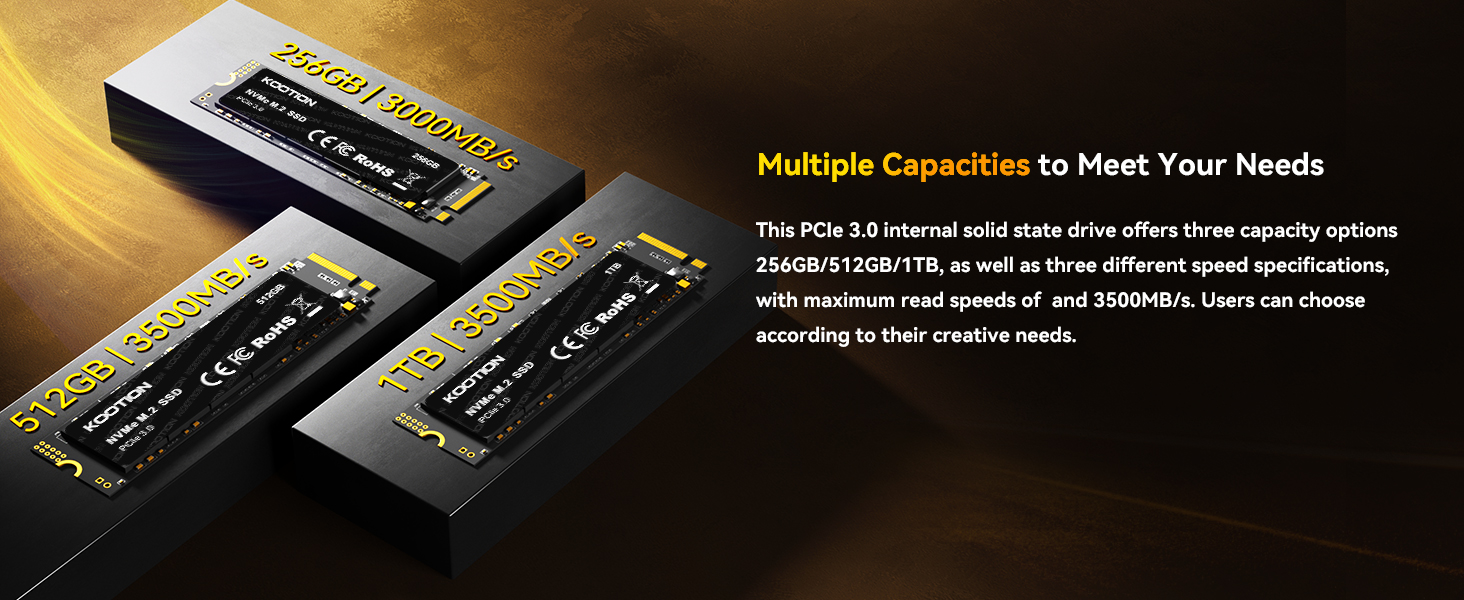
Image 5.1: The KOOTION NVMe M.2 SSD is compatible with various devices, including PCs, All-in-One computers, and laptops, for performance upgrades.
6. cynnal
The KOOTION NVMe SSD is designed for durability and requires minimal maintenance. Adhering to the following guidelines can help ensure its long-term performance:
- Diweddariadau Cadarnwedd: Periodically check the KOOTION official website for any available firmware updates for your SSD model. Firmware updates can improve performance, stability, and compatibility.
- Rheoli Tymheredd: Ensure your computer's cooling system is functioning correctly to prevent excessive heat buildup, which can affect SSD performance and lifespan.
- Copi wrth gefn o ddata: Regularly back up important data to another storage device. While SSDs are reliable, no storage device is immune to failure.

Image 6.1: The KOOTION NVMe M.2 SSD incorporates multiple technologies for enhanced data write performance and durability, including 3D NAND and robust protection features.
7. Datrys Problemau
If you encounter issues with your KOOTION NVMe SSD, try the following troubleshooting steps:
SSD 7.1 Heb ei Ganfod
- Gwirio Cysylltiadau: Ensure the SSD is fully seated in the M.2 slot and the securing screw is in place.
- Gosodiadau BIOS/UEFI: Enter your computer's BIOS/UEFI settings. Verify that the M.2 slot is enabled and configured correctly (e.g., PCIe mode).
- Diweddariadau Gyrwyr: Ensure your motherboard's chipset drivers are up to date.
- Try Another Slot/System: If possible, test the SSD in a different M.2 slot or another compatible computer to rule out a motherboard issue.
7.2 Perfformiad Araf
- Statws TRIM: Verify that TRIM is enabled in your operating system.
- Firmware: Check for and install any available firmware updates for the SSD.
- Adnoddau System: Gwnewch yn siŵr bod gan eich system ddigon o adnoddau RAM a CPU, gan y gall y rhain effeithio ar berfformiad storio cyffredinol.
- Tymheredd: Monitor the SSD's temperature. Overheating can lead to thermal throttling and reduced performance.
7.3 Operating System Not Booting from SSD
- Trefn Gychwyn: Check your BIOS/UEFI settings to ensure the SSD is set as the primary boot device.
- Gosod System Weithredu: Confirm that an operating system has been correctly installed on the SSD.
- Cychwyn/Fformatio: Ensure the SSD was properly initialized and formatted as described in Section 4.4.
8. manylebau
| Nodwedd | Manyleb |
|---|---|
| Brand | KOOTION |
| Rhif Model | 92f69a6d-b16f-407e-83f8-3b946fa61257 |
| Cynhwysedd Storio Digidol | 256 GB |
| Rhyngwyneb gyriant caled | PCIe Gen3x4 |
| Ffactor Ffurf | M.2 2280 |
| Cyflymder Darllen Dilyniannol | Hyd at 3000 MB/s |
| Cyflymder Ysgrifennu Dilyniannol | Hyd at 2400 MB/s |
| Dimensiynau Cynnyrch (LxWxH) | 0.87 x 0.87 x 0.08 modfedd |
| Pwysau Eitem | 0.21 owns |
| Nodweddion Arbennig | Shock Resistant, Durable |
| Dyfeisiau Cydnaws | Laptop, PC Desktop |
9. Gwarant a Chefnogaeth
KOOTION is committed to providing friendly customer service and lifetime technology support for its products. If you have any questions or require assistance with your M.2 NVMe SSD, please contact KOOTION customer support.
For warranty claims or technical support, please refer to the contact information provided on the official KOOTION websafle neu'r ddogfennaeth sydd wedi'i chynnwys gyda'ch pryniant.