
Zenwire A10
Zenwire A10 Mini Portable Projector User Manual
Model: A10
1. Rhagymadrodd
Diolch am brynuasing the Zenwire A10 Mini Portable Projector. This device is designed to provide a versatile and convenient projection experience, allowing you to display content from various sources, including smartphones, tablets, and computers. Please read this manual carefully before using the projector to ensure proper operation and to maximize its lifespan.
2. Cyfarwyddiadau Diogelwch Pwysig
- Peidiwch ag edrych yn uniongyrchol i lens y taflunydd pan fydd y lamp yn ymlaen.
- Ensure proper ventilation around the projector to prevent overheating. Do not block ventilation openings.
- Defnyddiwch yr addasydd pŵer a gyflenwir gyda'r taflunydd yn unig.
- Cadwch y taflunydd i ffwrdd o ddŵr, lleithder a deunyddiau fflamadwy.
- Peidiwch â cheisio dadosod na thrwsio'r taflunydd eich hun. Cysylltwch â phersonél gwasanaeth cymwys i gael cymorth.
- Rhowch y taflunydd ar arwyneb sefydlog, gwastad.
- Datgysylltwch y taflunydd yn ystod stormydd mellt a phan na chaiff ei ddefnyddio am gyfnodau hir.
3. Cynnwys Pecyn
Gwiriwch gynnwys y pecyn wrth ddadbocsio. Os oes unrhyw eitemau ar goll neu wedi'u difrodi, cysylltwch â'ch manwerthwr.
- Zenwire A10 Mini Portable Projector
- Rheolaeth Anghysbell
- Addasydd Pŵer
- Llawlyfr Defnyddiwr
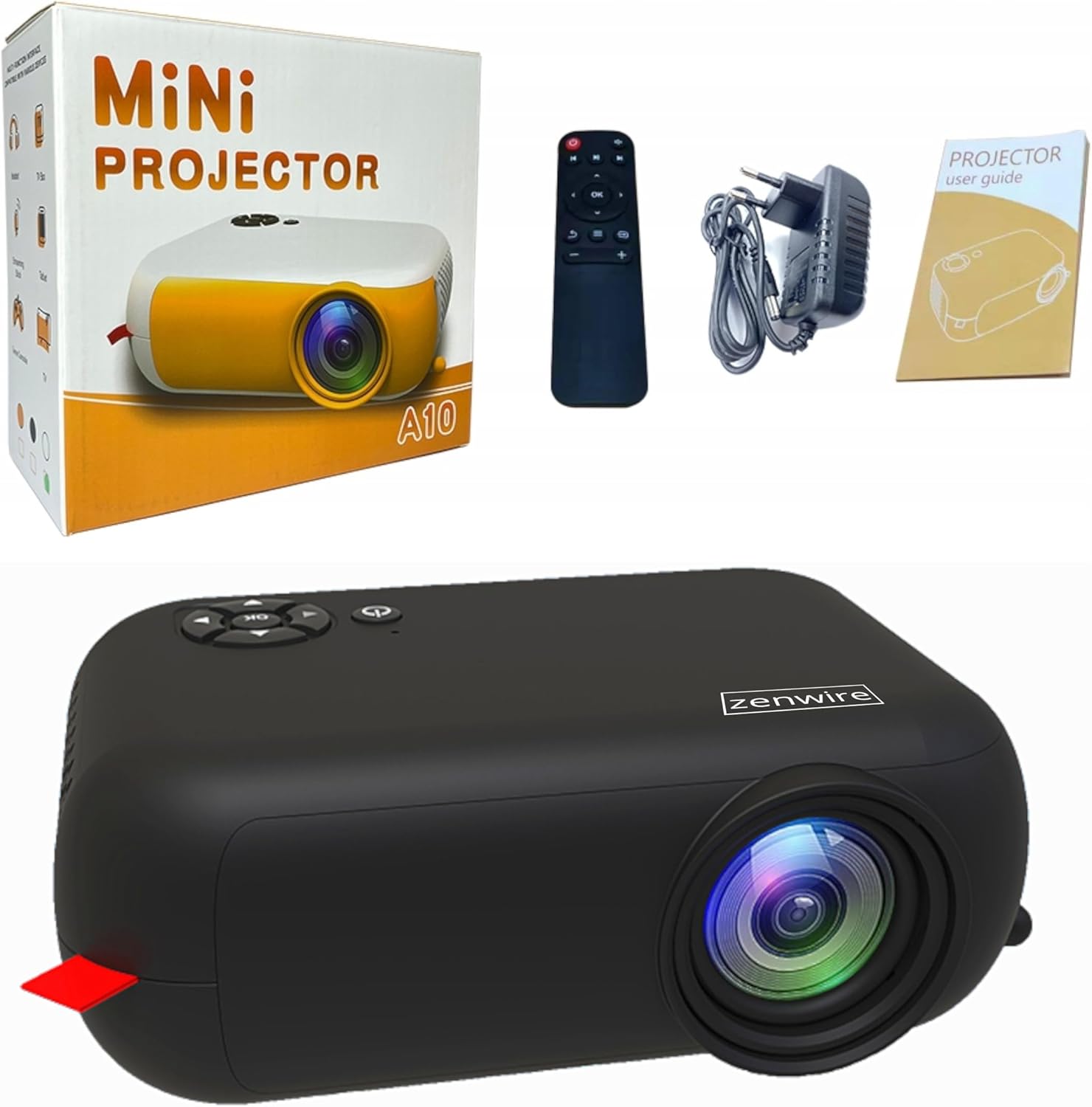
Image: Contents of the Zenwire A10 Mini Projector package, including the projector, remote control, power adapter, and user manual.
4. Cynnyrch Drosview
4.1 Projector Dimensions and Design
The Zenwire A10 is designed for portability, featuring a compact and lightweight form factor. Its dimensions are approximately 14cm x 10cm x 5.5cm, making it easy to carry and set up in various locations.

Image: The Zenwire A10 Mini Projector held in a hand, illustrating its compact size and portability.
4.2 Porthladdoedd a Rheolyddion
The projector features a range of input and output ports for versatile connectivity, along with intuitive controls.

Image: Rear panel of the Zenwire A10 Mini Projector, showing the 5V-IN DC power input, IR receiver, USB port, 3.5mm audio jack, HDMI port, and SD card slot.
- 5V-IN DC: Power input for the projector.
- IR: Derbynnydd isgoch ar gyfer y teclyn rheoli o bell.
- USB: Cysylltwch ddyfeisiau storio USB ar gyfer chwarae cyfryngau.
- Jack clustffon (3.5mm): Cysylltwch siaradwyr neu glustffonau allanol.
- HDMI: Connect devices such as laptops, gaming consoles, or streaming sticks.
- SD: Mewnosodwch gardiau Micro SD ar gyfer chwarae cyfryngau.
- Olwyn Ffocws: Adjust image sharpness (located on the side).
- Panel Rheoli: Buttons on top for navigation and selection.
5. Gosod
5.1 Cysylltiad Pwer
- Cysylltwch yr addasydd pŵer a gyflenwir â'r 5V-IN DC porthladd ar y taflunydd.
- Plygiwch yr addasydd pŵer i mewn i allfa wal.
- Pwyswch y botwm pŵer ar y taflunydd neu'r teclyn rheoli o bell i'w droi ymlaen.
5.2 Placement and Focus Adjustment
- Place the projector on a stable surface or mount it according to your preference. Ensure the projector lens is facing the projection surface (wall or screen).
- Adjust the distance between the projector and the screen to achieve your desired image size. The projector supports screen sizes up to 100 inches.
- Rotate the focus wheel (typically located near the lens) until the projected image appears clear and sharp.

Image: Diagram illustrating the Zenwire A10 Mini Projector's capability to project various screen sizes, from 13 inches up to 100 inches, depending on the projection distance.
6. Gweithredu'r Taflunydd
6.1 Wireless Connection (Miracast & Airplay)
The Zenwire A10 supports wireless screen mirroring via 2.4/5GHz WiFi, compatible with Android (Miracast) and iOS (Airplay) devices.
- Gwnewch yn siŵr bod eich taflunydd a'ch dyfais symudol wedi'u cysylltu â'r un rhwydwaith Wi-Fi.
- On the projector's main menu, select the 'Screen Mirroring' or 'Wireless Display' option.
- Ar gyfer Android: On your Android phone/tablet, enable 'Wireless Display', 'Screen Mirroring', 'Smart View', or similar function (names may vary by device). Select the projector from the list of available devices.
- Ar gyfer iOS: On your iPhone/iPad, open Control Center and tap 'Screen Mirroring'. Select the projector from the list of available devices.
- The content from your mobile device should now be mirrored on the projector screen.
6.2 Cysylltiadau Wired
The projector offers multiple wired input options for various devices.

Image: The Zenwire A10 Mini Projector connected to various devices such as smartphones, tablets, laptops, desktop computers, gaming consoles, and media players, highlighting its versatile connectivity.
- HDMI: Connect a laptop, PC, gaming console (e.g., Xbox, PlayStation), or streaming device (e.g., Amazon Fire TV Stick, Google Chromecast) using an HDMI cable. Select the HDMI input source on the projector.
- USB: Insert a USB flash drive or external hard drive into the USB port. The projector's media player will allow you to browse and play supported video, audio, and image files.
- Micro SD: Insert a Micro SD card into the SD card slot. Similar to USB, you can access media files through the projector's interface.
- Allbwn Sain (Jack 3.5mm): Connect external speakers or headphones to enhance the audio experience.
6.3 Llywio Dewislen
Use the remote control or the buttons on the projector to navigate through the on-screen menu. Select input sources, adjust picture settings (brightness, contrast, color), sound settings, and other system preferences.
7. cynnal
- Glanhau Lens: Use a soft, lint-free cloth specifically designed for optical lenses to gently wipe the projector lens. Avoid using abrasive cleaners or excessive force.
- Tynnu Llwch: Regularly clean the projector's exterior with a soft, dry cloth. Use a small brush or compressed air to clear dust from the ventilation openings to ensure proper airflow.
- Storio: When not in use, store the projector in a cool, dry place, away from direct sunlight and extreme temperatures. Use the original packaging or a protective case to prevent dust accumulation and damage.
8. Datrys Problemau
If you encounter issues with your Zenwire A10 projector, refer to the following common problems and solutions:
| Problem | Achos Posibl | Ateb |
|---|---|---|
| Dim delwedd ar y sgrin | Power not connected; Incorrect input source; Device not connected properly. | Check power cable; Select correct input source (HDMI, USB, etc.); Reconnect source device. |
| Mae'r ddelwedd yn aneglur | Ffocws heb ei addasu; Taflunydd yn rhy agos/bell o'r sgrin. | Adjust the focus wheel; Adjust projection distance. |
| Dim sain | Cyfaint yn rhy isel; Wedi'i dawelu; Dyfais sain allanol heb ei chysylltu/ei dewis. | Increase volume; Unmute; Check external speaker connection or select internal speaker. |
| Materion cysylltiad diwifr | Not on same Wi-Fi network; Device not compatible; Interference. | Ensure both devices are on the same Wi-Fi; Verify device compatibility; Try moving closer to Wi-Fi router. |
9. manylebau
| Nodwedd | Manylyn |
|---|---|
| Brand | Zenwire |
| Rhif Model | A10 |
| Math o Gynnyrch | Compact and Portable Projector |
| Datrysiad Brodorol | 480 x 360p |
| Cydraniad Arddangos Uchaf | 1920 x 1080 (HD Llawn) |
| Disgleirdeb | 1800lm / 60 ANSI |
| Cymhareb Cyferbyniad | 2000:1 |
| Math Arddangos | LED |
| Technoleg Cysylltedd | Wi-Fi (2.4/5GHz), HDMI, USB, Micro SD, 3.5mm Audio Jack |
| Nodweddion Di-wifr | Miracast, Airplay |
| Dyfeisiau Cydnaws | Smartphones (Android, iOS), Tablets, Laptops, PCs, Gaming Consoles |
| Defnyddiau a Argymhellir | Sinema Gartref |
| Dimensiynau (tua) | 14cm x 10cm x 5.5cm |
10. Gwarant a Chefnogaeth
The Zenwire A10 Mini Portable Projector comes with a standard manufacturer's warranty. For specific warranty terms and conditions, please refer to the documentation provided at the time of purchase or contact your retailer. For technical support or service inquiries, please reach out to Zenwire customer service through their official websafle neu'r wybodaeth gyswllt a ddarparwyd gyda'ch cynnyrch.
Ask a question about this manual
Ask about setup, troubleshooting, compatibility, parts, safety, or missing instructions. Manuals+ will review the question and use this page’s manual context to help answer it.