
1. Rhagymadrodd
Diolch am brynuasing the BoxWave SlimKeys Bluetooth Keyboard. This portable, backlit keyboard is designed to enhance your typing experience across various devices, including tablets, smartphones, and computers. Its slim profile, customizable LED backlight, and reliable Bluetooth connectivity make it an ideal companion for productivity on the go. This manual provides detailed instructions for setup, operation, maintenance, and troubleshooting to ensure optimal performance of your device.

Image: The SlimKeys Bluetooth Keyboard positioned alongside a Blackview Tab 7 tablet, demonstrating its compact size and compatibility.
2. Nodweddion Cynnyrch
- Golau cefn LED integredig: Illuminates keys for typing in low-light or dark environments.
- Customizable Backlight: Choose from seven vibrant LED backlight colors to personalize your setup.
- Cysylltedd Di-wifr Dibynadwy: Connects quickly and easily via Bluetooth 3.0 for a stable and responsive typing experience.
- Battery-Saving Power Switch: A dedicated on/off switch helps extend battery life during travel or downtime.
- Dyluniad slim a chludadwy: Compact and lightweight, making it easy to store and transport without added bulk.
- Chiclet Keys: Nodweddion isel-profile keys designed for quiet and comfortable typing.
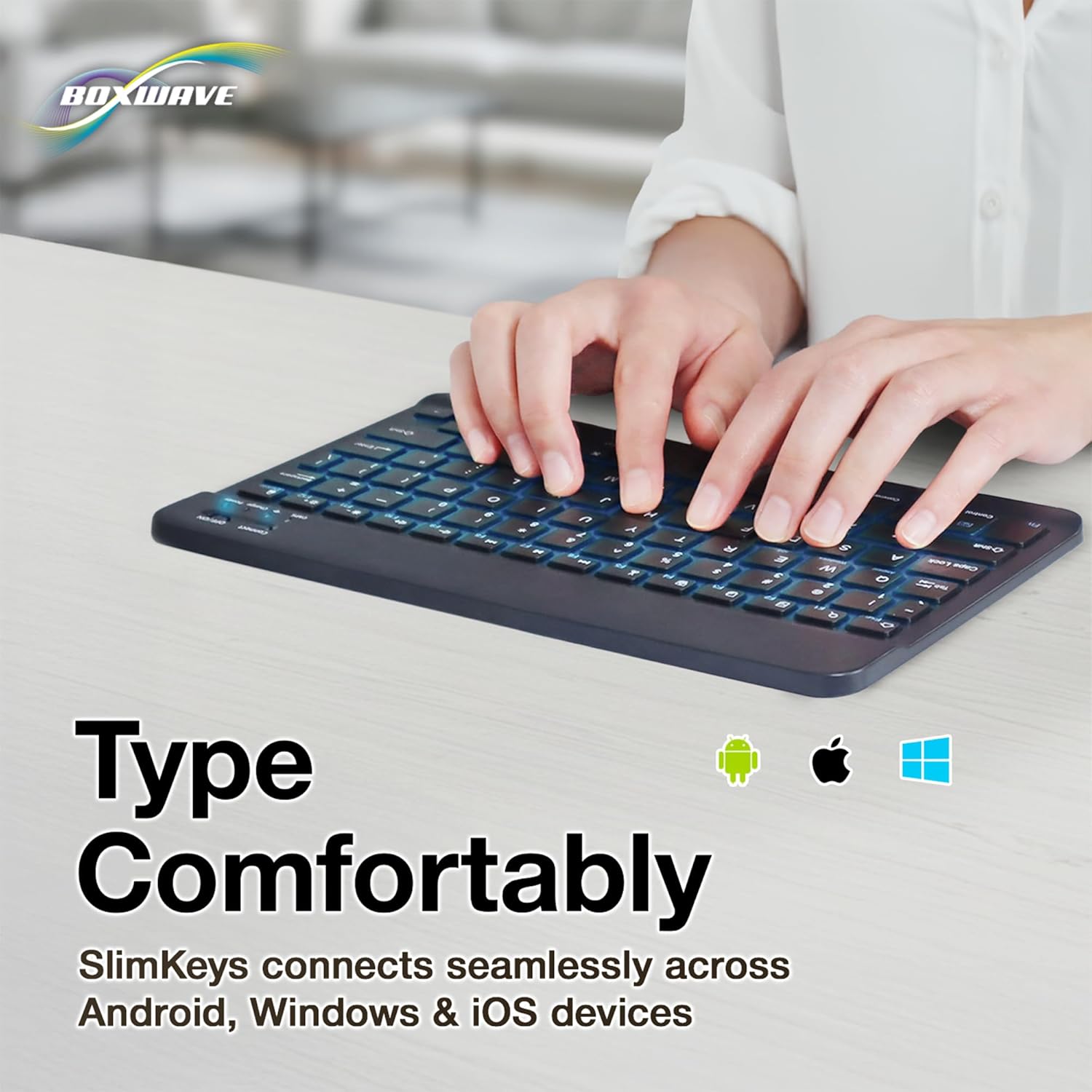
- Cydnawsedd Aml-lwyfan: Seamlessly connects across Android, Windows, and iOS devices.

Image: An infographic highlighting the main features of the SlimKeys keyboard, including backlit keys, multi-platform compatibility, chiclet keys, and its ultra-slim and light design.
3. Canllaw Gosod
3.1. Gwefru'r Bysellfwrdd
Before first use, ensure the keyboard is fully charged. Connect the included charging cable to the keyboard's charging port and to a USB power source (e.g., computer USB port, USB wall adapter). The 'Charge' indicator light will illuminate during charging and turn off when fully charged.

Image: The SlimKeys keyboard with its charging cable connected, demonstrating the charging process and highlighting its long-lasting battery life.
3.2. Pweru Ymlaen / I ffwrdd
Locate the ON/OFF switch on the top right side of the keyboard. Slide the switch to the 'ON' position to power on the keyboard. The 'Power' indicator light will briefly illuminate. To conserve battery, slide the switch to 'OFF' when not in use.
3.3. Pâr Bluetooth
- Sicrhewch fod y bysellfwrdd wedi'i bweru ymlaen.
- Press the 'Connect' button located near the ON/OFF switch. The 'Connect' indicator light will start blinking, indicating the keyboard is in pairing mode.
- On your device (tablet, smartphone, computer), go to the Bluetooth settings.
- Galluogi Bluetooth a chwilio am y dyfeisiau sydd ar gael.
- Select 'BoxWave SlimKeys Keyboard' (or similar name) from the list of found devices.
- If prompted, enter the pairing code displayed on your device's screen using the SlimKeys keyboard, then press Enter.
- Once paired, the 'Connect' indicator light on the keyboard will stop blinking and remain solid, or turn off, depending on the model. Your keyboard is now ready for use.
Delwedd: Manwl view of the top right section of the SlimKeys keyboard, highlighting the 'Connect' button and the 'ON/OFF' switch, along with the indicator lights.
4. Cyfarwyddiadau Gweithredu
4.1. Teipio
Once successfully paired, you can use the SlimKeys keyboard for all your typing needs. The chiclet-style keys provide a comfortable and responsive typing experience.
4.2. Rheoli Backlight
The keyboard features an integrated LED backlight with seven customizable colors. To control the backlight:
- Gwasgwch y Bwlb Golau key (usually located near the right Ctrl key) to turn the backlight on or off.
- Gwasgwch y RGB key (usually located next to the Light Bulb key) to cycle through the seven available backlight colors.

Image: The SlimKeys keyboard showcasing its seven different backlight colors, demonstrating the customization options.
4.3. Specialized Function Keys
The SlimKeys keyboard includes a row of specialized function keys (F1-F12) that provide quick access to common commands. These functions may vary slightly depending on your operating system (Android, Windows, iOS). To use a function key, press the Fn key (usually located near the left Ctrl key) simultaneously with the desired function key.
| Cyfuniad Allweddol | Swyddogaeth |
|---|---|
| Fn + Esc (Home) | Ewch i'r sgrin Cartref |
| Fn + F1 (Search) | Chwiliad Agored |
| Fn + F2 (Select All) | Select All text/items |
| Fn + F3 (Copy) | Copy selected content |
| Fn + F4 (Paste) | Paste content |
| Fn + F5 (Cut) | Cut selected content |
| Fn + F6 (Skip Back) | Neidio i'r trac blaenorol |
| Fn + F7 (Play/Pause) | Play or Pause media |
| Fn + F8 (Skip Forward) | Neidio i'r trac nesaf |
| Fn + F9 (Volume Down) | Lleihau cyfaint |
| Fn + F10 (Volume Up) | Cynyddu cyfaint |
| Fn + F11 (Brightness Down) | Lleihau disgleirdeb sgrin |
| Fn + F12 (Brightness Up) | Cynyddu disgleirdeb sgrin |
| Fn + Delete (Lock) | Lock device screen |

Image: A visual representation of the specialized function keys on the SlimKeys keyboard, detailing their respective commands.
5. cynnal
To ensure the longevity and optimal performance of your BoxWave SlimKeys Bluetooth Keyboard, follow these maintenance guidelines:
- Glanhau: Use a soft, lint-free cloth to wipe the surface of the keyboard. For stubborn dirt, slightly dampgolchwch y brethyn gyda dŵr neu lanhawr ysgafn, nad yw'n sgraffiniol. Osgowch leithder gormodol.
- Storio: Storiwch y bysellfwrdd mewn lle oer, sych i ffwrdd o olau haul uniongyrchol a thymheredd eithafol.
- Osgoi hylifau: Do not expose the keyboard to liquids. In case of accidental spills, immediately power off the keyboard and allow it to dry completely before reuse.
- Ymdrin â Gofal: Avoid dropping the keyboard or subjecting it to strong impacts, which can damage internal components.
6. Datrys Problemau
If you encounter issues with your BoxWave SlimKeys Bluetooth Keyboard, refer to the following common problems and solutions:
| Problem | Achos Posibl | Ateb |
|---|---|---|
| Keyboard does not power on. | Mae batri wedi'i ddisbyddu. | Gwefrwch y bysellfwrdd yn llawn. |
| Cannot pair the keyboard with my device. | Bluetooth not enabled on device; keyboard not in pairing mode; interference. | Ensure Bluetooth is on. Press 'Connect' button on keyboard. Move closer to device. Remove previous pairings. Restart both devices. |
| Mae'r bysellfwrdd yn datgysylltu'n aml. | Low battery; too far from device; interference. | Charge keyboard. Keep keyboard within 10 meters of device. Avoid strong electromagnetic interference. |
| Backlight is not working or stuck on one color. | Backlight off; low battery; software glitch. | Press the Light Bulb key. Charge the keyboard. Power cycle the keyboard (turn off, then on). |
| Nid yw allweddi yn ymateb. | Keyboard not paired; low battery; hardware issue. | Re-pair the keyboard. Charge the keyboard. If problem persists, contact customer support. |
If the problem persists after trying these solutions, please contact BoxWave customer support for further assistance.
7. manylebau
| Nodwedd | Manylyn |
|---|---|
| Enw Model | SlimKeys Bluetooth Keyboard |
| Cysylltedd | Bluetooth 3.0 |
| Golau cefn | 7 LED Colors |
| Cydweddoldeb | Android, Windows, iOS |
| Pwysau Eitem | 8.6 owns (tua 244 gram) |
| Dimensiynau (tua) | 9.5 modfedd (Lled) x 5.75 modfedd (Dyfnder) x 0.2 modfedd (Uchder) |
| Gwneuthurwr | Ton Bocs |

Image: The SlimKeys keyboard shown with its approximate dimensions, illustrating its ultra-slim and lightweight design for portability.
8. Gwarant a Chefnogaeth
BoxWave products are designed for quality and reliability. For information regarding product warranty, returns, or technical support, please refer to the warranty card included with your product or visit the official BoxWave website. You may also contact BoxWave customer service directly for assistance with any product-related inquiries.
Gwybodaeth Gyswllt: Please refer to the packaging or BoxWave's official websafle ar gyfer y manylion cyswllt cymorth cwsmeriaid diweddaraf.