
1. Rhagymadrodd
This manual provides detailed instructions for the TRIGKEY Green G4 Mini PC, featuring the Intel Alder Lake-N100 processor. It covers initial setup, operation, maintenance, and troubleshooting to ensure optimal performance and user experience. Please read this manual thoroughly before using your device.
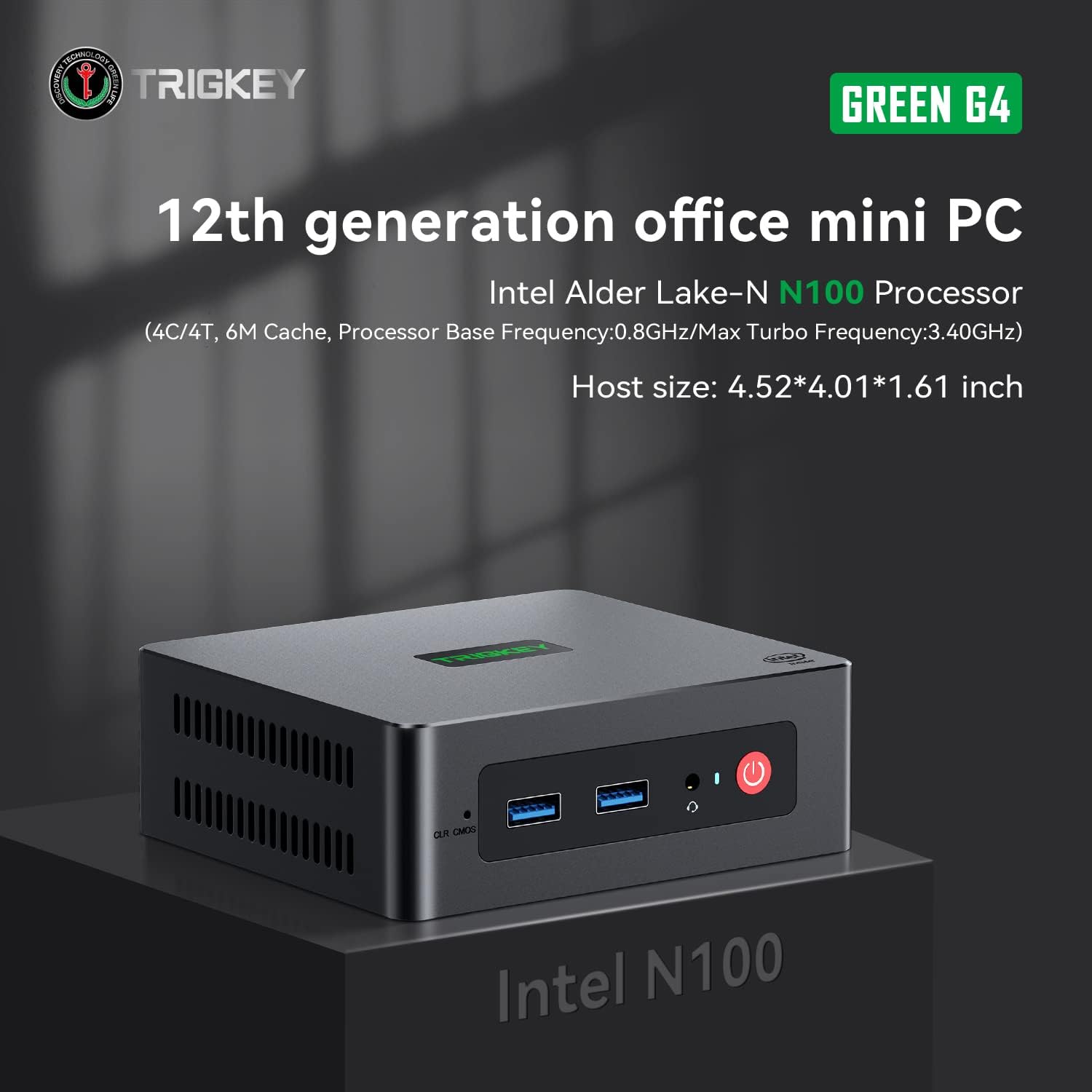
Image: TRIGKEY Green G4 Mini PC, highlighting its compact design and front panel.
2. Cynnyrch Drosview
2.1 Nodweddion Allweddol
- Prosesydd: Intel Alder Lake-N100 (4 Cores/4 Threads, up to 3.4GHz)
- Cof: 16GB DDR4 RAM (ehangadwy)
- Storio: 500GB NVMe SSD (expandable up to 2TB)
- Graffeg: Intel UHD Graphics (24EUs)
- Cysylltedd: WiFi 6, Bluetooth 5.2, 1000MB/s LAN
- Allbwn Arddangos: Dual 4K HDMI (60Hz)
- Dyluniad Compact: Host size approximately 4.52 x 4.01 x 1.61 inches
2.2 Ports and Interfaces

Image: Front and rear interfaces of the Mini PC.
| Porthladd/Rhyngwyneb | Disgrifiad |
|---|---|
| Botwm Pŵer | Yn troi'r ddyfais ymlaen / i ffwrdd. |
| Dangosydd Pŵer | Yn dynodi statws pŵer. |
| RTC Key (CLR CMOS) | Used to clear CMOS settings. |
| USB 3.2 Gen2 (10Gbps) | High-speed data transfer ports. |
| Jack clustffon | Audio output for headphones. |
| LAN (1000M) | Porthladd Gigabit Ethernet ar gyfer cysylltiad rhwydwaith gwifrau. |
| 4K 60Hz HDMI | Dual HDMI ports for high-definition video output. |
| DC Power Adapter Port | Yn cysylltu â'r cyflenwad pŵer. |
| Slot Cloi | For security lock. |
3. Gosod
3.1 Cysylltiad Cychwynnol
- Connect your monitor(s) to the HDMI ports on the rear of the Mini PC.
- Cysylltwch eich bysellfwrdd a'ch llygoden â'r porthladdoedd USB sydd ar gael.
- For wired internet, connect an Ethernet cable to the LAN port. For wireless, ensure the WiFi antenna is connected (if external) or that the internal WiFi is enabled.
- Connect the power adapter to the DC power port and then plug it into a power outlet.
- Pwyswch y botwm pŵer ar flaen y Mini PC i'w droi ymlaen.
3.2 Cychwyn Cyntaf
Upon first boot, the system may guide you through the initial setup of the operating system (e.g., Windows 11). Follow the on-screen prompts to configure language, region, network, and user accounts.
4. Cyfarwyddiadau Gweithredu
4.1 Gweithrediad Sylfaenol
- Pŵer ymlaen / i ffwrdd: Press the power button once to turn on. To shut down, use the operating system's shutdown option. A short press on the power button can also put the PC to sleep. A long press (5-7 seconds) will force a shutdown.
- Ailgychwyn: Defnyddiwch opsiwn ailgychwyn y system weithredu.
- Cysylltu Perifferolion: Use the available USB ports for external devices like printers, external drives, or webcams.
- Cysylltedd Rhwydwaith: Connect to a wired network via the LAN port or a wireless network using the built-in WiFi 6.
- Arddangosfa Ddeuol: Connect two monitors to the HDMI ports for an extended or duplicated desktop experience.

Image: Mini PC supporting dual screen display for enhanced productivity.
4.2 Video Playback and Productivity
The Mini PC supports 4K high-definition output, suitable for media consumption and office tasks. Its compact size and efficient performance make it suitable for various applications, from home theater setups to general office work.
Video: TRIGKEY Mini PC G4 N100 product overview, dangosasing its features and compact design.
5. Cynnal a Chadw ac Uwchraddio
5.1 Storage Expansion (2.5-inch HDD/SSD)
The TRIGKEY Green G4 Mini PC allows for additional storage expansion by installing a 2.5-inch HDD or SSD. Follow these steps carefully:
- Pwer i ffwrdd: Ensure the Mini PC is completely powered off and disconnected from the power supply.
- Unscrew Bottom Panel: Locate and unscrew the screws on the bottom panel of the Mini PC.
- Open Back Panel: Carefully open the back panel to reveal the internal components and the storage bay.
- Insert SSD/HDD: Align the 2.5-inch SSD or HDD with the slot in the back panel and gently insert it.
- Gyriant Diogel: Use the provided screws to secure the SSD/HDD to the back panel.
- Reinstall Bottom Panel: Close the back panel and reinstall the bottom screws to secure it.

Image: M.2 PCIe SSD, demonstrating the internal storage component.
Video: Hard disk installation tutorial, demonstrating the steps to install an additional 2.5-inch HDD/SSD.
5.2 RAM Upgrade
The Mini PC supports single-channel DDR4 memory. While it comes with 16GB, it can be upgraded depending on the memory type. Consult the product specifications for maximum supported RAM capacity and type before attempting an upgrade.

Image: SO-DIMM DDR4 memory module.
6. Datrys Problemau
6.1 Dim Pŵer
- Gwnewch yn siŵr bod yr addasydd pŵer wedi'i gysylltu'n ddiogel â'r Mini PC ac allfa bŵer sy'n gweithio.
- Gwiriwch fod y soced pŵer yn gweithio drwy blygio dyfais arall i mewn.
- Gwiriwch yr addasydd pŵer am unrhyw ddifrod gweladwy.
6.2 Dim Arddangos
- Confirm that the HDMI cable(s) are securely connected to both the Mini PC and the monitor(s).
- Gwnewch yn siŵr bod y monitor wedi'i droi ymlaen ac wedi'i osod i'r ffynhonnell fewnbwn gywir (HDMI 1, HDMI 2, ac ati).
- Try connecting to a different monitor or using a different HDMI cable to rule out external issues.
6.3 Operating System Installation Issues
If you encounter difficulties installing or reinstalling an operating system, especially when using custom installation media, note that some Mini PCs may require specific tools or methods for USB boot media creation. Refer to the manufacturer's support resources for guidance on creating compatible installation media.
6.4 Sŵn y Ffan
The Mini PC features active cooling. While designed to be quiet, a slight fan whine may be noticeable under heavy load or in very quiet environments. This is generally normal operation. Ensure the vents are not obstructed to allow for proper airflow.
7. manylebau
| Nodwedd | Manylyn |
|---|---|
| Brand | TRIGKEY |
| Rhif Model | N100 |
| Model CPU | Intel Alder Lake-N100 (Celeron) |
| Cyflymder CPU | Hyd at 3.4 GHz |
| Cyfrif Prosesydd | 4 |
| Maint Cache | 6 MB |
| Maint Cof RAM wedi'i Gosod | 16 GB |
| Math RAM | DDR4 SDRAM |
| Cyflymder Cof | 3200 MHz |
| Slotiau Cof Ar Gael | 1 |
| Disgrifiad Disg Galed | 500 GB NVMe SSD |
| Rhyngwyneb disg galed | NVMe |
| Cydbrosesydd graffeg | Graffeg Intel UHD |
| Rhyngwyneb Allbwn Fideo | HDMI (2 phorthladd) |
| Arddangos Cydraniad Uchafswm | 3840 x 2160 picsel (4K) |
| Technoleg Di-wifr | Wi-Fi 6 (802.11ax), Bluetooth 5.2 |
| Technoleg Cysylltedd | Ethernet (1000M) |
| Cyfanswm Porthladdoedd USB | 6 (USB 3.2 Gen2) |
| Defnydd Pŵer | 6 wat (nodweddiadol) |
| Lliw | Gwyrdd |
8. Gwarant a Chefnogaeth
TRIGKEY is committed to providing excellent customer service and support for your Mini PC.
8.1 Gwybodaeth Gwarant
- Polisi Dychwelyd: 30 days no reason to return.
- Amnewid: Replacement available within 12 months of purchase.
- Cymorth Technegol: Gwasanaeth ôl-werthu a chymorth technegol gydol oes.
8.2 Cysylltu â Chymorth
For any inquiries, technical assistance, or warranty claims, please contact TRIGKEY customer support. Response is typically provided within 24 hours.
- Cefnogaeth E-bost: Refer to your product packaging or the official TRIGKEY websafle ar gyfer e-bost cyswllt.
- Online Consultation: Visit the TRIGKEY official website for online chat or support forms.
- Website Resources: Explore the TRIGKEY website for FAQs, drivers, and additional product information.