
1. Rhagymadrodd
Welcome to the user manual for your new SGIN E10P 10-inch Kids Tablet. This guide provides essential information on setting up, operating, maintaining, and troubleshooting your device. Please read this manual thoroughly to ensure proper use and to maximize your tablet's features.
Beth Sydd yn y Bocs
Wrth ddadbacio, gwiriwch fod yr holl eitemau a restrir isod yn bresennol:
- SGIN E10P Kids Tablet (with protective case)
- Llawlyfr Defnyddiwr
- Cebl USB Math-C
- Addasydd Pŵer (Godiwr)
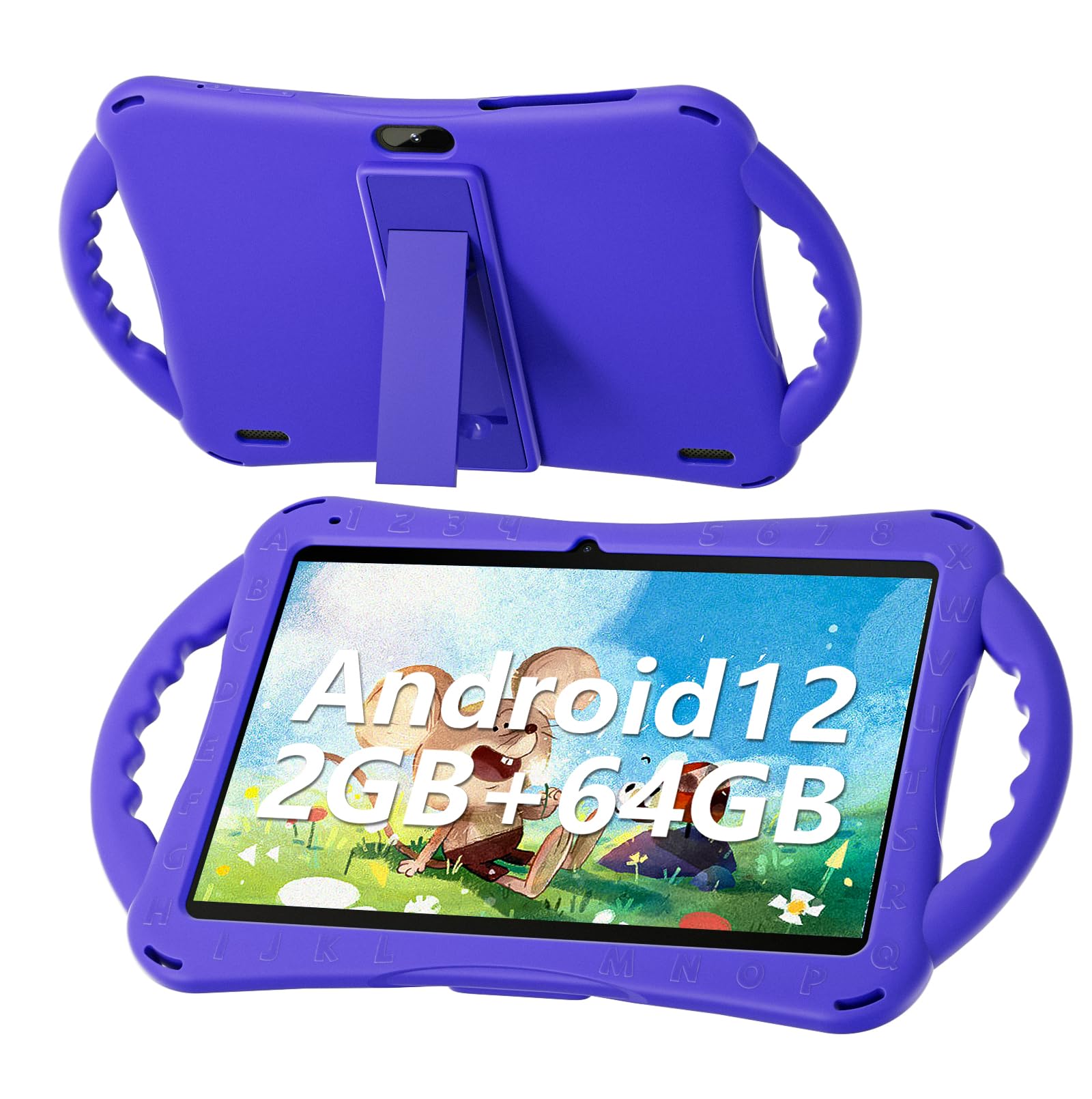
Figure 1: SGIN E10P Kids Tablet with its protective case.
2. Cynnyrch Drosview
Familiarize yourself with the physical components of your SGIN E10P Kids Tablet.

Figure 2: Labeled diagram of the SGIN E10P Kids Tablet components.
- Camera blaen: Ar gyfer galwadau fideo a hunluniau.
- Camera Cefn: Ar gyfer tynnu lluniau a fideos.
- Siaradwyr: Allbwn sain.
- Porthladd Math-C: Ar gyfer codi tâl a throsglwyddo data.
- Slot Cerdyn TF: For expanding storage with a microSD card.
- Jack Clustffon: Ar gyfer cysylltu clustffonau â gwifrau.
- Cynyddu Cyfrol: Button to raise the audio level.
- Lleihau cyfaint: Button to lower the audio level.
- Bracket (Kickstand): Stand integredig ar gyfer defnyddio dwylo di-dwylo viewing.
- Armrest (Handle): Ergonomic handles on the protective case for easy gripping.
3. Gosod
3.1 Gwefru'r Tabled
Before first use, fully charge the tablet. Connect the USB Type-C cable to the tablet's Type-C port and the other end to the power adapter. Plug the power adapter into a wall outlet. The battery indicator on the screen will show charging status. A full charge typically takes several hours.
3.2 Pweru Ymlaen/Diffodd
- I Bweru Ymlaen: Press and hold the Power button (usually located on the side or top edge) until the SGIN logo appears on the screen.
- I Bweru i ffwrdd: Press and hold the Power button until a menu appears. Select "Power off" from the options.
- I ailgychwyn: Press and hold the Power button until a menu appears. Select "Restart" from the options.
3.3 Gosodiad Cychwynnol
The first time you power on the tablet, you will be guided through an initial setup process:
- Dewis Iaith: Dewiswch eich dewis iaith.
- Cysylltiad Wi-Fi: Dewiswch eich rhwydwaith Wi-Fi a nodwch y cyfrinair i gysylltu â'r rhyngrwyd.
- Cyfrif Google: Sign in with an existing Google account or create a new one. This is necessary for downloading apps from the Google Play Store.
- Dyddiad ac Amser: Gosodwch y dyddiad a'r amser cywir, neu gadewch i'r rhwydwaith ei osod yn awtomatig.
- Rheolaethau Rhieni: Configure Google Kids Space or other parental control features to manage content and screen time for children.
4. Gweithredu'r Tabled
4.1 Mordwyo Sylfaenol
The SGIN E10P tablet uses a touch-sensitive screen for navigation:
- Tap: Touch the screen once to open an app, select an item, or press a button.
- Cyffwrdd a Dal: Press and hold an item to access additional options or move it.
- Swipe: Llusgwch eich bys ar draws y sgrin i sgrolio trwy dudalennau neu restrau.
- Pinsio-i-Chwyddo: Place two fingers on the screen and move them apart to zoom in, or together to zoom out.
4.2 Cysylltedd Wi-Fi
To connect or manage Wi-Fi networks:
- Ewch i Gosodiadau > Rhwydwaith a rhyngrwyd > Wi-Fi.
- Togglo Wi-Fi On.
- Dewiswch eich rhwydwaith dymunol o'r rhestr a nodwch y cyfrinair os gofynnir amdano.

Figure 3: The tablet supports both 2.4GHz and 5GHz Wi-Fi for stable connections.
4.3 Applications and Content
The tablet runs on Android 12 and comes with access to the Google Play Store, allowing you to download a wide range of applications. It is pre-configured for children's use, supporting apps like YouTube Kids, educational games, and other child-friendly content.

Figure 4: The Android 12 interface with various pre-installed and downloadable kids' apps.
4.4 Rheolaethau Rhieni
Utilize the built-in parental control features to manage your child's tablet experience. This includes setting screen time limits, filtering content, and approving app downloads. Access these settings through the Google Family Link app or directly in the tablet's settings under "Digital Wellbeing & parental controls."
5. cynnal
5.1 Glanhau
- Sgrin: Use a soft, lint-free cloth specifically designed for electronics. For stubborn smudges, slightly dampen the cloth with water or a screen cleaner solution (do not spray directly onto the screen).
- Achos: The silicone protective case can be wiped with a damp cloth and mild soap if necessary. Ensure it is completely dry before reattaching it to the tablet.
- Porthladdoedd: Keep all ports (USB-C, headphone jack, TF card slot) free of dust and debris. Use a soft brush or compressed air if needed.
5.2 Gofal Batri
The tablet is equipped with a 5000mAh battery, providing extended usage time.

Figure 5: The tablet features a 5000mAh battery for prolonged use.
- Osgowch dymheredd eithafol, gan y gallant ddirywio oes y batri.
- Use only the provided charger and cable to prevent damage.
- I gael y batri i bara'n hir, osgoi draenio'r batri'n llwyr yn aml neu ei gadw ar wefr 100% am gyfnodau hir.
5.3 Storio
Store the tablet in a cool, dry place away from direct sunlight and moisture when not in use.
6. Datrys Problemau
This section addresses common issues you might encounter with your SGIN E10P tablet.
6.1 Tabled Ddim yn Troi Ymlaen
- Ensure the tablet is sufficiently charged. Connect it to the charger for at least 30 minutes before attempting to power it on again.
- Pwyswch a daliwch y botwm Pŵer am 10-15 eiliad i gyflawni ailgychwyn gorfodol.
6.2 Problemau Cysylltiad Wi-Fi
- Gwiriwch a yw Wi-Fi wedi'i alluogi yng ngosodiadau'r dabled.
- Verify that your Wi-Fi router is working correctly and other devices can connect.
- Forget the network in the tablet's Wi-Fi settings and reconnect.
- Restart both the tablet and your Wi-Fi router.
6.3 Apiau'n Chwalu neu'n Rhewi
- Caewch ac ailagor yr ap.
- Clirio storfa a data'r ap yn Gosodiadau > Apiau > [Enw'r Ap] > Storio a storfa.
- Ensure the app is updated to its latest version via the Google Play Store.
- Ailgychwyn y tabled.
6.4 Perfformiad Araf
- Caewch gymwysiadau cefndir diangen.
- Clear cached data from apps and the system.
- Ensure there is sufficient storage space available. Delete unused apps or files.
- Consider performing a factory reset as a last resort (Nodyn: This will erase all data on the tablet. Back up important fileyn gyntaf).
7. manylebau
Key technical specifications for the SGIN E10P Kids Tablet:
| Nodwedd | Manyleb |
|---|---|
| Brand | SGIN |
| Rhif Model | E10P |
| Maint Sgrin | 10 modfedd |
| Cydraniad Sgrin | 1280 x 800 |
| Prosesydd | 1.5 GHz Allwinner Quad-core A133 |
| HWRDD | 2 GB |
| Storio (ROM) | 64 GB |
| Storfa Ehangadwy | TF Card Slot (for additional expansion) |
| System Weithredu | Android 12 |
| Cefn Webcam Datrys | 5 AS |
| Camera blaen | 2 AS |
| Gallu Batri | 5000 mAh |
| Cysylltedd | WiFi 2.4G/5G, Bluetooth 4.2 |
| Dimensiynau (LxWxH) | 10.1 x 6 x 0.4 modfedd |
| Pwysau Eitem | 2.27 pwys |
8. Gwarant a Chefnogaeth
SGIN provides a 1-year maintenance period from the date of purchase for this product. If you encounter any issues or require assistance, please contact SGIN customer support.
For further support, please refer to the contact information provided with your purchase documentation or visit the official SGIN websafle.