
1. Cynnyrch Drosview
The APPS2Car Magic Keyboard Case is designed to enhance the functionality of your iPad, providing a keyboard, multi-touch trackpad, and a protective case. It features a floating cantilever stand, backlit keys, and IPX7 waterproof protection.
Fideo: Drosoddview of the APPS2Car Magic Keyboard Case features and design.
Video: Demonstration of the APPS2Car Keyboard Case for iPad 11 inch and iPad Air.

Image: The keyboard case is designed to be portable and lightweight, making it easy to carry.
2. Modelau Cydnaws
Mae'r cas bysellfwrdd hwn yn gydnaws â'r modelau iPad canlynol:
- iPad Air (5th Generation)
- iPad Air (4th Generation)
- iPad Pro 11-inch (4th Generation)
- iPad Pro 11-inch (3rd Generation)
- iPad Pro 11-inch (2nd Generation)
- iPad Pro 11-inch (1st Generation)
To ensure compatibility, please check the model number (starting with 'A') on the back of your iPad.
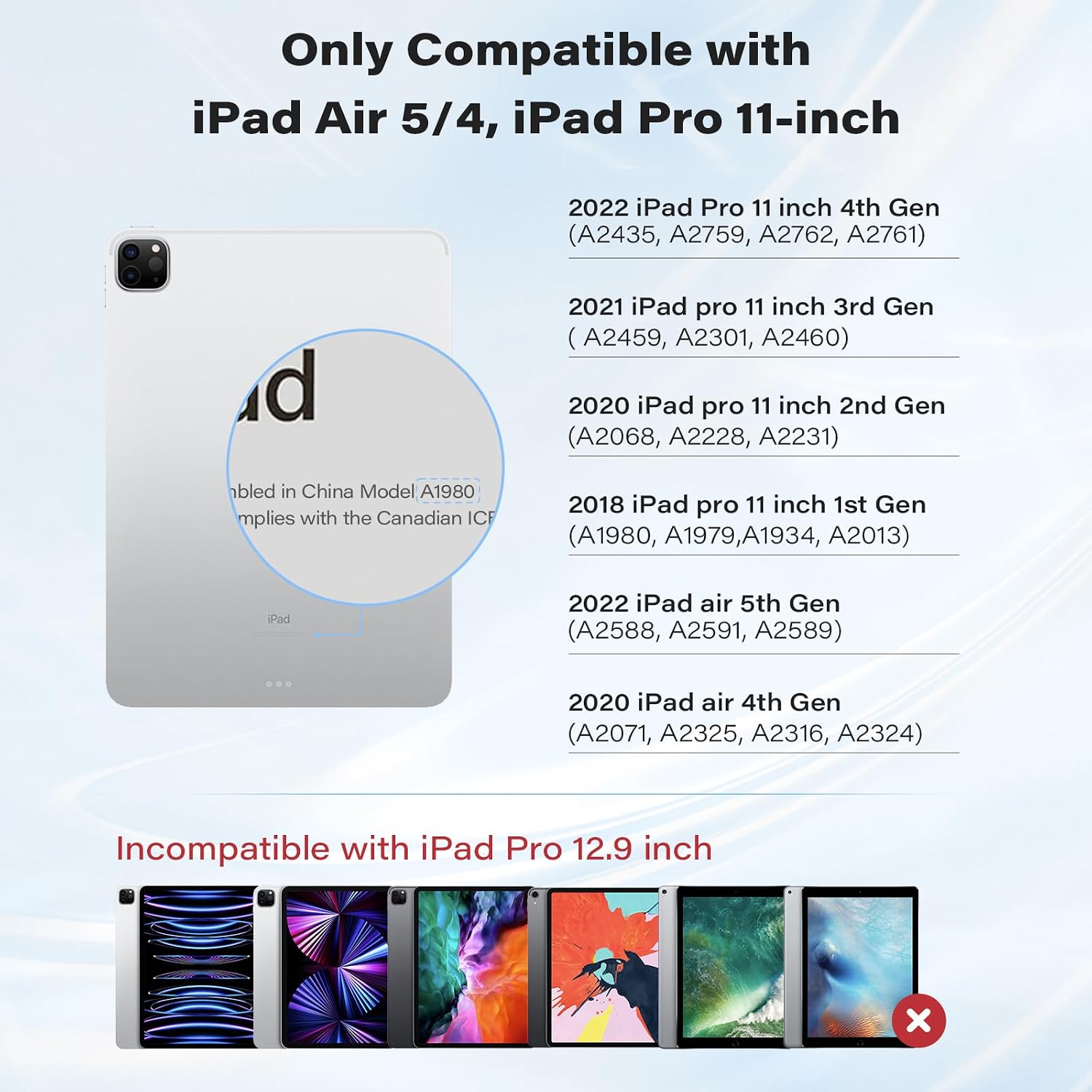
Image: Visual guide for compatible iPad models.
Video: Short demonstration confirming compatibility with iPad Pro 11 inch.
3. Beth sydd yn y Bocs
Wrth agor y pecyn, fe welwch yr eitemau canlynol:
- APPS2Car Magic Keyboard Case
- Llawlyfr Defnyddiwr
4. Cyfarwyddiadau Gosod
4.1 Pâr Bluetooth
Dilynwch y camau hyn i gysylltu cas eich bysellfwrdd â'ch iPad trwy Bluetooth:
- Switch on the keyboard using the power button.
- Hold down the 'option' key and the 'B' key simultaneously to activate Bluetooth pairing mode. The Bluetooth indicator light on the keyboard will flash.
- Ar eich iPad, ewch i Gosodiadau > Bluetooth.
- Gwnewch yn siŵr bod Bluetooth wedi'i droi 'Ymlaen'.
- In the 'MY DEVICES' list, locate and tap 'APPS2Car' to initiate pairing.
- Confirm the pairing request on your iPad. The keyboard will show as 'Connected' once successful.
If pairing is unsuccessful, turn off the keyboard, disable Bluetooth on your iPad, and repeat the steps.

Image: The keyboard utilizes Bluetooth 5.2 Low Energy (BLE) for stable and efficient connection.
Video: Step-by-step guide on how to pair the keyboard via Bluetooth.
5. Cyfarwyddiadau Gweithredu
5.1 Eisteddle Magnetig
Attach your iPad to the magnetic back cover. The floating cantilever stand allows for smooth adjustment to various viewing angles, providing a laptop-like experience.

Image: The magnetic stand offers a 135° viewing angle and features a durable aluminum alloy hinge.
Pad Trac Aml-Gyffwrdd 5.2
The integrated high-precision trackpad supports full multi-touch gestures for navigation. Ensure your iPadOS is updated to the latest version for optimal trackpad functionality.

Image: The trackpad features AG glass with an anti-fingerprint coating, offering precise and responsive control.
Trackpad Settings:
To adjust pointer sensitivity and enable tap-to-click or two-finger secondary click:
- Ewch i Gosodiadau > Cyffredinol > Trackpad.
- Adjust the 'TRACKING SPEED' slider to your preference.
- Toggle 'Tap to Click' and 'Two Finger Secondary Click' to 'On' as desired.
Video: Instructions on how to set up trackpad sensitivity and features.
5.3 Allweddi â Goleuadau Cefn
The keyboard features backlit keys with adjustable brightness levels for comfortable typing in various lighting conditions.
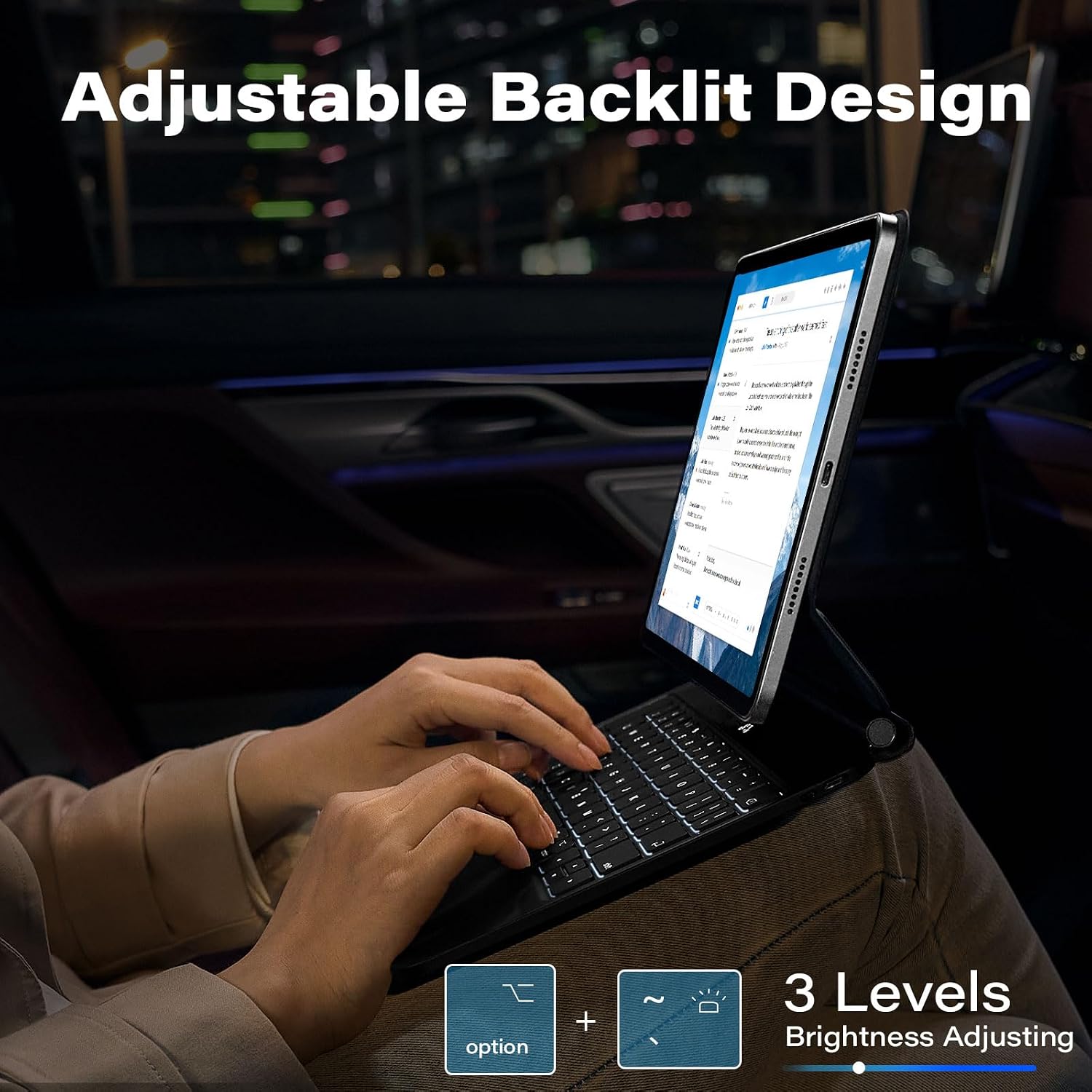
Image: The keyboard offers 3 levels of adjustable backlighting.
6. cynnal
6.1 IPX7 Waterproof & Dustproof Protection
The keyboard case is designed with IPX7-rated protection, making it resistant to spills, splashes, and dust. In case of spills, gently wipe the surface with a clean, dry cloth.

Image: The keyboard features IPX7 waterproof protection against liquid spills.
7. Datrys Problemau
7.1 Problemau Cysylltedd
- Gwnewch yn siŵr bod y bysellfwrdd wedi'i wefru.
- Turn off the keyboard and then turn it back on.
- Ar eich iPad, ewch i Gosodiadau > Bluetooth, toggle Bluetooth off and then on again.
- If the issue persists, 'Forget This Device' for 'APPS2Car' in your iPad's Bluetooth settings and re-pair the keyboard.
7.2 Trackpad or Keyboard Performance
- Ensure your iPad is updated to the latest iOS version. The keyboard is optimized for recent software enhancements.
- Restart your iPad and the keyboard.
- If using an earlier iOS version, update your system, restart Bluetooth, and reconnect for optimal functionality.
8. manylebau
| Nodwedd | Manylyn |
|---|---|
| Brand | APPS2Car |
| Rhif Model | APPS2Car Magic Keyboard 5 |
| Dyfeisiau Cydnaws | iPad Pro 11 inch (1st, 2nd, 3rd, 4th Gen), iPad Air (4th, 5th Gen) |
| Technoleg Cysylltedd | Bluetooth 5.2 Ynni Isel (BLE) |
| Disgrifiad Bysellfwrdd | Aml Swyddogaethol |
| Nodweddion Arbennig | Backlit, Foldable, Multi-Touch Trackpad, Magnetic Stand, IPX7 Waterproof |
| Lliw | Athens Black |
| Backlighting bysellfwrdd | Single Color, 3 Adjustable Levels |
| Deunydd | Biwtadïen Acrylonitrile Styrene |
| Ffynhonnell Pwer | Wedi'i Bweru â Batri |
| Cynllun Bysellfwrdd | QWERTY |
| Nifer yr Allweddi | 64 |
| Gwneuthurwr | Wiiki-Tech |
9. Gwarant a Chefnogaeth
The APPS2Car Magic Keyboard Case comes with a 12-month manufacturer warranty. For any product inquiries, technical assistance, or warranty claims, please contact APPS2Car customer support through the retailer where the product was purchased.