
CUPEISI YQ10S MAX
CUPEISI YQ10S MAX Android 15 Tablet User Manual
Model: YQ10S MAX | Brand: CUPEISI
1. Rhagymadrodd
This manual provides detailed instructions for the setup, operation, maintenance, and troubleshooting of your CUPEISI YQ10S MAX Android 15 Tablet. Please read this manual thoroughly before using your device to ensure proper functionality and to maximize your user experience. Keep this manual for future reference.

Image 1.1: CUPEISI YQ10S MAX Android 15 Tablet with included accessories (keyboard, mouse, stylus, and protective case).
2. Cynnwys Pecyn
Gwiriwch fod yr holl eitemau a restrir isod yn bresennol yn eich pecyn cynnyrch:
- CUPEISI YQ10S MAX Android 15 Tablet
- Bysellfwrdd Di-wifr
- Llygoden Bluetooth
- Foldable Protective Cover
- Stylus
- Cebl Math-C
- Gwefrydd
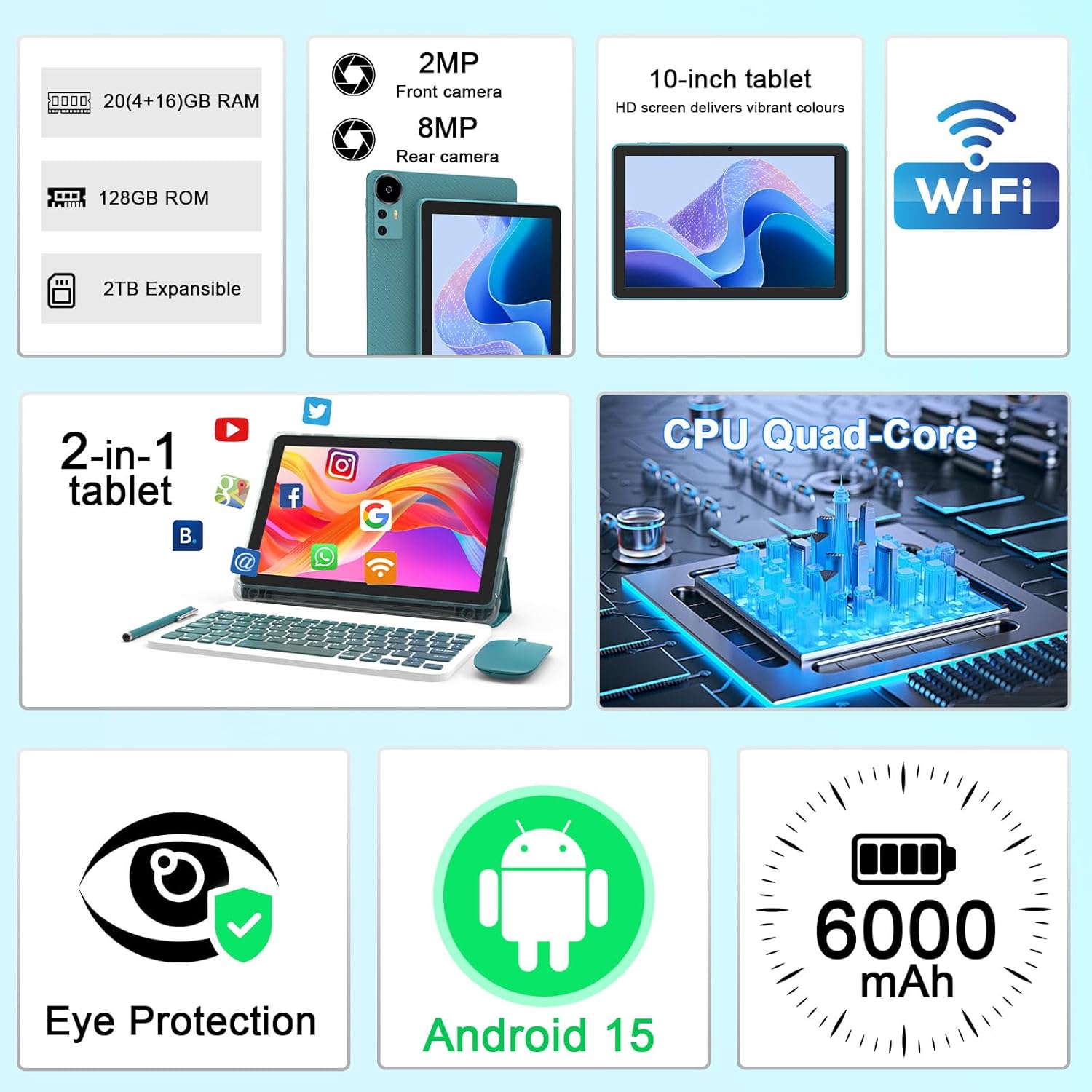
Delwedd 2.1: Drosoddview of key features and included components.
3. Gosodiad Cychwynnol
3.1 Pweru Ymlaen/Diffodd
- I Bweru Ymlaen: Pwyswch a daliwch y botwm pŵer sydd wedi'i leoli ar ochr y dabled nes bod y sgrin yn goleuo.
- I Bweru i ffwrdd: Pwyswch a daliwch y botwm pŵer, yna dewiswch 'Diffoddwch' o'r opsiynau sy'n ymddangos ar y sgrin.
- I ailgychwyn: Pwyswch a daliwch y botwm pŵer, yna dewiswch 'Ailgychwyn' o'r opsiynau.
3.2 Gwefru'r Tabled
Before first use, fully charge the tablet. Use the provided Type-C cable and charger.
- Connect the Type-C cable to the tablet's charging port.
- Cysylltwch ben arall y cebl â'r addasydd pŵer.
- Plygiwch yr addasydd pŵer i mewn i allfa wal.
- The battery icon on the screen will indicate charging status. A full charge typically takes several hours.

Image 3.1: Battery and charging information.
3.3 Connecting Accessories (Keyboard, Mouse, Stylus)
The tablet supports Bluetooth connectivity for the included keyboard and mouse.
- Galluogi Bluetooth: Ewch i Gosodiadau > Dyfeisiau cysylltiedig > Bluetooth ac yn ei droi ymlaen.
- Pair Keyboard/Mouse: Put the keyboard or mouse into pairing mode (refer to their individual instructions if needed). Select the device name from the list of available Bluetooth devices on your tablet to pair.
- Stylus: The included stylus is typically passive and does not require pairing. It can be used directly on the screen for navigation or drawing.
3.4 Cysylltiad Wi-Fi
Connect your tablet to a Wi-Fi network for internet access.
- Ewch i Gosodiadau > Rhwydwaith a rhyngrwyd > Wi-Fi.
- Turn on Wi-Fi. The tablet will scan for available networks.
- Dewiswch eich rhwydwaith dymunol o'r rhestr.
- Os gofynnir i chi, nodwch gyfrinair y rhwydwaith a thapiwch Cyswllt.
4. Gweithrediad Sylfaenol
4.1 Llywio Android 15
Your tablet runs on Android 15, offering an intuitive user interface. Swipe gestures, tap actions, and the navigation bar (Back, Home, Recents) are standard for interaction. The Google Mobile Services (GMS) certification ensures access to the Google Play Store and other Google applications.

Image 4.1: Android 15 operating system features.
4.2 Gosodiadau Arddangos
The 10.1-inch IPS display with 1280x800 resolution provides clear visuals. You can adjust display settings to suit your preferences:
- Disgleirdeb: Adjust screen brightness from the quick settings panel or in Gosodiadau > Arddangos.
- Modd Darllen: Enable 'Reading Mode' in display settings to reduce blue light emission, which can enhance comfort during extended reading sessions.
- Maint Ffont: Addaswch faint y testun er mwyn ei ddarllen yn well.

Image 4.2: Details of the 10.1-inch HD screen display.
4.3 Rheoli Storfa
The tablet features 128GB of internal storage and 20GB RAM (4GB physical + 16GB virtual expansion). Storage can be expanded up to 2TB using a microSD card (not included).
- Gwirio Storio: Ewch i Gosodiadau > Storio i view internal and external storage usage.
- Mewnosod cerdyn MicroSD: Locate the microSD card slot on the tablet, insert the card gently until it clicks into place.

Image 4.3: Storage and RAM configuration.
4.4 Defnyddio'r Camera
The tablet is equipped with an 8MP rear camera and a 2MP front camera.
- Agor yr Ap Camera: Tap the Camera icon on your home screen or app drawer.
- Newid Camerâu: Use the camera switch icon to toggle between front and rear cameras.
- Cipio Lluniau/Fideos: Tapiwch y botwm caead i dynnu llun neu ddechrau/stopio recordio fideo.

Image 4.4: Camera specifications and modes.
4.5 Chwarae Amlgyfrwng
The tablet supports Widevine L1, enabling high-definition streaming from platforms like Netflix, Hulu, YouTube, and Prime Video.
- Ensure a stable internet connection for optimal streaming quality.
- Download streaming apps from the Google Play Store.

Image 4.5: Widevine L1 support for multimedia streaming.
4.6 Amldasgio
Android 15 enhances multitasking capabilities. Use the 'Recents' button to switch between open applications or utilize split-screen mode for running two apps simultaneously.
- Sgrin Hollt: From the 'Recents' view, tap the app icon at the top of an app's card and select 'Split screen'. Choose a second app to open alongside it.
- The included keyboard and mouse facilitate a laptop-like experience for productivity tasks.

Image 4.6: Tablet used in 2-in-1 mode with keyboard and mouse.
5. Gofal a Chynnal a Chadw
5.1 Glanhau
- Defnyddiwch frethyn meddal, di-lint i lanhau sgrin a chorff y dabled.
- Osgowch ddefnyddio cemegau llym, glanhawyr sgraffiniol, neu chwistrellau aerosol.
- Ensure the tablet is powered off and unplugged before cleaning.
5.2 Gofal Batri
- Osgowch amlygu'r dabled i dymheredd eithafol (poeth neu oer).
- Do not leave the tablet fully discharged for extended periods.
- Use only the provided charger and cable to prevent damage to the battery.
5.3 Diweddariadau Meddalwedd
- Chwiliwch am ddiweddariadau meddalwedd a'u gosod yn rheolaidd i sicrhau perfformiad, diogelwch a mynediad gorau posibl at nodweddion newydd.
- Ewch i Gosodiadau > System > Diweddariad system i wirio am ddiweddariadau sydd ar gael.
6. Datrys Problemau
Os byddwch chi'n dod ar draws problemau gyda'ch tabled, cyfeiriwch at y problemau a'r atebion cyffredin canlynol:
6.1 Problemau Pŵer
- Tablet won't turn on: Gwnewch yn siŵr bod y batri wedi'i wefru. Cysylltwch y gwefrydd ac aros ychydig funudau cyn ceisio ei droi ymlaen eto.
- Tablet freezes: Pwyswch a daliwch y botwm pŵer am tua 10-15 eiliad i orfodi ailgychwyn.
6.2 Problemau Cysylltedd
- Wi-Fi ddim yn cysylltu: Check if Wi-Fi is enabled in settings. Restart your router and the tablet. Ensure you are entering the correct password.
- Dyfais Bluetooth heb ei pharu: Ensure the Bluetooth accessory is in pairing mode and within range. Restart Bluetooth on the tablet and try pairing again.
6.3 Performance Lags
- Perfformiad araf: Close unused applications running in the background. Clear cache data for frequently used apps. Consider adding a microSD card for additional storage if internal storage is nearly full.
- Apiau'n chwalu: Ensure apps are updated to their latest versions. Clear the app's cache and data (Gosodiadau > Apiau > [Enw'r Ap] > Storio).
7. Manylebau Cynnyrch
| Nodwedd | Manyleb |
|---|---|
| Brand | CUPESI |
| Enw Model | CP31M (Item model number: YQ10S MAX) |
| System Weithredu | Android 15 |
| Maint Sgrin | 10.1 modfedd |
| Cydraniad Sgrin | 1280 x 800 Picsel (HD) |
| Prosesydd | Pedwar-graidd 2.0 GHz |
| HWRDD | 20GB (4GB physical + 16GB expansion) |
| Storio Mewnol | 128 GB |
| Storfa Ehangadwy | Up to 2TB with microSD card (not included) |
| Math Di-wifr | 802.11ax (Wi-Fi 6.0, 2.4G/5G) |
| Bluetooth | BT 5.0 |
| Camera Cefn | 8 AS |
| Camera blaen | 2 AS |
| Gallu Batri | 6000 mAh |
| Bywyd Batri Cyfartalog | 6-8 Awr (yn dibynnu ar y defnydd) |
| Dimensiynau (LxWxH) | 9.7 x 6.5 x 0.3 modfedd |
| Pwysau Eitem | 0.176 owns |
| Lliw | NavyBlue |
8. Gwarant a Chefnogaeth
For warranty information, please refer to the warranty card included in your product packaging or contact CUPEISI customer support directly. If you require technical assistance or have questions not covered in this manual, please reach out to our support team through the contact information provided with your purchase.
Ask a question about this manual
Ask about setup, troubleshooting, compatibility, parts, safety, or missing instructions. Manuals+ will review the question and use this page’s manual context to help answer it.