
1. Rhagymadrodd
This manual provides detailed instructions for the safe and efficient operation of your MARKLIFE P50 Portable Bluetooth Thermal Label Maker Machine. Please read this manual thoroughly before using the device and retain it for future reference. The P50 is designed for creating various labels using thermal printing technology, connecting wirelessly via Bluetooth to mobile devices or via USB to Windows PCs.
2. Cynnwys Pecyn
Gwiriwch fod yr holl eitemau a restrir isod wedi'u cynnwys yn eich pecyn. Os oes unrhyw eitemau ar goll neu wedi'u difrodi, cysylltwch â chymorth cwsmeriaid.
- Peiriant Gwneuthurwr Label MARKLIFE P50
- 3 Label Tapes (2 rolls of 1.57" x 1.18" white gap labels, 1 roll of 2" x 2" circle gap labels)
- Cebl Codi Tâl USB-C
- Llawlyfr Defnyddiwr (y ddogfen hon)
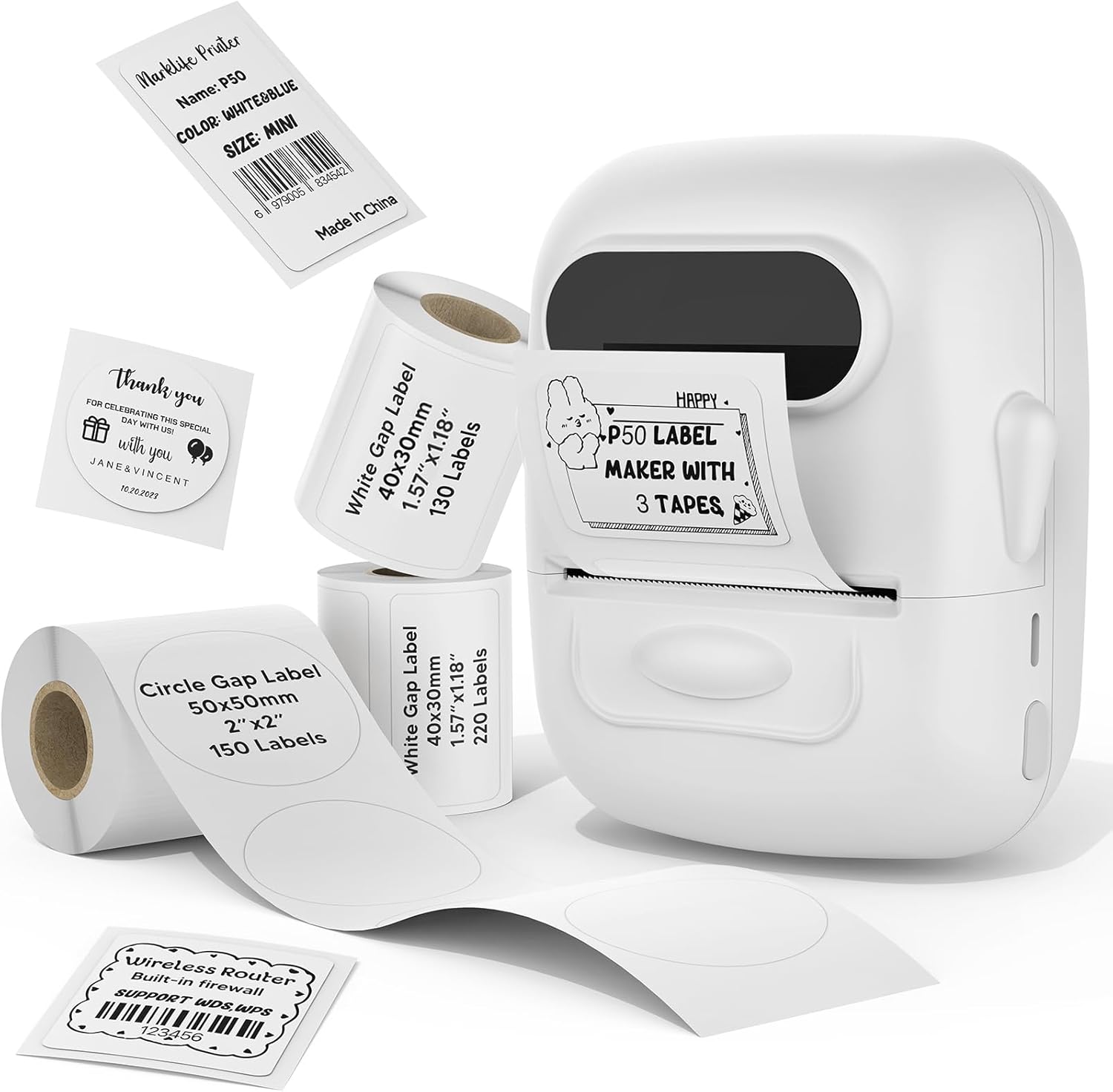
Image: The MARKLIFE P50 label maker machine shown with various label rolls and printed labels, including a barcode label (example: 6979005834542) and a "Thank You" label. This illustrates the device and its primary function of printing labels.
3. Cynnyrch Drosview
The MARKLIFE P50 is a compact and portable thermal label printer designed for various labeling needs. It connects wirelessly via Bluetooth to your smartphone or tablet, and also supports USB connection to Windows PCs. The device utilizes thermal printing technology, meaning it does not require ink cartridges, only thermal label paper.
Nodweddion Allweddol:
- Argraffu Thermol: No ink required, prints in black and white.
- Cysylltedd Di-wifr: Bluetooth 4.0 for mobile devices (Android & iOS).
- Cydnawsedd PC: USB connection and online software for Windows PCs.
- Cydnawsedd Label Eang: Supports label widths from 0.59 inches to 2.24 inches.
- Dyluniad Symudol: Lightweight and equipped with a built-in 1200mAh rechargeable battery for on-the-go use.
- Smart App Functions: Features voice and image recognition, barcode scanning, PDF batch printing, and photo printing on labels.

Image: A hand placing the compact MARKLIFE P50 label maker into a small handbag, emphasizing its portable design. Icons indicate its portability, built-in 1200mAh battery, and Type-C charging capability.
4. Gosod
4.1 Codi Tâl ar y Dyfais
Before initial use, fully charge the P50 label maker. Connect the provided USB-C cable to the charging port on the device and the other end to a compatible USB power adapter (not included) or a computer USB port. The charging indicator light will provide status feedback.
4.2 Loading Label Rolls
- Agorwch glawr yr adran label.
- Insert the label roll with the printing surface facing upwards, ensuring it is aligned correctly within the guides.
- Pull a small portion of the label paper out past the printing slot.
- Close the label compartment cover firmly.
- Press the power button twice quickly to initiate automatic label calibration. The printer will feed a small amount of label paper to detect the label size.

Image: A visual guide demonstrating the process of loading label rolls into the P50 label maker. It also illustrates the compatible label widths, ranging from 0.59 inches to 2.24 inches, and contrasts it with fixed-size label makers.
4.3 Gosod Ap a Pharu Bluetooth
- Lawrlwythwch yr Ap: Chwiliwch am "MARKLIFE" in your mobile device's app store (iOS App Store or Google Play Store) and install the official application.
- Pŵer Ymlaen: Press and hold the power button on the P50 label maker until the indicator light turns on.
- Galluogi Bluetooth: Sicrhewch fod Bluetooth wedi'i alluogi ar eich dyfais symudol.
- Paru: Open the MARKLIFE app. The app should automatically detect the P50 printer. Follow the on-screen prompts to connect. No Wi-Fi connection is required for mobile pairing.
5. Cyfarwyddiadau Gweithredu
5.1 Basic Label Creation and Printing (Mobile App)
- Ensure the P50 is powered on and connected to the MARKLIFE app via Bluetooth.
- Within the app, select a template or create a new label design. The app offers various templates for clothing labels, price labels, cable labels, jewelry labels, address labels, and ingredient labels.
- Customize your label with text, images, barcodes, or QR codes.
- Adjust print density and photo quality settings as needed.
- Cynview y label i sicrhau cywirdeb.
- Tap the "Print" button in the app to send the design to the P50 label maker.

Image: The P50 label printer positioned next to a laptop and a smartphone, demonstrating its connectivity with both mobile and PC devices. The laptop screen displays label design software, and the smartphone shows the MARKLIFE app interface.
5.2 Advanced App Features
- Voice and Image Recognition: Convert spoken words or images into editable text for your labels.
- Sganio cod bar: Scan existing barcodes (e.g., 0123456789005) to generate new ones or integrate them into your designs.
- PDF Batch Printing: Print multiple labels from a PDF document.
- Argraffu Lluniau: Insert and print photos directly onto labels.
- OCR Scanner: Use your phone's camera as an OCR scanner within the app to extract text from documents for labeling.
- Storio Cwmwl: Save your label designs to the cloud for easy access and reprinting.
5.3 PC Connection (Windows)
For Windows PC users, connect the P50 label maker via the USB-C cable. Download and install the dedicated software from the official MARKLIFE website. This software allows for label design and printing directly from your computer.
5.4 Argraffu Swp
The P50 supports batch printing, allowing you to print multiple copies of the same label or a series of different labels efficiently. This feature is managed through the MARKLIFE app or PC software.

Image: The P50 label maker actively printing a continuous roll of labels, demonstrating its batch printing capability. The labels shown are price tags with barcodes (example: 123456), indicating efficient production for business use.
6. cynnal
- Glanhau'r Pen Argraffu: Regularly clean the thermal print head with a soft, lint-free cloth lightly dampened with isopropyl alcohol. Ensure the device is powered off and cool before cleaning.
- Glanhau Allanol: Wipe the exterior of the device with a soft, dry cloth. Avoid using abrasive cleaners or solvents.
- Storio: Storiwch y gwneuthurwr labeli mewn lle oer, sych i ffwrdd o olau haul uniongyrchol a thymheredd eithafol.
- Gofal Batri: Er mwyn ymestyn oes y batri, osgoi rhyddhau'r batri'n llwyr yn aml. Gwefrwch y ddyfais yn rheolaidd, hyd yn oed os nad yw'n cael ei defnyddio am gyfnodau hir.
- Storio Labeli: Store thermal labels in a cool, dark place to prevent premature fading or degradation.
7. Datrys Problemau
7.1 Materion ac Atebion Cyffredin
| Problem | Achos Posibl | Ateb |
|---|---|---|
| Nid yw'r argraffydd yn troi ymlaen | Batri isel neu broblem pŵer. | Charge the device using the provided USB-C cable. Ensure the charging cable and adapter are functioning correctly. |
| Methu cysylltu trwy Bluetooth | Bluetooth is off, device is out of range, or app issue. |
|
| Poor print quality or blank labels | Incorrect label loading, dirty print head, or low-quality labels. |
|
| Labels not feeding correctly or jamming | Improper label loading or foreign objects in the paper path. |
|
8. manylebau
| Nodwedd | Manylyn |
|---|---|
| Enw Model | P50 LABEL PRINTER |
| Brand | MARWOLAETH |
| Technoleg Argraffu | Thermol |
| Allbwn Argraffydd | Monocrom (Du a Gwyn) |
| Technoleg Cysylltedd | Bluetooth, USB |
| Dyfeisiau Cydnaws | Android, iOS mobile devices, Windows PC |
| Dull Rheoli | Ap |
| Maint Cyfryngau Uchaf | 2.24 modfedd (57mm) |
| Lledau Label a Gefnogir | 0.59 inches - 2.24 inches (15mm - 57mm) |
| Batri | Batri aildrydanadwy 1200mAh wedi'i ymgorffori |
| Porthladd Codi Tâl | USB Math-C |
| Dimensiynau Cynnyrch | 4 x 3 x 2 modfedd (tua) |
| Pwysau Eitem | 6 owns (tua) |
9. Gwarant a Chefnogaeth
9.1 Gwarant Gyfyngedig
The MARKLIFE P50 Label Maker Machine comes with a limited warranty. Please refer to the warranty card included in your package or contact MARKLIFE customer support for specific terms and conditions. This warranty typically covers manufacturing defects under normal use.
9.2 Cefnogaeth i Gwsmeriaid
For technical assistance, troubleshooting, or warranty claims, please contact MARKLIFE customer support through the official website or the contact information provided in your product packaging. Please have your model number (P50) and purchase details ready when contacting support.