
Teamgee B0CD7HS1KM
Teamgee 14-inch FHD IPS Triple Portable Monitor User Manual
Model: B0CD7HS1KM
1. Rhagymadrodd
Thank you for choosing the Teamgee 14-inch FHD IPS Triple Portable Monitor. This device is designed to significantly enhance your productivity by providing a multi-display solution for your laptop. It supports various display modes, including expansion and mirroring, allowing you to manage multiple tasks simultaneously. Its portable design makes it ideal for office presentations, remote work, and business travel.

Image: The Teamgee 14-inch Triple Portable Monitor in use, demonstrating its multi-screen capability.
2. Gwybodaeth Diogelwch
- Peidiwch â gwneud y ddyfais yn agored i dymheredd neu leithder eithafol.
- Osgoi gollwng neu orfodi'r ddyfais i effeithiau cryf.
- Defnyddiwch y ceblau a'r ategolion a ddarperir yn unig i atal difrod.
- Cadwch y ddyfais i ffwrdd o ddŵr a hylifau eraill.
- Peidiwch â cheisio dadosod neu atgyweirio'r ddyfais eich hun. Cysylltwch â chymorth cwsmeriaid am gymorth.
- Sicrhewch awyru digonol wrth ei ddefnyddio i atal gorboethi.
3. Cynnwys Pecyn
Gwiriwch gynnwys y pecyn wrth ddadbocsio i sicrhau bod yr holl eitemau yn bresennol:
- Triple Screen Monitor (x1)
- Bag Storio (x1)
- Llawlyfr Defnyddiwr (x1)
- Canllaw Cychwyn Cyflym (x1)
- USB-C to USB-C Cable (x2)
- USB-A to USB-C Cable (x2)
- HDMI to Type-C Cable (x2)

Delwedd: Manwl view of the package contents, including the triple screen monitor, cables, and accessories.
4. Cynnyrch Drosview
The Teamgee Triple Portable Monitor features a thoughtful design for portability and ease of use. Key components include:
- Siaradwyr Deuol: Integrated speakers on each screen for audio output.
- Braced Addasadwy: Built-in stand for stable positioning.
- Stretchable Frame: Allows adjustment to fit various laptop sizes (13.3 to 17.3 inches).
- Top Bracket: Secures the monitor to the top of your laptop screen.
- Botwm Amlbwrpas: Controls various display settings.
- Cylchdro 180°: Each screen can rotate up to 180 degrees for flexible viewing angles and easy folding.
- Padin Amddiffynnol: Anti-pinch rubber mats for laptop protection.

Delwedd: Ffrwydrodd view of the monitor's components and their functions.
5. Canllaw Gosod
5.1 Gosodiad Cychwynnol
- Carefully unpack the triple screen monitor and all accessories.
- Place your laptop on a stable, flat surface.
- Extend the stretchable frame of the Teamgee monitor to fit your laptop screen size (13.3 to 17.3 inches).
- Gently attach the monitor to the top of your laptop screen using the top bracket and ensure the anti-pinch rubber mats are in place to protect your laptop.
- Adjust the integrated adjustable bracket for stability.
5.2 Dulliau Cysylltiad
The Teamgee monitor offers versatile connectivity options. No drivers are required for most operating systems.

Delwedd: Drosoddview of compatible devices and connection types.
- Full-featured Type-C Connection (Recommended):
If your laptop has two full-featured Type-C ports, connect each monitor directly to your laptop using the provided USB-C to USB-C cables. This method typically provides both video and power.

Image: Connection using two USB-C to USB-C cables.
- Mixed Connection (Type-C, USB-A, HDMI):
If your laptop has one full-featured Type-C port, one USB-A port, and one HDMI port:
- First, connect one monitor using a USB-C to USB-C cable to the full-featured Type-C port.
- Then, connect the other monitor using a USB-A to USB-C cable for power and an HDMI to Type-C cable for video.

Image: Connection using a combination of USB-C, USB-A, and HDMI cables.
5.3 Cydnawsedd
The Teamgee monitor is compatible with a wide range of devices and operating systems, including:
- Ffenestri
- Mac (M1 Max and M1 Pro only)
- Chrome OS
- Android
- Linux
- Samsung Dex
- Nintendo Switch
It is designed to fit laptops ranging from 13.3 to 17.3 inches.
6. Cyfarwyddiadau Gweithredu
6.1 Moddiau Arddangos
The monitor supports two primary display modes:
- Modd Estyniad: Extends your desktop across all three screens, allowing for increased workspace and multitasking.
- Modd drych: Duplicates your main laptop screen onto the external monitors, useful for presentations or sharing content.
You can switch between these modes and adjust display settings through your operating system's display settings (e.g., Display Settings on Windows, System Preferences > Displays on Mac).

Image: The triple monitor setup enabling efficient multitasking.
6.2 Addasu Gosodiadau Arddangos
Each screen is equipped with a multifunction button for quick adjustments. Refer to the Quick Start Guide for specific button functions, which typically include:
- Addasiad disgleirdeb
- Addasiad cyferbyniad
- Gosodiadau tymheredd lliw
- Dewis ffynhonnell mewnbwn
6.3 Portability and Rotation
The monitor's design allows for easy portability and flexible viewing:
- The screens can be rotated up to 180 degrees, allowing for various viewing angles or folding for compact storage and transport.
- The integrated adjustable bracket provides stability on different surfaces.
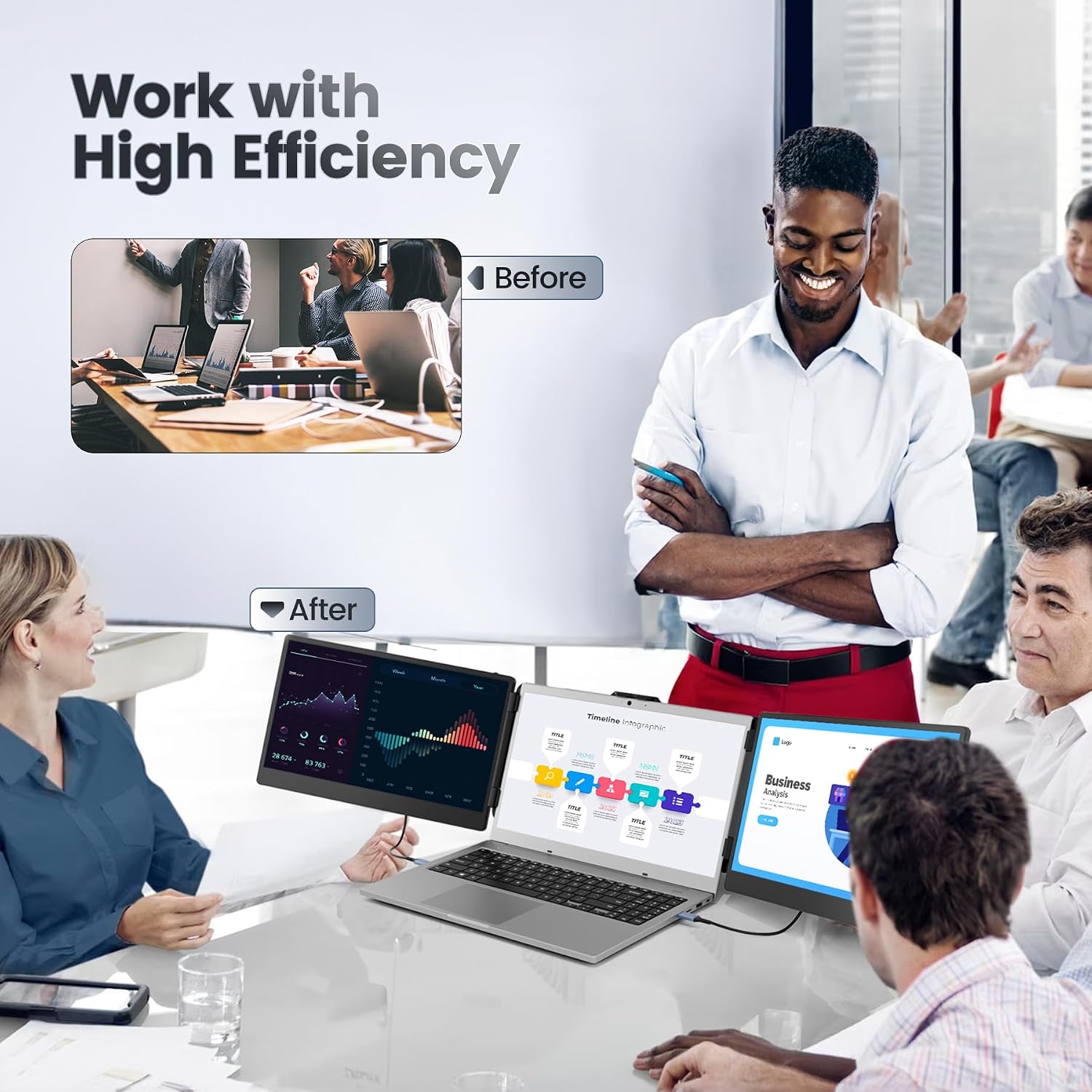
Image: The monitor in a professional setting, highlighting its contribution to high efficiency.
7. cynnal
- Glanhau: Use a soft, lint-free cloth to gently wipe the screens and exterior. For stubborn smudges, slightly dampgolchwch y lliain gyda dŵr neu doddiant glanhau sy'n ddiogel i'r sgrin. Osgowch gemegau llym neu ddeunyddiau sgraffiniol.
- Storio: When not in use, fold the monitor compactly and store it in the provided storage bag to protect it from dust and scratches.
- Trin: Always handle the monitor by its frame, avoiding direct pressure on the screens.
8. Datrys Problemau
| Problem | Achos Posibl | Ateb |
|---|---|---|
| No display on one or both screens. |
|
|
| Arddangosfa sy'n fflachio neu'n ansefydlog. |
|
|
| Nid yw'r sain yn gweithio. |
|
|
| Laptop feels unstable or heavy. |
|
|
If you encounter issues not listed here or if the solutions do not resolve your problem, please contact Teamgee customer support.
9. manylebau
| Nodwedd | Manylyn |
|---|---|
| Brand | Timgee |
| Rhif Model | B0CD7HS1KM |
| Maint Sgrin | 14 Inches (each) |
| Datrysiad | FHD 1080p (1920 x 1080) |
| Technoleg Arddangos | IPS |
| Cymhareb Agwedd | 16:9 |
| Cymhareb Cyferbyniad | 1000:1 |
| Disgleirdeb | 300 nit |
| Lliw Gamut | 72% NTSC |
| Amser Ymateb | 1 milieiliad |
| Cysylltedd | HDMI, USB-A, Type-C |
| Nodweddion Arbennig | Anti-glare screen, Integrated Dual Speakers, Adjustable Bracket, Stretchable Frame, 180° Rotation |
| Compatible Laptop Sizes | 13.3 - 17.3 modfedd |
| Dyfeisiau Cydnaws | Windows, Mac (M1 Max/Pro), Chrome, Android, Linux, Dex, Switch |

Image: Visual representation of the display's key specifications.
10. Gwarant a Chefnogaeth
Teamgee is dedicated to providing comprehensive customer service.
- Gwarant: All Teamgee products come with a one-year warranty from the date of purchase.
- Cefnogaeth i Gwsmeriaid: If you find any missing accessories, or have questions regarding compatibility or connectivity, please do not hesitate to contact us. We aim to provide a solution within 24 hours.
- Gwybodaeth Gyswllt: Please refer to the contact details provided on the product packaging or in the Quick Start Guide for the most up-to-date support information.
Ask a question about this manual
Ask about setup, troubleshooting, compatibility, parts, safety, or missing instructions. Manuals+ will review the question and use this page’s manual context to help answer it.