
Rhagymadrodd
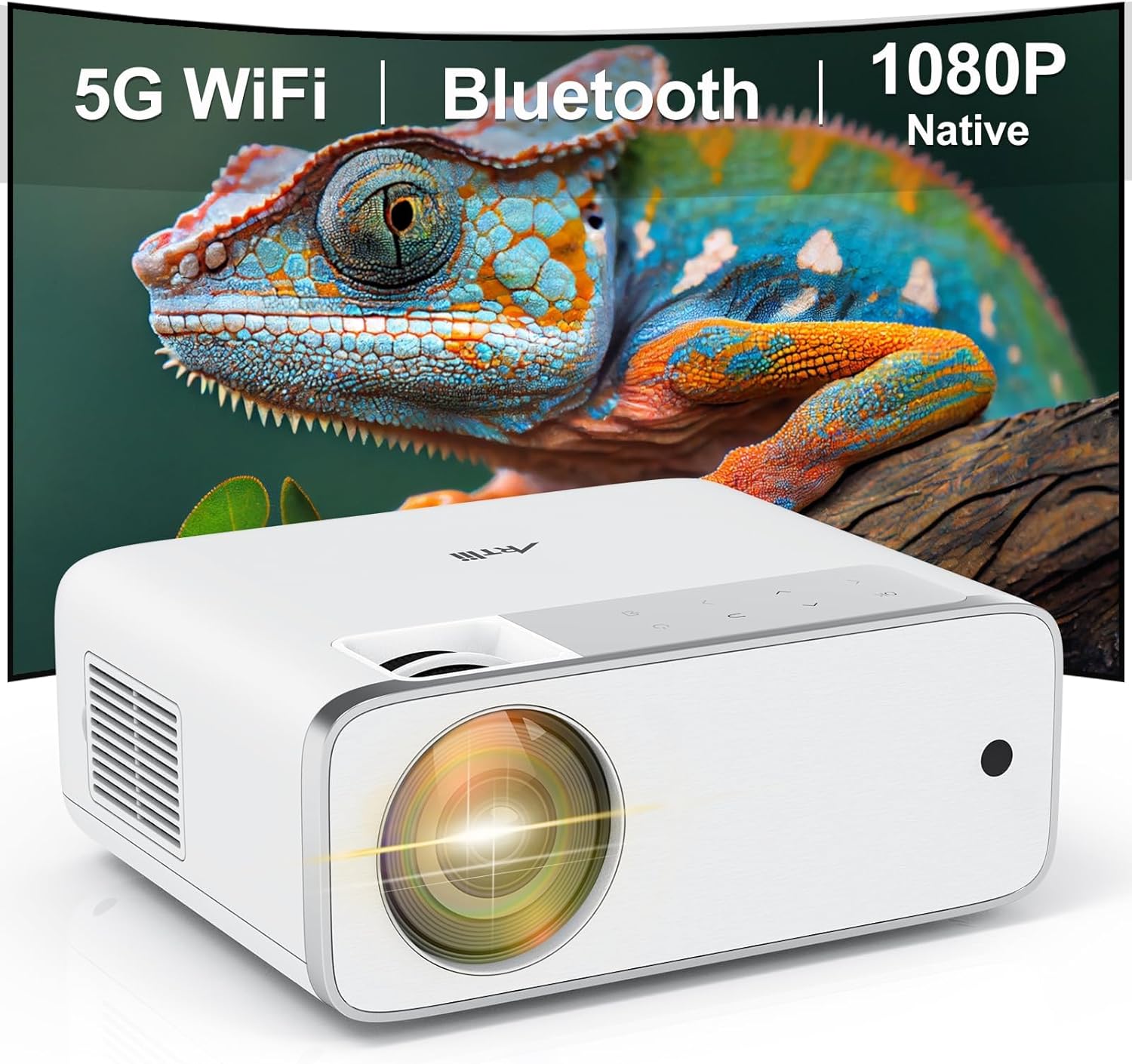
This manual provides detailed instructions for the setup, operation, and maintenance of your Artlii Enjoy4 Mini Projector. Please read this manual thoroughly before using the projector to ensure proper functionality and to maximize your viewing experience. The Artlii Enjoy4 offers native 1080P Full HD resolution, dual-band 2.4G/5G WiFi, and Bluetooth 5.0 connectivity for versatile entertainment and presentation needs.

Image: The Artlii Enjoy4 Mini Projector, showcasing its key features including 5G WiFi, Bluetooth, and native 1080P resolution.
Cynnwys Pecyn
Gwiriwch gynnwys y pecyn wrth ddadbocsio. Os oes unrhyw eitemau ar goll neu wedi'u difrodi, cysylltwch â chymorth cwsmeriaid.
- Artlii Enjoy4 Mini Projector
- Rheolydd o Bell (heb gynnwys batris AAA)
- Cebl Pŵer
- Cebl HDMI
- 3.5mm to RCA AV Cable
- Cap Lens
- Pecyn Glanhau
- Llawlyfr Defnyddiwr
Cynnyrch Drosview
Blaen a Brig View
Delwedd: Blaen view of the projector, highlighting the projection lens and infrared receiver.
The front of the projector features the main projection lens. The top panel includes illuminated control buttons and focus/keystone adjustment dials.

Image: Close-up of the projector's top control panel, showing illuminated buttons for power, navigation, and input selection, visible in both day and night settings.
Rear and Side Ports

Image: Rear panel of the projector displaying various connectivity options such as HDMI, USB, AV, and a 3.5mm audio jack, illustrating its multi-device compatibility.
The rear and side panels house the input/output ports. These include:
- Porthladdoedd HDMI (x2): For connecting devices like laptops, gaming consoles, TV sticks, and DVD players.
- Porthladdoedd USB (x2): For connecting USB drives for media playback or powering external devices.
- Porthladd AV: For connecting older devices using the included 3.5mm to RCA cable.
- 3.5mm Sain Allan: Ar gyfer cysylltu siaradwyr allanol neu glustffonau.
- Mewnbwn pŵer: Ar gyfer cysylltu'r cebl pŵer.
Gosod
1. Lleoliad
Position the projector on a stable, flat surface or mount it to a ceiling or tripod. Ensure the projector lens is perpendicular to your projection surface (screen or wall) for optimal image geometry. The recommended projection distance ranges from approximately 1.18 meters to 9.2 meters, allowing for screen sizes from 37 inches up to 300 inches.

Image: Illustration of the Artlii Enjoy4 Mini Projector's flexible placement options and the resulting screen sizes at different projection distances, from 37 inches to 300 inches.
2. Cysylltiad Pwer
- Cysylltwch y cebl pŵer â phorthladd mewnbwn pŵer y taflunydd.
- Plygiwch ben arall y cebl pŵer i mewn i allfa bŵer.
- Pwyswch y botwm pŵer ar y taflunydd neu'r teclyn rheoli o bell i'w droi ymlaen.
3. Addasiad Ffocws a Chyfraddiad Clo
Ar ôl troi’r pŵer ymlaen, addaswch eglurder a siâp y ddelwedd:
- Modrwy Ffocws: Rotate the focus ring near the lens until the projected image appears sharp and clear.
- Cywiriad Keystone: Use the keystone adjustment dial (or digital keystone in settings) to correct trapezoidal distortion, ensuring the image is rectangular. The Artlii Enjoy4 supports ±15° keystone correction.

Image: Visual representation of the keystone correction feature, demonstrating how the projector can adjust the image to a perfect rectangle even when placed at an angle, with a range of ±15 degrees.
Cyfarwyddiadau Gweithredu
1. Connecting Devices via Cable
The projector supports various wired connections:
- HDMI: Connect your device (laptop, game console, TV stick) to one of the HDMI ports using an HDMI cable. Select the corresponding HDMI input from the projector's source menu.
- USB: Mewnosodwch yriant fflach USB i borthladd USB i chwarae cyfryngau files (photos, videos, music). Navigate the media browser using the remote control.
- O: Use the provided 3.5mm to RCA cable to connect older devices like DVD players. Select the AV input from the source menu.
2. Wireless Connectivity (WiFi)
The Artlii Enjoy4 supports dual-band 2.4G and 5G WiFi for stable and fast wireless connections.
- Go to the projector's settings menu and select "WiFi Settings".
- Trowch WiFi ymlaen a dewiswch y rhwydwaith rydych chi ei eisiau o'r rhestr.
- Enter the WiFi password using the on-screen keyboard.
- Once connected, you can use screen mirroring features or access online content (if supported by connected devices).

Image: The Artlii Enjoy4 Mini Projector in use, projecting content wirelessly, emphasizing its fast and stable 2.4G/5G dual-band WiFi capabilities.
3. Cysylltiad Sain Bluetooth
Connect external Bluetooth speakers or headphones for an enhanced audio experience.
- Gwnewch yn siŵr bod eich dyfais sain Bluetooth mewn modd paru.
- On the projector, navigate to "Bluetooth Settings" in the menu.
- Turn on Bluetooth and select your device from the list of available devices to pair.

Image: The Artlii Enjoy4 Mini Projector surrounded by Bluetooth-compatible headphones and speakers, illustrating its ability to connect to external audio devices for an improved sound experience.
4. Screen Mirroring (Smartphone/Tablet)
The projector supports screen mirroring from compatible smartphones and tablets (iOS and Android). Refer to the projector's on-screen instructions for specific steps, which typically involve connecting both devices to the same WiFi network and enabling screen mirroring on your mobile device.
5. Gosodiadau Delwedd a Sain
- Swyddogaeth Chwyddo: Adjust the image size from 75% to 100% using the remote control or menu settings without moving the projector.
- Cymhareb Agwedd: Select between 16:9 and 4:3 aspect ratios to match your content.
- Modd Llun: Choose from various picture modes (e.g., Standard, Vivid, User) to optimize image quality.
- Modd Sain: Adjust audio settings or select a sound mode (e.g., Standard, Music, Movie).
Cynnal a chadw
Mae cynnal a chadw rheolaidd yn sicrhau perfformiad a hirhoedledd gorau posibl eich taflunydd.
- Glanhau Lens: Use a soft, lint-free cloth and lens cleaning solution (if necessary) to gently wipe the projector lens. Avoid abrasive materials.
- Tynnu Llwch: Periodically clean the projector's vents with a soft brush or compressed air to prevent dust buildup, which can affect cooling and performance.
- Storio: When not in use, cover the lens with the provided cap and store the projector in a cool, dry place away from direct sunlight and extreme temperatures.
Datrys problemau
Os byddwch chi'n dod ar draws problemau, cyfeiriwch at y problemau a'r atebion cyffredin canlynol:
- Dim Delwedd:
- Gwnewch yn siŵr bod y cebl pŵer wedi'i gysylltu'n ddiogel a bod y taflunydd wedi'i droi ymlaen.
- Verify the input source is correctly selected (e.g., HDMI1, USB).
- Gwiriwch a yw'r ddyfais gysylltiedig wedi'i phweru ymlaen ac yn allbynnu signal.
- Delwedd aneglur:
- Addaswch y cylch ffocws ar y lens taflunydd.
- Sicrhewch fod y pellter taflunio o fewn yr ystod a argymhellir.
- Correct any keystone distortion using the adjustment dial or menu settings.
- Dim Sain:
- Check the volume level on both the projector and the connected source device.
- If using external speakers, ensure they are properly connected via Bluetooth or the 3.5mm audio jack.
- Gwiriwch fod y gosodiadau allbwn sain ar eich dyfais ffynhonnell yn gywir.
- WiFi/Bluetooth Connectivity Issues:
- Ensure WiFi/Bluetooth is enabled on both the projector and the device you are trying to connect.
- Check that the WiFi password is entered correctly.
- Move the projector closer to your WiFi router or Bluetooth device to improve signal strength.
- Ailgychwynwch y taflunydd a'r ddyfais gysylltu.
Manylebau
| Nodwedd | Manyleb |
|---|---|
| Brand | Artlii |
| Model | Mwynhewch 4 |
| Datrysiad Brodorol | 1920 x 1080 (HD Llawn) |
| Disgleirdeb | 210 ANSI Lumens |
| Cymhareb Cyferbyniad | 1400:1 |
| Maint Tafluniad | 37" - 300" (Recommended: 40" - 200") |
| Cywiriad Keystone | ±15° Llawlyfr |
| Swyddogaeth Chwyddo | 75% - 100% |
| Cysylltedd Di-wifr | WiFi 2.4G/5G, Bluetooth 5.0 |
| Porthladdoedd Mewnbwn | 2x HDMI, 2x USB, 1x AV, 1x 3.5mm Audio Out |
| Dyfeisiau Cydnaws | TV Sticks, Smartphones (iOS & Android), Laptops, DVD Players, USB Drives, PS5, Xbox |
Gwarant a Chefnogaeth
Information regarding specific warranty terms and customer support contact details is typically provided with your product packaging or on the manufacturer's official website. Please refer to those resources for the most accurate and up-to-date information.