
1. Rhagymadrodd
Croeso i'r Duview Tab 16 user manual. This guide provides essential information for setting up, operating, maintaining, and troubleshooting your new Blackview Tab 16 Android tablet. Please read this manual carefully to ensure optimal performance and longevity of your device.

Image: The Blackview Tab 16 tablet, showcasing ei ddyluniad cain.
2. Beth sydd yn y Bocs
Verify that all items are present in your Blackview Tab 16 package:
- Duview Tab 16 Tablet (x1)
- Llawlyfr Defnyddiwr (x1)
- Addasydd Pwer (x1)
- Cebl USB (x1)
- Stylus (x1)
- TPU Protective Case (x1)
3. Cynnyrch Drosview
3.1 Physical Design
Y Duview Tab 16 features a slim and lightweight design, making it highly portable for daily use.

Image: The Blackview Tab 16, demonstrating its ultra-thin 7.95mm profile and light 533g weight.
3.2 Arddangos
Experience immersive visuals on the 11-inch 2K Full View IPS display, offering vibrant colors and wide viewing onglau.

Image: Visual representation of the 11-inch 2K Full View display, emphasizing its large screen for an enhanced viewing profiad.
3.3 Sain
The tablet is equipped with Quad-box Smart-K stereo speakers, providing rich and clear audio for all your multimedia needs.

Image: The Blackview Tab 16 showcasing its Quad-box Smart-K speakers, designed for an immersive audio experience.
3.4 Perfformiad
Powered by an Octa-core Unisoc T616 processor, the Tab 16 ensures smooth operation and efficient multitasking.

Image: A visual representation of the Unisoc T616 Octa-core processor, highlighting its speed and efficiency.
3.5 Camera
Capture moments with the 13MP AI rear camera and 8MP AI front camera. The integrated Google Smart Lens offers advanced scanning, detection, and translation features.

Image: The Blackview Tab 16's camera system, featuring a 13MP AI camera and Google Smart Lens capabilities.
3.6 Batri
The 7680mAh battery provides extended usage, supported by 18W fast charging for quick power-ups.

Delwedd: Darlun o'r Duview Tab 16's 7680mAh battery and 18W fast charging capability.
4. Gosod
4.1 Codi Tâl ar y Dyfais
Before first use, fully charge your Blackview Tab 16 using the provided power adapter and USB cable. Connect the USB cable to the tablet's Type-C port and the adapter to a power outlet. The charging indicator will show the charging status.
4.2 Pweru Ymlaen/Diffodd
- I Bweru Ymlaen: Pwyswch a daliwch y botwm Pŵer nes bod y golau Duview logo appears on the screen.
- I Bweru i ffwrdd: Pwyswch a daliwch y botwm Pŵer nes bod dewislen yn ymddangos. Dewiswch "Diffodd" a chadarnhewch.
- I ailgychwyn: Press and hold the Power button until a menu appears. Select "Restart" and confirm.
4.3 Gosodiad Cychwynnol
Upon first power-on, follow the on-screen instructions to configure your tablet:
- Dewiswch eich dewis iaith.
- Cysylltwch â rhwydwaith Wi-Fi.
- Mewngofnodwch gyda'ch cyfrif Google neu crëwch un newydd.
- Gosodwch glo sgrin (PIN, patrwm, cyfrinair, neu adnabyddiaeth wyneb).
- Review a derbyn telerau ac amodau.
4.4 Gosod Cerdyn SIM ac SD
Y Duview Tab 16 supports Dual SIM and an SD card for expanded storage up to 1TB.
- Lleolwch y hambwrdd cerdyn SIM/SD ar ochr y dabled.
- Defnyddiwch yr offeryn alldaflu SIM a ddarperir i agor yr hambwrdd.
- Carefully place your Nano-SIM cards and/or microSD card into the designated slots. Ensure correct orientation.
- Gwthiwch yr hambwrdd yn ôl i'r dabled yn ysgafn nes ei fod yn clicio i'w le.
5. Cyfarwyddiadau Gweithredu
5.1 Mordwyo Sylfaenol
Y Duview Tab 16 uses a touchscreen interface. Common gestures include:
- Tap: Dewiswch eitem neu agorwch ap.
- Swipe: Sgroliwch drwy dudalennau neu gynnwys.
- Pinsiad: Chwyddo i mewn neu allan ar ddelweddau a web tudalennau.
- Gwasg Hir: Mynediad i ddewislenni cyd-destunol neu symud eiconau.
5.2 Cysylltedd
- Wi-Fi: Ewch i Gosodiadau > Rhwydwaith a'r rhyngrwyd > Wi-Fi i gysylltu â rhwydweithiau sydd ar gael.
- Data Symudol (4G/LTE): Ensure your SIM card is installed and mobile data is enabled in Settings > Network & internet > Mobile network.
- Bluetooth: Parwch â dyfeisiau Bluetooth (clustffonau, siaradwyr) drwy Gosodiadau > Dyfeisiau cysylltiedig > Bluetooth.
5.3 Defnyddio'r Camera
Open the Camera app to take photos or record videos. Utilize the Google Smart Lens feature for advanced functions:
- Sgan: Digitize documents or QR codes.
- Canfod: Identify objects, plants, or animals.
- Cyfieithu: Translate text in real-time.
5.4 Multimedia and Entertainment
Enjoy movies, music, and games on your Tab 16. The 11-inch 2K display and Quad-box speakers provide an engaging experience. The tablet supports Widevine L1 for high-definition streaming.
5.5 Productivity
Y Duview Tab 16 is suitable for office work and online learning. It supports external accessories like keyboards and mice for a PC-like experience.
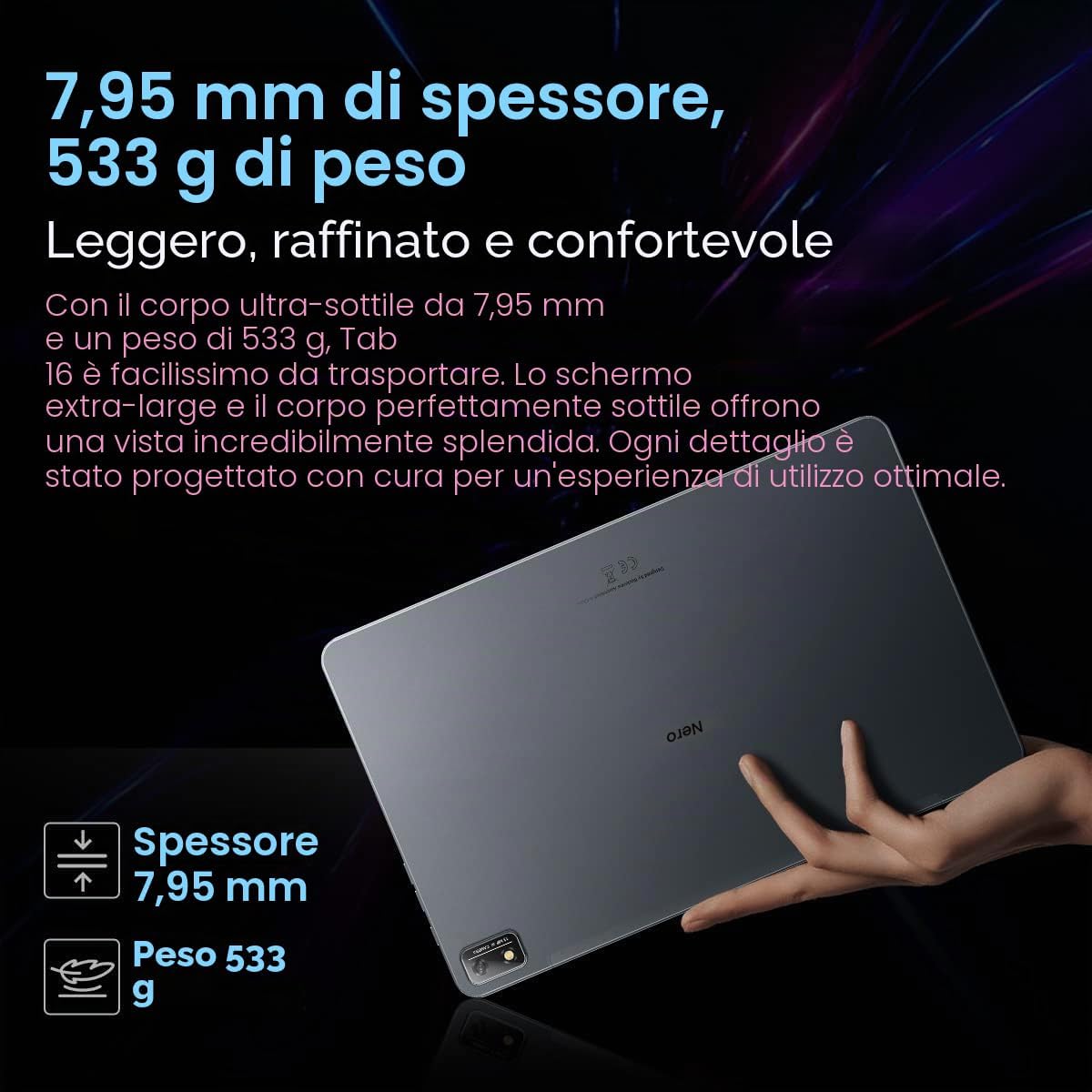
Image: The Blackview Tab 16 paired with a keyboard and mouse, demonstrating its capability for a PC-like productivity experience.
5.6 Reading Modes
To reduce eye strain, the Tab 16 offers three eye protection modes, including a TÜV Rheinland Low Blue Light certified mode and a Dark Mode with 3 levels of darkness. Access these settings in the display options.
6. cynnal
6.1 Glanhau'r Dyfais
Defnyddiwch frethyn meddal, di-flwff i lanhau'r sgrin a chorff y dabled. Osgowch ddefnyddio cemegau llym neu ddeunyddiau sgraffiniol a allai niweidio'r wyneb.
6.2 Gofal Batri
I ymestyn oes y batri:
- Osgoi tymereddau eithafol.
- Peidiwch â gadael i'r batri ddraenio'n llwyr yn rheolaidd.
- Defnyddiwch y gwefrydd a'r cebl gwreiddiol.
6.3 Diweddariadau Meddalwedd
Regularly check for system updates to ensure your tablet has the latest features and security patches. Go to Settings > System > System update.
6.4 Rheoli Storfa
Manage your 256GB internal storage and any installed microSD card by regularly deleting unnecessary files and uninstalling unused applications. Go to Settings > Storage.
7. Datrys Problemau
Os byddwch chi'n dod ar draws problemau gyda'ch Blackview Tab 16, refer to the following common solutions:
| Problem | Ateb Posibl |
|---|---|
| Nid yw'r ddyfais yn pweru ymlaen | Gwnewch yn siŵr bod y batri wedi'i wefru. Pwyswch a daliwch y botwm Pŵer am o leiaf 10-15 eiliad. |
| Tabled ddim yn codi tâl | Gwiriwch y cebl gwefru a'r addasydd am ddifrod. Rhowch gynnig ar soced pŵer gwahanol. Gwnewch yn siŵr bod y porthladd gwefru yn lân. |
| Materion cysylltiad Wi-Fi | Restart the tablet and your Wi-Fi router. Forget the network and reconnect. Ensure you are within range. |
| Apiau'n chwalu neu'n rhewi | Close and reopen the app. Clear the app's cache (Settings > Apps > [App Name] > Storage & cache). Restart the tablet. |
| Perfformiad araf | Close background apps. Clear cache. Free up storage space. Restart the tablet. |
If problems persist, consider performing a factory reset (Settings > System > Reset options > Erase all data), but back up your data first as this will delete all personal information.
8. manylebau
Key technical specifications for the Blackview Tab 16:
- Enw'r Model: Tab 16
- System Weithredu: Android 12
- Prosesydd: Unisoc T616 Wyth-graidd (2 GHz)
- RAM: 8 GB
- Storio mewnol: 256 GB
- Storfa Ehangadwy: microSD up to 1 TB
- Arddangos: 11-inch IPS 2K (2000 x 1200), 60 Hz, 16:10 aspect ratio
- Camera Cefn: 13 AS
- Camera blaen: 8 AS
- Batri: 7680 mAh (26 hours average duration)
- Codi tâl: 18W Codi Tâl Cyflym
- Cysylltedd: Wi-Fi, Bluetooth, 4G/LTE (Dual SIM), GPS
- Porthladdoedd: USB Math-C
- Dimensiynau: 26L x 16.5W x 0.8H cm
- Pwysau: 533 g
- Nodweddion arbennig: Google Smart Lens, Widevine L1 1080P Support, 3 Reading Modes
9. Gwarant a Chefnogaeth
Eich Duview Tab 16 is covered by a manufacturer's warranty. Please refer to the warranty card included in your package for specific terms and conditions. For technical support or service inquiries, please visit the official Blackview websafle neu cysylltwch â'u hadran gwasanaeth cwsmeriaid. Cadwch eich derbynneb prynu fel prawf o brynu ar gyfer hawliadau gwarant.
Am ragor o wybodaeth, gallwch ymweld â'r Duview Storiwch ar Amazon.