
1. Rhagymadrodd
The BuzzTV B5 is an advanced Android 11 TV Box designed to deliver a superior 4K UHD streaming experience. This device allows you to access a wide range of entertainment, including movies, TV shows, and applications, directly on your television. This manual provides essential information for the proper setup, operation, maintenance, and troubleshooting of your BuzzTV B5.
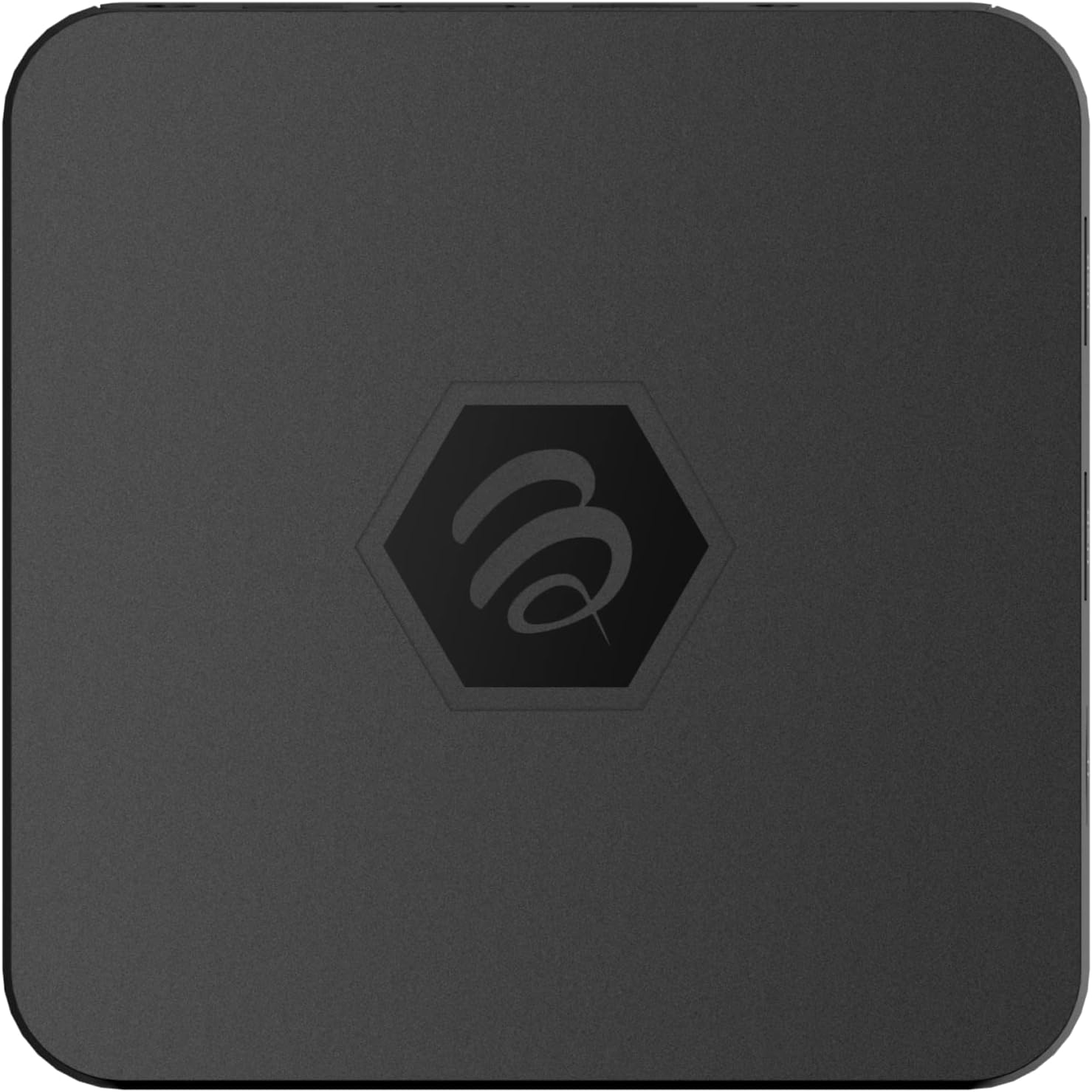
Delwedd 1.1: Top view of the BuzzTV B5 Android 11 TV Box.
2. Cynnwys Pecyn
Please verify that all items listed below are included in your BuzzTV B5 package:
- BuzzTV B5 Set Top Box
- IR-100 Remote Control
- Addasydd Cyflenwad Pwer
- 2x Batris AAA (ar gyfer teclyn rheoli o bell)
- Cebl HDMI
- Llawlyfr Defnyddiwr (y ddogfen hon)

Image 2.1: Contents included in the BuzzTV B5 retail package.
3. Canllaw Gosod
Follow these steps to set up your BuzzTV B5 TV Box:
- Cysylltu â'r teledu: Connect one end of the provided HDMI cable to the HDMI port on the BuzzTV B5 and the other end to an available HDMI input on your television.
- Pwer Cysylltu: Plug the power supply adapter into the DC 5V port on the BuzzTV B5, then plug the adapter into a wall outlet. The device should power on automatically or can be powered on using the remote control.
- Mewnosodwch y Batris yn y Rheolydd: Open the battery compartment on the back of the IR-100 Remote Control and insert the two AAA batteries, ensuring correct polarity (+/-).
- Cysylltiad Rhwydwaith: Once the device boots up, follow the on-screen instructions to connect to your network. You can choose between Wi-Fi (wireless) or Ethernet (wired) connection. For a wired connection, connect an Ethernet cable from your router to the Ethernet port on the BuzzTV B5.
- Gosodiad Cychwynnol: Complete the initial Android setup process, which may include language selection, Google account login, and time zone settings.

Image 3.1: Rear ports of the BuzzTV B5 for connectivity.
4. Cyfarwyddiadau Gweithredu
The BuzzTV B5 operates on Android 11, providing a user-friendly interface for navigation and content access.
4.1 Swyddogaethau Rheoli o Bell
The IR-100 Remote Control is your primary interface for the BuzzTV B5. Key functions include:
- Botwm Pŵer: Yn troi'r ddyfais ymlaen neu i ffwrdd.
- Pad Llywio (I Fyny/I Lawr/Chwith/Dde/Iawn): Fe'i defnyddir i lywio bwydlenni a dewis eitemau.
- Botwm Cefn: Yn dychwelyd i'r sgrin neu'r ddewislen flaenorol.
- Botwm Cartref: Returns to the main Android home screen.
- Botymau Cyfrol: Yn addasu'r cyfaint sain.
- App/Menu Buttons: Accesses specific applications or context menus.

Image 4.1: Layout of the IR-100 Remote Control.
4.2 Cyrchu Ceisiadau
From the home screen, you can access pre-installed applications like Netflix and YouTube, or download new applications from the Google Play Store. Use the navigation pad on your remote to select and launch applications.
4.3 4K UHD Streaming
The BuzzTV B5 supports 4K UHD resolution. Ensure your television is 4K compatible and that you are using a high-speed HDMI cable for optimal picture quality. Streaming quality will also depend on your internet connection speed and the content source.
5. cynnal
To ensure the longevity and optimal performance of your BuzzTV B5, consider the following maintenance tips:
- Glanhau: Defnyddiwch frethyn meddal, sych i lanhau tu allan y ddyfais. Osgowch lanhawyr hylif neu ddeunyddiau sgraffiniol.
- Awyru: Ensure the device is placed in a well-ventilated area to prevent overheating. Do not cover ventilation openings.
- Diweddariadau Meddalwedd: Periodically check for and install system updates to benefit from new features, performance improvements, and security patches. These can usually be found in the device's settings menu.
- Cylchred Pwer: Os bydd y ddyfais yn methu ymateb, datgysylltwch yr addasydd pŵer, arhoswch 10 eiliad, ac yna ailgysylltwch ef i berfformio cylch pŵer.
6. Datrys Problemau
If you encounter issues with your BuzzTV B5, refer to the following common problems and solutions:
| Problem | Achos Posibl | Ateb |
|---|---|---|
| Dim Pwer | Addasydd pŵer heb ei gysylltu; allfa ddim yn gweithio. | Gwnewch yn siŵr bod yr addasydd pŵer wedi'i gysylltu'n ddiogel â'r ddyfais ac allfa bŵer sy'n gweithio. Rhowch gynnig ar allfa wahanol. |
| No Signal on TV | Incorrect HDMI input selected; faulty HDMI cable. | Select the correct HDMI input on your TV. Check HDMI cable connections or try a different HDMI cable. |
| Rheolaeth Anghysbell Ddim yn Ymateb | Dead batteries; remote not paired (if applicable); obstruction. | Replace AAA batteries. Ensure no obstructions between remote and device. |
| Materion Cysylltiad Rhwydwaith | Cyfrinair Wi-Fi anghywir; problemau gyda'r llwybrydd; signal gwan. | Verify Wi-Fi password. Restart your router. Move the device closer to the router or use an Ethernet cable. |
| Applications Crashing/Freezing | Insufficient memory; outdated app; software glitch. | Close background apps. Update the app or the device's firmware. Clear app cache/data in settings. |
7. manylebau
Detailed technical specifications for the BuzzTV B5 Android 11 TV Box:
- System Weithredu: Android OS 11
- CPU: Amlogic S905W2 Quad-Core A-35
- GPU: Mali-G31 MP2
- RAM: 2GB DDR
- Storio: 16GB eMMC
- Wi-Fi: Dual Band AC
- LAN: Ethernet 10/100 Mbps
- Bluetooth: 4.2
- Porthladdoedd USB: 2x USB 2.0
- Slot MicroSD: 1
- Rhyngwyneb pŵer: DC 5V
- Allbwn HDMI: 1
- Allbwn sain optegol: 1
- Datrysiad Allbwn: 4K (32 FPS)
- Dimensiynau: 9.06 x 5.63 x 2.32 modfedd
- Pwysau Eitem: 1.01 pwys

Image 7.1: BuzzTV B5 with a summary of its technical specifications.
8. Gwybodaeth Gwarant
For detailed warranty information regarding your BuzzTV B5, please refer to the warranty card included in your product packaging or visit the official BuzzTV websafle. Gall telerau ac amodau'r warant amrywio yn ôl rhanbarth a manwerthwr.
9. Cefnogaeth
If you require further assistance or have questions not covered in this manual, please contact BuzzTV customer support or visit their official website for FAQs, software downloads, and additional resources.
BuzzTV Official Websafle: www.buzztv.com


