
1. Rhagymadrodd
Thank you for choosing the EBTOOLS 2.4G Wireless Keyboard and Mouse combo. This product is designed for comfortable and efficient use with its low-noise operation, adjustable DPI settings, and reliable 2.4G wireless connectivity. This manual provides detailed instructions for setup, operation, and maintenance to ensure optimal performance.
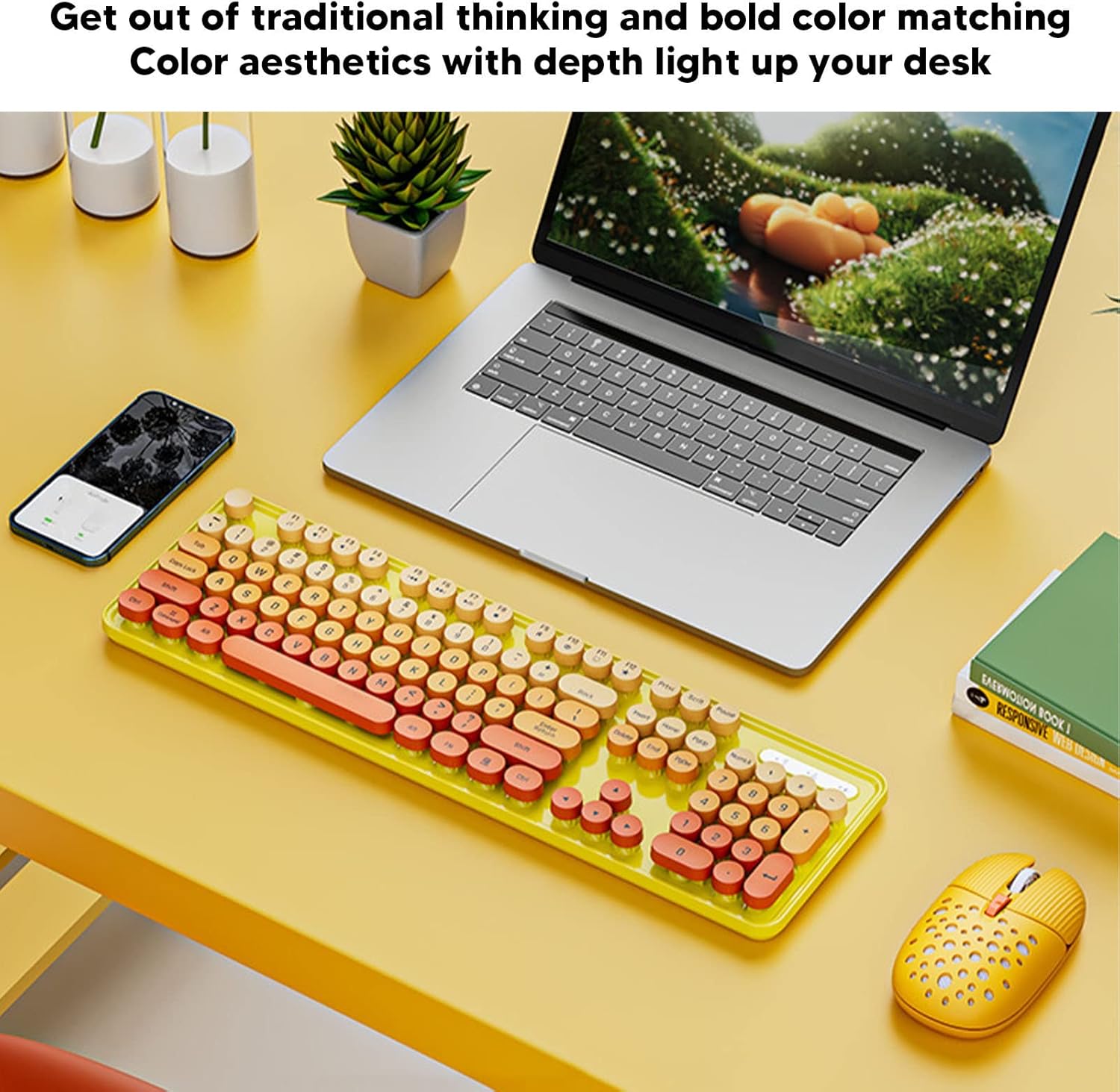
Image: The EBTOOLS 2.4G Wireless Keyboard and Mouse in mixed color yellow, displayed on a desk alongside a laptop and smartphone, showcasing ei ddyluniad a'i ffactor ffurf gryno.
2. Cynnwys Pecyn
- 1 x EBTOOLS 2.4G Wireless Keyboard
- 1 x EBTOOLS 2.4G Wireless Mouse
- 1 x USB Receiver (typically stored in the mouse battery compartment)
- Llawlyfr Defnyddiwr (y ddogfen hon)
3. Cyfarwyddiadau Gosod
3.1. Gosod Batri
The keyboard and mouse require batteries for operation. Please ensure you have 1 AA battery for the keyboard and 1 AA battery for the mouse (batteries are not included).
- Lleolwch yr adran batri ar ochr isaf y bysellfwrdd.
- Agorwch y clawr adran batri.
- Mewnosodwch y batri AA yn ôl y dangosyddion polaredd (+/-) y tu mewn i'r adran.
- Caewch y clawr adran batri yn ddiogel.

Image: The underside of the EBTOOLS keyboard with the battery compartment open, showing where to insert the AA battery.
3.2. Cysylltu'r Derbynnydd USB
The keyboard and mouse share a single 2.4G USB receiver for wireless connection.
- Locate the USB receiver. It is typically stored in the battery compartment of the mouse for safekeeping.
- Tynnwch y derbynnydd USB o'i slot storio.
- Plug the USB receiver into an available USB port on your computer (desktop PC, laptop, etc.).
- The system should automatically detect and install the necessary drivers. This is a plug-and-play device.

Image: A diagram illustrating the compatibility of the keyboard and mouse with various systems, including desktop PCs, laptops, and other computers, highlighting its plug-and-play functionality.

Image: An illustration demonstrating the 2.4G wireless connection mode for the keyboard and mouse, emphasizing the ability to connect two devices wirelessly with a single receiver.
4. Cyfarwyddiadau Gweithredu
4.1. Adjusting Mouse DPI
The mouse features three adjustable DPI (Dots Per Inch) settings to suit your preference and task requirements. You can cycle through these settings by pressing the DPI button, usually located near the scroll wheel on the mouse.
- 800 DPI: Suitable for precise tasks or slower cursor movement.
- 1600 DPI: Standard setting for general use.
- 2400 DPI: Ideal for faster cursor movement, such as gaming or navigating large screens.
4.2. Using Multimedia Keys
The keyboard is equipped with 18 multimedia keys for quick access to various functions. These keys are typically activated by pressing the Fn key in combination with the corresponding function key (F1-F12) or dedicated multimedia keys.

Delwedd: Manwl view of the EBTOOLS keyboard layout, highlighting the standard keys and the 18 multimedia keys, along with their respective functions such as volume control, media playback, and quick access to applications.
Common multimedia functions include:
- Volume Down / Up / Mute
- Play / Pause / Previous Track / Next Track
- Home / My Computer / Mail / Favorites
- Other system-specific functions
5. cynnal
5.1. Glanhau
To maintain the longevity and appearance of your keyboard and mouse:
- Defnyddiwch frethyn meddal, sych i sychu'r arwynebau.
- Ar gyfer baw ystyfnig, ychydig yn dampgolchwch y lliain gyda dŵr neu doddiant glanhau ysgafn. Osgowch gemegau llym.
- Use compressed air to remove dust and debris from between the keyboard keys.
5.2. Amnewid Batri
When the keyboard or mouse becomes unresponsive or exhibits intermittent connectivity, it may be time to replace the batteries. Follow the battery installation steps in Section 3.1.

Image: An illustration depicting the energy-saving features of the keyboard and mouse, emphasizing lower power consumption and extended battery life for continuous use.
6. Datrys Problemau
| Problem | Ateb |
|---|---|
| Bysellfwrdd/Llygoden ddim yn ymateb |
|
| Cysylltiad ysbeidiol |
|
| Cyrchwr y llygoden yn afreolaidd neu ddim yn symud yn esmwyth |
|
7. manylebau
| Nodwedd | Manylyn |
|---|---|
| Brand | EBTOOLAU |
| Lliw | Mixed Color Yellow |
| Technoleg Cysylltedd | 2.4G Radio Frequency Wireless |
| Nodwedd Arbennig | Gweithrediad Sŵn Isel |
| Dyfeisiau Cydnaws | Personal Computer (Desktop PC, Laptop) |
| System Weithredu | Major PC Operating Systems |
| Cyfeiriadedd Llaw (Llygoden) | ambidextrous |
| Batris Angenrheidiol | Yes (1 AA for keyboard, 1 AA for mouse) |
| Number of Keys (Keyboard) | 104 |
| Ffynhonnell Pwer | Wedi'i Bweru â Batri |
| Cynllun Bysellfwrdd | QWERTY |
| Gosodiadau DPI Llygoden | 800, 1600, 2400 (Adjustable) |
| Deunydd | ABS |
8. Fideos Cynnyrch Swyddogol
8.1. Keyboard and Mouse Overview
Fideo: Dros benview of the EBTOOLS Keyboard and Mouse, demonstrating its features and design. This video is provided by the seller, Zhiyavex-US.
8.2. Yunseity Wireless Keyboard and Mouse Demonstration
Video: A demonstration of the Yunseity Wireless Keyboard and Mouse, showcasing its functionality and user experience. This video is provided by the seller, Zhiyavex-US.
9. Gwarant a Chefnogaeth
EBTOOLS products are designed for reliability and performance. For any questions, technical support, or warranty inquiries, please refer to the contact information provided with your purchase or visit the official EBTOOLS websafle. Cadwch eich prawf prynu ar gyfer hawliadau gwarant.
The product comes with a standard return policy of 30 days from the date of purchase for refund or replacement, as per seller terms.