
1. Rhagymadrodd
This manual provides instructions for the installation, operation, and maintenance of your NETGEAR GS305P 5-Port PoE Gigabit Ethernet Unmanaged Switch. This device is designed to expand your network connectivity with both standard Gigabit Ethernet and Power over Ethernet (PoE+) capabilities, ideal for small office or home network environments.
2. Cynnwys Pecyn
Gwiriwch fod eich pecyn yn cynnwys yr eitemau canlynol:
- NETGEAR GS305P 5-Port PoE Gigabit Ethernet Unmanaged Switch (GS305Pv3)
- Addasydd pŵer
- Pecyn Wallmount
- Canllaw gosod cyflym

Image: The NETGEAR GS305P switch, power adapter, and power cord as typically found in the package.
3. Cynnyrch Drosview
The NETGEAR GS305P is an unmanaged switch featuring 5 Gigabit Ethernet ports, with 4 of these ports supporting PoE+ (Power over Ethernet Plus). It provides a total power budget of 63W for connected PoE devices. The switch is designed for plug-and-play operation, requiring no software installation or configuration.
Fideo: Dros benview of the NETGEAR 5-Port PoE Switch, demonstrating its features and ease of use.
Panel blaen

Image: Front panel of the GS305P switch, highlighting the 5 Gigabit Ethernet ports and LED indicators for power, PoE Max, link/activity, and PoE fault.
- Pwer LED: Yn dynodi statws pŵer.
- PoE Max LED: Illuminates when PoE power consumption is near maximum capacity.
- Link/Activity LEDs (Ports 1-5): Green for 1000Mbps link, Yellow for 10/100Mbps link. Blinks to indicate activity.
- LEDs Statws PoE (Porthladdoedd 1-4): Green for PoE powered, Yellow for PoE fault.
- Porthladdoedd Ethernet (1-5): RJ-45 ports for network connections. Ports 1-4 support PoE+.
4. Gosod a Gosod
The NETGEAR GS305P switch is designed for simple plug-and-play installation. No software configuration is required.
4.1 Cysylltu'r Switsh
- Connect the power adapter to the switch's power input and then plug the power adapter into an electrical outlet. The Power LED on the switch will illuminate.
- Connect your router or modem to any of the 5 Gigabit Ethernet ports on the switch using an Ethernet cable.
- Connect your network devices (computers, printers, network storage) to the remaining Gigabit Ethernet ports. For PoE-powered devices (e.g., IP cameras, wireless access points), connect them to ports 1-4.

Image: A diagram illustrating the plug-and-play nature of the unmanaged switch, connecting various devices like WiFi Access Points, IP Cameras, Computers, and NAS.
4.2 Opsiynau Mowntio
The GS305P switch can be placed on a desktop or mounted on a wall. A wallmount kit is included for secure installation.
- Lleoliad Penbwrdd: Ensure the switch is placed on a flat, stable surface with adequate ventilation.
- Mount Mount: Use the provided wallmount kit to secure the switch to a wall. Refer to the quick installation guide for detailed steps on wall mounting.
5. Gweithredu'r Switsh
Once connected, the switch operates automatically. The LEDs provide visual feedback on the network status.
- Pŵer Ymlaen: The Power LED will be green when the switch is receiving power.
- Network Activity: The Link/Activity LEDs will light up when a device is connected and blink to indicate data transmission.
- Pŵer PoE: For PoE-powered devices, the PoE Status LED will be green when power is being supplied. If a PoE fault occurs, the LED will turn yellow.
- Gweithrediad Tawel: The fanless design ensures quiet operation, making it suitable for noise-sensitive environments.
6. cynnal
To ensure optimal performance and longevity of your switch, follow these maintenance guidelines:
- Glanhau: Defnyddiwch frethyn meddal, sych i lanhau tu allan y switsh. Peidiwch â defnyddio glanhawyr hylif na glanhawyr aerosol.
- Awyru: Sicrhewch nad yw'r agoriadau awyru wedi'u rhwystro i atal gorboethi.
- Amgylchedd: Operate the switch within its specified temperature and humidity ranges. Avoid direct sunlight or extreme temperatures.
- Rheoli Ceblau: Keep network cables organized to prevent strain on ports and improve airflow.
7. Datrys Problemau
If you encounter issues with your NETGEAR GS305P switch, refer to the following common troubleshooting steps:
- Dim pŵer: Ensure the power adapter is securely connected to the switch and a working electrical outlet. Check the Power LED.
- Dim Cyswllt/Gweithgaredd: Verify that Ethernet cables are properly connected to both the switch and the connected device. Try a different cable or port. Check the Link/Activity LED.
- Dyfais PoE Ddim yn Troi Ymlaen: Ensure the device is PoE-compatible and connected to one of the PoE+ ports (1-4). Check the PoE Status LED for the port; a yellow light indicates a fault. Verify the total power budget (63W) is not exceeded by all connected PoE devices.
- Cyflymder Rhwydwaith Araf: Ensure all connected devices and cables support Gigabit Ethernet for optimal performance. Check for excessive network traffic.
8. manylebau
Key technical specifications for the NETGEAR GS305P switch:
| Nodwedd | Disgrifiad |
|---|---|
| Model | GS305P (GS305Pv3) |
| Nifer y Porthladdoedd | 5 porthladd Ethernet Gigabit |
| Porthladdoedd PoE+ | 4 (Ports 1-4) |
| Cyfanswm Cyllideb Pŵer PoE | 63W |
| Cyfradd Trosglwyddo Data | 1000 Mbps (Gigabit) |
| Newid Math | Heb ei reoli |
| Deunydd Achos | Metel |
| Dimensiynau (L x W x H) | 9.5" x 6.7" x 3.4" (approximate, from product data) |
| Cyftage | 240 Volts (Power adapter input) |
| Amgylchedd Gweithredu | Designed for indoor use in U.S. & CA. |
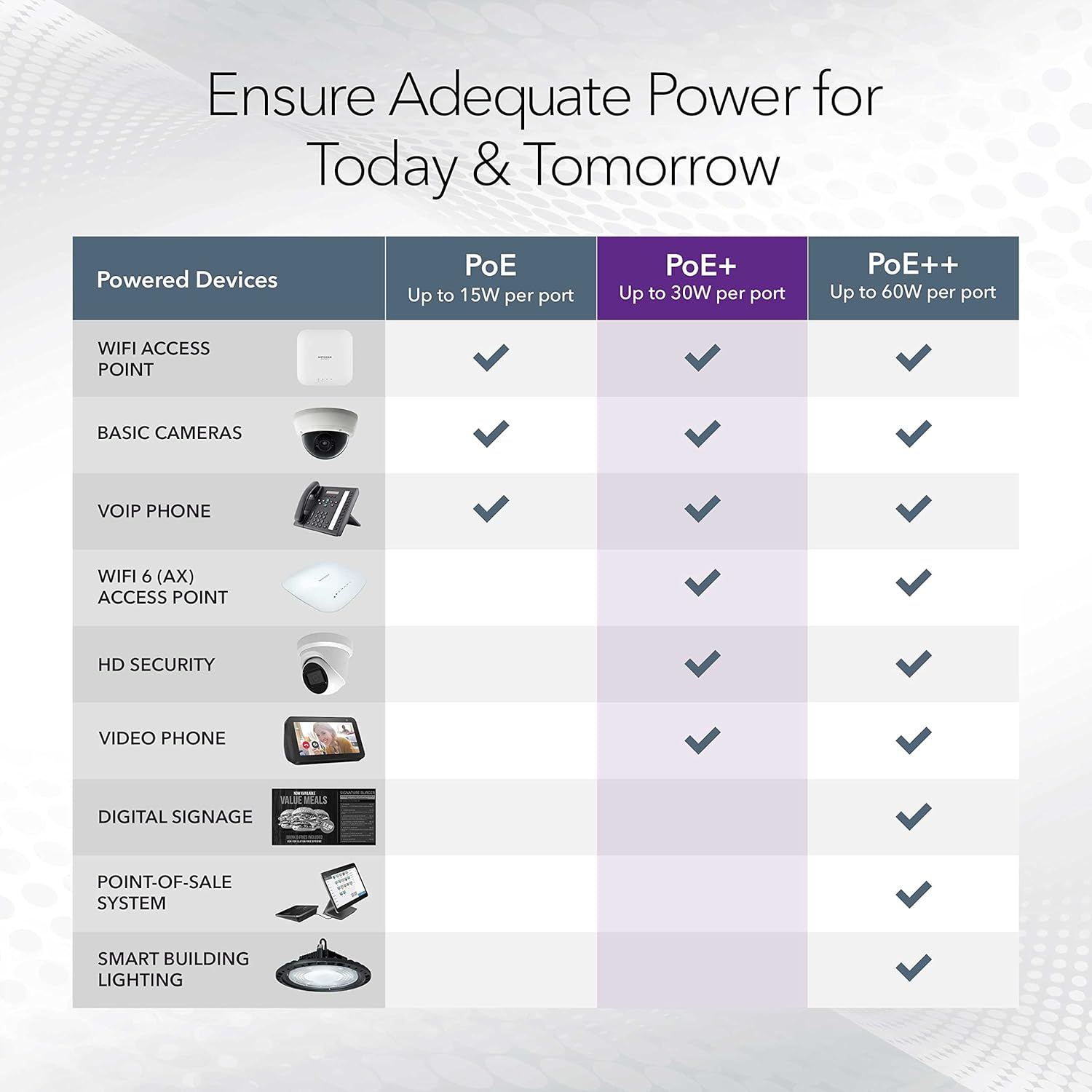
Image: A table illustrating the power capabilities of PoE, PoE+, and PoE++ for different powered devices.
9. Gwarant a Chefnogaeth
9.1 Gwybodaeth Gwarant
The NETGEAR GS305P switch comes with an industry-leading Gwarant caledwedd cyfyngedig 3 flynedd. Please retain your proof of purchase for warranty claims. For full warranty terms and conditions, refer to the official NETGEAR websafle neu'r ddogfennaeth sydd wedi'i chynnwys gyda'ch cynnyrch.
9.2 Cefnogaeth Dechnegol
For technical assistance, product registration, or to access additional resources, visit the official NETGEAR support website. You can find FAQs, firmware updates, and community forums there.
Cefnogaeth NETGEAR Websafle: www.netgear.com/support