
1. Cynnyrch Drosview
The GIGABYTE G24F 2 is a 23.8-inch gaming monitor designed for an immersive visual experience. It features a Super Speed IPS panel, Full HD (1920 x 1080) resolution, and a high refresh rate for smooth gameplay.

Ffigur 1.1: Blaen view of the GIGABYTE G24F 2 gaming monitor.
Nodweddion Allweddol:
- Maint y Panel: 23.8-inch SS IPS display
- Penderfyniad: 1920 x 1080 (FHD)
- Amser ymateb: 1ms MPRT
- Cyfradd Adnewyddu: 165Hz (Gallwch or-glocio i 180Hz)
- Dirlawnder Lliw: 95% DCI-P3, 125% sRGB
- Disgleirdeb: 300 cd / m2 (TYP)
- Cymhareb cyferbyniad: 1100:1
- Cysylltedd: 2 x HDMI 2.0, 1 x DisplayPort 1.2 (HDR capable), 2 x USB 3.2 Gen 1 Downstream, 1 x USB 3.2 Gen 1 Upstream, 1 x Earphone Jack
- Nodweddion arbennig: OSD Sidekick, Aim Stabilizer, Black Equalizer, Dashboard, Crosshair, Timer, Counter, Auto-Update, Smart OD, HDR Ready, Flicker-free, Kensington lock
2. Gwybodaeth Diogelwch
Darllenwch yr holl gyfarwyddiadau yn ofalus cyn defnyddio'r monitor. Cadwch y llawlyfr hwn i gyfeirio ato yn y dyfodol.
- Peidiwch ag amlygu'r monitor i law na lleithder er mwyn osgoi peryglon tân neu sioc.
- Peidiwch ag agor y monitor casing. Nid oes unrhyw rannau y gall y defnyddiwr eu gwasanaethu y tu mewn. Cyfeiriwch yr holl waith cynnal a chadw at bersonél cymwys.
- Rhowch y monitor ar arwyneb sefydlog, gwastad i'w atal rhag cwympo.
- Sicrhewch awyru digonol o amgylch y monitor. Peidiwch â rhwystro agoriadau awyru.
- Defnyddiwch yr addasydd pŵer a'r ceblau a ddarperir gan y gwneuthurwr yn unig.
- Datgysylltwch y monitor o'r soced pŵer yn ystod stormydd mellt a phan na chaiff ei ddefnyddio am gyfnodau hir.
- Clean the screen with a soft, lint-free cloth. Avoid using liquid cleaners directly on the screen.
3. Cynnwys Pecyn
Gwiriwch fod yr holl eitemau yn bresennol yn eich pecyn:
- GIGABYTE G24F 2 Monitor
- Stand Monitor (Sylfaen a Gwddf)
- Cebl Pŵer
- Cebl HDMI
- USB Cable (Upstream)
- Canllaw Cychwyn Cyflym (QSG)
- Cerdyn Gwarant

Ffigur 3.1: Cefn view of the monitor, illustrating the stand attachment area.
4. Gosod
4.1 Cydosod y Stand
- Tynnwch gydrannau'r monitor a'r stondin o'r pecynnu yn ofalus.
- Cysylltwch wddf y stondin â phanel y monitor. Gwnewch yn siŵr ei fod yn clicio'n ddiogel i'w le neu ei fod wedi'i glymu â sgriwiau os darperir rhai.
- Attach the stand base to the stand neck. Tighten the thumb screw or screws at the bottom of the base.
- Rhowch y monitor wedi'i ymgynnull ar arwyneb sefydlog, gwastad.
4.2 Cysylltu'r Monitor
Connect the monitor to your computer and other devices using the appropriate cables.

Ffigur 4.1: Porthladdoedd cysylltedd monitro.
- Cysylltiad Pwer: Cysylltwch y cebl pŵer â mewnbwn pŵer y monitor ac yna ag allfa bŵer.
- Cysylltiad Fideo:
- For optimal performance, use the DisplayPort 1.2 cable to connect to your computer's graphics card.
- Alternatively, use one of the two HDMI 2.0 ports.
- Cysylltiad USB i Fyny'r Afon: Connect the provided USB 3.2 Gen 1 Upstream cable from your computer to the monitor's upstream USB port to enable the monitor's downstream USB ports.
- USB Downstream Connections: Connect USB devices (e.g., keyboard, mouse) to the monitor's two USB 3.2 Gen 1 Downstream ports.
- Allbwn sain: Connect headphones or external speakers to the Earphone Jack.
5. Gweithredu'r Monitor
5.1 Pŵer Ymlaen/Diffodd
Press the power button, usually located on the bottom or rear of the monitor, to turn the monitor on or off. The power indicator light will show the monitor's status.
5.2 Dewislen Arddangos Ar y Sgrin (OSD)
The OSD menu allows you to adjust various monitor settings. Navigate the OSD using the joystick or buttons typically found on the rear of the monitor.

Figure 5.1: OSD Sidekick software for convenient monitor control.
For advanced control, install the OSD Sidekick software on your PC. This utility allows you to adjust monitor settings directly from your desktop.
5.3 Nodweddion Hapchwarae
The GIGABYTE G24F 2 includes several features to enhance your gaming experience:
- Aim Stabilizer: Reduces motion blur and improves visual clarity in fast-paced games.
- Cyfartalydd Du: Enhances visibility in dark areas of the game without overexposing bright areas.

Figure 5.2: Black Equalizer in action.
- Dangosfwrdd: Displays real-time hardware information (e.g., CPU/GPU temperature, usage) directly on the screen.

Figure 5.3: Dashboard displaying system metrics.
- Croeswallt: Provides a customizable on-screen crosshair to assist with aiming.

Figure 5.4: On-screen Crosshair.
- Timer/Counter: On-screen timers and counters for in-game tracking.
- Smart OD: Optimizes overdrive settings for the best response time.
- Diweddaru'n awtomatig: Ensures the monitor's firmware and OSD Sidekick software are up-to-date.
5.4 Gosodiadau Arddangos
- Cyfradd Adnewyddu: The monitor supports up to 165Hz, with an overclock option to 180Hz, for fluid motion.
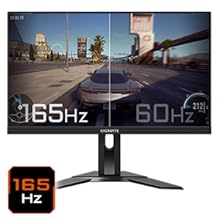
Figure 5.5: Visual comparison of 165Hz vs. 60Hz refresh rate.
- Amser ymateb: Enjoy a 1ms MPRT (Moving Picture Response Time) for minimal ghosting.
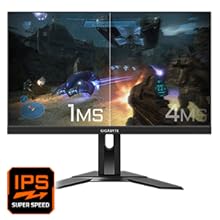
Figure 5.6: Visual comparison of 1ms vs. 4ms response time.
- Gamut lliw: The monitor covers 95% DCI-P3 and 125% sRGB for vibrant and accurate colors.
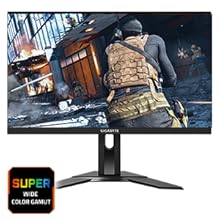
Figure 5.7: Wide color gamut for rich visuals.
- Golau Glas Isel: Reduces blue light emissions to protect your eyes during extended use.
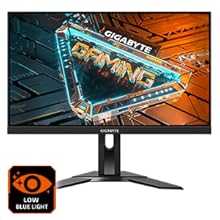
Figure 5.8: Low Blue Light feature for reduced eye strain.
- Heb fflachio: Yn dileu fflachio'r sgrin am fwy cyfforddus viewing profiad.

Figure 5.9: Flicker-Free technology for comfortable viewing.
5.5 Product Feature Video
Fideo 5.1: Dros benview of the GIGABYTE G24F 2 monitor's features and specifications.
6. cynnal
Proper maintenance ensures the longevity of your monitor.
- Glanhau'r sgrin: Sychwch y sgrin yn ysgafn gyda lliain meddal, sych, heb lint. Ar gyfer marciau ystyfnig, sychwch yn ysgafnamprhowch y brethyn gyda dŵr neu lanhawr sgrin arbenigol (rhowch ef ar y brethyn, nid yn uniongyrchol ar y sgrin).
- Glanhau'r Casing: Defnyddiwch frethyn meddal, sych i sychu'r monitor casing. Osgowch lanhawyr sgraffiniol.
- Awyru: Ensure the ventilation openings on the monitor are clear of dust and obstructions.
- Pwer i ffwrdd: Turn off and unplug the monitor when not in use for extended periods.
7. Datrys Problemau
Os byddwch chi'n dod ar draws problemau gyda'ch monitor, cyfeiriwch at y tabl canlynol am broblemau cyffredin ac atebion.
| Problem | Achos Posibl | Ateb |
|---|---|---|
| Dim delwedd ar y sgrin | Power cable not connected; Video cable not connected; Incorrect input source selected | Check power and video cable connections; Select correct input source via OSD. |
| Mae'r ddelwedd yn aneglur neu wedi'i gwyrdroi | Incorrect resolution; Loose video cable | Set display resolution to 1920x1080; Ensure video cable is securely connected. |
| Dim sain o'r clustffonau/siaradwyr | Audio cable not connected; Volume too low; Incorrect audio output selected on PC | Check audio cable connection; Adjust volume; Select monitor as audio output on PC. |
| Nid yw pyrth USB yn gweithio | USB upstream cable not connected | Connect the USB 3.2 Gen 1 Upstream cable from the monitor to your PC. |
| Sgrin sy'n fflachio | Refresh rate issue; Faulty cable | Ensure refresh rate is set correctly; Try a different video cable. |
8. manylebau
Detailed technical specifications for the GIGABYTE G24F 2 monitor.

Ffigur 8.1: Dimensiynau'r monitor.
| Nodwedd | Manylyn |
|---|---|
| Brand | GIGABYTE |
| Enw Model | G24F 2 |
| Rhif Model | 9DG24F2-00-1ABIN |
| Maint Sgrin | 23.8 modfedd |
| Datrysiad | 1920 x 1080 Picsel (FHD 1080p) |
| Cymhareb Agwedd | 16:9 |
| Math Arddangos | LCD (SS IPS Panel) |
| Cyfradd Adnewyddu | 165 Hz (180Hz OC) |
| Amser Ymateb | 1 Milliseconds (MPRT) |
| Disgleirdeb | 300 candela_per_square_meter (TYP) |
| Cymhareb Cyferbyniad | 1100:1 |
| Dirlawnder Lliw | 95% DCI-P3, 125% sRGB |
| Viewongl ing | 178 Gradd |
| Cysylltedd | 2 x HDMI 2.0, 1 x DisplayPort 1.2, 2 x USB 3.2 Gen 1 Downstream, 1 x USB 3.2 Gen 1 Upstream, 1 x Earphone Jack |
| Cysoni Addasol | Premiwm FreeSync |
| Defnydd Pŵer | 17.5 Wat |
| Pwysau Eitem | 3.2 Cilogram |
| Dimensiynau Eitem (D x W x H) | 5.3D x 54.1W x 32.6H Centimetrau |
| Math Mowntio | Wal Mount |
| Nodweddion Cynnyrch | Flicker-Free, Height Adjustment, High Dynamic Range, Tilt Adjustment |
9. Gwarant a Chefnogaeth
The GIGABYTE G24F 2 monitor comes with a Gwarant 3 mlynedd gan y gwneuthurwr.
For technical support, warranty claims, or further inquiries, please contact GIGABYTE customer service:
- Gwneuthurwr: GIGABYTE Technology (India) Pvt Ltd
- Cyfeiriad: B-808, Naman Midtown, Elphinstone Road, Mumbai – 400013 – INDIA
- Ffôn: +91-22-40633222
Cadwch eich prawf prynu ar gyfer gwasanaeth gwarant.


