
UPERFECT 133A14
UPERFECT 15.6-inch Portable Touch Monitor User Manual
Model: 133A14
1. Rhagymadrodd
Diolch am brynuasing the UPERFECT 15.6-inch Portable Touch Monitor. This manual provides detailed instructions on how to set up, operate, maintain, and troubleshoot your new device. Please read this manual thoroughly before use to ensure optimal performance and longevity of your monitor.
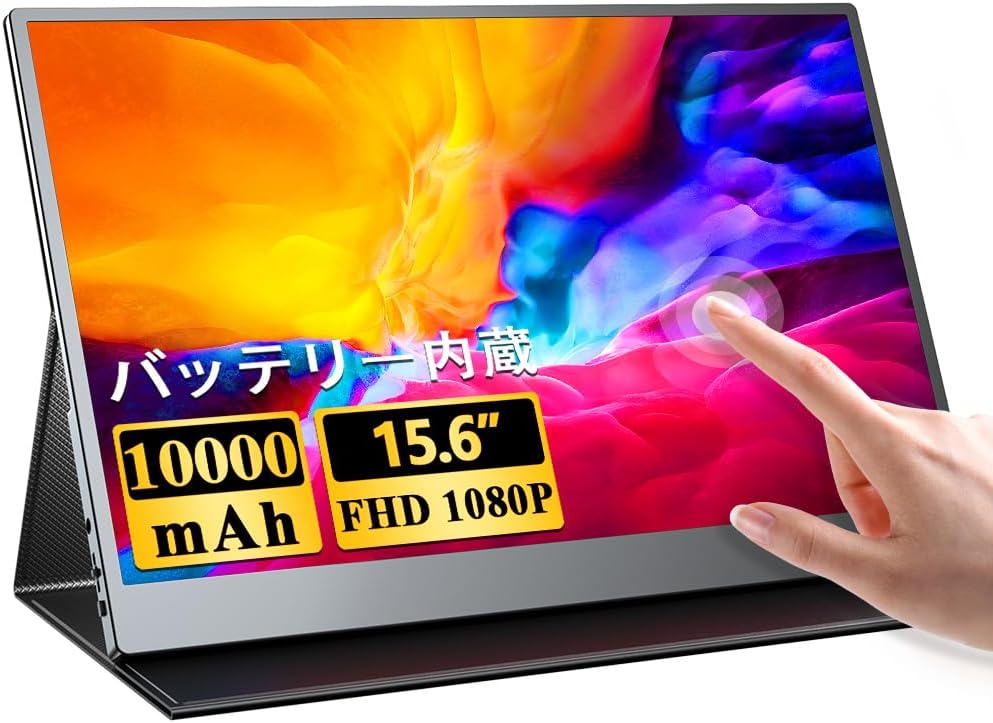
Image: The UPERFECT 15.6-inch portable touch monitor, showcasing its touch functionality and sleek design.
2. Nodweddion Allweddol
- Large Capacity Built-in Battery: Equipped with a 10000mAh battery, providing up to 4 hours of continuous use on a single charge, enabling extended work sessions even outdoors. Features 1.5-hour fast charging.
- 10-Point Multi-Touch Panel: Offers highly accurate and responsive touch control for a seamless interactive experience, perfect for document editing, drawing, or gaming.
- Refined Slim Bezel Design: Features a stylish, frameless design that makes the display appear larger and more immersive. The slim aluminum alloy body offers a premium matte finish that is comfortable to touch and scratch-resistant.
- Superior Color Reproduction & Powerful Sound: Delivers an excellent visual experience with high resolution and wide viewing angles, ensuring consistent color without blurring from any perspective. Built-in 2.0W stereo speakers provide immersive audio.
- Cysylltedd Eang: Supports hybrid signal USB Type-C and HDMI connections, allowing display of content from various devices including PCs, smartphones, game consoles, and cameras. USB Type-C enables video output and touch functionality with a single cable.

Image: The portable monitor displaying content alongside a laptop, emphasizing its built-in 10000mAh battery for up to 4 hours of continuous operation and 1.5-hour fast charging.
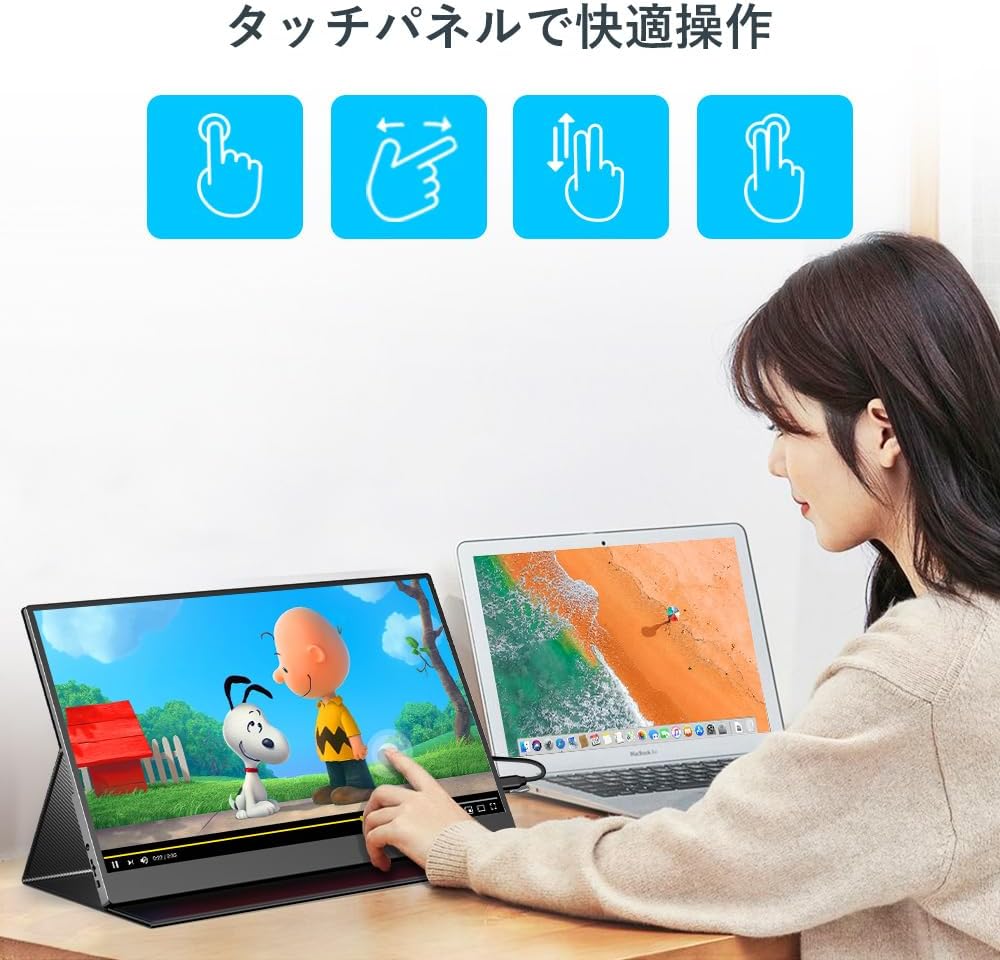
Image: A user demonstrating comfortable operation with the 10-point multi-touch panel, highlighting intuitive gestures.

Delwedd: Y monitor yn dangosasing its delicate color beauty and blue light reduction feature, ensuring comfortable viewing o unrhyw ongl.
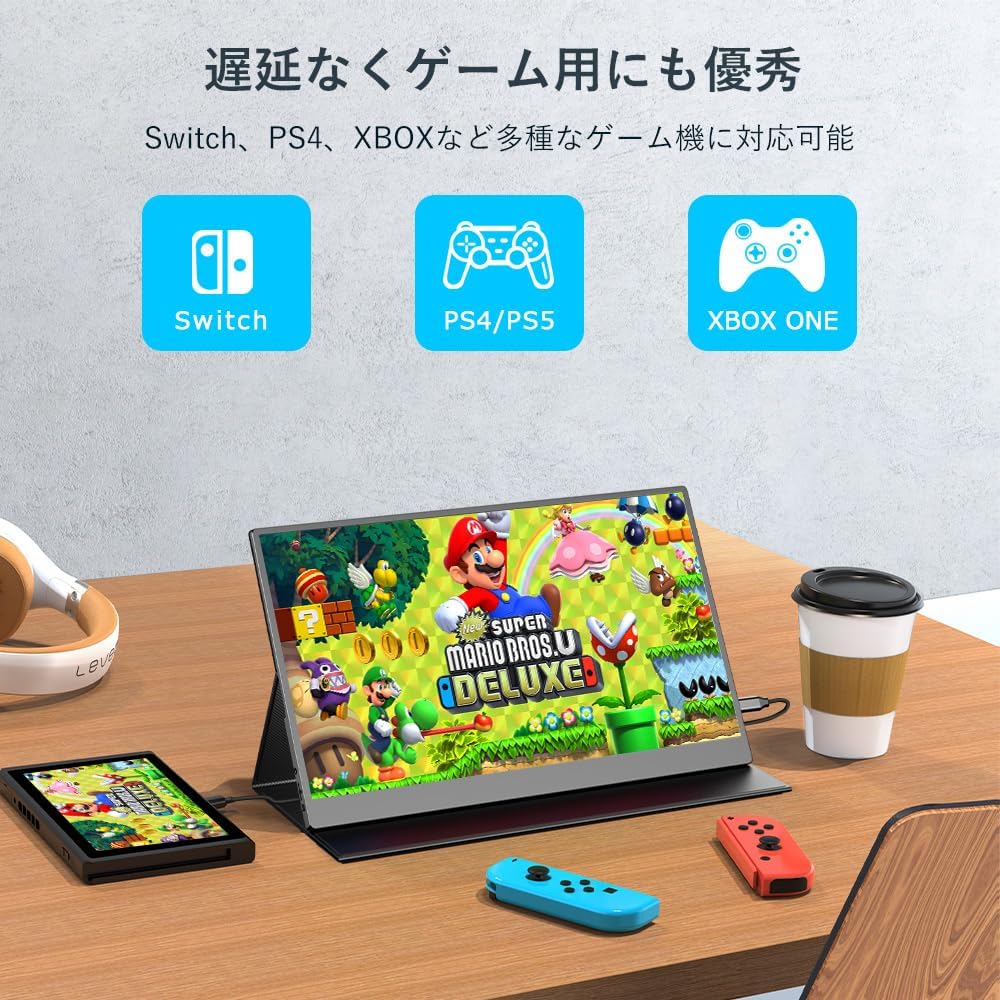
Image: The monitor demonstrating its compatibility with various gaming consoles like Nintendo Switch, PlayStation, and Xbox, offering excellent performance for gaming without delay.
3. Cynnwys Pecyn
Gwiriwch fod yr holl eitemau yn bresennol ac mewn cyflwr da:
- UPERFECT 15.6-inch Portable Touch Monitor
- Protective Stand Case
- USB Type-C to Type-C Cable (for video, power, and touch)
- HDMI to Mini HDMI Cable (for video)
- USB Type-A to Type-C Cable (for power)
- Addasydd Pŵer
- Llawlyfr Defnyddiwr (y ddogfen hon)
Note: All necessary cables are included as standard, so there is no need for additional purchases.
4. Cynnyrch Drosview (Ports and Buttons)
Familiarize yourself with the ports and buttons on your monitor:
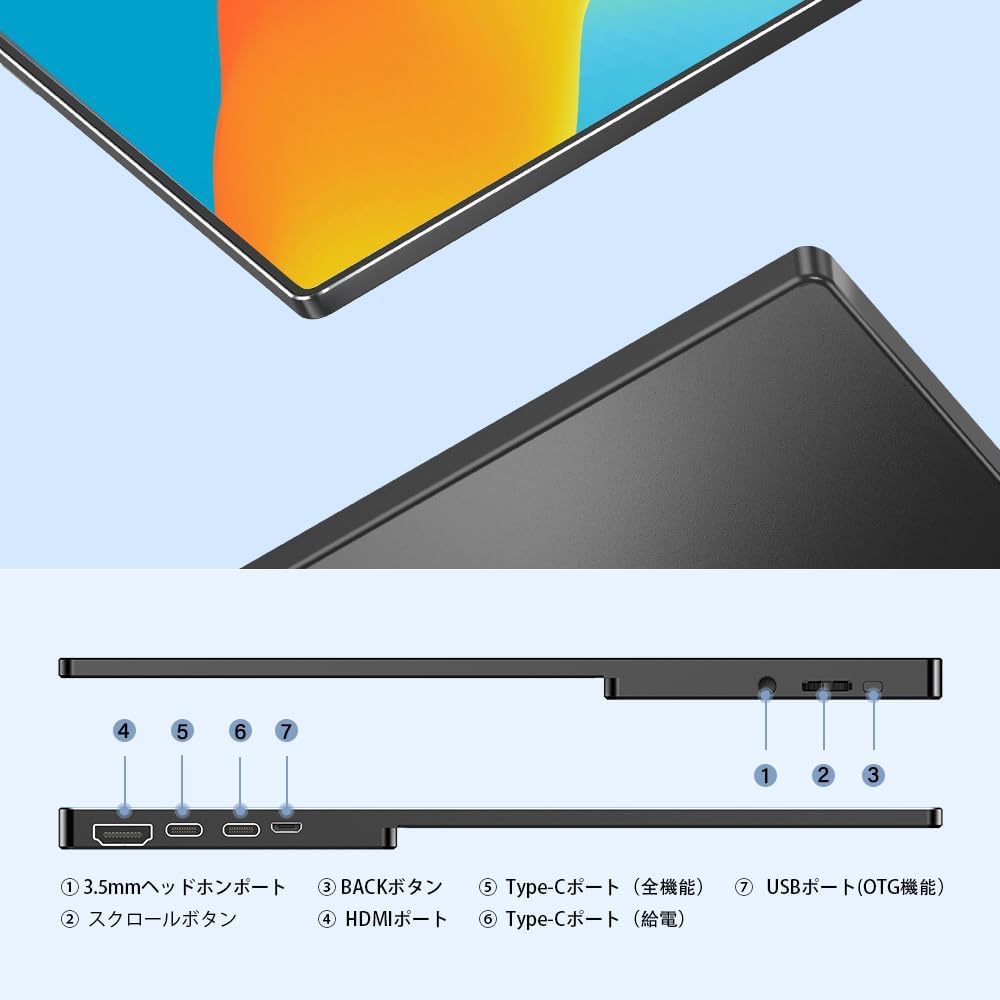
Image: Detailed diagram showing the various ports and buttons on the UPERFECT portable monitor.
- 3.5mm Headphone Port: Ar gyfer cysylltu dyfeisiau sain allanol.
- Botwm Sgroliwch: Fe'i defnyddir ar gyfer llywio'r ddewislen Arddangos Ar y Sgrin (OSD).
- Botwm YN ÔL: Used to go back in the OSD menu or exit.
- Porthladd HDMI: For video input from devices with HDMI output.
- Type-C Port (Full Function): Supports video input, touch function, and power delivery with a single cable.
- Type-C Port (Power Delivery): Dedicated port for power input to charge the monitor.
- USB Port (OTG Function): For connecting USB devices like a mouse or keyboard.
5. Cyfarwyddiadau Gosod
5.1 Connecting to a Laptop/PC (USB Type-C)
- Ensure your laptop/PC has a full-function USB Type-C port that supports DisplayPort Alternate Mode and Power Delivery.
- Connect one end of the included USB Type-C to Type-C cable to the monitor's Type-C Port (Full Function).
- Connect the other end of the cable to your laptop/PC's USB Type-C port.
- The monitor will automatically detect the signal and display the screen. Touch functionality will also be enabled.
- If the monitor does not power on or flickers, connect the power adapter to the monitor's Type-C Port (Power Delivery).
5.2 Connecting to a Laptop/PC (HDMI)
- Connect one end of the included HDMI to Mini HDMI cable to the monitor's Porthladd HDMI.
- Connect the other end of the HDMI cable to your laptop/PC's HDMI port.
- Connect the USB Type-A to Type-C cable from your laptop/PC's USB-A port to the monitor's Type-C Port (Power Delivery) for power. For touch functionality, connect the USB Type-A end to your laptop/PC and the Type-C end to the monitor's Type-C Port (Full Function).
- The monitor will automatically detect the signal.
5.3 Connecting to a Smartphone (USB Type-C)
- Ensure your smartphone supports DisplayPort Alternate Mode via its USB Type-C port.
- Connect the USB Type-C to Type-C cable between your smartphone and the monitor's Type-C Port (Full Function).
- The monitor will display your phone's screen. Touch functionality will be enabled if supported by your phone.
- Note: Touch screen is not supported when connected to iPhone.
5.4 Cysylltu â Chonsolau Gemau (HDMI)
- Connect the HDMI to Mini HDMI cable between your game console and the monitor's Porthladd HDMI.
- Connect the power adapter to the monitor's Type-C Port (Power Delivery) for stable power.
- For Nintendo Switch: It is necessary to power the monitor with the Switch's original power supply for proper operation.

Image: Demonstrating the convenience of connecting the monitor to a laptop with a single cable, enhancing work efficiency and maintaining a tidy desktop.
6. Cyfarwyddiadau Gweithredu
6.1 Pŵer Ymlaen/Diffodd
- I bweru ymlaen, pwyswch a dal y Botwm Sgrolio for a few seconds until the screen lights up.
- I bweru i ffwrdd, pwyswch a dal y Botwm Sgrolio for a few seconds until the screen turns off.
6.2 Dewislen Arddangos Ar y Sgrin (OSD)
- Gwasgwch y Botwm Sgrolio briefly to open the OSD menu.
- Defnyddiwch y Botwm Sgrolio to navigate through menu options.
- Gwasgwch y Botwm Sgrolio i ddewis opsiwn.
- Defnyddiwch y Botwm YN ÔL to go back to the previous menu or exit the OSD.
6.3 Touch Functionality
The monitor supports 10-point multi-touch. Use standard touch gestures for navigation, zooming, and interaction with compatible devices.

Image: A group of people using the UPERFECT monitor for collaborative work, highlighting its 10-point multi-touch capability for intuitive interaction.
6.4 Cyfeiriadedd yr Arddangosfa
The monitor supports both horizontal and vertical display modes, optimizing for various tasks like presentations, document editing, or web pori.
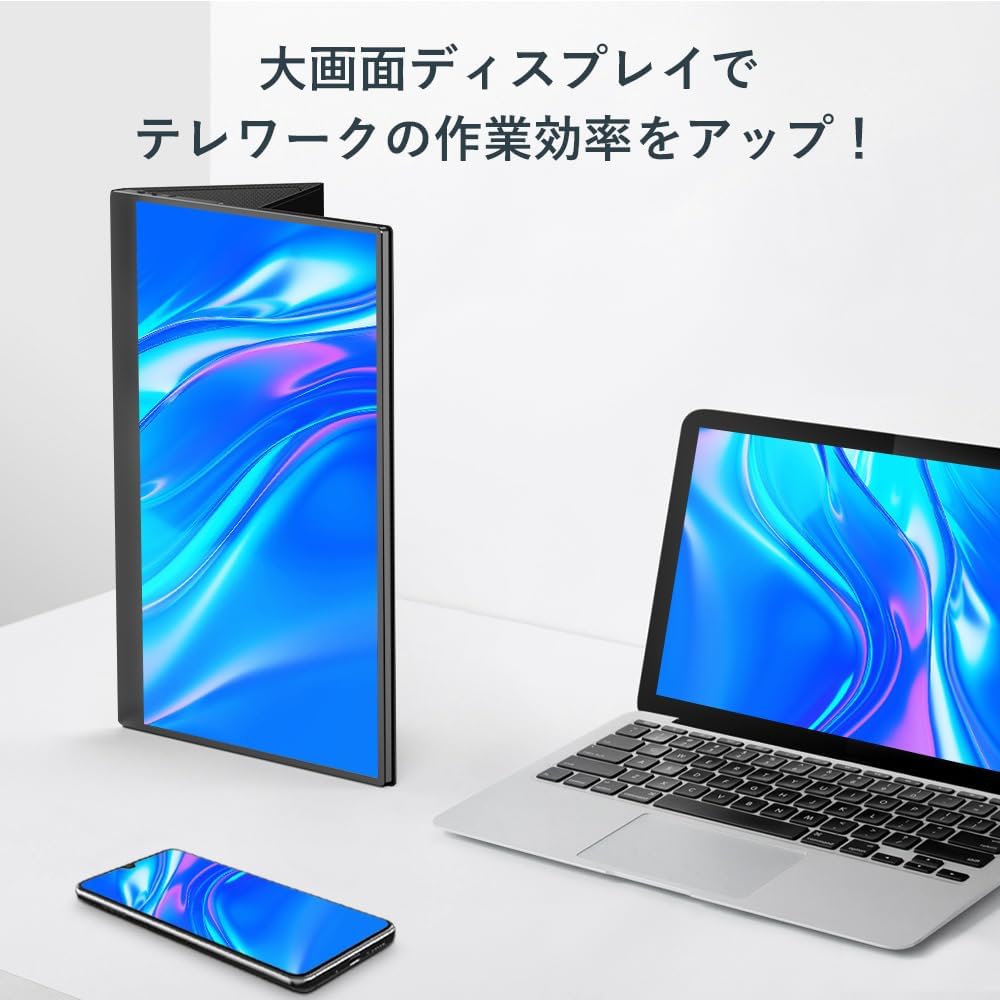
Image: The monitor in a vertical orientation, demonstrating its utility for telework and increasing productivity with a large screen display.

Image: Illustration of the monitor's versatility, supporting both horizontal and vertical display modes for optimal viewing in various applications.
7. cynnal
7.1 Glanhau'r Monitor
- Always power off the monitor and disconnect all cables before cleaning.
- Defnyddiwch frethyn meddal, di-lint ychydig dampwedi'i lanhau â dŵr neu lanhawr sgrin nad yw'n sgraffiniol.
- Peidiwch â chwistrellu glanhawr yn uniongyrchol ar y sgrin.
- Avoid using harsh chemicals, alcohol, or abrasive materials, as they can damage the screen or casing.
7.2 Storio
- When not in use, store the monitor in its protective stand case to prevent scratches and damage.
- Storio mewn lle oer, sych i ffwrdd o olau haul uniongyrchol a thymheredd eithafol.
7.3 Optimaidd Viewongl ing
For comfort and safety, position the monitor at eye level or slightly below. Avoid extreme upward viewing angles, as this can put strain on the stand and potentially cause the monitor to tip over.

Image: A visual guide illustrating the recommended viewing angle (eye level or slightly below) and a prohibited angle (extreme upward tilt) to ensure stability and user comfort.
8. Datrys Problemau
Os byddwch chi'n dod ar draws problemau gyda'ch monitor, cyfeiriwch at y problemau a'r atebion cyffredin canlynol:
| Problem | Achos / Ateb Posibl |
|---|---|
| Monitor does not power on or flickers. |
|
| No image displayed or image flickers. |
|
| No display when connected to Nintendo Switch. |
|
| Touch screen not working. |
|
9. manylebau
| Nodwedd | Manyleb |
|---|---|
| Brand | UWCHRADD |
| Rhif Model | 133A14 |
| Maint Sgrin | 15.6 modfedd |
| Datrysiad | FHD 1920x1080 |
| Math o Banel | IPS LCD Panel |
| Cymhareb Agwedd | 16:9 |
| Arwyneb y Sgrin | Sglein |
| Gallu Batri | 10000mAh |
| Dimensiynau Cynnyrch (W x H x D) | 16 x 21 x 3 cm |
| Pwysau Cynnyrch | 2.13 Cilogram |
| Cysylltedd | USB Type-C (Full Function), HDMI, USB (OTG) |
10. Gwarant a Chefnogaeth
UPERFECT is committed to providing excellent customer service and product quality.
- Gwarant y Gwneuthurwr: Daw'r cynnyrch hwn gyda gwarant gwneuthurwr 1 flynedd. Cadwch eich prawf prynu ar gyfer hawliadau gwarant.
- Cefnogaeth i Gwsmeriaid: For any inquiries, technical assistance, or warranty support, please contact UPERFECT customer service. We offer 24-hour support to assist you.

Image: UPERFECT customer service team, ready to provide 1-year manufacturer warranty and 24-hour support.
For more information, visit the official UPERFECT store: UPERFECT Store on Amazon
Dogfennau Cysylltiedig - 133A14
 |
UPERFECT 15.6 Inch Portable Monitor Touchscreen User Manual User manual for the UPERFECT 15.6 Inch Portable Monitor with touchscreen functionality. Covers setup, specifications, connections, OSD menu, troubleshooting, and service support. |
 |
Uperfect 15.6" FHD Portable Monitor Touchscreen User Manual Comprehensive user manual for the Uperfect 15.6-inch FHD Portable Monitor Touchscreen (Model M156E07). Covers setup, specifications, connection methods (Type-C, Mini HDMI), OSD menu navigation, Windows display settings, troubleshooting Q&A, and service support information. |
 |
UPERFECT 15.6" Portable Touchscreen Monitor User Manual Comprehensive user manual for the UPERFECT 15.6-inch portable touchscreen monitor, covering setup, connections, specifications, screen adjustments, and troubleshooting. |
 |
Uperfect 15.6 Inch Portable Monitor User Manual User manual for the Uperfect 15.6 Inch Portable Monitor, covering setup, specifications, connection, screen adjustment, and troubleshooting. |
 |
UPERFECT 15.6 Inch Portable Touchscreen Monitor 1080P User Manual Comprehensive user manual for the UPERFECT 15.6-inch portable touchscreen monitor (1080P). Covers package contents, installation, interface functions, specifications, connection methods (Type-C, HDMI), screen adjustments via OSD menu, Windows 10 setup, troubleshooting (Q&A), and service support. |
 |
UPERFECT 15.6 Inch Portable Monitor Touchscreen 1080P User Manual Comprehensive user manual for the UPERFECT M156G16 portable touchscreen monitor. This guide details safety precautions, handling, accessory functions, interface descriptions, product specifications (15.6-inch, 1080P, 120Hz IPS), OSD menu navigation, connection guides for PCs, mobile phones, and consoles, troubleshooting FAQs, and warranty information. |
Ask a question about this manual
Ask about setup, troubleshooting, compatibility, parts, safety, or missing instructions. Manuals+ will review the question and use this page’s manual context to help answer it.