
1. Rhagymadrodd
This manual provides essential information for the proper installation, configuration, and operation of your Teltonika RUT951 4G LTE Router. The RUT951 is a robust industrial cellular router designed for professional applications, offering reliable internet connectivity via 4G LTE, Wi-Fi, and Ethernet. It features dual-SIM support for network redundancy and is powered by RutOS, providing advanced customization and security features.
2. Cynnyrch Drosview
2.1 Nodweddion Allweddol
- Dual-SIM 4G LTE cellular connectivity for reliable network access.
- Integrated Wi-Fi (802.11b/g/n) for local wireless networking.
- Four Ethernet interfaces (3x LAN, 1x WAN) for wired connections.
- Powered by RutOS for advanced customization, automation, and security.
- Robust design suitable for various IoT and industrial scenarios.
2.2 Cynnwys Pecyn
The standard package for the Teltonika RUT951 router typically includes:
- Teltonika RUT951 Router Unit
- Addasydd Pŵer
- 2 x Mobile Antennas (SMA)
- 2 x Wi-Fi Antennas (RP-SMA)
- Cebl Ethernet
- Canllaw Cychwyn Cyflym
2.3 Router Layout
Familiarize yourself with the router's ports, indicators, and slots.
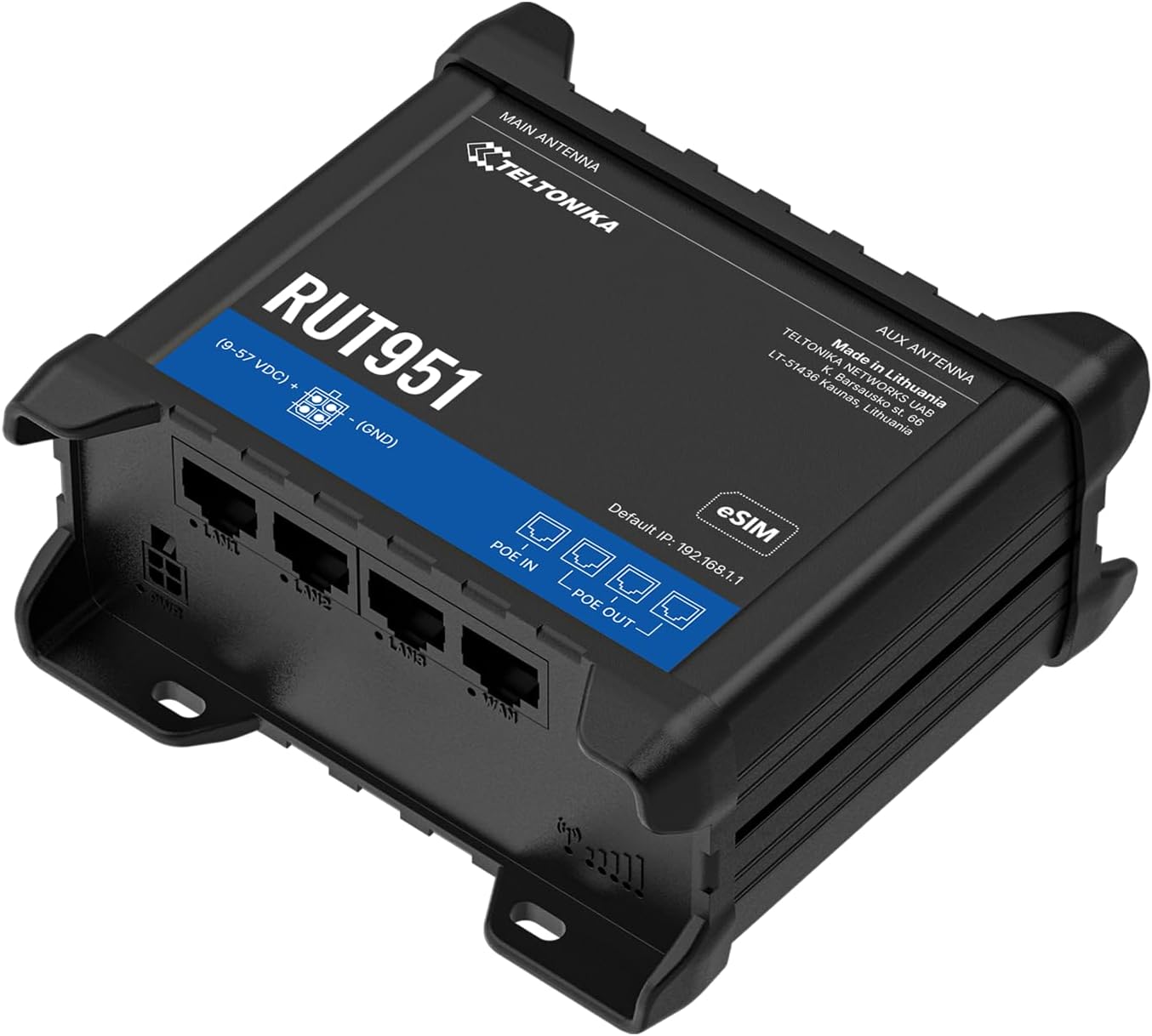
Ffigur 1: Blaen view of the Teltonika RUT951 router, showing the model name and general design.

Ffigur 2: Detailed diagram illustrating the various ports and indicators on the Teltonika RUT951 router, including mobile and Wi-Fi antenna connectors, SIM slots, Ethernet ports, power socket, and LED indicators.
- Mobile AUX Antenna Connector (SMA female): For secondary mobile antenna.
- Mobile MAIN Antenna Connector (SMA female): For primary mobile antenna.
- SIM1 / SIM2 Slots: For inserting cellular SIM cards.
- Botwm AILOSOD: To restore factory settings or reboot.
- Wi-Fi Antenna Connectors (RP-SMA female): For Wi-Fi antennas.
- Soced Pwer: Ar gyfer cysylltu'r addasydd pŵer.
- Porthladdoedd Ethernet LAN: For connecting local network devices.
- WAN Ethernet Port: For connecting to an external network (e.g., fiber modem).
- Mobile Signal Strength LEDs: Indicate cellular signal strength.
- Mobile Connection Status LED: Indicates cellular connection status.
- LEDs LAN: Nodwch weithgarwch ar borthladdoedd LAN.
- WAN LED: Indicates activity on the WAN port.
3. Cyfarwyddiadau Gosod
3.1 Gosod Cerdyn SIM
- Locate the SIM card slots (SIM1 and SIM2) on the top panel of the router.
- Using a SIM ejector tool or a paperclip, gently press the small button next to the SIM slot to open it.
- Insert your activated Mini-SIM card(s) into the slot(s) with the gold contacts facing down and the notched corner oriented correctly.
- Push the SIM tray back into the router until it clicks into place.

Ffigur 3: Brig view of the RUT951, highlighting the SIM card slots and antenna connectors.
3.2 Cysylltiad Antena
- Screw the two mobile antennas onto the SMA connectors labeled 'MOBILE' (MAIN and AUX) on the top panel.
- Screw the two Wi-Fi antennas onto the RP-SMA connectors labeled 'WIFI' on the top panel.
- Ensure all antennas are securely tightened for optimal signal reception.
3.3 Cysylltiad Pwer
- Connect the provided power adapter to the power socket on the router.
- Plygiwch ben arall yr addasydd pŵer i mewn i allfa bŵer addas.
- The router will power on automatically. Observe the power LED indicator.

Ffigur 4: Gwaelod view of the RUT951, showing the Ethernet ports and power input.
3.4 Cysylltiad Ethernet
To connect a device directly to the router:
- Connect one end of an Ethernet cable to any of the LAN ports (LAN1, LAN2, LAN3) on the router.
- Connect the other end of the Ethernet cable to your computer or network device.
- If you are using the router as a WAN gateway, connect your external modem (e.g., fiber modem) to the WAN port.
4. Cyfarwyddiadau Gweithredu
4.1 Mynediad Cychwynnol i WebUI
- Ensure your computer is connected to the router via Ethernet or Wi-Fi. The default Wi-Fi SSID and password can be found on the router's label.
- Agor a web porwr a nodwch y cyfeiriad IP diofyn: 192.168.1.1
- You will be prompted for login credentials. The default username is gweinyddwr. The default password is also gweinyddwr (or as specified on the router's label).
- Upon first login, you will be guided through a setup wizard to change the default password and configure basic settings.
4.2 Ffurfweddiad Rhwydwaith
After initial login, you can configure various network settings through the WebUI:
- Gosodiadau WAN: Configure your cellular (4G LTE) connection, including APN settings, or set up the Ethernet WAN port.
- Gosodiadau LAN: Manage the local network IP address range and DHCP server.
- Gosodiadau Wi-Fi: Change Wi-Fi SSID, password, security protocols, and channel settings.
- SIM Deuol: Configure failover or load balancing between the two SIM cards for continuous connectivity.
- VPN: Set up various VPN protocols for secure remote access.
5. cynnal
5.1 Diweddariadau Firmware
Regularly updating the router's firmware is crucial for security, performance, and new features. Firmware updates can be performed via the WebUI under the 'System' or 'Firmware' section. Always download firmware from the official Teltonika Networks websafle.
5.2 Ailosod Ffatri
Os byddwch chi'n dod ar draws problemau parhaus neu'n anghofio eich manylion mewngofnodi, gallwch chi ailosod y ffatri:
- With the router powered on, locate the RESET button (refer to Figure 2).
- Press and hold the RESET button for approximately 10 seconds until all LEDs flash.
- Rhyddhewch y botwm. Bydd y llwybrydd yn ailgychwyn gyda gosodiadau diofyn y ffatri.
6. Datrys Problemau
- Dim Cysylltiad Rhyngrwyd:
- Gwiriwch fewnosod a actifadu'r cerdyn SIM.
- Gwiriwch osodiadau APN yn y WebUI.
- Ensure mobile antennas are securely connected.
- Check cellular signal strength LEDs.
- Wi-Fi Ddim yn Gweithio:
- Ensure Wi-Fi is enabled in the WebUI.
- Check Wi-Fi antenna connections.
- Verify Wi-Fi SSID and password.
- Methu Mynediad WebUI:
- Ensure your device is connected to the router (Ethernet or Wi-Fi).
- Verify your computer's IP settings (should be set to obtain IP automatically).
- Rhowch gynnig ar glirio storfa eich porwr neu ddefnyddio porwr gwahanol.
- Perform a factory reset if you suspect incorrect IP configuration or forgotten password.
7. manylebau
| Nodwedd | Manyleb |
|---|---|
| Brand | Teltonica |
| Enw Model | RUT951 |
| Technoleg Cysylltedd | Wi-Fi, 4G LTE, 3G, 2G |
| Safon Cyfathrebu Di-wifr | 802.11b, 802.11g, 802.11n |
| Dosbarth Band Amlder | Band Deuol |
| Nifer y Porthladdoedd | 4 (3x LAN, 1x WAN) |
| Lled Band Porthladd LAN | 100 Mbps |
| Cyfradd Trosglwyddo Data | 150 Megabits Per Second (Max Upstream) |
| System Weithredu | RutOS |
| Pwysau Eitem | 287 gram |
| Cyftage | 30 folt |
| Protocol Diogelwch | WPS (and others via RutOS) |
| Cwmpas | Dual SIM network redundancy |
8. Gwybodaeth Diogelwch
- Defnyddiwch yr addasydd pŵer a ddarperir gyda'r ddyfais yn unig.
- Peidiwch ag amlygu'r ddyfais i ddŵr, lleithder, na thymheredd eithafol.
- Osgoi gosod y ddyfais ger ffynonellau gwres neu mewn golau haul uniongyrchol.
- Sicrhewch awyru priodol i atal gorboethi.
- Do not attempt to open or modify the device. This will void the warranty.
- Dispose of the device and its accessories responsibly according to local regulations.
9. Gwarant a Chefnogaeth
The Teltonika RUT951 router comes with a standard manufacturer's warranty. For detailed warranty terms and conditions, please refer to the documentation included with your product or visit the official Teltonika Networks website. For technical support, firmware downloads, and additional resources, please visit the Teltonika Networks support portal or contact your vendor.