
1. Rhagymadrodd
This manual provides comprehensive instructions for the setup, operation, maintenance, and troubleshooting of your INNOCN 32" OLED 4K PC Monitor (Model: 32Q1U). Designed for professional use, this monitor features an advanced OLED panel, 4K UHD resolution, HDR10 support, and versatile USB-C connectivity, offering an exceptional visual experience for various applications including design, photo/video editing, and gaming.

The INNOCN 32Q1U monitor connected to a laptop, demonstrating its use as a professional art monitor with wide color gamut and high contrast.
Nodweddion Allweddol:
- True 4K OLED Display: 32-inch UHD (3840 x 2160) OLED panel with 10-bit color depth, 1M:1 contrast ratio, 60Hz refresh rate, 99% DCI-P3, and 99% sRGB color gamut.
- Powerful USB Type-C Connectivity: Two USB Type-C interfaces for easy connection to Mac, phones, and tablet PCs, offering up to 90W power delivery (45W when two devices are connected). Includes a USB Type-C audio jack.
- HDR10 & 6-Axis Color Correction: Advanced color management for accurate colors, ideal for high-end content design and animation.
- Dyluniad ergonomig: Height, tilt, and pivot adjustable stand for optimal viewing cysur.
- Sain integredig: Built-in 5W*2 stereo speakers for an immersive experience.
Cynnyrch Drosview Fideo:
Swyddog drosoddview sioe fideoasing the key features and design of the INNOCN 32-inch OLED Professional Monitor 32Q1U.
2. Gosod
2.1 Beth sydd yn y Bocs
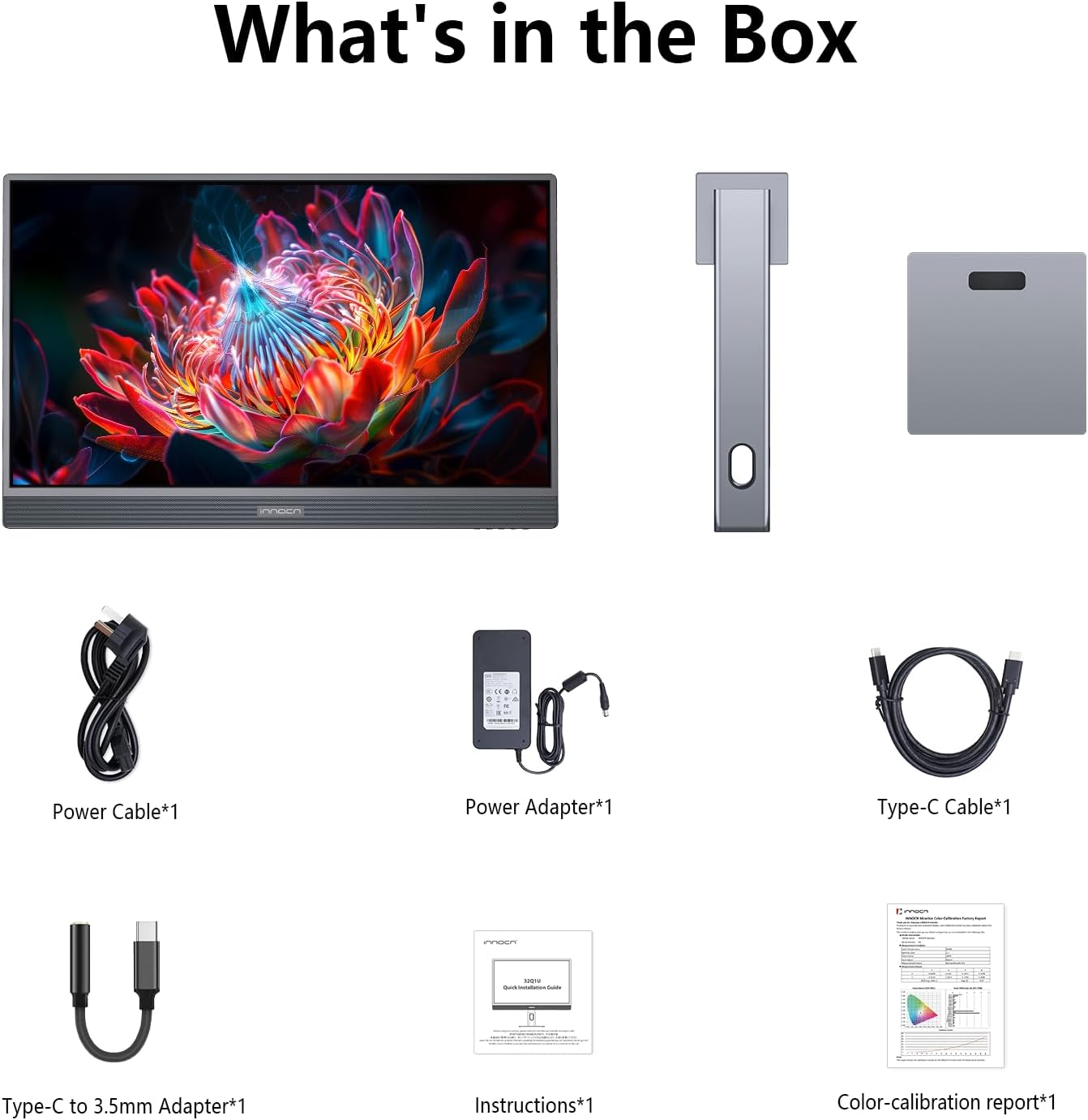
All components included in the product packaging for the INNOCN 32Q1U monitor.
- INNOCN 32" OLED 4K PC Monitor
- Stand Monitor (Sylfaen a Braich)
- Cebl Pŵer
- Addasydd Pŵer
- Cebl Math-C
- Type-C to 3.5mm Adapter
- Llawlyfr Cyfarwyddiadau
- Adroddiad Graddnodi Lliw
2.2 Gosodiad Corfforol
- Cydosod y Stondin: Attach the monitor arm to the base. Ensure it clicks securely into place. The stand is designed for easy, tool-free assembly.
- Attach Monitor to Stand: Carefully align the monitor with the stand arm and secure it. The monitor supports VESA 100mm x 100mm mounting for alternative setups.
- Pwer Cysylltu: Connect the power adapter to the monitor's power input and then plug the power cable into a wall outlet.
- Cysylltu Dyfeisiau: Use the provided Type-C cable to connect your computer or other compatible devices to the monitor's USB Type-C input ports. The monitor features two USB Type-C ports for video input and power delivery, and one USB Type-C audio jack.
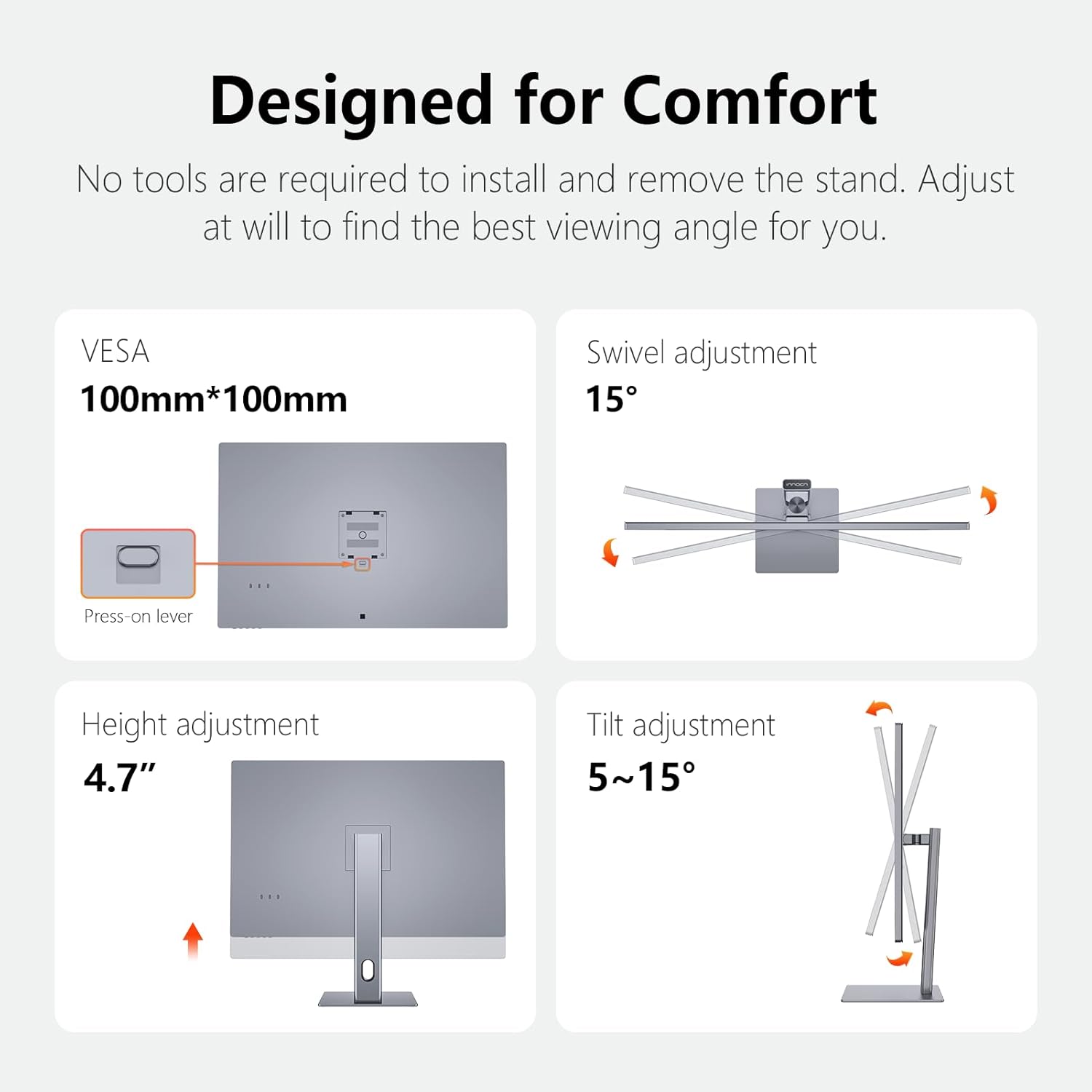
Illustrations of the monitor's VESA mounting capability and ergonomic adjustments including swivel, height, and tilt.
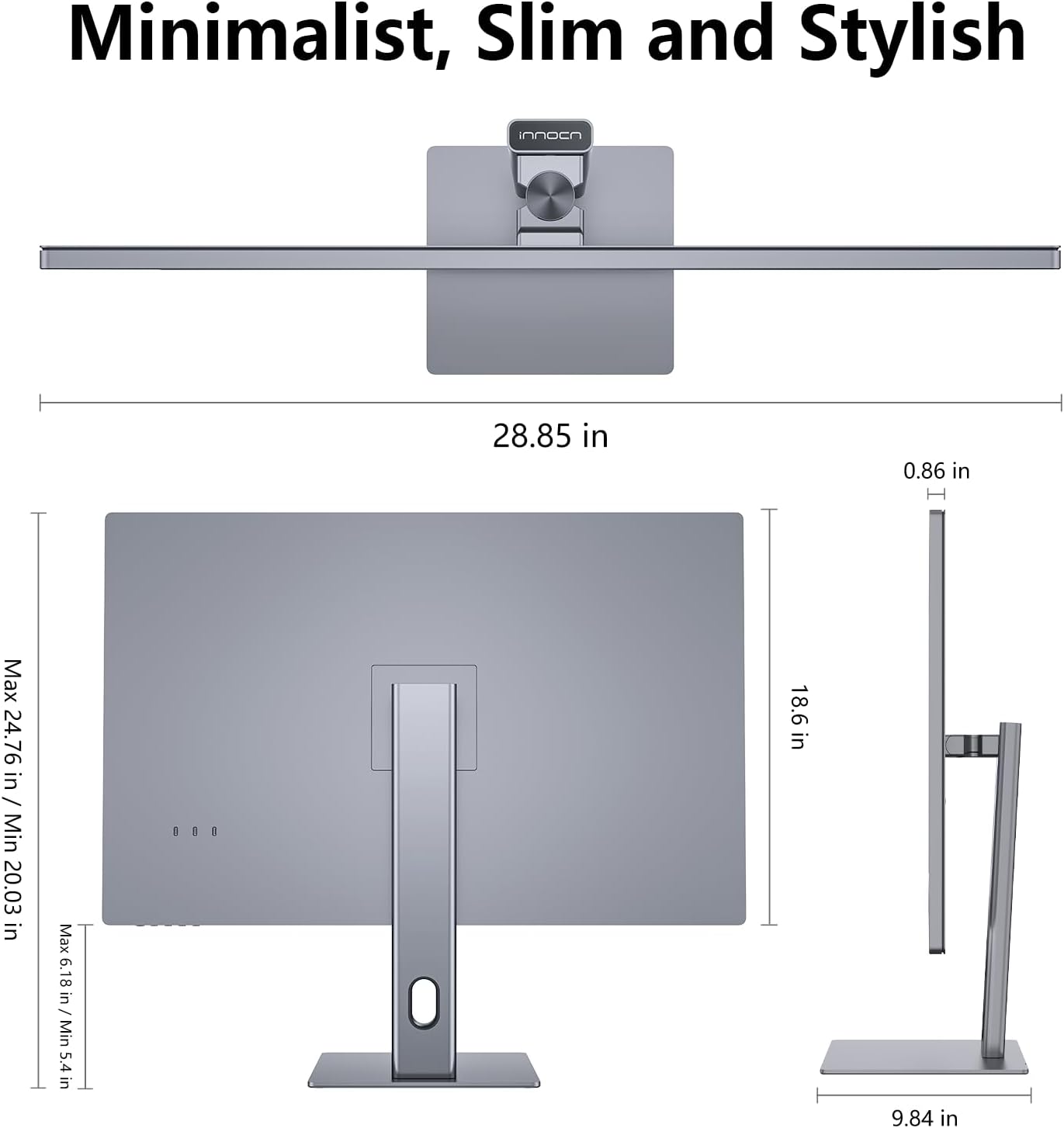
Detailed dimensions of the monitor, highlighting its minimalist, slim, and stylish design.
3. Cyfarwyddiadau Gweithredu
3.1 Power On/Off and Input Selection
Press the power button (location typically on the back or bottom right) to turn the monitor on or off. Use the OSD (On-Screen Display) menu to select your desired input source (USB-C 1 or USB-C 2).
3.2 Gosodiadau Arddangos
Navigate the OSD menu using the control buttons to adjust various display settings:
- Disgleirdeb/Cyferbyniad: Addaswch i'ch dewis viewlefel ing.
- Gosodiadau lliw: Fine-tune color temperature, gamma, and utilize the 6-Axis Color Correction for precise color accuracy. The monitor supports 99% DCI-P3 and 99% sRGB.
- Modd HDR: Enable HDR10 for enhanced dynamic range with compatible content.
- Golau Glas Isel: Activate this feature to reduce eye strain during prolonged use. The monitor is TÜV Rheinland certified for low blue light emission.

The advanced OLED 4K panel provides immersive and detailed visuals, supporting a wide range of color gamuts.
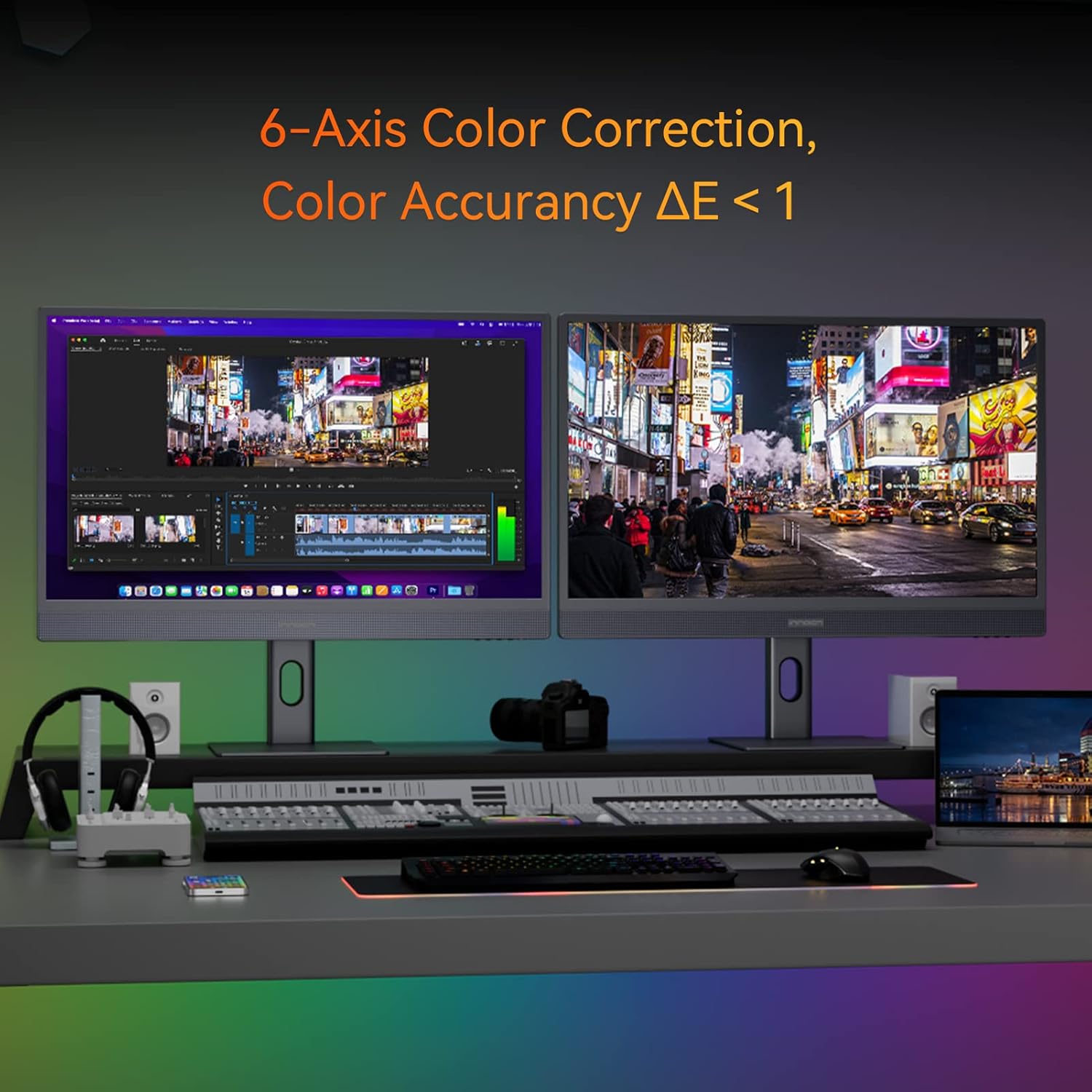
A dual monitor setup illustrating the precision of 6-Axis Color Correction, crucial for professional design and video editing.
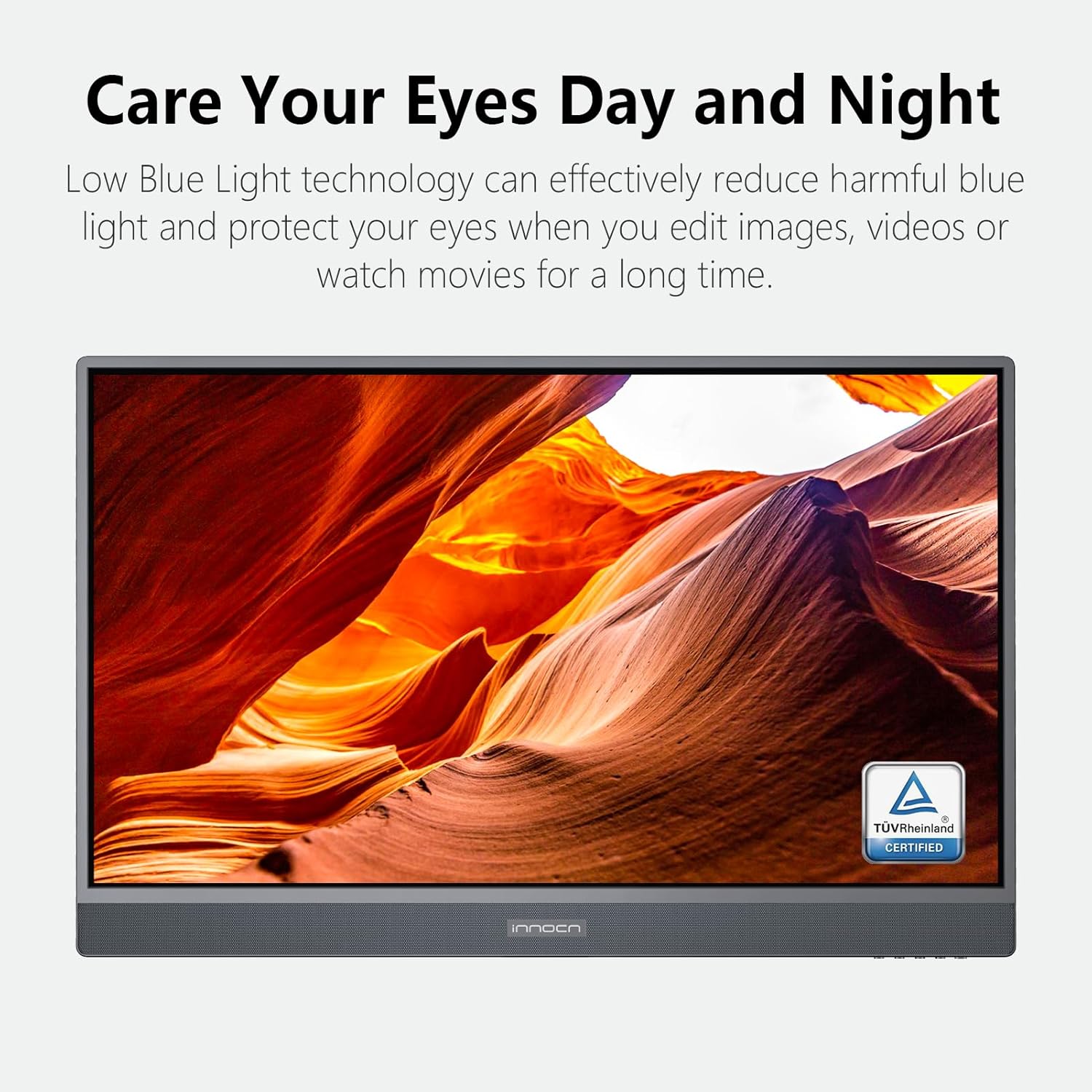
The monitor features Low Blue Light technology to protect your eyes during extended viewsesiynau.
3.3 USB Type-C Functionality
The monitor's USB Type-C ports support video input, data transfer, and power delivery. Connect compatible laptops (e.g., MacBook Air/Pro, Mac mini) or other devices to charge them while displaying content. Note that power delivery is up to 90W when one device is connected, and 45W when two devices are connected simultaneously.
3.4 Llun-mewn-Llun (PIP) a Llun-wrth-Llun (PBP)
The monitor supports PIP and PBP modes, allowing you to view content from two different sources simultaneously. Refer to the OSD menu for options to configure the layout and input sources for these modes.
3.5 Sain
The monitor includes built-in 5W*2 stereo speakers. You can also connect external audio devices via the USB Type-C audio jack using the provided Type-C to 3.5mm adapter.

The monitor's integrated stereo speakers provide a decent audio experience for various media.
3.6 Addasiadau Ergonomig
Addaswch y monitor i'ch dewis viewing angle and height for optimal comfort:
- Addasiad Uchder: Adjust the monitor height by up to 5 inches (approx. 120mm).
- Addasiad Tilt: Tilt the screen forward by 5° or backward by 20°.
- Addasiad troi: Swivel the monitor left or right by 45°.
- Addasiad Colyn: Rotate the screen by ±90° for portrait or landscape orientation.
4. cynnal
4.1 Glanhau'r Monitor
- Diffoddwch y monitor bob amser a'i ddatgysylltu o'r soced pŵer cyn ei lanhau.
- Defnyddiwch frethyn meddal, di-lint ychydig dampwedi'i lanhau â dŵr neu lanhawr sgrin nad yw'n sgraffiniol.
- Peidiwch â chwistrellu glanhawr yn uniongyrchol ar y sgrin.
- Avoid using alcohol, ammonia, or abrasive cleaners, as they may damage the screen surface.
4.2 OLED Panel Care
To prolong the life of your OLED panel and prevent image retention:
- Osgowch arddangos delweddau sefydlog am gyfnodau estynedig.
- Utilize screen savers or dynamic wallpapers.
- Turn off the monitor when not in use.
- Adjust brightness to appropriate levels for your environment.
5. Datrys Problemau
| Problem | Achos Posibl | Ateb |
|---|---|---|
| Dim delwedd ar y sgrin | Power cable loose; Input source incorrect; Device not connected properly. | Check power connections. Select correct input source via OSD. Ensure USB-C cable is securely connected to both monitor and device. |
| Dim sain | Volume too low; Muted; Incorrect audio output selected on device. | Increase monitor volume. Check if monitor is muted. Ensure audio output on your device is set to the monitor. |
| Image is distorted or colors are off | Display settings incorrect; Cable issue. | Reset display settings to factory defaults. Try a different USB-C cable. Ensure your device's graphics drivers are up to date. |
| Monitor does not power on (DOA) | Methiant cydran fewnol. | If the monitor does not power on out of the box, contact INNOCN customer support immediately for assistance or replacement. |
6. manylebau
| Nodwedd | Manylyn |
|---|---|
| Brand | INNOCN |
| Rhif Model | 32B8U (Product Model: 32Q1U) |
| Maint Sgrin | 32 modfedd |
| Math Arddangos | OLED |
| Datrysiad | 4K UHD (3840 x 2160) |
| Cymhareb Agwedd | 16:9 |
| Cymhareb Cyferbyniad | 1M:1 (typical) |
| Lliw Gamut | 99% DCI-P3, 99% sRGB |
| Cefnogaeth HDR | HDR10 |
| Porthladdoedd USB | 2 x USB Type-C (with power delivery), 1 x USB Type-C Audio Jack |
| Siaradwyr | Built-in 5W*2 Stereo Speakers |
| Ergonomeg | Height Adjustable (up/down ±5"), Tilt (Forward: 5°, Backward: 20°), Swivel (Left/right: 45°), Pivot (±90°) |
| Mount VESA | 100mm x 100mm |
| Dimensiynau Cynnyrch | 1.18 x 27 x 15 modfedd |
| Pwysau Eitem | 26.1 pwys |
| Gwneuthurwr | Guangxi Century Innovation Display Electronics Co.,Ltd |
| Dyddiad Ar Gael Cyntaf | Awst 29, 2022 |
7. Gwarant a Chefnogaeth
INNOCN provides a manufacturer's warranty for this product. For specific warranty terms and conditions, please refer to the warranty card included in your product packaging or visit the official INNOCN websafle.
For technical support, troubleshooting assistance, or warranty claims, please contact INNOCN customer service. Contact information can typically be found on the INNOCN websafle neu yn y ddogfennaeth a ddarparwyd gyda'ch monitor.
Efallai y byddwch hefyd yn ystyried prynuasincynlluniau amddiffyn estynedig ar gyfer yswiriant ychwanegol, os yw ar gael, trwy eich manwerthwr.