
Rhagymadrodd
This manual provides instructions for the Nutale Smart Key Finder, designed to help you locate your personal items using the Apple Find My network. This device is compatible exclusively with Apple iOS devices.
Gosod a Pharu
Follow these steps to set up your Nutale Smart Key Finder and pair it with your Apple device:
- Gofynion y System: Ensure your iPhone system version is iOS 14.5 or later. The Find My app requires permissions for Notifications, Location, and Bluetooth, WLAN & Cellular Data to function correctly.

Image: Nutale Smart Key Finder shown with an iPhone displaying the Apple Find My app interface, highlighting its compatibility and features like privacy and replaceable battery.
- Pŵer Ymlaen: Long press the device's button for 5 seconds. The device will emit a beep sound, indicating it has powered on.

Image: A hand pressing the button on the Nutale Smart Key Finder, illustrating the power-on step.
- Pairing with Find My App:
- Agorwch y Dod o hyd i Fy ap ar eich dyfais Apple.
- Tap ar "Items".
- Dewiswch "Add Item".
- Dewiswch "Other Supported Item".
- Follow the on-screen prompts to name your item, choose an emoji, and register the device to your Apple ID.
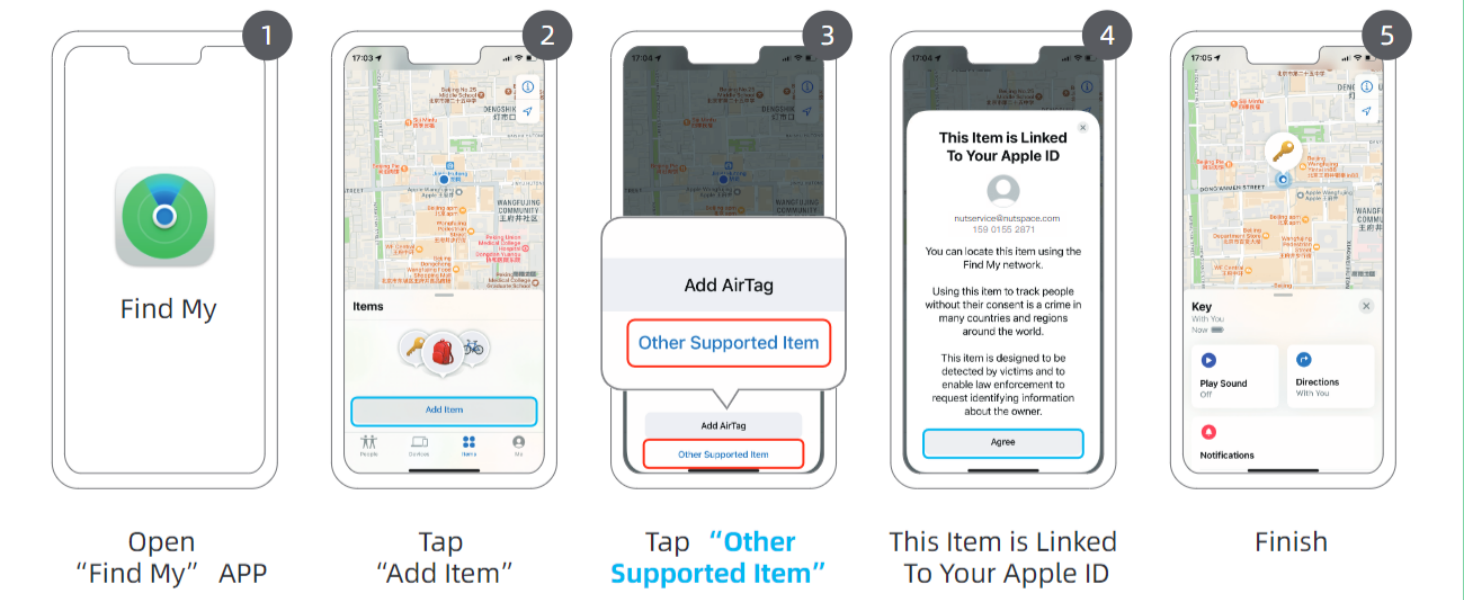
Image: A visual guide showing the steps to add the Nutale Smart Key Finder to the Apple Find My app, from opening the app to selecting "Other Supported Item".
Cyfarwyddiadau Gweithredu
Once your Nutale Smart Key Finder is paired, you can utilize its features to keep track of your belongings.
Lleoli Eitemau
- Long-Distance Tracking: The Apple Find My network, composed of millions of Apple devices worldwide, helps you locate your Nutale Smart Key Finder even when it's far away. The location information is encrypted and anonymous.
Video: Demonstrates how the Nutale Smart Key Finder uses the Apple Find My network for long-distance tracking, showing location updates and notifications on an iPhone.
- Finding Nearby Items: If your item is within Bluetooth range (approximately 20-50 meters), you can use the Find My app to play a sound on the Nutale Smart Key Finder.
- Agorwch y Dod o hyd i Fy ap.
- Select your Nutale Smart Key Finder from the "Items" list.
- Tap "Play Sound" to make the device ring.

Image: An iPhone screen displaying the Find My app with options to "Play Sound" and "Find Nearby" for the Nutale Smart Key Finder, indicating its proximity features.
You can also ask Siri for assistance, for example, "Hey Siri, find my keys."
- Left Behind Remind: The Find My app can send you a notification if you leave your item behind and the Bluetooth connection between the item and your phone is lost. This feature helps prevent loss.
Cynnal a chadw
Amnewid Batri
The Nutale Smart Key Finder uses a replaceable CR2032 battery. When the battery is low, you may receive a notification from the Find My app. To replace the battery:
- Locate the small gap on the side of the device.
- Carefully open the upper shell at this gap using a thin tool (e.g., a guitar pick or small flat-head screwdriver).
- Tynnwch yr hen batri CR2032.
- Insert a new CR2032 battery with the positive (+) pole facing upwards.
- Align the two halves of the shell and press them firmly together until they click into place, ensuring all sides fit tightly.
- Long press the button to hear the boot-up sound, confirming the new battery is working.
Video: A demonstration of how to replace the CR2032 battery in the Nutale Smart Key Finder, showing the steps to open the device, remove the old battery, insert a new one, and reassemble.
Datrys problemau
- Device Not Connecting/Pairing:
- Gwnewch yn siŵr bod eich dyfais iOS wedi'i diweddaru i iOS 14.5 neu'n ddiweddarach.
- Verify that Bluetooth is enabled on your iPhone.
- Check if the Nutale Smart Key Finder has sufficient battery power. Replace the battery if necessary.
- Restart your iPhone and try the pairing process again.
- Confirm that the Find My app has permissions for Notifications, Location, and Bluetooth.
- Inaccurate Location or No Location Updates:
- Ensure your iPhone has an active internet connection (Wi-Fi or cellular data).
- The accuracy of location tracking relies on the density of Apple devices in the Find My network. In areas with fewer Apple devices, location updates might be less frequent or precise.
- Check if the device's battery is low.
- Sain Ddim yn Chwarae:
- Ensure the Nutale Smart Key Finder is within Bluetooth range of your iPhone (20-50 meters).
- Check the device's battery level.
- Verify that the volume on your iPhone is not muted or too low.
Manylebau
| Nodwedd | Manylyn |
|---|---|
| Dimensiynau Cynnyrch | 1.5 x 1.5 x 0.28 modfedd (38mm x 38mm x 7mm) |
| Pwysau Eitem | 1.76 owns |
| Cysylltedd | Bluetooth |
| Math Batri | CR2032 (4 yn gynwysedig) |
| Dyfeisiau Cydnaws | Apple iOS Smartphones (iOS 14.5 or later) |
| Gwneuthurwr | Nutale |

Delwedd: Llun agos view of the Nutale Smart Key Finder, illustrating its compact dimensions of 38mm by 38mm with a thickness of 7mm.
Gwarant a Chefnogaeth
Nutale is committed to providing quality products and customer care. For any inquiries, technical support, or warranty information, please refer to the official Nutale websafle neu cysylltwch â'u gwasanaeth cwsmeriaid yn uniongyrchol.
Cadwch eich prawf prynu ar gyfer hawliadau gwarant.