
1. Cynnyrch Drosview
The BUNGPUNG 4K@60Hz HDMI Matrix Switch 2x2 is a versatile device designed to manage and distribute HDMI signals. It allows you to connect up to two HDMI source devices (e.g., Blu-ray player, game console, PC) and output their signals to two HDMI displays (e.g., TV, monitor, projector) simultaneously. This unit functions as both an HDMI switcher and a splitter, enabling you to display the same or different content on each output display.
Additionally, it features an integrated audio extractor, allowing you to separate audio signals from the HDMI stream and output them via optical digital (SPDIF) or analog 3.5mm L/R ports. This is particularly useful for connecting to external audio systems like amplifiers, soundbars, or headphones, especially when your display lacks dedicated audio outputs.
The device supports UltraHD 4K@60Hz resolution with RGB 4:4:4 chroma subsampling, and is backward compatible with lower resolutions such as 1080P, 720P, 480P, and 480i. It complies with HDMI 2.0b and HDCP 2.2 standards, and supports High Dynamic Range (HDR) for enhanced visual quality. Advanced EDID management allows for flexible adjustment of display resolution and audio settings, ensuring optimal compatibility across various devices.
2. Cydrannau a Nodweddion y Cynnyrch

Figure 2.1: Front and Back Panel Layout
This diagram illustrates the input and output ports, control buttons, and audio extraction ports on the device. It shows two HDMI inputs (1, 2), two HDMI outputs (A, B), optical and 3.5mm L/R audio outputs, a DC 5V power input, power LED, output selection buttons, EDID management switch, and IR receiver.
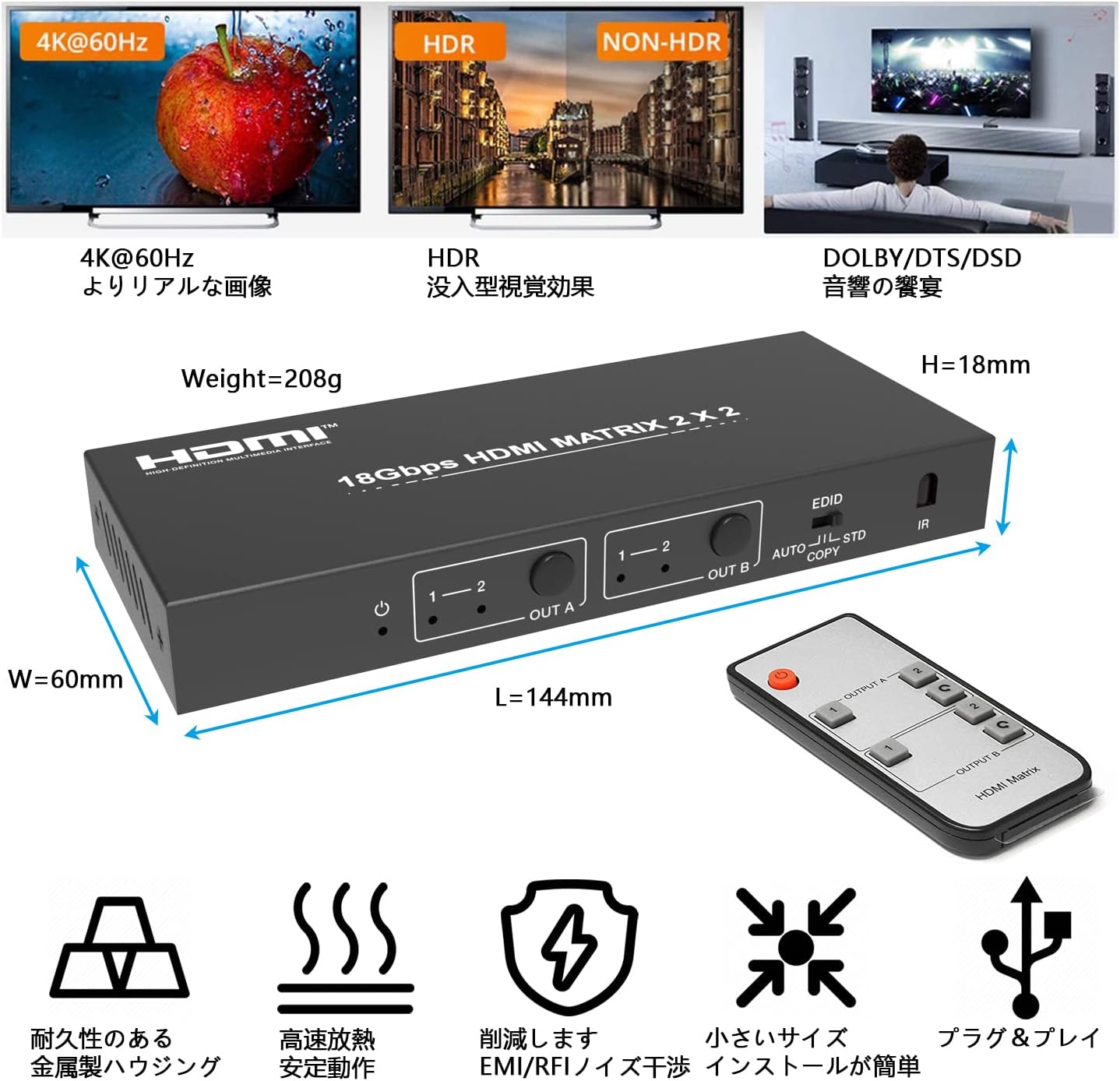
Figure 2.2: Device Dimensions and Feature Highlights
This image provides the physical dimensions of the matrix switch (L=144mm, W=60mm, H=18mm, Weight=208g) and highlights key features such as 4K@60Hz support, HDR, Dolby/DTS/DSD audio, durable metal housing, efficient heat dissipation, EMI/RFI reduction, compact size, and plug-and-play functionality. The included remote control is also shown.
2.1 Rheolaethau Panel Blaen
- Pwer LED: Yn nodi statws pŵer y ddyfais.
- Output A Select Button (1-2): Press to switch the input source for HDMI Output A between Input 1 and Input 2.
- Output B Select Button (1-2): Press to switch the input source for HDMI Output B between Input 1 and Input 2.
- EDID Switch (AUTO/STD/COPY): Selects the EDID management mode.
- Derbynnydd IR: Receives signals from the included remote control.
2.2 Porthladdoedd y Panel Cefn
- HDMI Input 1 & 2: Connect your HDMI source devices (e.g., PC, game console, media player).
- Allbwn HDMI A & B: Connect to your HDMI displays (e.g., TV, monitor, projector).
- Optical Audio Output (SPDIF): Connect to an external audio receiver or soundbar for digital audio.
- 3.5mm L/R Audio Output: Connect to analog audio systems, headphones, or speakers.
- Mewnbwn Pwer DC 5V: Cysylltwch yr addasydd pŵer 5V a ddarperir.
3. Cyfarwyddiadau Gosod
Follow these steps to set up your HDMI Matrix Switch:
- Dyfeisiau Pweru i ffwrdd: Ensure all HDMI source devices and displays are powered off before making any connections.
- Cysylltwch Ffynonellau HDMI: Connect your HDMI source devices (e.g., Blu-ray player, PS5, Xbox, PC) to the HDMI Input 1 and HDMI Input 2 ports on the matrix switch using high-quality HDMI cables.
- Cysylltu Arddangosfeydd HDMI: Connect your HDMI displays (e.g., TV, monitor) to the HDMI Output A and HDMI Output B ports on the matrix switch using high-quality HDMI cables.
- Cysylltu Sain (Dewisol): If you wish to extract audio, connect your optical audio receiver to the Optical (SPDIF) port or your analog audio system/headphones to the 3.5mm L/R port.
- Pwer Cysylltu: Connect the provided 5V power adapter to the DC 5V Power Input port on the matrix switch, then plug the adapter into a power outlet. The Power LED on the front panel should illuminate.
- Pŵer ar Ddyfeisiadau: Power on your HDMI displays first, then your HDMI source devices.
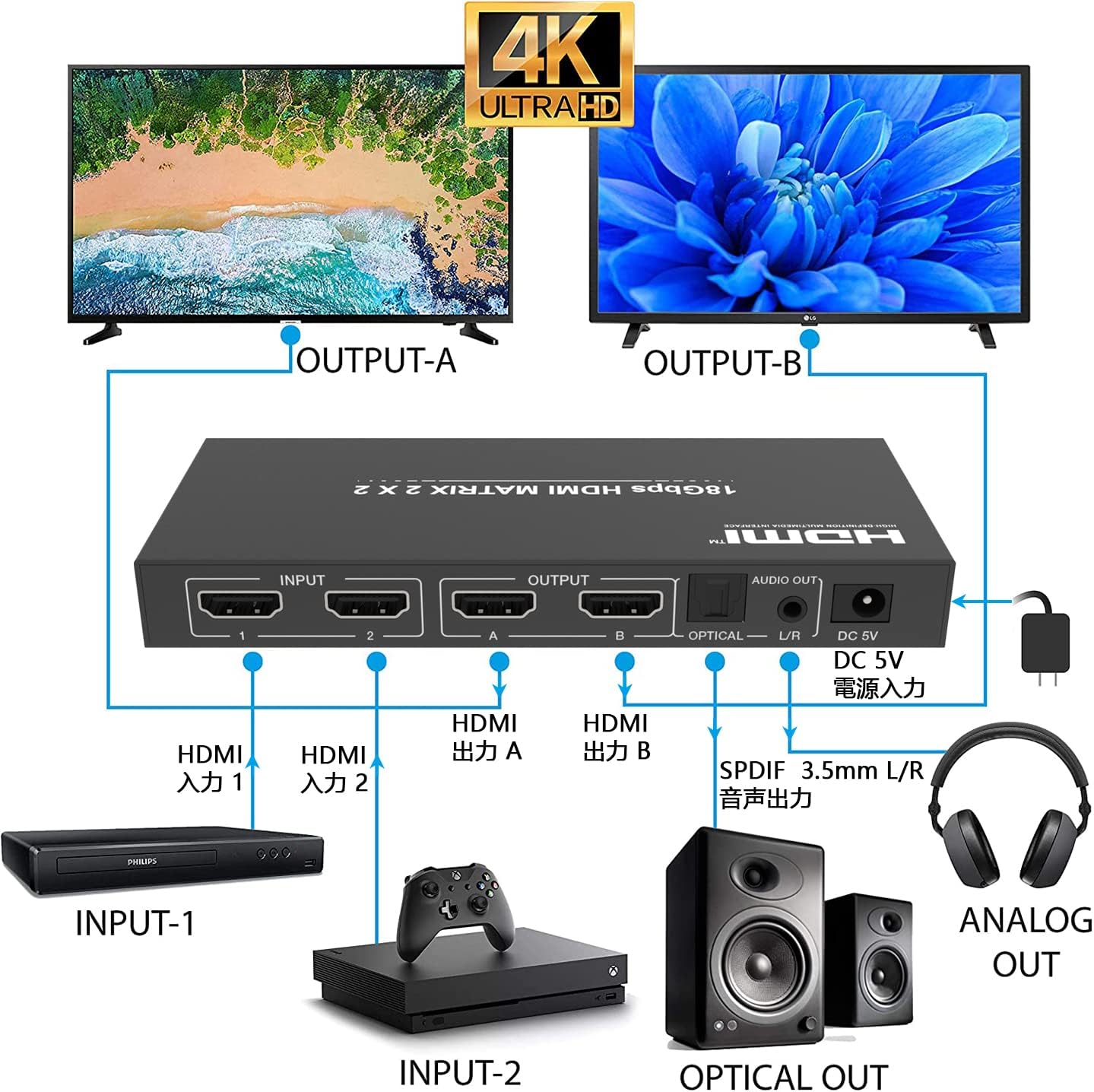
Ffigur 3.1: Diagram Cysylltiad Nodweddiadol
This diagram illustrates how to connect two input sources (e.g., DVD player, Xbox) to the matrix switch and output to two displays (e.g., TVs) while also extracting audio to external speakers or headphones via optical and 3.5mm L/R outputs.
4. Cyfarwyddiadau Gweithredu
4.1 Switching Inputs/Outputs
You can control the matrix switch using either the front panel buttons or the included remote control.
- Botymau Panel Blaen:
Press the 'OUT A' button to cycle through Input 1 and Input 2 for Output A.
Press the 'OUT B' button to cycle through Input 1 and Input 2 for Output B. - Rheolaeth Anghysbell:
Use the 'OUT A 1', 'OUT A 2' buttons to select the input for Output A.
Use the 'OUT B 1', 'OUT B 2' buttons to select the input for Output B.
4.2 Rheolaeth EDID
EDID (Extended Display Identification Data) management helps ensure compatibility between your source devices and displays by communicating display capabilities. The matrix switch offers three EDID modes:
- Modd AUTO: The switch automatically detects the EDID of the connected displays and selects the best common resolution and audio format supported by both. This is the recommended default setting for most setups.
- Modd STD: The switch uses a standard, built-in EDID (e.g., 1080p stereo audio). This can be useful if you encounter compatibility issues with specific displays or sources.
- COPY Mode: The switch copies the EDID from the display connected to HDMI Output A. This ensures that both outputs receive the same EDID information, which can be beneficial when using displays with different capabilities or when a specific resolution/audio format is required across all outputs.
To change the EDID mode, use the EDID switch on the front panel of the device.
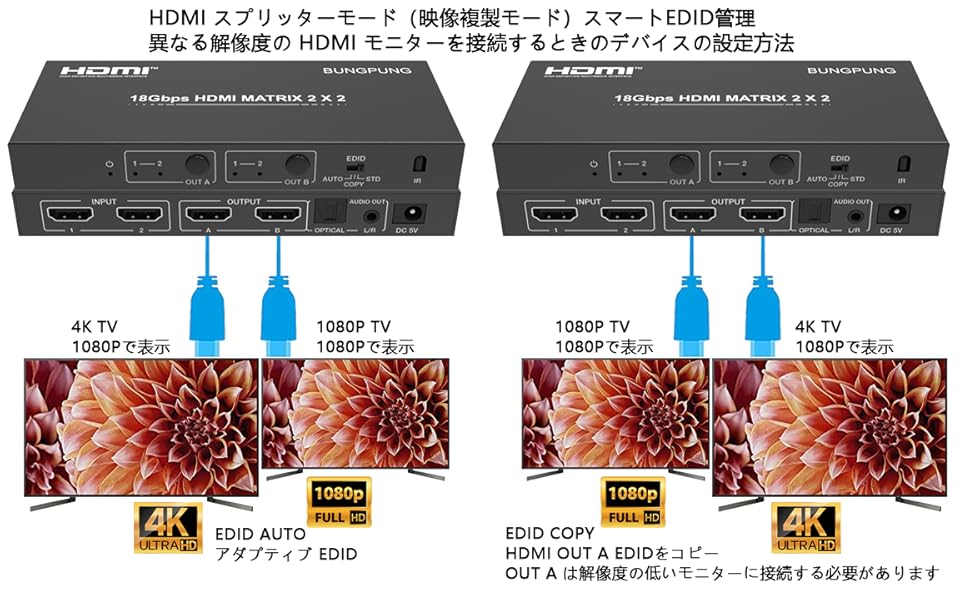
Figure 4.1: EDID Management for Different Resolutions
This diagram illustrates how EDID management works when connecting displays with different resolutions. In 'EDID AUTO' mode, the switch adapts to the lowest common resolution (e.g., 1080p for both a 4K TV and a 1080p TV). In 'EDID COPY' mode, the EDID of Output A is copied, requiring the lowest resolution monitor to be connected to Output A for optimal compatibility across both displays.
4.3 Echdynnu Sain
The matrix switch can extract audio from the active HDMI input signal and output it through the dedicated audio ports:
- Optical (SPDIF): Provides digital audio output, supporting formats like Dolby Digital and DTS (depending on the source and receiver capabilities).
- 3.5mm L/R: Provides analog stereo audio output, suitable for headphones or analog stereo systems.
The audio output will correspond to the audio embedded in the HDMI signal of the currently selected input source.
5. cynnal
- Glanhau: Use a soft, dry cloth to clean the device. Avoid using liquid or aerosol cleaners.
- Awyru: Gwnewch yn siŵr bod y ddyfais wedi'i gosod mewn man sydd wedi'i awyru'n dda i atal gorboethi. Peidiwch â rhwystro agoriadau awyru.
- Pwer: Disconnect the power adapter when the device is not in use for extended periods.
- Trin: Trin y ddyfais yn ofalus. Osgowch ei gollwng neu ei rhoi dan effeithiau cryf.
6. Datrys Problemau
If you encounter issues with your HDMI Matrix Switch, please refer to the following common troubleshooting steps:
- No Picture or Intermittent Signal:
- Ensure all HDMI cables are securely connected to both the source devices, the matrix switch, and the displays.
- Try using different HDMI cables, especially high-quality ones rated for 4K@60Hz.
- Verify that the correct input is selected on your display and the correct output is selected on the matrix switch.
- Check the EDID setting on the matrix switch. Try switching between AUTO, STD, and COPY modes to see if it resolves the issue. If using COPY mode with displays of different resolutions, ensure the lowest resolution display is connected to Output A.
- Some source devices (e.g., certain game consoles or PCs) may have specific HDCP or resolution requirements. Adjust the output resolution of your source device to match the capabilities of your display.
- Power cycle all devices: Turn off the matrix switch, source devices, and displays. Disconnect and reconnect the power adapter for the matrix switch, then power on the displays, followed by the matrix switch, and finally the source devices.
- Dim Sain neu Ansawdd Sain Gwael:
- Ensure your audio cables (optical or 3.5mm) are correctly connected to the matrix switch and your audio receiver/speakers.
- Verify that your audio receiver/speakers are powered on and set to the correct input.
- Check the audio settings on your source device to ensure it's outputting an audio format compatible with your audio receiver (e.g., PCM stereo for 3.5mm, or supported digital formats for optical).
- If using optical output, ensure your audio receiver supports the digital audio format being sent by the source.
- Rheolaeth Anghysbell Ddim yn Gweithio:
- Sicrhewch fod gan y teclyn rheoli o bell fatris gweithio.
- Point the remote directly at the IR receiver on the front panel of the matrix switch.
- Gwnewch yn siŵr nad oes unrhyw rwystrau rhwng y teclyn rheoli o bell a'r derbynnydd IR.
- Dyfais yn gorboethi:
- Ensure the device is placed in a location with adequate airflow and is not covered.
- If the device feels excessively hot, disconnect power and allow it to cool down before resuming use.
7. manylebau
| Rhif Model | BP-HDC-MXB22AC |
| Mewnbynnau | 2 x HDMI |
| Allbynnau | 2 x HDMI, 1 x Optical (SPDIF), 1 x 3.5mm L/R Audio |
| Fersiwn HDMI | HDMI 2.0b |
| Fersiwn HDCP | HDCP 2.2 |
| Datrys Max | 4K@60Hz (RGB 4:4:4) |
| Cyfradd Data | 18Gbps |
| Dyfnder Lliw | 30/36/48-bit Deep Color |
| Cefnogaeth HDR | Oes |
| Rheoli EDID | AUTO, STD, COPY Modes |
| Cyflenwad Pŵer | DC 5V |
| Dimensiynau Cynnyrch | 14.4 x 6 x 1.8 cm |
| Pwysau Cynnyrch | 210 g |
| Deunydd Tai | Metel |
8. Gwarant a Chefnogaeth
This BUNGPUNG HDMI Matrix Switch (Model BP-HDC-MXB22AC) comes with a Gwarant 1 mlynedd from the date of purchase. This warranty covers manufacturing defects and ensures the product functions as intended under normal use.
While we strive for the highest quality, if you experience any compatibility issues, initial defects, or require technical assistance, please do not hesitate to contact BUNGPUNG customer support. Our team is available to provide guidance and solutions to ensure your satisfaction.
For support, please refer to the contact information provided with your purchase or visit the official BUNGPUNG websafle.