
HOCO X70 - White
HOCO X70 Ferry Charging and Data Transmission Cable User Manual
Model: X70 - White
1. Rhagymadrodd
Thank you for choosing the HOCO X70 Ferry Charging and Data Transmission Cable. This cable is designed to provide efficient charging and reliable data transfer for your Apple devices, including iPhone, iPad, and AirPods. Please read this manual carefully to ensure proper use and maintenance of your cable.
2. Cynnyrch Drosview

Ffigur 2.1: HOCO X70 Ferry Cable showing USB-A and Lightning connectors.
This image displays the full length of the HOCO X70 cable, highlighting its USB-A connector on one end and the Lightning connector on the other. The cable features a durable white nylon weave exterior.
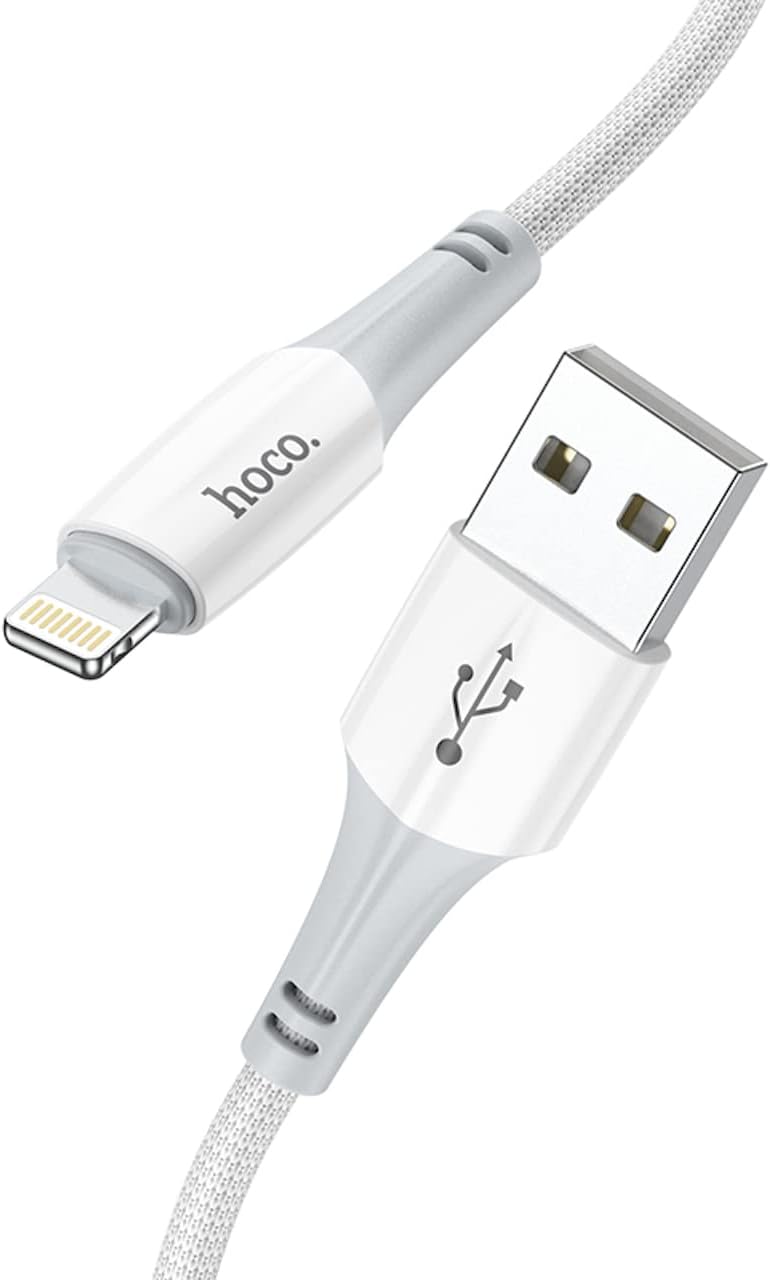
Ffigur 2.2: Yn agos view of the HOCO X70 cable's connectors.
A manwl view of both the USB-A and Lightning connectors of the HOCO X70 cable, emphasizing the quality of the ABS+TPE joint material and the braided cable design.

Ffigur 2.3: HOCO X70 cable coiled for easy storage.
This image shows the HOCO X70 cable neatly coiled, demonstrating its flexibility and ease of storage. Both the USB-A and Lightning connectors are visible.
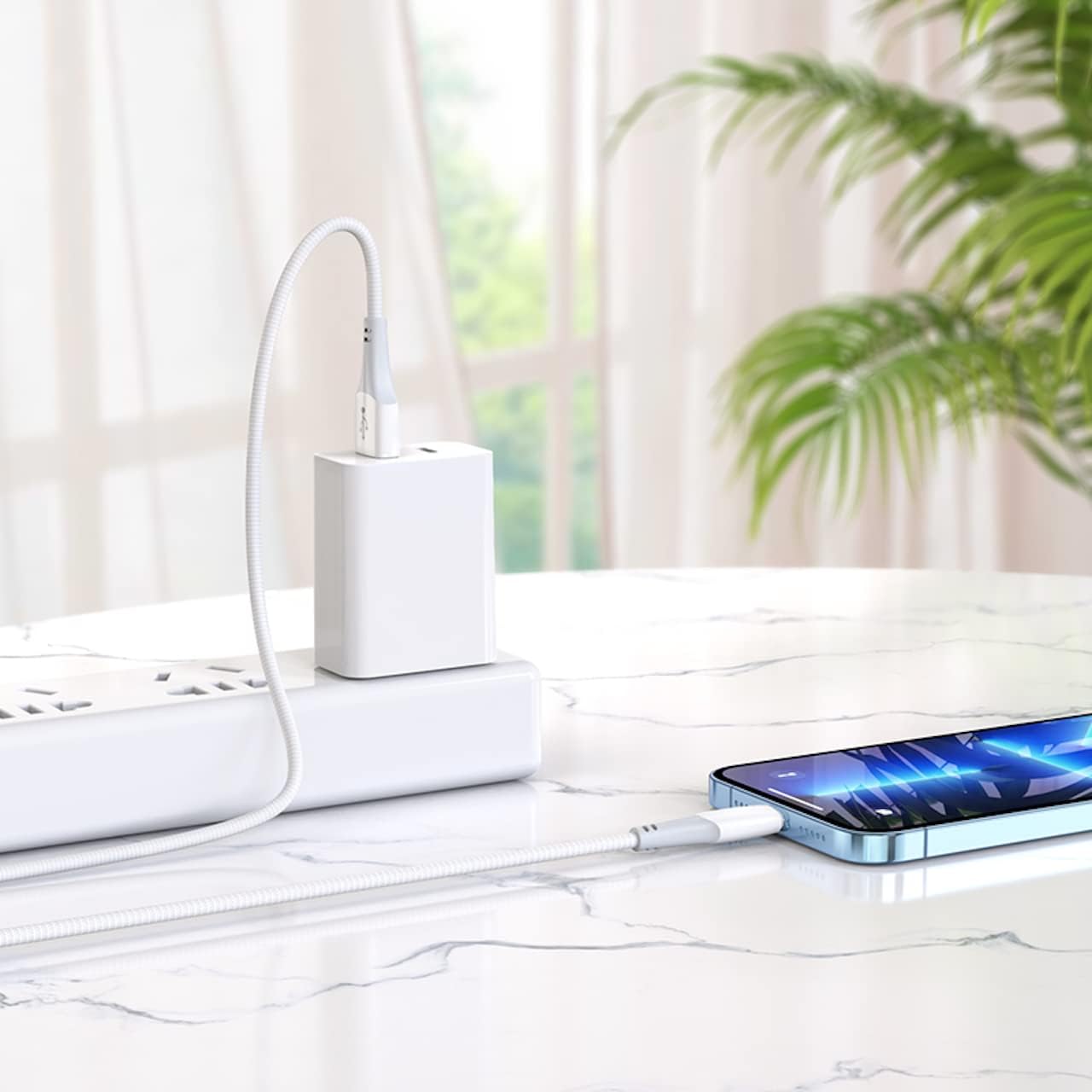
Ffigur 2.4: HOCO X70 cable connected to a power adapter and iPhone.
An illustrative image showing the HOCO X70 cable in action, connecting an iPhone to a wall charger, demonstrating its practical application for charging.

Ffigur 2.5: Retail packaging for the HOCO X70 cable.
The front and back of the HOCO X70 cable's retail packaging, displaying key features like "Fast Charging" and "2.4A Output Max," along with product specifications and manufacturer information.
3. manylebau
| Nodwedd | Manylyn |
|---|---|
| Model | X70 - White |
| Hyd | 1 meter (1m) |
| Pwysau | 22 grams (22g) |
| Deunydd Allanol | Nylon weave |
| Joint Material | ABS+TPE |
| Manyleb Graidd | (43/0.08)*2C+(16/0.08)*2 OD3.5mm |
| Current Support | Hyd at 2.4A |
| Connector Type (Input) | USB-A |
| Connector Type (Output) | Plwg Mellt |
| Cydweddoldeb | Apple iPhone, iPad, AirPods |
| Gwneuthurwr | HOCO |
| ASIN | B0B3HDK7XG |
4. Gosod a Chysylltiad
The HOCO X70 cable is designed for plug-and-play functionality. Follow these simple steps to connect your device:
- Ar gyfer Codi Tâl:
- Insert the USB-A end of the cable into a compatible USB power adapter (e.g., wall charger, car charger) or a USB port on a computer.
- Insert the Lightning end of the cable into the charging port of your Apple iPhone, iPad, or AirPods.
- Ensure both connections are secure. Your device should indicate that it is charging.
- For Data Transmission:
- Insert the USB-A end of the cable into an available USB port on your computer (PC or Mac).
- Insert the Lightning end of the cable into the port of your Apple iPhone or iPad.
- Your computer should recognize the connected device. You can then use iTunes, Finder, or other file management software to transfer data.
5. Cyfarwyddiadau Gweithredu
The HOCO X70 cable operates automatically once connected. No special software or drivers are required for its basic function.
- Codi tâl: The cable supports up to 2.4A current, allowing for efficient charging of compatible devices. Charging speed may vary depending on the power adapter used and the device's battery status.
- Cysoni Data: When connected to a computer, the cable facilitates high-speed data transfer for syncing photos, videos, music, and other files between your Apple device and computer.
- Defnydd Ar yr Un Pryd: You can charge your device while simultaneously transferring data, provided the connected USB port supports both functions.
6. Gofal a Chynnal a Chadw
To ensure the longevity and optimal performance of your HOCO X70 cable, please follow these maintenance guidelines:
- Ymdrin â Gofal: Always grasp the connector head when plugging or unplugging the cable. Avoid pulling directly on the cable itself, as this can damage the internal wires or the connector joints.
- Storio: When not in use, coil the cable loosely. Avoid tight coiling or sharp bends, which can stress the cable and lead to damage over time. Store in a cool, dry place away from direct sunlight.
- Glanhau: If the cable or connectors become dirty, gently wipe them with a soft, dry, lint-free cloth. Do not use liquid cleaners or abrasive materials.
- Osgoi Amodau Eithafol: Do not expose the cable to extreme temperatures, humidity, or corrosive substances.
- Archwiliwch yn Rheolaidd: Periodically check the cable for any signs of wear, fraying, or damage to the connectors. Discontinue use if any damage is observed.
7. Datrys Problemau
If you encounter issues with your HOCO X70 cable, refer to the following common troubleshooting steps:
- Dyfais Ddim yn Codi Tâl:
- Gwnewch yn siŵr bod dau ben y cebl wedi'u plygio'n ddiogel i'r ffynhonnell bŵer a'ch dyfais.
- Ceisiwch ddefnyddio addasydd pŵer gwahanol neu borth USB.
- Test the cable with a different compatible device to rule out a device-specific issue.
- Check the charging port on your device for any debris or lint that might be obstructing the connection.
- Materion Trosglwyddo Data:
- Ensure the USB-A end is connected to a data-enabled USB port on your computer, not just a charging-only port.
- Restart your computer and your Apple device.
- Update your computer's operating system and iTunes/Finder software to the latest version.
- Check your device's settings to ensure it allows data access when connected to a computer.
- Cysylltiad ysbeidiol:
- This could indicate a damaged cable. Inspect the cable for any visible signs of wear or fraying, especially near the connectors.
- Gwnewch yn siŵr bod y cysylltwyr yn lân ac yn rhydd o lwch na malurion.
If problems persist after trying these steps, the cable may be faulty and require replacement.
8. Gwarant a Chefnogaeth
HOCO products are manufactured with high-quality standards. For information regarding warranty coverage and customer support, please refer to the warranty card included with your product packaging or visit the official HOCO websafle. Cadwch eich prawf prynu ar gyfer hawliadau gwarant.
For further assistance, you may contact HOCO customer service through their official channels. Contact details are typically available on the product packaging or their websafle.
Dogfennau cysylltiedigX70 - White


Ask a question about this manual
Ask about setup, troubleshooting, compatibility, parts, safety, or missing instructions. Manuals+ will review the question and use this page’s manual context to help answer it.