
Milestone MPT-II
Milestone MPT-II 58mm Thermal Printer User Manual
Model: MPT-II | Brand: Milestone
1. Rhagymadrodd
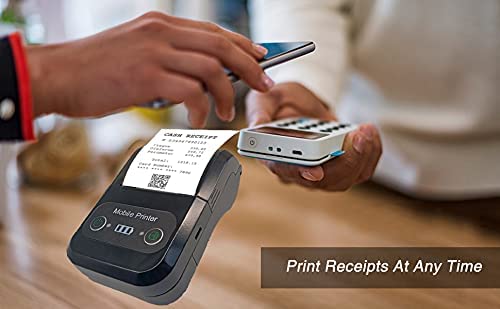
The Milestone MPT-II is a compact and portable 58mm thermal printer designed for various business applications, including retail, restaurants, and mobile logistics. It offers high-speed, clear printing and features Bluetooth connectivity for seamless integration with Android and iOS devices. Its lightweight design and long-lasting battery make it ideal for on-the-go printing needs.

2. Nodweddion Allweddol
- Argraffu Bluetooth: Supports Android and iOS devices for wireless printing.
- Cludadwyedd: Light and compact design allows for printing anywhere, anytime.
- Low Operating Cost: Direct thermal printing eliminates the need for ink ribbons or cartridges, requiring only thermal paper.
- Bywyd batri hir: Built-in 7.4V/2500mAh rechargeable lithium battery provides up to 4 hours of continuous printing.
- Versatile Interface: Equipped with both USB and Bluetooth connectivity.
- ESC/POS Compatible: Supports standard ESC/POS print commands for broad software compatibility.

3. Gosodiad Cychwynnol
3.1 Dadbocsio a Chynnwys
Carefully unpack the printer and verify all components are present:
- 1 x Milestone MPT-II Thermal Printer
- 1 x Cebl USB
- 1 x USB Adaptor
- 1 x Rhôl Bapur
- 1 x Llawlyfr Defnyddiwr (y ddogfen hon)
3.2 Gwefru'r Argraffydd
- Connect the USB cable to the printer's charging port.
- Plug the USB adaptor into a standard power outlet.
- The charging indicator light will illuminate. Charge the printer fully before first use (approximately 2.5-3 hours for continuous printing).
3.3 Llwytho Papur Thermol
- Open the paper compartment cover by gently pushing the latch.
- Insert the thermal paper roll with the printing side facing outwards (as shown in Figure 2). Ensure the roll is seated correctly.
- Pull a small length of paper out beyond the cutting edge.
- Caewch glawr yr adran bapur yn gadarn nes ei fod yn clicio i'w le.
4. Cyfarwyddiadau Gweithredu
4.1 Pweru Ymlaen/Diffodd
- I droi ymlaen: Pwyswch a daliwch y botwm pŵer nes bod y golau dangosydd yn goleuo.
- I ddiffodd y pŵer: Pwyswch a daliwch y botwm pŵer nes bod y golau dangosydd yn diffodd.
4.2 Cysylltiad Bluetooth
The MPT-II printer supports Bluetooth connectivity for mobile devices.
- Ensure the printer is powered on and within range of your mobile device.
- On your mobile device (Android/iOS), go to Bluetooth settings and turn Bluetooth on.
- Chwiliwch am available devices. The printer will appear as "MPT-II".
- Select "MPT-II" to pair. If prompted for a password, enter 1234 or 0000.
- Once paired, the printer is ready for use with compatible applications.
4.3 Defnyddio gyda Chymwysiadau
For mobile printing, you will need a compatible application. Milestone recommends downloading RAWBT Printer App or MYXPrint App from the Google Play Store. For iOS, search for compatible thermal printer apps in the App Store.
- Open your chosen printing application.
- Navigate to the printer settings within the app.
- Select the "MPT-II" printer from the list of available Bluetooth devices.
- You can now send print commands from the application.

4.4 USB Connection (for PC)
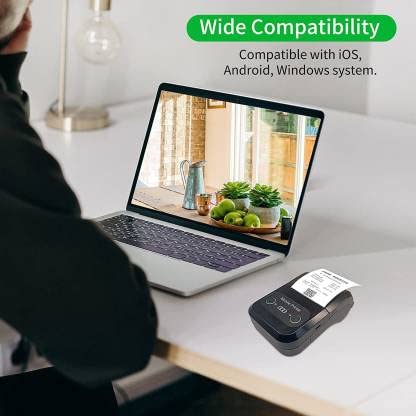
The printer can also be connected to a PC via USB. You may need to install a printer driver, which is typically available from the manufacturer's website or included on a CD with the product (if applicable).
5. cynnal
5.1 Glanhau'r Argraffydd
To ensure optimal performance and print quality, regularly clean the printer:
- Pen Argraffu: Defnyddiwch swab cotwm yn ysgafnampened with isopropyl alcohol to gently wipe the thermal print head. Allow it to dry completely before use.
- Paper Path: Use a soft, dry cloth or a small brush to remove any paper dust or debris from the paper path.
- Tu allan: Sychwch du allan yr argraffydd gyda lliain meddal, damp brethyn. Ceisiwch osgoi defnyddio cemegau llym neu lanhawyr sgraffiniol.
5.2 Gofal Batri
- Codwch y batri yn llawn cyn ei ddefnyddio gyntaf.
- Osgowch ddraenio'r batri'n llwyr yn aml.
- If storing the printer for an extended period, charge it to about 50% and recharge every few months to prevent battery degradation.
6. Datrys Problemau
| Problem | Achos Posibl | Ateb |
|---|---|---|
| Nid yw'r argraffydd yn troi ymlaen. | Mae'r batri'n isel neu wedi'i wagio. | Charge the printer using the provided USB cable and adaptor. |
| Methu cysylltu drwy Bluetooth. | Bluetooth is off on device; incorrect pairing password; printer not discoverable. | Ensure Bluetooth is enabled on your device. Re-attempt pairing with password 1234 or 0000. Restart both printer and device. |
| No print output or blank paper. | Paper loaded incorrectly; out of paper; print head dirty. | Check paper orientation (printing side out). Replace paper roll if empty. Clean the thermal print head (refer to Maintenance section). |
| Poor print quality (faded, lines). | Print head dirty; low battery; poor quality thermal paper. | Clean the print head. Charge the printer fully. Use high-quality thermal paper. |
| Printer beeps continuously. | Paper alarm (out of paper or paper jam); low battery reminder. | Check and replace paper roll or clear jam. Charge the printer. |
7. Manylebau Technegol
| Nodwedd | Manyleb |
|---|---|
| Dull Argraffu | Argraffu llinell thermol |
| Lled Argraffu | Paper width 58mm, effective width 58mm |
| Dwysedd Argraffu | 576 dot/llinell |
| Datrysiad | 8 dots/mm, 203 DPI |
| Cyflymder Argraffu | 70mm/s (Max Print speed Monochrome: 50 ppm) |
| Printer Core Life | 50KM (25% print density or less than 100 million pulses) |
| Printable Content | English, numbers, symbols, characters, pictures, 1D/2D barcode, multi-languages |
| Rhyngwyneb Cyfathrebu Data | USB / Bluetooth |
| Cyflenwad Pŵer | Machine charging 9V-1.5A |
| Batri | Built-in rechargeable 2600mAh lithium-ion battery (7.4V/2500mAh) |
| Continuous Printing Time | 2.5-3 awr |
| Set Cyfarwyddyd | ESC / POS gydnaws |
| Torri Papur | Manually tear |
| Cydweddoldeb System Weithredu | Android, iOS, Windows |
| Dimensiynau Cynnyrch | 15D x 12W x 6H Centimetrau |
| Pwysau Eitem | 310 gram |
| Cydrannau wedi'u Cynnwys | 1 x Thermal Printer, 1 x USB Cable, 1 x USB Adaptor, 1 x Paper Roll, 1 x User Manual |
8. Gwarant a Chefnogaeth
This product comes with a 10-day warranty as per the purchase terms. For any technical assistance, troubleshooting beyond this manual, or warranty claims, please contact your retailer or the manufacturer's customer support. Refer to your purchase documentation for specific contact details.
Gwneuthurwr: Carreg filltir
Mewnforiwr: SB RETAILS, SECTOR 28, PRADHIKARAN, PUNE-44, +918888881631
Ask a question about this manual
Ask about setup, troubleshooting, compatibility, parts, safety, or missing instructions. Manuals+ will review the question and use this page’s manual context to help answer it.