
Rhagymadrodd
This manual provides detailed instructions for the BINIZE Portable Carplay Screen Navigation system. It covers setup, operation, and maintenance to ensure optimal performance and user experience.
Gwybodaeth Diogelwch
- Gwnewch yn siŵr bod y ddyfais wedi'i gosod yn ddiogel ac nad yw'n rhwystro'ch view neu ymyrryd â rheolaethau cerbydau.
- Connect the power cord only to a 12V cigarette lighter port.
- Peidiwch â cheisio dadosod neu addasu'r ddyfais.
- Rhowch flaenoriaeth i yrru'n ddiogel bob amser. Peidiwch â gweithredu'r ddyfais mewn ffordd sy'n tynnu eich sylw oddi ar y ffordd.
Cynnwys Pecyn
Gwiriwch fod yr holl eitemau yn bresennol yn y pecyn:
- BINIZE Portable Carplay Screen Navigation Unit
- Cebl Pŵer Ysgafnach Sigaréts
- Cable Estyniad USB
- Cebl Allbwn Sain (RCA)
- Mounting Bracket with 3M Adhesive
- Rheolaeth Anghysbell
- Llawlyfr Defnyddiwr (y ddogfen hon)
Gosod
1. Mowntio'r Dyfais
Dewiswch leoliad addas ar eich dangosfwrdd nad yw'n rhwystro eich view neu reolaethau cerbydau.

The base of the mounting bracket comes with 3M adhesive. Clean the dashboard surface thoroughly before attaching the base. Securely attach the unit to the bracket.

Addaswch ongl y sgrin i gael y gorau posibl viewing.
2. Cysylltiad Pwer
Connect the cigarette lighter power cable to the device and insert it into your vehicle's 12V cigarette lighter port. The device will power on automatically.

Ensure the vehicle's voltagMae e rhwng 12V a 14V.
This video demonstrates the initial power-up sequence of the BINIZE Portable Carplay Screen Navigation unit by connecting it to a cigarette lighter port. It shows the "welcome" screen appearing upon successful power-on.
Cyfarwyddiadau Gweithredu
1. Gosod Cychwynnol a Dewis Iaith
Upon first power-on, the device will display the home screen. Navigate to the "Settings" menu to select your preferred language.

2. Dewisiadau Allbwn Sain
The monitor itself does not have internal speakers. Sound is routed through your original car audio system.
Trosglwyddydd FM
To use the FM transmitter, set the device's FM frequency to match an unused FM channel on your car's stereo.

Ensure both the device and your car stereo are tuned to the same FM frequency for audio output.
Allbwn Sain RCA
For additional audio requirements, such as connecting to a subwoofer or amplifier, use the two RCA ports (White: Audio Out Left, Red: Audio Out Right).
3. Apple CarPlay Connection
To use Apple CarPlay, connect your iPhone to the device using an original Apple data cable via the USB port on the right side of the player.
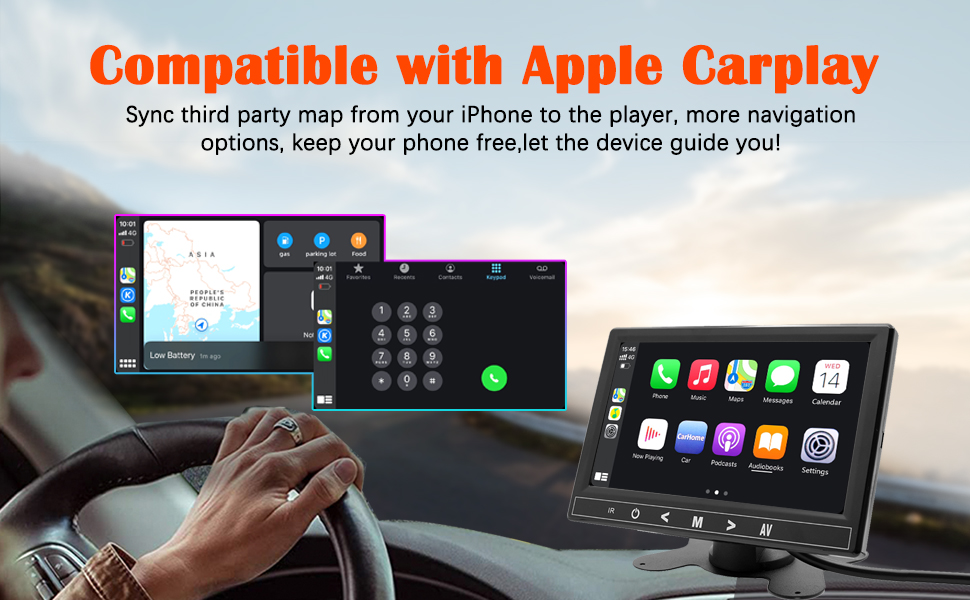
Select "i-Play" in the device settings. Grant any necessary permissions on your iPhone.
This video demonstrates how to connect an iPhone to the BINIZE Portable Carplay Screen Navigation for Apple CarPlay functionality. It shows the steps to select "i-Play" in settings and connect the original data cable.
4. Android Auto Connection
To use Android Auto, connect your Android phone to the device using an original data cable via the USB port on the right side of the player.

Select "A-Auto" in the device settings. Grant any necessary permissions on your Android phone.
This video illustrates the process of connecting an Android phone to the BINIZE Portable Carplay Screen Navigation for Android Auto. It guides the user to select "A-Auto" in settings and connect the data cable.
5. MirrorLink (iPhone)
To mirror your iPhone screen, connect your iPhone to the device using an original Apple data cable via the USB port on the right side of the player.
Select "i-Mirror" in the device settings. Grant permissions on your iPhone. The iPhone screen will be projected onto the player's screen.
This video demonstrates the MirrorLink function for iPhone, showing how to connect the device and mirror the phone's display.
6. MirrorLink (Android Phone)
To mirror your Android phone screen, connect your Android phone to the device using an original data cable via the USB port on the right side of the player.
Select "A-Link" in the device settings. Grant permissions on your Android phone. The Android phone screen will be projected onto the player's screen.
This video demonstrates the MirrorLink function for Android phones, showing how to connect the device and mirror the phone's display.
7. USB Flash Drive Reading
Insert a USB flash drive into the USB extension cable to play music or videos. The device supports various media formats.
8. Gwefru Ffôn
The USB extension cable can also be used to charge your mobile phone.
Cynnal a chadw
- Cadwch y sgrin yn lân gan ddefnyddio lliain meddal, sych. Osgowch lanhawyr sgraffiniol.
- Sicrhewch fod pob cysylltiad cebl yn ddiogel.
- Osgoi amlygu'r ddyfais i dymereddau eithafol neu olau haul uniongyrchol am gyfnodau hir.
Datrys problemau
| Problem | Achos Posibl | Ateb |
|---|---|---|
| Nid yw'r ddyfais yn pweru ymlaen. | No power from cigarette lighter. | Check vehicle's 12V port. Ensure power cable is securely connected. |
| Dim allbwn sain. | FM frequency not synchronized or incorrect RCA connection. | Match FM frequency on device and car stereo. Verify RCA cable connections. |
| Nid yw CarPlay/Android Auto yn cysylltu. | Non-original data cable, incorrect settings, or phone permissions. | Use original data cable. Check "i-Play" or "A-Auto" settings. Grant all necessary phone permissions. |
| MirrorLink not working. | Incorrect settings or phone permissions. | Check "i-Mirror" or "A-Link" settings. Grant all necessary phone permissions. |
| Screen freezes or is unresponsive. | Gwall meddalwedd dros dro. | Ailgychwynwch y ddyfais trwy ddatgysylltu ac ail-blygio'r cebl pŵer. |
For further assistance, please contact BINIZE customer support.
Manylebau
| Nodwedd | Manylyn |
|---|---|
| Brand | BINIZE |
| Rhif Model | B09DSMJ59X |
| Technoleg Cysylltedd | Bluetooth, RCA, USB |
| Math o Reolwr | Android, Cynorthwyydd Google |
| Nodwedd Arbennig | Sgrîn gyffwrdd |
| Dyfeisiau Cydnaws | Ffôn clyfar |
| Modd Allbwn Sain | Stereo |
| Nifer y Sianeli | 4 |
| Amgodio Fideo | H.264, H.265/HEVC |
| Dull Rheoli | Cyffwrdd |
| Technoleg Di-wifr | Bluetooth |
| Mewnbwn Pwer | 12V (via cigarette lighter) |
Sylwer: Gall manylebau newid heb rybudd ymlaen llaw.
Gwarant a Chefnogaeth
BINIZE products come with a standard manufacturer's warranty. Please refer to the warranty card included in your package for specific terms and conditions.
For technical support, warranty claims, or any other inquiries, please visit the official BINIZE websafle neu cysylltwch â'u tîm gwasanaeth cwsmeriaid.