
Rhagymadrodd
This user manual provides detailed instructions for the installation, operation, maintenance, and troubleshooting of your Xprinter XP-K200L 80mm Thermal Receipt Printer. Please read this manual thoroughly before using the printer to ensure proper function and to extend the product's lifespan. Keep this manual for future reference.
Gwybodaeth Diogelwch
- Always use the power adapter supplied with the printer.
- Do not expose the printer to water or moisture.
- Osgowch osod yr argraffydd mewn golau haul uniongyrchol neu ger ffynonellau gwres.
- Sicrhewch awyru priodol o amgylch yr argraffydd.
- Peidiwch â cheisio dadosod na thrwsio'r argraffydd eich hun. Cysylltwch â phersonél gwasanaeth cymwys.
- Cadwch allan o gyrraedd plant.
Cynnwys Pecyn
Please check the package contents upon unpacking. If any items are missing or damaged, contact your vendor.
- Xprinter XP-K200L Thermal Receipt Printer
- Addasydd Pŵer
- Cord Pŵer
- Cebl USB
- Thermal Paper Roll (starter roll)
- Cebl Drawer Arian Parod
- Llawlyfr Defnyddiwr (y ddogfen hon)
Cynnyrch Drosview
Familiarize yourself with the main components of your Xprinter XP-K200L thermal receipt printer.

Ffigur 1: Ochr view of the Xprinter XP-K200L thermal receipt printer. On the right, the power switch is visible, and on the left, a button to open the paper cover is present.
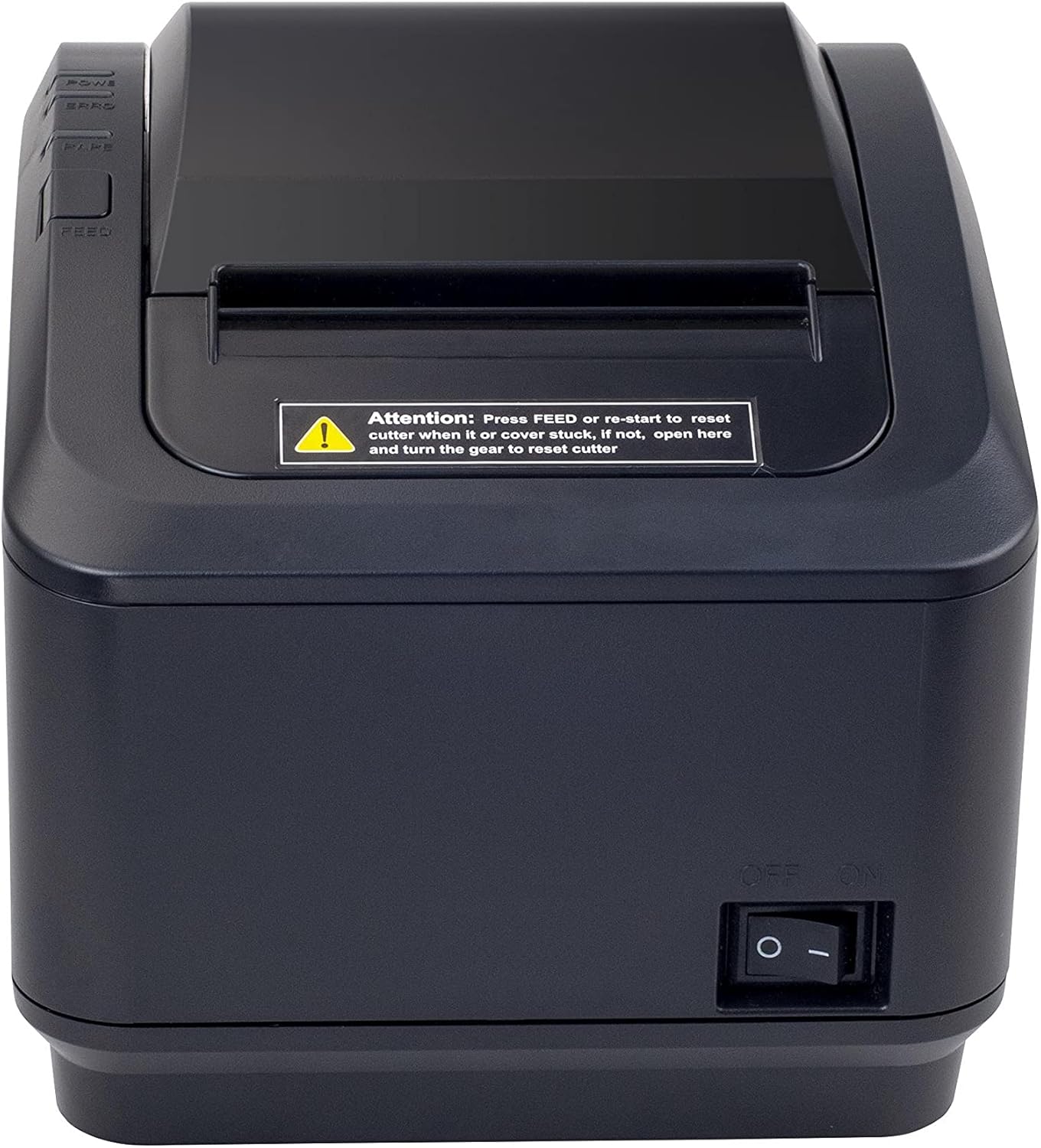
Figure 2: A front view of the Xprinter XP-K200L thermal receipt printer. The paper output slot is at the top, and below it are control buttons for functions like feed and error reset. A warning label is also visible.

Figure 3: This image displays the Xprinter XP-K200L thermal receipt printer with its top cover open, showing the internal compartment where the thermal paper roll is loaded. The print head mechanism is also visible.
Gosod
1. Cysylltu'r Pŵer
- Ensure the printer's power switch is in the ODDI AR sefyllfa.
- Cysylltwch yr addasydd pŵer â phorthladd pŵer yr argraffydd.
- Plygiwch y llinyn pŵer i mewn i allfa drydanol addas.
2. Llwytho Papur Thermol
- Press the cover open button (refer to Figure 1) to open the top cover of the printer.
- Insert a new 80mm thermal paper roll into the compartment, ensuring the paper feeds from the bottom and the leading edge extends slightly out of the printer.
- Close the top cover firmly until it clicks into place. Ensure there is no slack in the paper roll.
3. Connecting to a Computer/Network
The XP-K200L printer supports both USB and LAN (Ethernet) connectivity.
Cysylltiad USB:
- Connect one end of the USB cable to the printer's USB port.
- Cysylltwch ben arall y cebl USB â phorth USB sydd ar gael ar eich cyfrifiadur.
- Install the printer drivers. Drivers are typically provided on a CD or can be downloaded from the manufacturer's websafle. Dilynwch y cyfarwyddiadau ar y sgrin i'w gosod.
LAN (Ethernet) Connection:
- Connect one end of an Ethernet cable to the printer's LAN port.
- Cysylltwch ben arall y cebl Ethernet â'ch llwybrydd rhwydwaith neu switsh.
- Configure the printer's network settings (e.g., IP address) if necessary. This usually involves printing a self-test page to get the current IP address and then accessing the printer's web interface or using a utility tool provided by the manufacturer.
- Install the printer drivers on your computer, selecting the network connection option during setup.
4. Connecting a Cash Drawer
- Connect the cash drawer cable to the dedicated cash drawer port on the printer.
- Ensure your POS software is configured to send commands to open the cash drawer via the printer.
Cyfarwyddiadau Gweithredu
Pweru Ymlaen/Diffodd
- To power on the printer, flip the power switch (refer to Figure 1) to the ON sefyllfa.
- To power off the printer, flip the power switch to the ODDI AR sefyllfa.
Argraffu Sylfaenol
Once the printer is connected and drivers are installed, you can print receipts from your POS software or any application that supports printing.
- Ensure the printer is powered on and has paper loaded.
- From your application, select the print option.
- Choose the "Xprinter XP-K200L" from the list of available printers.
- Confirm print settings and click "Print".
Self-Test Page
To print a self-test page, which provides information about the printer's settings and status:
- Ensure the printer is powered off and the paper roll is loaded.
- Pwyswch a dal y BWYDO botwm.
- Wrth ddal y BWYDO button, turn the power switch to ON.
- Rhyddhewch y BWYDO button after the printer starts printing.
Cynnal a chadw
Glanhau'r Argraffydd
- Pen Argraffu: Defnyddiwch swab cotwm yn ysgafnampened with isopropyl alcohol to gently wipe the thermal print head. Allow it to dry completely before use. Clean regularly to ensure print quality.
- Torrwr: If the cutter becomes jammed or dirty, carefully clean it with a soft brush or cloth.
- Tu allan: Sychwch du allan yr argraffydd gyda lliain meddal, sych. Peidiwch â defnyddio glanhawyr sgraffiniol na thoddyddion.
Replacing Thermal Paper
When the paper roll is depleted or near its end, replace it following the steps in the "Loading Thermal Paper" section under Setup.
Datrys problemau
| Problem | Achos Posibl | Ateb |
|---|---|---|
| Nid yw'r argraffydd yn troi ymlaen. | Power cord or adapter not connected properly; power outlet issue. | Gwiriwch yr holl gysylltiadau pŵer. Rhowch gynnig ar soced pŵer gwahanol. |
| No printing. | No paper; paper loaded incorrectly; printer offline; driver issue; incorrect connection. | Load paper correctly. Check printer status. Reinstall drivers. Verify USB/LAN connection. |
| Ansawdd print gwael. | Dirty print head; low quality thermal paper. | Clean the print head (see Maintenance). Use recommended thermal paper. |
| Paper jam or cutter error. | Paper loaded incorrectly; debris in cutter mechanism. | As per printer label: Gwasgwch BWYDO or re-start to reset cutter. If the issue persists, open the top cover and carefully turn the gear to reset the cutter mechanism. Ensure paper is loaded correctly and remove any obstructions. |
| Nid yw'r drôr arian parod yn agor. | Cable not connected; POS software not configured. | Check cash drawer cable connection. Verify POS software settings for cash drawer trigger. |
Manylebau
| Nodwedd | Manylyn |
|---|---|
| Brand | Xprinter |
| Enw Model | XP-K200L |
| Technoleg Argraffydd | Thermol |
| Technoleg Cysylltedd | USB, LAN (Ethernet) |
| Nodweddion Arbennig | Rhwydwaith yn Barod |
| Lliw | Du |
| Allbwn Argraffydd | Unlliw |
| Pwysau Eitem | 1.5 kg |
| Dimensiynau Cynnyrch (DxWxH) | 19.5 cm x 14 cm x 13.8 cm |
| Compatible OS/Controller Type | Android (and typically Windows/Linux via drivers) |
| Cyfryngau Argraffu | Plain Thermal Paper |
| Argraffu Lliw | Du |
| Datrysiad | 576 x 512 dots per inch (or dots per line) |
| Max Print Resolution B/W | 576 dpi |
| Swyddogaethau Argraffydd Ychwanegol | Argraffu yn unig |
| Dull Rheoli | Anghysbell |
| Maint Cyfryngau Uchaf | 80 mm |
| Maint Papur | 79.5 mm |
| Grym | 60 wat |
| Cydrannau wedi'u Cynnwys | Power adapter, Cash drawer cable |
| Cyfres | XP-K |
| Defnyddiau Penodol | Restaurants, bars, cinemas, garages, transportation, hospitals, clinics |
| Cyfanswm Porthladdoedd USB | 1 |
Gwarant a Chefnogaeth
For warranty information and technical support, please refer to the documentation provided with your purchase or contact your vendor directly. Keep your proof of purchase for warranty claims.
For driver downloads and further support resources, visit the official Xprinter websafle.