
Cynnyrch Drosview
This manual provides instructions for the MOFII Wireless Keyboard and Mouse Combo. This combo features a full-size keyboard with colorful round keys and a matching wireless mouse, designed for comfortable and efficient use across various computing environments.
Nodweddion Allweddol:
- Colorful Round Keycaps: Ergonomically designed round keycaps provide a comfortable and distinctive typing experience.
- Plygiwch a Chwarae: Utilizes a single USB 2.4GHz nano receiver for both keyboard and mouse, requiring no additional software installation.
- Durable ABS Keycaps: Constructed from environmentally friendly ABS plastic, offering durability and a comfortable tactile feel.
- Cydnawsedd Eang: Compatible with Windows 7, 8, 10, XP/Vista. Works seamlessly with PCs, laptops, and Smart TVs. Note: Not compatible with Apple systems.
- Arbed Pwer Auto: Both devices enter sleep mode after 5 minutes of inactivity to conserve battery life. Press any key or move the mouse to wake them instantly.
Cyfarwyddiadau Gosod
1. Dadbocsio a Chydrannau
The product package typically includes the wireless keyboard, wireless mouse, one USB nano receiver, and this user manual.
2. Gosod Batris
The keyboard requires one AAA LR6 battery and the mouse requires one AA battery. These batteries are not included in the package. Open the battery compartments on the underside of both devices and insert the batteries, ensuring correct polarity.
3. Cysylltu'r Derbynnydd
Locate the USB nano receiver, which is usually stored within the mouse's battery compartment. Insert the receiver into an available USB 2.4GHz port on your computer, laptop, or smart TV.

Image: The USB nano receiver is inserted into a laptop, establishing a 2.4G wireless connection with the green keyboard and mouse. The connection range is approximately 35 feet.
4. Pweru Ymlaen
Turn on the keyboard and mouse using their respective power switches (if available). The devices should automatically connect to the receiver. No additional software or drivers are typically required for Windows 7, 8, 10, XP/Vista systems.
Cyfarwyddiadau Gweithredu
1. Basic Keyboard and Mouse Functionality
Once connected, the keyboard and mouse function as standard input devices. The full-size keyboard includes a number pad for efficient data entry.

Image: A user is actively typing on the green wireless keyboard, with the matching mouse positioned to the right. The setup is shown on a clean desk with a computer monitor.
2. Hotkey Functions
The keyboard features 13 hotkey functions (F1-F12, Esc) for quick access to media controls, volume, and other common tasks. These functions are typically activated by pressing the 'Fn' key in combination with the desired F-key.

Image: An illustration highlighting the 13 hotkey functions (F1-F12, Esc) on the keyboard, which provide shortcuts for various operations.
3. Auto-Sleep Feature
To conserve battery life, both the keyboard and mouse will enter an automatic sleep mode after 5 minutes of inactivity. To wake them up, simply press any key on the keyboard or move the mouse.

Image: The keyboard and mouse are shown on a desk in a low-light setting, with an overlay indicating the intelligent auto-sleep feature that conserves battery power.
4. Goleuadau Dangosydd
The keyboard features indicator lights for Number Lock, Caps Lock, and a combined Power/Low Battery indicator to keep you informed of its status.

Delwedd: O'r brig i lawr view of the keyboard highlighting the indicator lights for Number Lock, Caps Lock, and the Power/Low Battery status.
Cynnal a chadw
1. Glanhau'r Bysellfwrdd
The keyboard features detachable keycaps, making cleaning easier. A brush is included to help remove dust and debris from between the keys. Gently pull up on the keycaps to remove them, clean the area, and then press them back into place.

Image: Detachable keycaps are shown alongside a cleaning brush, demonstrating the ease of cleaning the keyboard by removing individual keys.
2. Amnewid Batri
When the low battery indicator lights up (if present) or the devices become unresponsive, replace the batteries with new ones of the correct type (AAA for keyboard, AA for mouse). Dispose of old batteries responsibly.
Datrys problemau
1. Devices Not Connecting
- Sicrhewch fod batris wedi'u gosod yn gywir a bod digon o wefr arnynt.
- Verify the USB nano receiver is securely plugged into a working USB port.
- Rhowch gynnig ar blygio'r derbynnydd i mewn i borthladd USB gwahanol.
- Ailgychwyn eich cyfrifiadur.
- Ensure the keyboard and mouse are within the 33 ft (10m) operating range of the receiver.
2. Cysylltiad Oedi neu Ysbeidiol
- Symudwch y derbynnydd yn agosach at y bysellfwrdd a'r llygoden.
- Avoid placing the receiver near other wireless devices (e.g., Wi-Fi routers, cordless phones) that might cause interference.
- Amnewidiwch y batris os ydyn nhw'n isel.
3. Allweddi Ddim yn Ymateb
- Check for debris under the keycaps. Clean if necessary.
- Ensure the keyboard is not in sleep mode. Press any key to wake it.
- Re-establish connection by unplugging and re-plugging the USB receiver.
Manylebau
| Nodwedd | Manylyn |
|---|---|
| Dimensiynau Cynnyrch | 17.52 x 5.35 x 1.38 modfedd |
| Pwysau Eitem | 1.96 pwys |
| Brand | MOFII |
| Lliw | Green Colorful |
| Technoleg Cysylltedd | USB 2.4Ghz Wireless |
| Nodwedd Arbennig | Round Keycaps |
| Dyfeisiau Cydnaws | Laptop, Personal Computer, Tablet, Television (Windows 7/8/10/XP/Vista) |
| Gwneuthurwr | Mingjian |
| Dyddiad Ar Gael Cyntaf | Mehefin 30, 2021 |
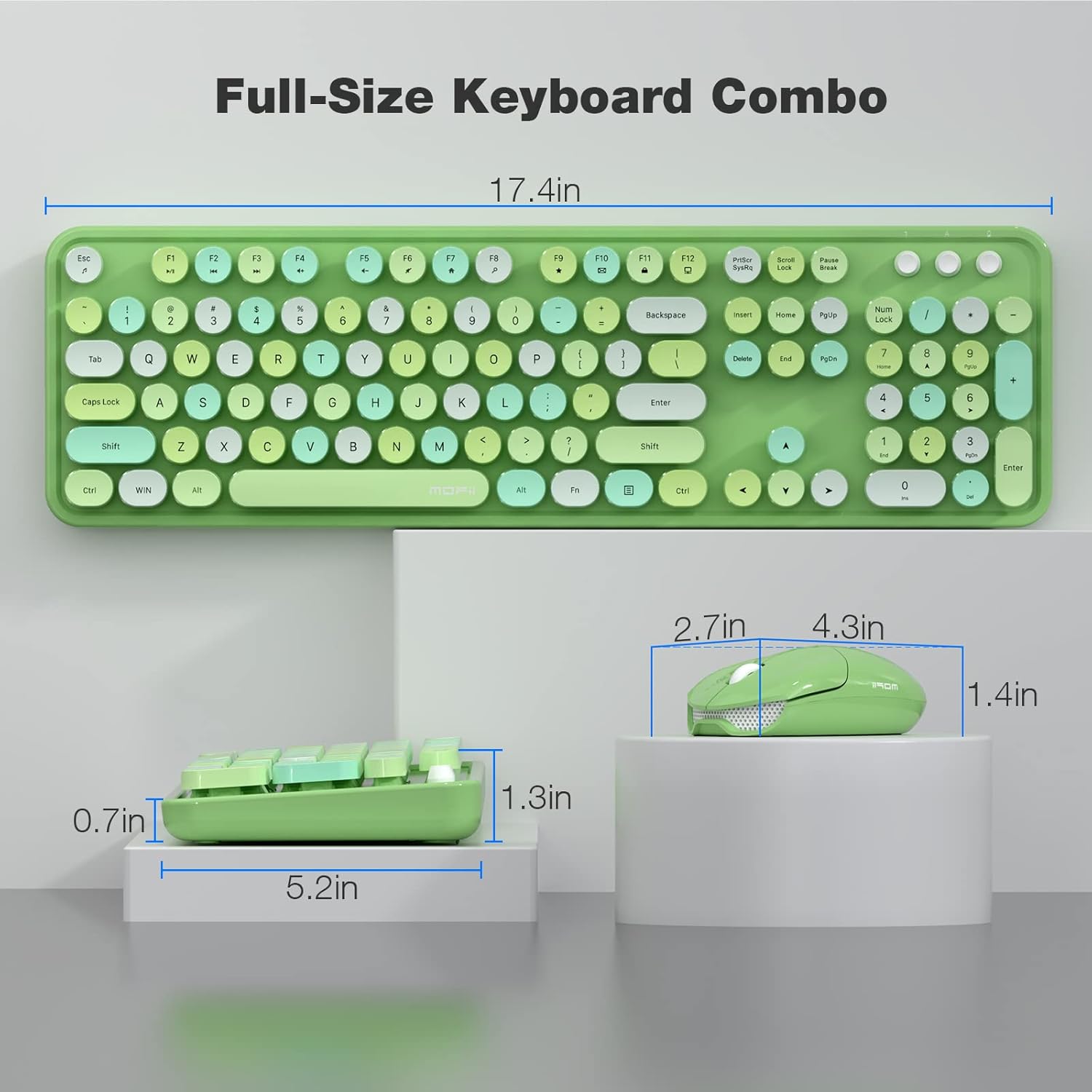
Image: A diagram illustrating the physical dimensions of the full-size wireless keyboard and mouse.
Gwarant a Chefnogaeth
For warranty information and customer support, please refer to the official MOFII website or contact your retailer. It is recommended to keep your purchase receipt for any warranty claims.
Online resources and frequently asked questions (FAQs) may be available on the MOFII Store on Amazon.