
1. Rhagymadrodd
This user manual provides detailed instructions for the proper use and maintenance of your Zebra DS8178 Wireless 2D/1D Barcode Scanner. Please read this manual thoroughly before operating the device to ensure optimal performance and safety. The DS8178 is designed for efficient and reliable barcode scanning in various environments, offering both 1D and 2D barcode reading capabilities with wireless connectivity.
2. Gwybodaeth Diogelwch
Dilynwch y rhagofalon diogelwch canlynol i atal anaf neu ddifrod i'r ddyfais:
- Do not expose the scanner or cradle to extreme temperatures, moisture, or corrosive substances.
- Osgowch amlygiad uniongyrchol i'r llygaid i ffynhonnell golau'r sganiwr.
- Use only the specified power adapter and USB cable for charging.
- Peidiwch â cheisio dadosod na newid y ddyfais. Cyfeiriwch yr holl waith cynnal a chadw at bersonél cymwys.
- Cadwch y ddyfais i ffwrdd o feysydd magnetig cryf.
3. Cynnwys Pecyn
Gwiriwch fod yr holl eitemau yn bresennol yn eich pecyn:
- Zebra DS8178 Wireless Barcode Scanner
- USB Communication/Charging Cradle
- Cebl USB
- Canllaw Cychwyn Cyflym (heb ei gynnwys yn y llawlyfr hwn)
4. Cynnyrch Drosview
Familiarize yourself with the components of your Zebra DS8178 scanner and its cradle.

Ffigur 4.1: Ochr view of the Zebra DS8178 Wireless Barcode Scanner, showing its ergonomic design.

Ffigur 4.2: Blaen view of the Zebra DS8178 Wireless Barcode Scanner, highlighting the scanning window and trigger button.

Ffigur 4.3: Blaen view of the USB Communication/Charging Cradle, featuring the pairing button.
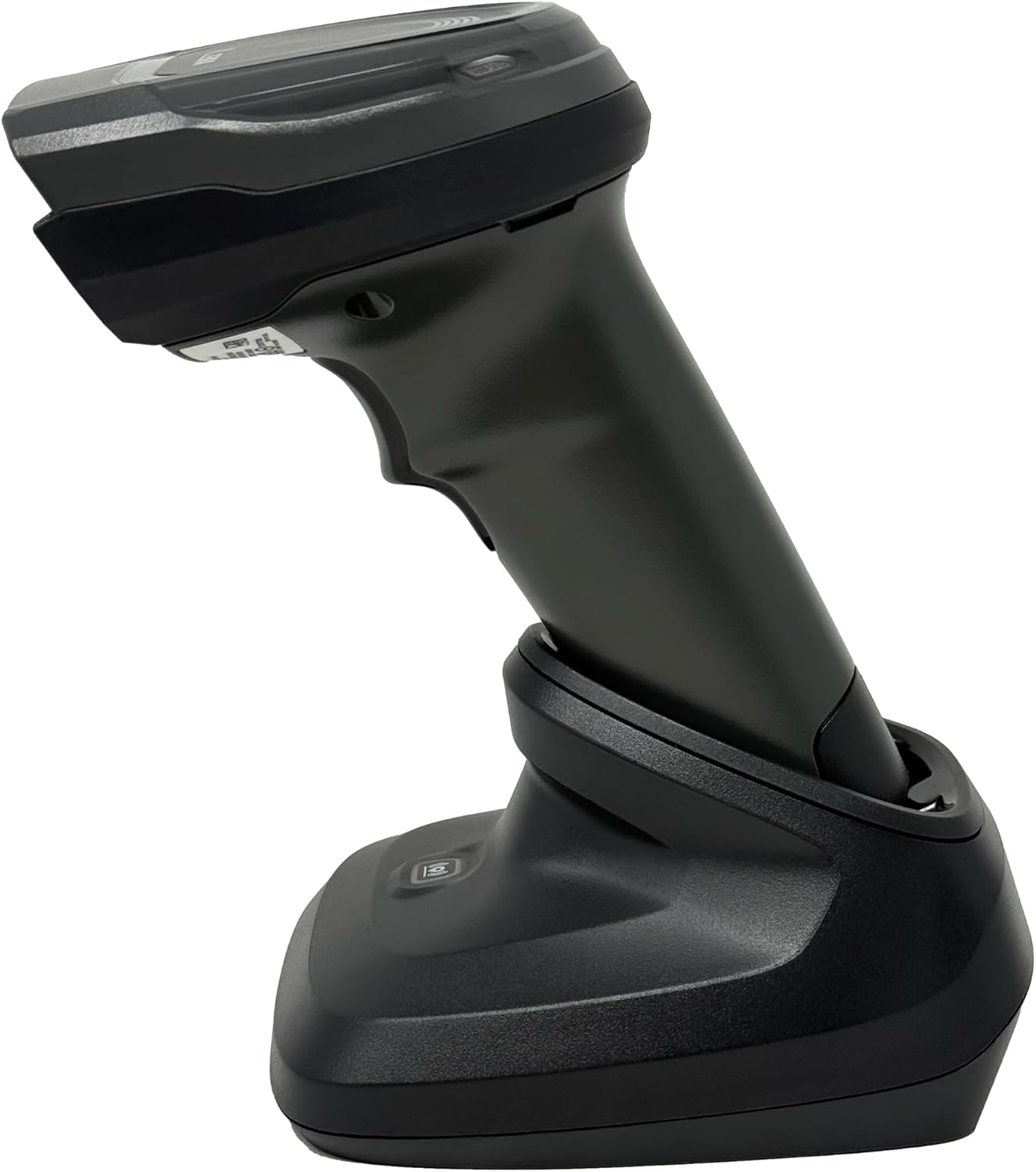
Ffigur 4.4: The Zebra DS8178 scanner securely docked in its USB cradle, ready for charging or communication.
4.1 Scanner Components
- Ffenest sganio: Ardal lle mae codau bar yn cael eu darllen.
- Sbardun: Yn actifadu'r trawst sganio.
- Dangosyddion LED: Provide status feedback (e.g., battery, scan success).
- Adran Batri: Houses the removable/rechargeable battery.
4.2 Cradle Components
- Scanner Slot: Where the scanner docks for charging and communication.
- Porth USB: Connects the cradle to a host device (PC, laptop).
- Botwm Pâr: Initiates Bluetooth pairing with the scanner.
- Dangosyddion LED: Show cradle status (e.g., power, connection).
5. Gosod
5.1 Gwefru'r Sganiwr
- Connect the USB cable to the cradle's USB port.
- Connect the other end of the USB cable to a powered USB port on your computer or a USB wall adapter.
- Place the DS8178 scanner into the cradle. Ensure it is seated correctly.
- The scanner's LED indicator will show charging status. A full charge typically takes approximately 3-4 hours.
5.2 Connecting the Cradle to a Host Device
The cradle connects to your computer via a standard USB cable.
- Plug the USB cable into the USB port on the back of the cradle.
- Connect the other end of the USB cable to an available USB port on your desktop or laptop computer.
- Dylai'r system weithredu ganfod a gosod y gyrwyr angenrheidiol yn awtomatig.
5.3 Pâr Bluetooth
The DS8178 offers two primary Bluetooth pairing methods: via the cradle or direct to a host device.
5.3.1 Pairing via Cradle (Recommended for PC/Laptop)
- Ensure the cradle is connected to your host device (PC/Laptop) via USB.
- Place the DS8178 scanner into the cradle.
- The scanner will automatically pair with the cradle. Once paired, the scanner can be removed from the cradle and will communicate wirelessly with the host device through the cradle.
- A successful connection is indicated by a specific LED pattern on both the scanner and cradle (refer to the scanner's LED guide for details).
5.3.2 Direct Bluetooth Pairing (for Phones/Tablets or PC/Laptop without cradle)
- Power on the DS8178 scanner.
- Scan the "Pairing Barcode" (usually found in a quick start guide or on the scanner itself) to put the scanner into discoverable mode. Alternatively, press and hold the Bluetooth pairing button on the scanner (if available) or scan a specific Bluetooth pairing configuration barcode.
- On your phone, tablet, or computer, navigate to the Bluetooth settings.
- Chwiliwch am available devices. The DS8178 should appear in the list (e.g., "Zebra DS8178").
- Select the scanner to initiate pairing. You may be prompted to confirm a passkey or scan a pairing barcode displayed on your screen.
- Once paired, the scanner's LED will indicate a successful connection.
6. Gweithrediad
6.1 Sganio Codau Bar
- Point the scan window of the DS8178 scanner at the barcode you wish to read.
- Press and hold the trigger button. A red aiming pattern will appear.
- Center the aiming pattern over the barcode. For 1D barcodes, the aiming line should cross the entire barcode. For 2D barcodes, the aiming pattern should encompass the entire code.
- Once the barcode is successfully read, the scanner will emit an audible beep and/or the LED indicator will flash green.
- Rhyddhewch y sbardun.
6.2 Cordless Range
The Zebra DS8178 offers a cordless range of up to 330 feet (100 meters) from its cradle or directly paired host device, depending on environmental conditions and line of sight. Obstructions such as walls or other electronic devices may reduce the effective range.
6.3 Moddau Sganio
- Modd Sbarduno: The scanner reads a barcode only when the trigger is pressed.
- Presentation Mode (Hands-Free): When placed in the presentation cradle, the scanner can be configured to automatically detect and read barcodes placed within its field of view without requiring a trigger press. This mode is ideal for high-volume scanning applications.
7. cynnal
7.1 Glanhau'r Sganiwr
To maintain optimal scanning performance, keep the scan window clean.
- Defnyddiwch frethyn meddal, glân, heb lintampened with water or a mild cleaning solution (e.g., isopropyl alcohol).
- Gently wipe the scan window and the exterior of the scanner.
- Peidiwch â defnyddio glanhawyr sgraffiniol, toddyddion na chemegau llym.
- Ensure the scanner is powered off before cleaning.
7.2 Gofal Batri
The DS8178 features a 2500mAh removable and rechargeable battery. Proper battery care extends its lifespan.
- Codwch y batri yn llawn cyn ei ddefnyddio gyntaf.
- Avoid completely discharging the battery regularly.
- Storiwch y sganiwr mewn lle oer, sych pan nad yw'n cael ei ddefnyddio am gyfnodau hir.
- If the battery performance significantly degrades, it may need replacement. Contact support for genuine replacement batteries.
8. Datrys Problemau
| Problem | Achos Posibl | Ateb |
|---|---|---|
| Nid yw'r sganiwr yn troi ymlaen. | Batri isel neu wedi'i wagio. | Charge the scanner using the USB cradle and cable. |
| Nid yw'r sganiwr yn cysylltu trwy Bluetooth. | Not in pairing mode; out of range; interference; host device Bluetooth off. | Ensure scanner is in pairing mode. Check host device Bluetooth settings. Move closer to the host device. Reduce interference. |
| Sganiwr ddim yn darllen codau bar. | Barcode damaged/poor quality; scan window dirty; incorrect symbology enabled; scanner not aimed correctly. | Try scanning a different barcode. Clean the scan window. Ensure correct aiming. Check scanner configuration for enabled symbologies. |
| Dim data wedi'i drosglwyddo i'r gwesteiwr. | Not paired; application not in focus; incorrect interface settings. | Confirm successful Bluetooth pairing. Ensure the target application (e.g., text editor, POS software) is active and ready to receive input. |
9. manylebau
| Nodwedd | Manylyn |
|---|---|
| Model | DS8178 |
| Brand | Zebra (formerly Symbol) |
| Technoleg Cysylltedd | Bluetooth, USB Cable, Wireless |
| Dyfeisiau Cydnaws | Desktop, Laptop, Phones, Tablets |
| Ffynhonnell Pwer | Battery Powered, Corded Electric, Rechargeable |
| Gallu Batri | 2500mAh (Removable/Rechargeable) |
| Ystod Di-wifr | Hyd at 330 troedfedd (100 metr) |
| Gallu Sganio | Codau Bar 1D a 2D |
| Ongl Real o View | 17 Gradd |
| UPC / GTIN | 649661651499 |
10. Gwarant a Chefnogaeth
This Zebra DS8178 Barcode Scanner comes with a Gwarant cyfyngedig 90 diwrnod. This warranty covers defects in materials and workmanship under normal use. It does not cover damage caused by misuse, accidents, unauthorized modifications, or external causes.
For technical support, warranty claims, or to purchase genuine replacement parts (such as batteries), please contact your reseller or visit the official Zebra support website. Please have your model number (DS8178) and any purchase information ready when contacting support.