
MoesGo B08MWL41MH_CA NARF
Llawlyfr Defnyddiwr Rheolydd Anghysbell Cyffredinol WiFi RF IR MoesGo
Model: B08MWL41MH_CA NARF
1. Rhagymadrodd
The MoesGo WiFi RF IR Universal Remote Controller is a smart home device designed to centralize control of your infrared (IR) and radio frequency (RF) appliances. It allows you to manage various devices such as TVs, air conditioners, fans, RF lights, and electric curtains through a single mobile application, and integrates with voice assistants like Amazon Alexa and Google Home.
This device connects to your home's 2.4GHz Wi-Fi network, enabling remote control from anywhere with an internet connection. It eliminates the need for multiple physical remote controls by consolidating their functions into a smart hub.
2. Cynnwys Pecyn
- MoesGo WiFi RF IR Universal Remote Controller
- Cebl Pŵer USB (Micro USB)
- Llawlyfr Defnyddiwr
3. Cynnyrch Drosview

Figure 3.1: MoesGo Universal Remote Controller and its retail packaging, highlighting key features like Timer-Schedule, Voice Control, Device Share, and App Control.
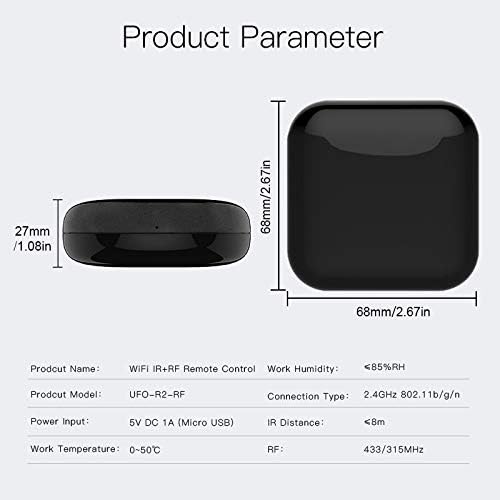
Figure 3.2: Diagram illustrating the physical dimensions of the MoesGo Universal Remote Controller (68mm x 68mm x 27mm) and basic product parameters.
The device features a compact, square design with a glossy black finish. It is powered via a Micro USB port. Its internal components allow for both Infrared (IR) and Radio Frequency (RF) signal transmission, enabling control over a wide range of home appliances.
4. Canllaw Gosod
4.1 Troi’r Dyfais Ymlaen
- Connect the provided USB power cable to the Micro USB port on the MoesGo Universal Remote Controller.
- Plug the other end of the USB cable into a 5V DC 1A power adapter (not included) and then into a wall outlet.
- The device will power on, and an indicator light will typically flash, indicating it is ready for network pairing.
4.2 Lawrlwytho a Gosod Ap
The MoesGo Universal Remote Controller operates with the Tuya Smart or Smart Life application. Ensure your smartphone is connected to a 2.4GHz Wi-Fi network before proceeding.
- Scan the QR code provided in the quick start guide or search for "Tuya Smart" or "Smart Life" in your mobile app store (App Store for iOS, Google Play Store for Android).
- Dadlwythwch a gosodwch y cais.
- Cofrestrwch gyfrif newydd neu mewngofnodwch gydag un sy'n bodoli eisoes.
4.3 Device Pairing with Wi-Fi
- Agorwch ap Tuya Smart neu Smart Life.
- Tapiwch y "+eicon " yn y gornel dde uchaf i ychwanegu dyfais.
- Select "Universal Remote Control" or "IR/RF Remote Control" from the device list under "Others" or "Controller".
- Follow the on-screen instructions to confirm the indicator light is flashing rapidly. If not, reset the device according to the app's instructions (often by holding a button for a few seconds).
- Enter your 2.4GHz Wi-Fi network name (SSID) and password.
- The app will begin connecting the device. Once connected, the indicator light will stop flashing and remain solid.
- Rename the device for easy identification (e.g., "Living Room Remote").
4.4 Adding IR and RF Devices

Figure 4.1: Screenshot of the mobile application interface, demonstrating the selection between adding an IR Remote or an RF Remote, with various appliance categories listed.
After successfully adding the universal remote, you can begin adding your home appliances.
- In the app, select your newly added universal remote.
- Tap "Add Remote" or a similar option. You will typically see options for "IR Remote" and "RF Remote".
- For IR Devices (e.g., TV, Air Conditioner, DVD Player):
- Dewiswch y math o offer (e.e., teledu, cyflyrydd aer).
- The app may offer a database of pre-programmed remote codes. Try these first.
- If a code works, confirm it. If not, select the "DIY" or "Learn" function.
- Point your original IR remote at the MoesGo device (within 8 meters) and press the desired button. The app will prompt you to press buttons one by one to learn their functions.
- For RF Devices (e.g., RF Light, Electric Curtain, RF Fan):
- Select the type of RF appliance.
- Choose the "Learn" or "DIY" mode.
- Press the button on your original RF remote. The MoesGo device will attempt to capture the RF signal (315MHz or 433MHz).
- Test the learned function to ensure it works correctly.

Figure 4.2: Visual representation of the MoesGo Universal Remote Controller's capability to control a wide array of devices, including STB, TV, DVD Player, Air Conditioner, RF Fan (IR), and Audio Equipment, Electric Roller Blind, Electric Curtain, RF Light, RF Light Switch (RF), with integration for Amazon Alexa and Google Home.
5. Gweithredu'r Dyfais
5.1 Controlling Devices via App
Once your appliances are added, you can control them directly from the Tuya Smart or Smart Life app. The app provides a virtual remote interface for each added device.

Figure 5.1: A smartphone displaying the smart home application, illustrating how it can remotely control various appliances such as TVs, air conditioners, and audio systems through the MoesGo Universal Remote Controller.
- Open the app and select the universal remote.
- Choose the specific appliance you wish to control (e.g., "Living Room TV").
- Use the virtual buttons on the screen to operate the appliance (e.g., power on/off, change channel, adjust volume, set AC temperature).
5.2 Integreiddio Rheoli Llais
The MoesGo Universal Remote Controller is compatible with Amazon Alexa and Google Home, allowing for convenient voice control of your connected appliances.

Ffigur 5.2: Examples of voice commands: "Alexa, turn on the TV" for IR control, and "Google Home, turn on the light" for RF control, demonstrating seamless integration with smart speakers.
- Cysylltu Cyfrifon: In your Alexa or Google Home app, search for the "Tuya Smart" or "Smart Life" skill/service and link your account.
- Darganfod Dyfeisiau: Once linked, ask your voice assistant to "Discover devices" or manually initiate device discovery in the app.
- Gorchmynion Llais: Gallwch nawr ddefnyddio gorchmynion llais i reoli eich offer. E.e.amples:
- "Alexa, trowch y teledu ymlaen."
- "Hei Google, gosodwch y cyflyrydd aer i 24 gradd."
- "Alexa, turn off the living room fan."
5.3 Remote Control Functionality

Figure 5.3: Illustration showing the ability to control home appliances, such as an air conditioner, remotely via a mobile phone application, even when outside the home.
As the device is Wi-Fi enabled, you can control your appliances from anywhere with an internet connection using the Tuya Smart or Smart Life app on your smartphone. This allows you to pre-cool your home before arriving or turn off forgotten devices.
6. cynnal
- Cadwch y ddyfais yn lân trwy ei sychu â lliain meddal, sych.
- Avoid exposing the device to direct sunlight, high temperatures, or excessive humidity.
- Do not disassemble or attempt to repair the device yourself. Refer to qualified service personnel for any issues.
- Ensure the device is placed in a central location within the room, with an unobstructed line of sight to IR-controlled appliances for optimal performance.
7. Datrys Problemau
- Dyfais ddim yn cysylltu â Wi-Fi:
- Gwnewch yn siŵr bod eich rhwydwaith Wi-Fi yn 2.4GHz. Nid yw'r ddyfais yn cefnogi rhwydweithiau 5GHz.
- Gwiriwch fod y cyfrinair Wi-Fi yn gywir.
- Place the device closer to your Wi-Fi router.
- Check if the indicator light is flashing rapidly for pairing mode. If not, reset the device.
- Ensure your router's security is WPA2.
- IR control not working:
- Ensure there is a clear line of sight between the MoesGo device and the IR appliance.
- The IR distance is typically less than 8 meters. Ensure the device is within range.
- Re-learn the IR commands if the pre-programmed codes do not work.
- Check if the original remote's batteries are working when learning commands.
- RF control not working:
- Ensure the RF frequency of your appliance (315MHz or 433MHz) is supported by the MoesGo device.
- Re-learn the RF commands. Some RF remotes may require specific learning procedures (e.g., pressing a button multiple times).
- RF signals can be affected by obstacles, though less so than IR. Ensure the device is not heavily obstructed.
- Rheolydd llais ddim yn ymateb:
- Verify that your Tuya Smart/Smart Life account is correctly linked to Alexa or Google Home.
- Ensure devices are discovered in your voice assistant app.
- Use the exact names you assigned to your devices in the Tuya Smart/Smart Life app.
- Gwiriwch eich cysylltiad rhyngrwyd.
8. manylebau
| Paramedr | Gwerth |
|---|---|
| Enw Cynnyrch | Rheolaeth Anghysbell WiFi IR + RF |
| Model Cynnyrch | UFO-R2-RF (B08MWL41MH_CA NARF) |
| Mewnbwn Pwer | 5V DC 1A (Micro USB) |
| Tymheredd Gwaith | 0-50°C (32-122°F) |
| Lleithder Gwaith | <85% RH |
| Math Cysylltiad | 2.4GHz 802.11b/g/n Wi-Fi |
| IR Pellter | <8m (Line of Sight) |
| Amlder RF | 433/315MHz |
| Dimensiynau Cynnyrch | 2.67 x 2.67 x 1.08 modfedd (68 x 68 x 27 mm) |
| Pwysau Eitem | 3.84 owns |
| Uchafswm Nifer y Dyfeisiau â Chymorth | 12 (as per product specifications, though app may support more virtual remotes) |
| Dyfeisiau Cydnaws | Air Conditioner, Fan, Television, and other IR/RF appliances |
9. Cefnogaeth a Gwarant
For detailed instructions, advanced features, or further assistance, please refer to the official user guide provided by MoesGo.
Lawrlwythwch y Canllaw Defnyddiwr Swyddogol (PDF)
Information regarding product warranty is typically provided with your purchase documentation or can be found on the official MoesGo websafle. Cadwch eich prawf prynu ar gyfer hawliadau gwarant.
Ask a question about this manual
Ask about setup, troubleshooting, compatibility, parts, safety, or missing instructions. Manuals+ will review the question and use this page’s manual context to help answer it.