
1. Rhagymadrodd a Throsoddview
The COMFAST CF-WR302S is a versatile 300Mbps WiFi Repeater designed to extend the coverage of your existing wireless network. It supports multiple operating modes, including Repeater, Access Point (AP), and Router, providing flexible solutions for various networking needs. Equipped with a dual Realtek chipset, it aims to deliver a stable and fast wireless signal, operating on the 2.4GHz frequency band.
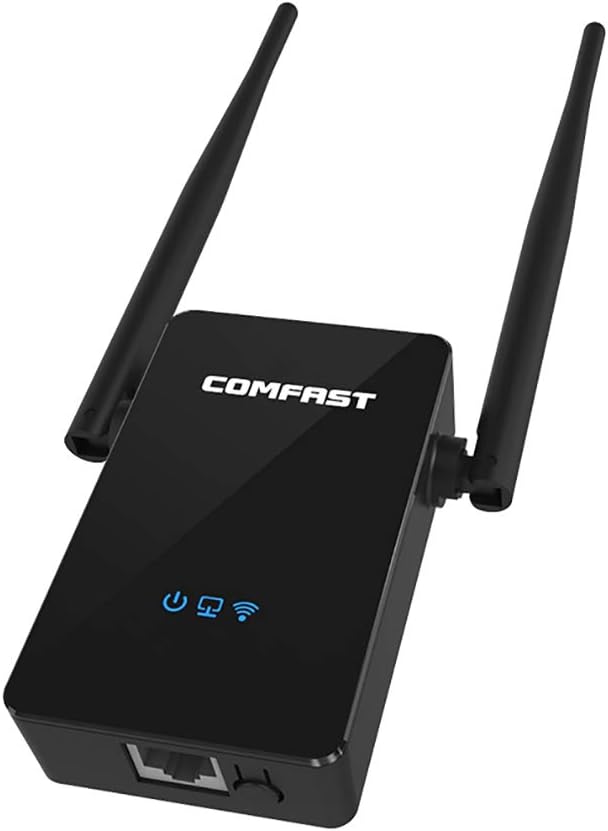
Delwedd 1.1: Blaen view of the COMFAST CF-WR302S WiFi Repeater, showcasing its compact design and two external antennas.
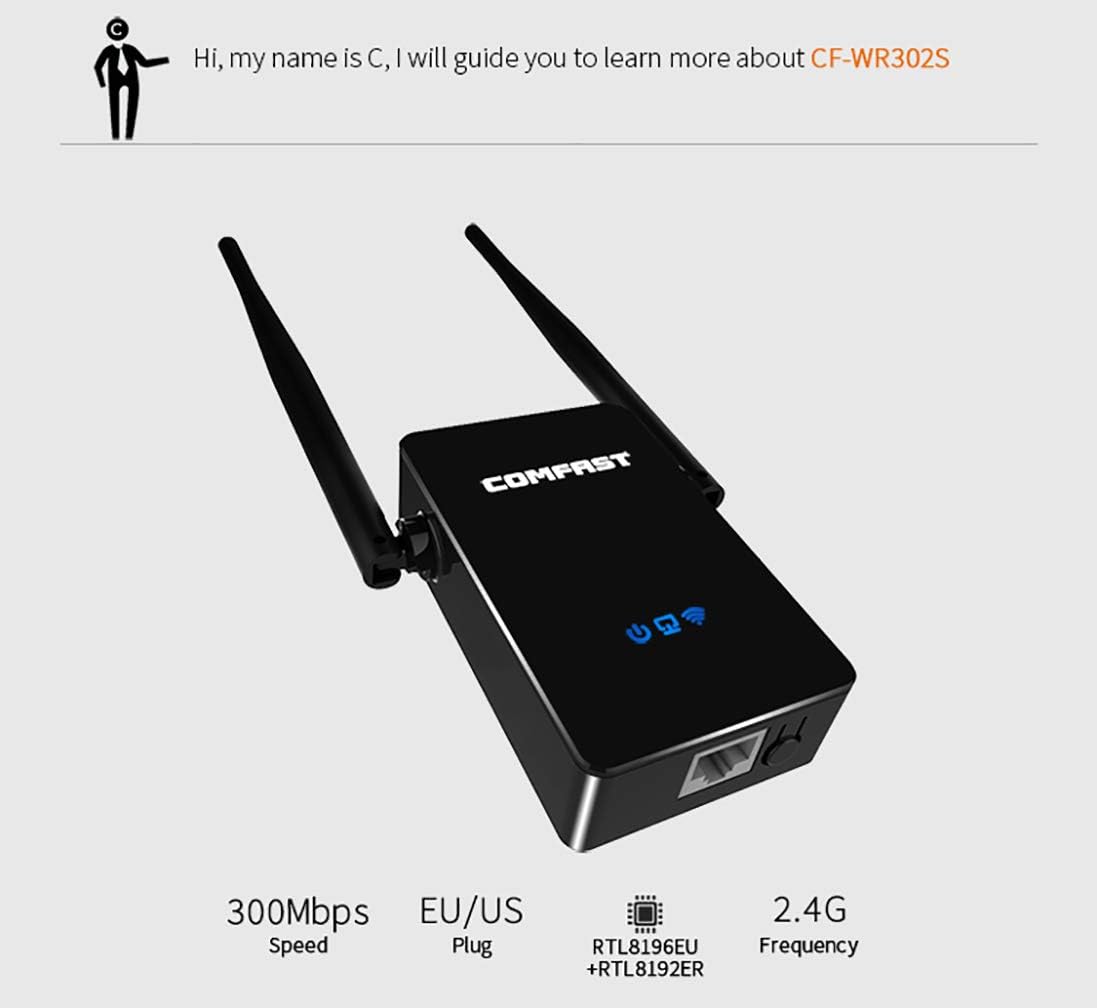
Delwedd 1.2: Drosoddview of the CF-WR302S highlighting its 300Mbps speed, EU/US plug compatibility, dual Realtek chipset, and 2.4G frequency.
2. Nodweddion Cynnyrch
- Dual Realtek Chipset: The CF-WR302S incorporates a dual CPU (RTL8192E + RTK8192ER) designed to provide a stable WiFi signal and optimized speed.
- 300Mbps (2.4GHz) Speed: Offers a maximum transmission rate of 300Mbps on the 2.4GHz band, suitable for basic internet applications, web surfing, email, file downloading, movie watching, and music streaming.
- Dulliau Gweithredu Lluosog: Supports Repeater Mode, Access Point (AP) Mode, and Router Mode to adapt to various network setups.
- Ymarferoldeb WPS: Features a WPS (Wi-Fi Protected Setup) button for quick and easy connection to compatible routers.

Image 2.1: Illustration demonstrating the improved receiving sensitivity with the built-in dual Realtek chipset compared to a single chip.

Image 2.2: Visual representation of the 300Mbps (2.4GHz) speed, suitable for various online activities like web surfing, email, downloading, and streaming.
3. Cynnwys Pecyn
Gwiriwch fod yr holl eitemau a restrir isod wedi'u cynnwys yn eich pecyn:
- 1 x COMFAST CF-WR302S Repeater
- 1 x Canllaw Gosod
- 1 x Cebl Ethernet
- 1 x Cerdyn Gwarant

Image 3.1: The packing list showing the CF-WR302S Repeater, installation guide, cable, and warranty card.
4. Physical Description and Components
Familiarize yourself with the physical layout and indicators of the CF-WR302S Repeater:
- Logo Brand: Located on the front of the device.
- Golau Dangosydd Pwer: Yn nodi statws pŵer y ddyfais.
- Network Indicator Lights: Show the status of network connectivity.
- WiFi Indicator Light: Indicates the status of the wireless signal.
- LAN/WAN Port (RJ45): A single 10/100Mbps Ethernet port for wired connections, functioning as either LAN or WAN depending on the operating mode.
- WPS/RST Key: A multi-function button for WPS pairing and resetting the device to factory defaults.
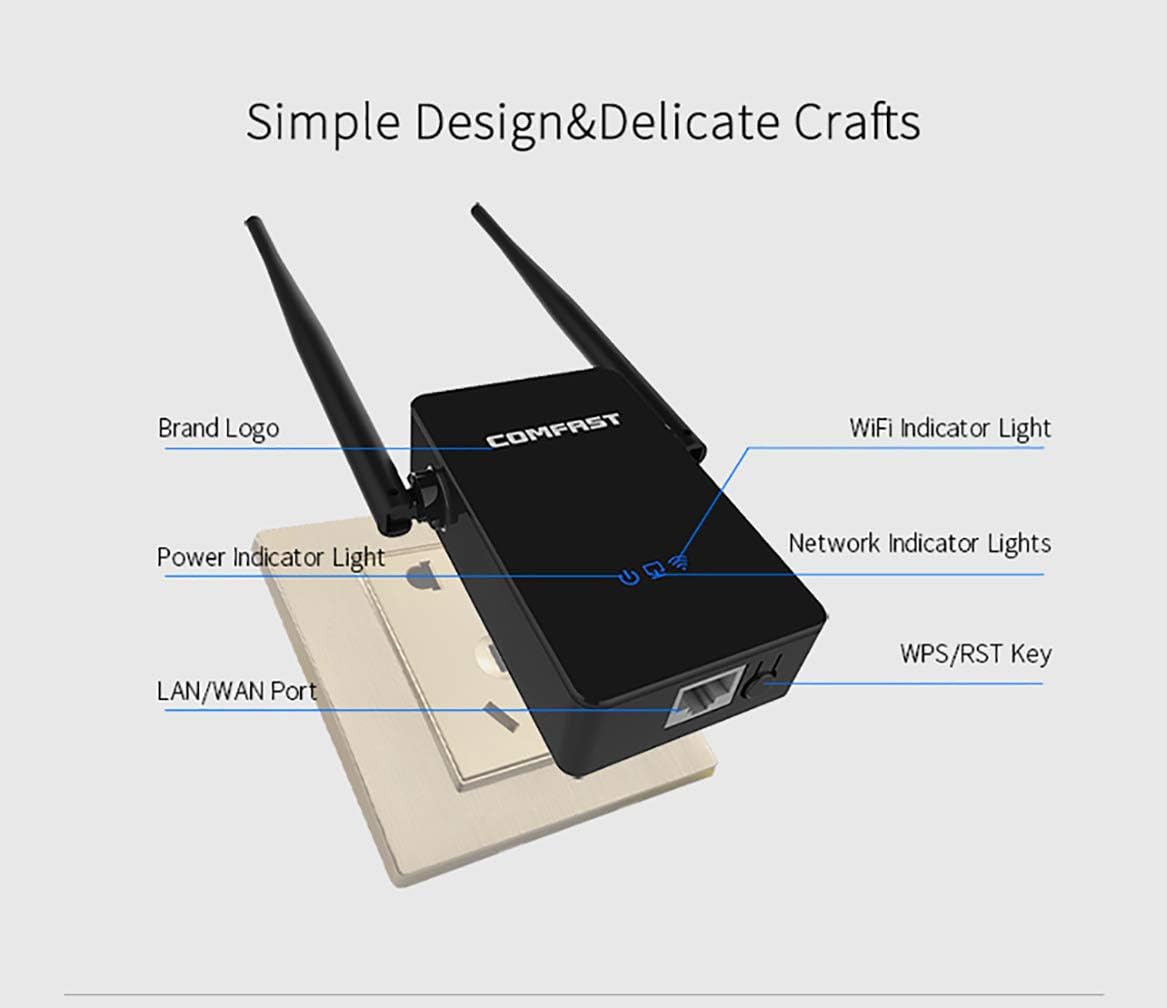
Delwedd 4.1: Manwl view of the CF-WR302S highlighting the brand logo, indicator lights (Power, WiFi, Network), LAN/WAN port, and WPS/RST key.
5. Gosod
5.1. One-Key Repeater Setup (WPS Method)
The easiest way to set up the CF-WR302S in Repeater Mode is by using the WPS function:
- Plug the COMFAST CF-WR302S Repeater into a power outlet near your main router.
- Pwyswch y botwm WPS ar eich prif lwybrydd am 1-2 eiliad.
- Within 2 minutes, press the WPS/RST button on the CF-WR302S Repeater for 1-2 seconds.
- The devices will attempt to pair. Once the connection is successful, the WiFi indicator light on the repeater will show a stable signal.

Image 5.1: Visual guide for the one-key WPS setup process, showing the router and repeater pairing successfully.
5.2. Web Interface Setup (Advanced)
For more advanced configurations or if WPS is not available, you can set up the device via its web interface. Refer to the included Installation Guide for detailed steps on accessing the web interface and configuring different modes.
6. Dulliau Gweithredu
The COMFAST CF-WR302S supports three primary operating modes:
- 1. AP Mode (Access Point Mode): In this mode, the device connects to your existing wired network (e.g., from a modem or router via Ethernet cable) and broadcasts a new wireless network. It essentially turns a wired connection into a wireless hotspot.
- 2. Repeater Mode (Range Extender Mode): This mode extends the coverage of an existing wireless network. The device connects wirelessly to your main router's WiFi signal and re-broadcasts it, effectively eliminating WiFi dead zones.
- 3. Router Mode: In this mode, the device acts as a primary router, connecting directly to a modem via an Ethernet cable and creating a new wireless network for your devices. It provides network address translation (NAT) and DHCP services.
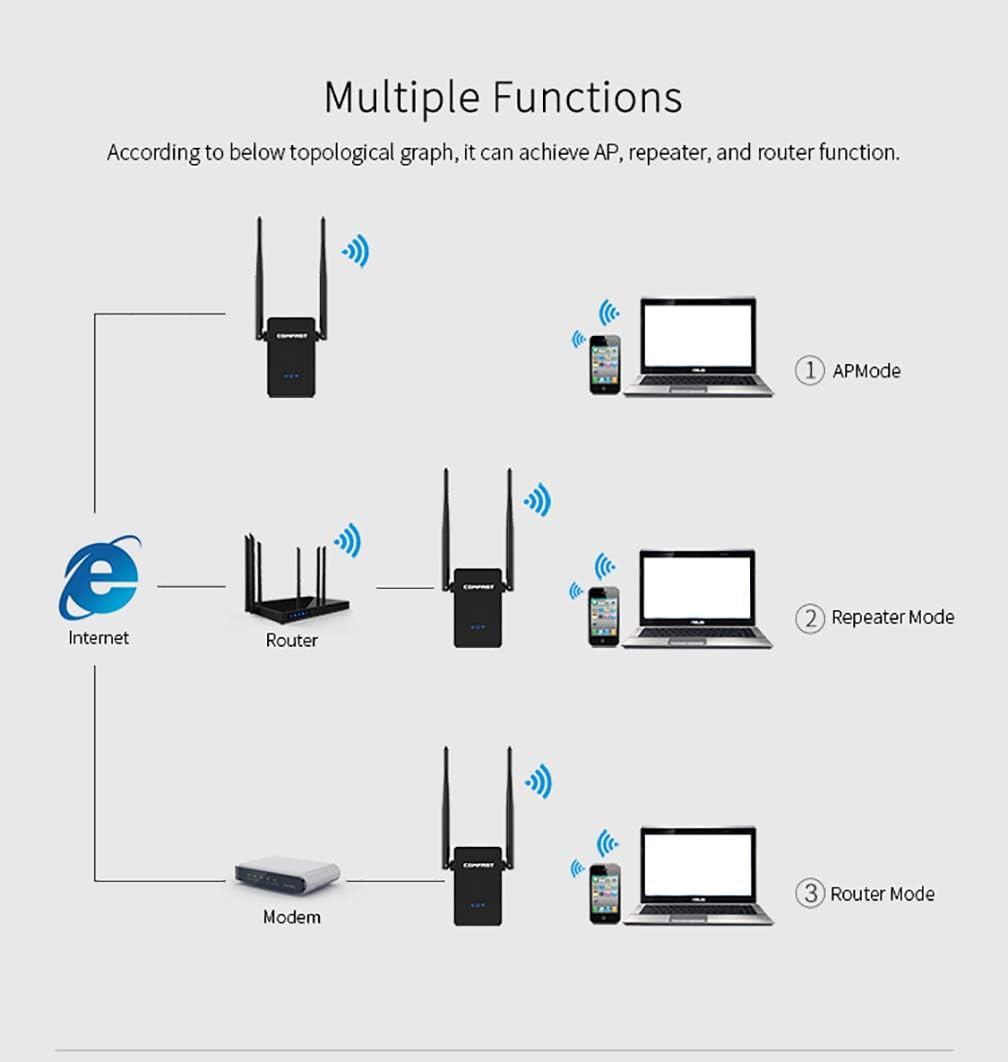
Image 6.1: Topological graph illustrating the three functions: AP Mode, Repeater Mode, and Router Mode, showing how the device integrates into different network setups.
7. manylebau
Below are the technical specifications for the COMFAST CF-WR302S WiFi Repeater:
| Categori | Paramedr |
|---|---|
| Safonol | IEEE802.11b/g/n |
| Cyfradd Trosglwyddo | 2.4GHz: 300Mbps |
| Antena | Antenâu 2*5dBi |
| Paramedrau RF | Output Power(Max): 50mW (17dBm) Receiver Sensitivity(Max): -96dBm Amlder: 2.4 ~ 2.4835GHz |
| Porthladdoedd Corfforol | 1*10/100Mbps LAN/WAN RJ45 Ethernet Port 1*RESET/WPS Button |
| Dangosydd | Power, Network, WiFi |
| Nodweddion Corfforol | Maint: 217mm * 58mm * 24mm Pwysau: 82g |

Image 7.1: Detailed specification table for the CF-WR302S, including wireless standards, transmission rates, antenna type, RF parameters, physical ports, indicators, and physical dimensions.
8. Datrys Problemau
If you encounter issues with your COMFAST CF-WR302S Repeater, consider the following troubleshooting steps:
- Dim pŵer: Ensure the device is securely plugged into a working power outlet. Check the power indicator light.
- Dim Cysylltiad Rhyngrwyd: Verify that your main router has an active internet connection. Check the network indicator lights on the repeater. If in Repeater Mode, ensure the repeater is within range of your main router's signal.
- Arwydd Gwan: Try repositioning the repeater closer to your main router or in a location free from obstructions (e.g., thick walls, large metal objects).
- Cannot Connect to Repeater's WiFi: Ensure you are selecting the correct WiFi network name (SSID) broadcast by the repeater. If you changed the password, ensure you are using the new one.
- Forgotten Password or Configuration Issues: You can reset the device to its factory default settings by pressing and holding the WPS/RST button for approximately 5-10 seconds until the lights flash. After a reset, you will need to reconfigure the device.
- WPS Pairing Failure: Ensure both the router and repeater's WPS buttons are pressed within the specified time frame (usually 2 minutes). Some routers may require WPS to be enabled in their settings.
9. cynnal
To ensure the longevity and optimal performance of your COMFAST CF-WR302S Repeater, follow these maintenance guidelines:
- Glanhau: Sychwch y ddyfais yn ysgafn gyda lliain meddal, sych. Peidiwch â defnyddio glanhawyr hylif na aerosolau.
- Awyru: Ensure the device is placed in a well-ventilated area and that its ventilation holes are not blocked.
- Amgylchedd: Avoid exposing the device to extreme temperatures, high humidity, direct sunlight, or dusty environments.
- Pŵer i ffwrdd pan nad yw'n cael ei ddefnyddio: If you plan not to use the device for an extended period, it is advisable to unplug it from the power outlet.
10. Gwarant a Chefnogaeth
Your COMFAST CF-WR302S Repeater comes with a warranty. Please refer to the included Warranty Card for details regarding warranty terms, conditions, and duration. For technical support, product inquiries, or warranty claims, please contact COMFAST customer service through the channels provided on the warranty card or the official COMFAST websafle.
It is recommended to retain your proof of purchase for warranty purposes.