
Google GA02434-UDA
Llawlyfr Defnyddiwr System WiFi Rhwyll Google Wifi AC1200
Model: GA02434-US | Brand: Google
Rhagymadrodd
The Google Wifi AC1200 Mesh WiFi System is designed to provide fast, reliable Wi-Fi coverage throughout your entire home. This system works by creating a mesh network, where multiple Google Wifi points collaborate to eliminate buffering and extend connectivity to every corner of your living space. It is a scalable solution, allowing you to add more Wifi points as needed to expand coverage. This manual provides essential information for setting up, operating, maintaining, and troubleshooting your Google Wifi system.
For optimal performance, home size, materials, and layout can affect Wi-Fi signal travel. Larger homes or homes with thicker walls or long, narrow layouts may need extra Wifi points for full coverage. Strength and speed of signal will depend on your internet provider.
Beth sy'n Gynwysedig
Your Google Wifi system package includes the following components:
- 3 Google Wifi Routers (AC1200)
- 3 Addasydd Pwer
- 1 Cebl Ethernet
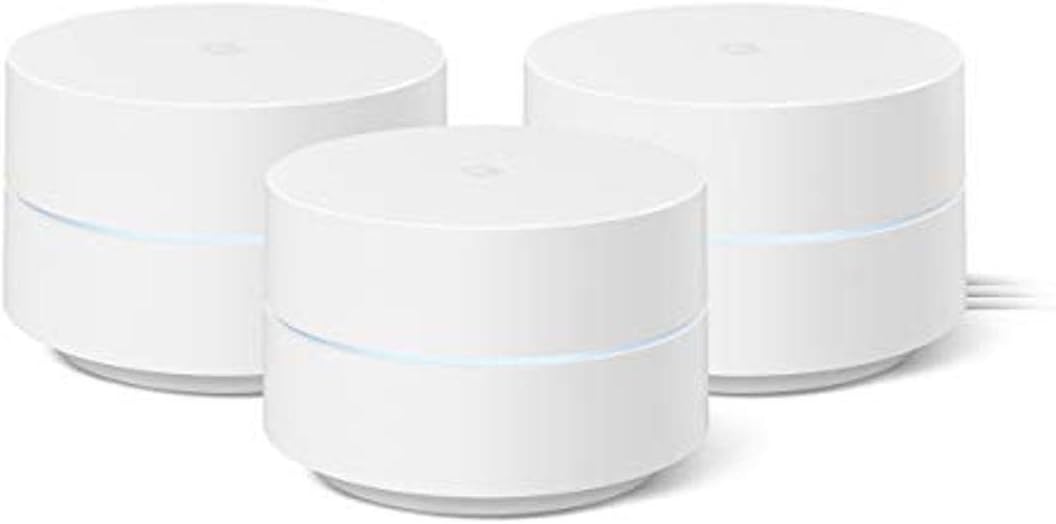
Image: Contents of the Google Wifi 3-pack, including three Wifi points, power adapters, and an Ethernet cable.
Canllaw Gosod
Gosodiad Cychwynnol
Setting up your Google Wifi system is a straightforward process, primarily managed through the Google Home app. Follow these steps for a quick and easy installation:
- Download the Google Home App: On your smartphone or tablet, download the Google Home app from the App Store (iOS) or Google Play Store (Android). Minimum OS requirements are available at g.co/googlewifi/req.
- Connect the First Wifi Point:
- Unplug your modem.
- Connect one Google Wifi point to your modem using the provided Ethernet cable. Plug the Ethernet cable into the WAN port (globe icon) on the Wifi point.
- Plug the Wifi point into a power outlet.
- Plug your modem back in.
- Set Up Your Network:
- Agorwch ap Google Home.
- Tap the '+' icon in the top left corner, then select 'Set up device' > 'New devices' > 'Set up new devices in your home'.
- Choose your home and then select 'Wifi device'.
- Scan the QR code on the bottom of your Google Wifi point. Follow the on-screen prompts to create your Wi-Fi network name and password.
- Add Additional Wifi Points:
- Place your additional Google Wifi points in locations that provide optimal coverage, typically within 30-50 feet of each other.
- Plug each additional Wifi point into a power outlet.
- In the Google Home app, tap the '+' icon again and select 'Set up device' > 'New devices' > 'Set up new devices in your home'.
- Choose your home and then select 'Wifi device'.
- Scan the QR code on the bottom of each new Wifi point and follow the prompts to add them to your existing mesh network.

Image: The Google Home app simplifies the setup process for your Google Wifi system.

Image: Visual representation of Wi-Fi coverage with one, two, and three Google Wifi points, illustrating how multiple points extend coverage throughout a home.
Operating Your Google Wifi System
Network Management with Google Home App
The Google Home app is your central hub for managing your Google Wifi network. It provides intuitive controls and insights into your network's performance.
- Blaenoriaethu Dyfeisiau: Easily prioritize bandwidth for specific devices (e.g., for gaming or streaming) to ensure a smooth experience.
- Check Network Speeds: Rhedeg profion cyflymder yn uniongyrchol o'r ap i fonitro perfformiad eich rhyngrwyd.
- Rhwydwaith Gwesteion: Create a separate guest Wi-Fi network for visitors, keeping your main network secure.
- Rheolaethau Rhieni: Manage screen time, restrict access to certain types of adult content, and pause Wi-Fi to specific devices at any time.

Image: The Google Home app provides comprehensive control over your network, allowing you to manage connected devices and settings.

Image: Parental controls offer peace of mind by allowing you to manage screen time and content access for devices on your network.
Cynnal Eich System
Google Wifi is designed for minimal maintenance, with features that ensure your network remains secure and performs optimally.
- Diweddariadau Awtomatig: Your Google Wifi system automatically updates itself to receive new features and security enhancements, helping to keep your network safe and current.
- Lleoliad Gorau: Ensure your Wifi points are placed in open areas, away from large metal objects or appliances that could interfere with the signal.
- Glanhau Rheolaidd: Keep the devices clean and dust-free to ensure proper ventilation and performance. Use a soft, dry cloth.

Image: Google Wifi automatically updates to ensure your network is safe and secure.
Datrys problemau
If you encounter issues with your Google Wifi system, refer to the table below for common problems and their solutions.
| Problem | Achos Posibl | Ateb |
|---|---|---|
| Dim Cysylltiad Rhyngrwyd | Modem or ISP issue, incorrect setup. |
|
| Signal Wi-Fi Gwan / Parthau Marw | Wifi points too far apart, interference. |
|
| Devices Not Connecting to 5 GHz Band | Device distance from Wifi point. |
|
| Slow Network Speeds | Network congestion, outdated firmware. |
|
Manylebau Technegol
| Nodwedd | Manylyn |
|---|---|
| Enw Model | AC1200 - Mesh WiFi System |
| Rhif Model yr Eitem | GA02434-UDA |
| Dimensiynau Cynnyrch | 4.2 x 4.2 x 2.7 modfedd |
| Pwysau Eitem | 12 owns |
| Technoleg Cysylltedd | Wi-Fi |
| Safon Cyfathrebu Di-wifr | Amlder Radio 5 GHz, 802.11ac, Amlder Radio 2.4 GHz |
| Dosbarth Band Amlder | Band Deuol |
| Nodweddion Arbennig | Modd Gwestai, Diogelwch Rhyngrwyd, Rheolaeth Rhieni |
| Gorchudd (pecyn o 3) | Hyd at 4500 troedfedd sgwâr |
| Porthladdoedd Ethernet | 2 y pwynt |
| Gwneuthurwr |
Gwarant a Chefnogaeth
For detailed warranty information and support, please refer to the official Google Wifi support resources.
- Canllaw Defnyddiwr Swyddogol (PDF): A comprehensive installation manual is available for download: Lawrlwythwch PDF
- Cymorth Ar-lein: Visit the Google Wifi support page for FAQs, troubleshooting guides, and contact options.
- Cynlluniau Diogelu: Efallai y bydd cynlluniau amddiffyn estynedig ar gael i'w prynu ar wahân.
Ask a question about this manual
Ask about setup, troubleshooting, compatibility, parts, safety, or missing instructions. Manuals+ will review the question and use this page’s manual context to help answer it.