
1. Rhagymadrodd
This manual provides detailed instructions for the installation, operation, and maintenance of the AVer PTZ310N 12X NDI Live Streaming PTZ Camera. Please read this manual thoroughly before using the product to ensure proper setup and optimal performance.
The AVer PTZ310N is a professional-grade PTZ (Pan-Tilt-Zoom) camera designed for live streaming and video production. It features 12x optical zoom, NDI support, and advanced functionalities like SmartShoot and SmartFrame for enhanced video capture.
2. Cynnwys Pecyn
Gwiriwch fod yr holl eitemau a restrir isod wedi'u cynnwys yn eich pecyn:
- AVer PTZ310N Camera
- Rheolaeth bell
- Addasydd pŵer 12V / 5A
- Documentation (Quick Start Guide, Warranty Card) - Note: Actual documentation may vary.
3. Cynnyrch Drosview
The AVer PTZ310N camera is designed for versatile deployment and high-quality video capture. Familiarize yourself with the camera's components and connection ports.
3.1 Blaen ac Ochr Views
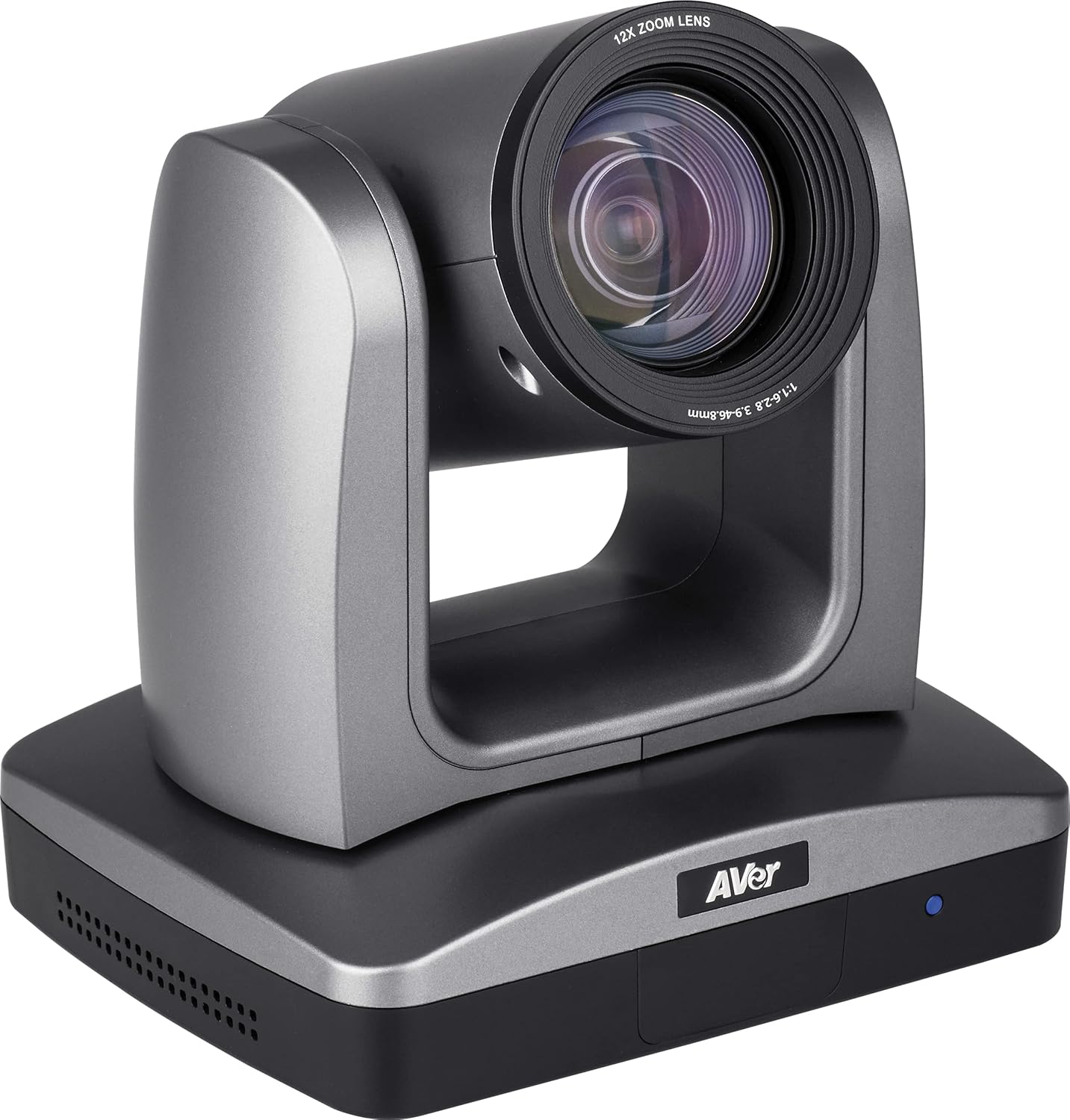
Ffigur 3.1: Ongl blaen view of the AVer PTZ310N camera, showing the lens and base.
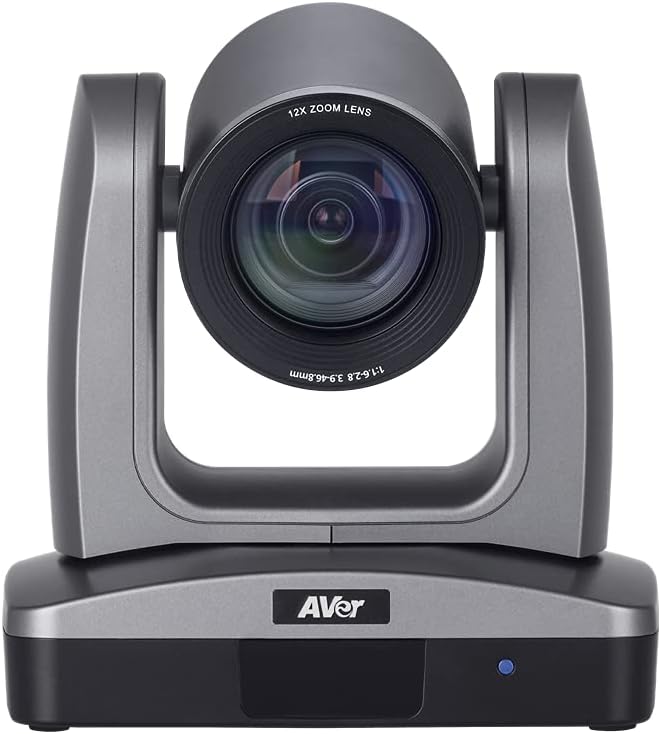
Ffigur 3.2: Blaen view of the AVer PTZ310N camera, highlighting the 12X zoom lens.
3.2 Cysylltiadau Panel Cefn
The rear panel of the PTZ310N camera provides various ports for power, video output, audio input, and control.

Figure 3.3: Rear panel of the AVer PTZ310N camera, showing various connectivity ports.
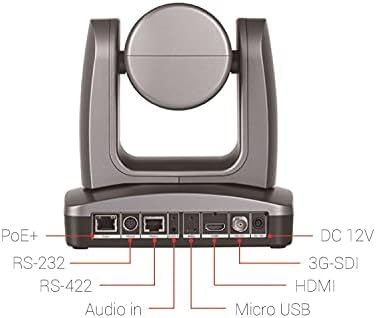
Figure 3.4: Labeled rear panel connections of the AVer PTZ310N camera, indicating PoE+, RS-232, RS-422, Audio In, Micro USB, HDMI, 3G-SDI, and DC 12V ports.
- PoE+ Port: For power and network connectivity (NDI).
- RS-232 / RS-422 Ports: For serial control via VISCA protocol.
- Sain Mewn: 3.5mm jack for external audio input.
- Micro USB: For firmware updates or specific control.
- Allbwn HDMI: For video output to displays or capture devices.
- 3G-SDI Output: For professional video output over longer distances.
- DC 12V: Power input using the provided 12V/5A adapter.
4. Gosod a Gosod
Follow these steps to properly set up your AVer PTZ310N camera.
4.1 Cysylltiad Pwer
- Connect the provided 12V/5A power adapter to the DC 12V port on the camera's rear panel.
- Plygiwch yr addasydd pŵer i mewn i allfa bŵer addas.
- Alternatively, if using Power over Ethernet (PoE+), connect an Ethernet cable from a PoE+ enabled switch or injector to the PoE+ port on the camera. The camera will receive both power and network data through this single cable.
4.2 Video Output Connection
Dewiswch un neu fwy o'r opsiynau allbwn fideo canlynol:
- HDMI: Connect an HDMI cable from the camera's HDMI port to an HDMI input on a display, capture card, or video switcher.
- 3G-SDI: Connect an SDI cable from the camera's 3G-SDI port to an SDI input on a professional video switcher or recorder.
- IP (NDI): Connect an Ethernet cable to the PoE+ port (or a separate LAN port if not using PoE+). The camera will be discoverable on your network as an NDI source. Refer to your NDI software documentation for integration.
- USB: Connect a Micro USB cable from the camera to a computer for specific applications or firmware updates.
4.3 Control Connection
The camera can be controlled via the included IR remote, IP, or serial connections.
- Rheolaeth Anghysbell IR: Point the remote control towards the camera's IR receiver.
- Serial Control (RS-232/RS-422): Connect a serial cable from the camera's RS-232 or RS-422 port to a compatible control system. The camera supports VISCA protocol for control.
- Rheoli IP: Once connected to the network, the camera can be controlled via its web interface or compatible IP control software. Refer to the camera's network settings for its IP address.
5. Gweithrediad
This section details the operational aspects of the AVer PTZ310N camera.
5.1 Pweru Ymlaen/Diffodd
- To power on, ensure the power adapter is connected or PoE+ is active. The camera will initiate its startup sequence.
- To power off, disconnect the power adapter or disable PoE+ to the camera.
5.2 Pan, Tilt, and Zoom Control
- Use the directional buttons on the remote control or control software to pan (horizontal movement) and tilt (vertical movement) the camera. The camera offers precise movement with pan/tilt rotation maneuvers as small as 0.1° per step.
- Utilize the zoom buttons to adjust the 12x optical zoom lens. Zoom in for close-ups and zoom out for wider shots.
- Adjustable speed controls allow for smooth and consistent camera movement.
5.3 Preset Locations
The PTZ310N allows you to save and recall specific camera positions (pan, tilt, zoom, focus).
- IR Remote Presets: The IR remote control allows you to set and recall up to 10 pre-programmed locations. Refer to the remote control's specific instructions for saving and recalling presets.
- VISCA Presets: Up to 255 different locations can be preset via VISCA control through the RS-232 or RS-422 ports. Consult the VISCA protocol documentation for detailed commands.
5.4 SmartShoot Feature
AVer SmartShoot streamlines camera controls to automatically and seamlessly capture content between your preset areas. This feature allows for a multi-camera feel with a single PTZ310N by tracking movement between defined preset zones.
5.5 SmartFrame Feature
Aver’s SmartFrame technology provides one-touch facial targeting. It instantly adjusts the camera's Field of View (FOV) to fit all participants on screen, making it suitable for capturing groups in presentations or lectures.
6. cynnal
Mae cynnal a chadw priodol yn sicrhau hirhoedledd a pherfformiad gorau posibl eich camera.
- Glanhau'r Lens: Use a soft, lint-free cloth specifically designed for optical lenses to gently wipe the camera lens. Avoid abrasive materials or harsh chemicals.
- Glanhau'r Corff: Wipe the camera body with a soft, dry cloth. If necessary, a slightly damp cloth can be used, but ensure no moisture enters the ports or internal components.
- Storio: When not in use for extended periods, store the camera in a dry, dust-free environment, away from direct sunlight and extreme temperatures.
- Diweddariadau Cadarnwedd: Gwiriwch yr AVer o bryd i'w gilydd website for firmware updates to ensure your camera has the latest features and performance enhancements. Follow the instructions provided with the firmware update carefully.
7. Datrys Problemau
If you encounter issues with your AVer PTZ310N camera, refer to the following common troubleshooting steps.
- Dim pŵer:
- Ensure the power adapter is securely connected to both the camera and a working power outlet.
- If using PoE+, verify that the Ethernet cable is connected to a PoE+ enabled port and the PoE+ switch/injector is powered on.
- Dim Allbwn Fideo:
- Check all video cables (HDMI, 3G-SDI, Ethernet for NDI) are securely connected.
- Verify the input source on your display or capture device is correctly selected.
- For NDI, ensure the camera is on the same network and discoverable by your NDI software.
- Camera Ddim yn Ymateb i Reolaeth:
- IR Anghysbell: Ensure there are no obstructions between the remote and the camera's IR receiver. Check remote battery.
- Serial Control: Verify serial cable connections and ensure the correct baud rate and protocol (VISCA) are configured on your control system.
- Rheoli IP: Confirm the camera's IP address is correct and accessible on the network. Check network connectivity.
- Materion Ansawdd Delwedd:
- Ensure the lens is clean (refer to Maintenance section).
- Check lighting conditions in the environment. The camera performs well in low-light, but optimal lighting is always recommended.
- Adjust camera settings (e.g., exposure, white balance) via the control interface if available.
If the problem persists, contact AVer technical support for further assistance.
8. manylebau
The following table outlines the technical specifications of the AVer PTZ310N camera.
| Nodwedd | Manyleb |
|---|---|
| Brand | AVer |
| Rhif Model | PTZ310N |
| Technoleg Synhwyrydd Ffotograffau | CMOS (1/2.8" Exmor CMOS sensor) |
| Datrysiad Dal Fideo | 1080p |
| Chwyddo Optegol | 12x |
| Agorfa Uchaf | 1.6 Milimetrau |
| Technoleg Cysylltedd | Wireless (IP/NDI), HDMI, 3G-SDI, USB, RS-232, RS-422 |
| Fformat Sain â Chymorth | AAC |
| Fformat Dal Fideo | MPEG 4 |
| Pwysau Eitem | 8.08 pwys (tua 3.67 kg) |
| Dimensiynau Pecyn | 11.5 x 11.2 x 11.2 modfedd (tua 29.2 x 28.4 x 28.4 cm) |
| Lliw | Llwyd |
| Gwneuthurwr | AVer |
| Dyddiad Ar Gael Cyntaf | Awst 17, 2020 |
9. Gwarant a Chefnogaeth
AVer provides support for its products. For detailed warranty information, product registration, and technical assistance, please visit the official AVer websafle neu cysylltwch â'u cymorth cwsmeriaid yn uniongyrchol.
Gwneuthurwr: AVer
For the most up-to-date support resources, including FAQs, drivers, and software, please visit AVer's official websafle.