
Rhagymadrodd
This manual provides essential information for the proper setup, operation, and maintenance of your Philips 346B1C Curved Monitor. This 34-inch WQHD (3440 x 1440) display features a 100 Hz refresh rate, 5ms response time, and a curved VA panel for an immersive viewing experience. Key features include USB-C docking, MultiView functionality, FreeSync technology, LowBlue Mode, and FlickerFree technology for enhanced user comfort and productivity.

Delwedd: Blaen view of the Philips 346B1C curved monitor, showcasing its ultrawide display and key features like WQHD, USB-C Docking, and MultiView.
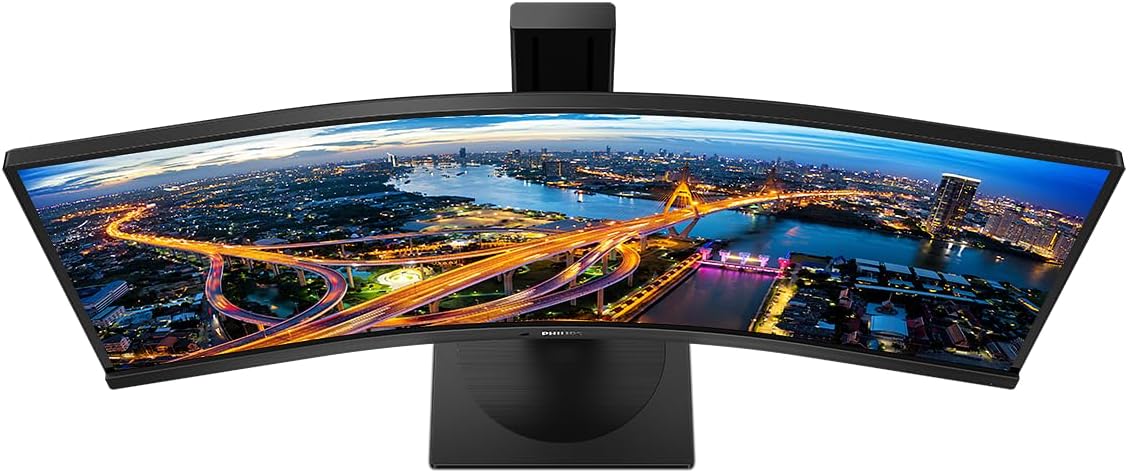
Delwedd: O'r brig i lawr view of the Philips 346B1C curved monitor, emphasizing the curvature of the screen.
Beth Sydd yn y Bocs
Gwiriwch fod yr holl gydrannau yn bresennol cyn bwrw ymlaen â'r gosodiad.
- Philips 346B1C Curved Monitor
- Stand Monitor (Sylfaen a Gwddf)
- Cebl Pŵer
- Cebl HDMI
- Cebl DisplayPort
- Cebl USB-C i USB-C
- USB-A to USB-B Cable (Upstream)
- Documentation (Quick Start Guide, User Manual CD)
Cyfarwyddiadau Gosod
1. Cydosod yr Eisteddle
- Rhowch y monitor wyneb i lawr ar arwyneb meddal, glân i atal crafiadau.
- Cysylltwch wddf y stondin â phanel y monitor. Gwnewch yn siŵr ei fod yn clicio'n ddiogel i'w le neu ei fod wedi'i glymu â sgriwiau os darperir rhai.
- Attach the stand base to the stand neck. Tighten the thumb screw or screws from the bottom of the base.

Delwedd: Cefn view of the Philips 346B1C monitor, showing the stand attachment point and VESA mounting holes.
2. Cysylltu â'ch Cyfrifiadur
Cysylltwch y monitor â'ch cyfrifiadur gan ddefnyddio un o'r dulliau canlynol:
- Cysylltiad HDMI: Cysylltwch un pen y cebl HDMI â phorthladd HDMI y monitor a'r pen arall ag allbwn HDMI eich cyfrifiadur.
- Cysylltiad DisplayPort: Connect one end of the DisplayPort cable to the monitor's DisplayPort and the other end to your computer's DisplayPort output.
- Cysylltiad USB-C: Connect one end of the USB-C cable to the monitor's USB-C port and the other end to your computer's USB-C port. This connection supports video, data, and power delivery (up to 90W) to your laptop.
For USB hub functionality, connect the USB-A to USB-B upstream cable from your computer to the monitor's USB-B upstream port.
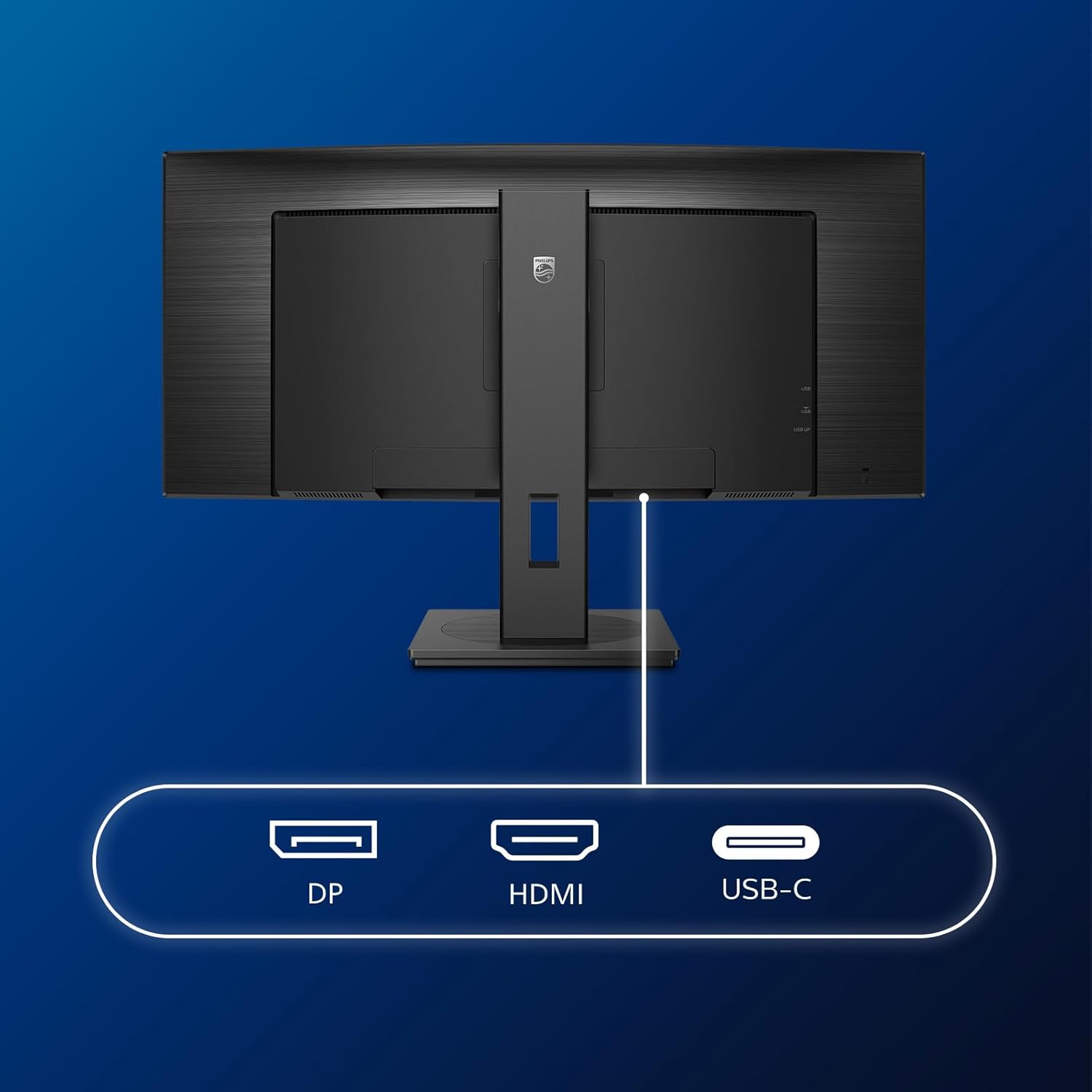
Delwedd: Manwl view of the monitor's input ports, including DisplayPort (DP), HDMI, and USB-C, for connecting to various devices.
3. Cysylltiad Pwer
Cysylltwch y cebl pŵer â mewnbwn pŵer y monitor ac yna ag allfa drydanol wedi'i seilio.
4. Troi ymlaen yn gychwynnol
Press the power button located on the monitor to turn it on. The monitor should automatically detect the input signal. If not, use the On-Screen Display (OSD) menu to select the correct input source.
Cyfarwyddiadau Gweithredu
Dewislen Arddangos Ar y Sgrin (OSD)
The OSD menu allows you to adjust various monitor settings. Use the joystick control located on the back or bottom of the monitor to navigate the menu.
- Disgleirdeb/Cyferbyniad: Addaswch lewyrch a chyferbyniad cyffredinol yr arddangosfa.
- Gosodiadau lliw: Fine-tune color temperature, gamma, and color space.
- Dewis Mewnbwn: Newidiwch â llaw rhwng mewnbynnau HDMI, DisplayPort, ac USB-C.
- Sain: Adjust volume or mute the built-in speakers.
- Modd Llun: Select from preset picture modes (e.g., Standard, Gaming, Text).
AmlView Ymarferoldeb
Yr AmlView feature allows you to connect and view content from two different sources simultaneously on the screen. Access this feature through the OSD menu to select Picture-by-Picture (PbP) or Picture-in-Picture (PiP) modes and configure input sources.
Tocio USB-C
When connected via USB-C, the monitor acts as a docking station, providing video, data transfer through its integrated USB hub, and power delivery to charge your connected laptop (up to 90W).
SmartErgoBase and Adjustability
The monitor's SmartErgoBase allows for ergonomic adjustments including height, swivel, and tilt to optimize your viewing cysur.

Image: Illustrations demonstrating the monitor's adjustable features, including height adjustment, tilt, and swivel capabilities for ergonomic positioning.
Nodweddion Cysur Llygaid
- Modd Glas Isel: Reduces harmful shortwave blue light emissions to prevent eye strain. Activate this mode via the OSD menu.
- FlickerFree Technology: Regulates brightness and reduces flicker for more comfortable viewing. This feature is always active.
- PowerSensor & LightSensor: These sensors automatically adjust monitor brightness based on ambient light conditions and user presence, saving energy and reducing eye strain.
Cynnal a chadw
Glanhau'r Monitor
- Tynnwch y plwg bob amser o'r monitor cyn glanhau.
- Defnyddiwch frethyn meddal, di-lint yn ysgafn dampwedi'i lanhau â dŵr neu lanhawr sgrin ysgafn, nad yw'n sgraffiniol.
- Peidiwch â defnyddio alcohol, toddyddion, na glanhawyr sy'n seiliedig ar amonia, gan y gall y rhain niweidio wyneb y sgrin.
- Sychwch y sgrin yn ysgafn i gael gwared â llwch a staeniau.
- Clean the monitor casing gyda lliain meddal, sych.
Gofal Cyffredinol
- Osgowch osod gwrthrychau trwm ar y monitor neu ei geblau.
- Peidiwch ag amlygu'r monitor i olau haul uniongyrchol, gwres gormodol, nac oerfel eithafol.
- Sicrhewch awyru priodol o amgylch y monitor.
Datrys problemau
Os byddwch chi'n dod ar draws problemau gyda'ch monitor, cyfeiriwch at y camau datrys problemau cyffredin canlynol:
| Problem | Achos Posibl | Ateb |
|---|---|---|
| Dim delwedd ar y sgrin | Cebl pŵer wedi'i ddatgysylltu; Cebl fideo wedi'i ddatgysylltu; Ffynhonnell mewnbwn anghywir wedi'i dewis. | Ensure power cable is securely connected; Check video cable connections (HDMI, DP, USB-C); Select correct input source via OSD menu. |
| Mae'r ddelwedd yn aneglur neu wedi'i gwyrdroi | Incorrect resolution; Graphics driver issue. | Set display resolution to 3440 x 1440; Update graphics card drivers. |
| Dim sain gan siaradwyr | Volume muted or too low; Incorrect audio output selected on computer. | Adjust monitor volume via OSD; Check computer's audio output settings. |
| Nid yw pyrth USB yn gweithio | Cebl USB i fyny'r afon heb ei gysylltu. | Ensure the USB-A to USB-B upstream cable is connected from the monitor to your computer. |
For further assistance, please refer to the support section or contact Philips customer service.
Manylebau
| Nodwedd | Manylyn |
|---|---|
| Brand | Philips |
| Rhif Model | 346B1C |
| Maint Sgrin | 34 modfedd (86 cm) |
| Datrysiad | 3440 x 1440 (WQHD) |
| Cymhareb Agwedd | 21:9 |
| Arwyneb y Sgrin | Curved VA Panel |
| Cyfradd Adnewyddu | 100 Hz |
| Amser Ymateb | 5 Milliseconds (GtG) |
| Cymhareb Cyferbyniad | 3000:1 (Nodweddiadol) |
| Disgleirdeb | 300 cd/m² |
| Viewongl ing | 178° (H) / 178° (V) |
| Cysylltedd | 1x HDMI 2.0, 1x DisplayPort 1.2, 1x USB-C 3.2 Gen 1 (upstream, power up to 90W), 1x USB-B (upstream), 4x USB 3.2 (downstream), RJ45 (Ethernet) |
| Cysoni Addasol | FreeSync |
| Siaradwyr Cynwysedig | 2x 5W |
| Defnydd Pŵer | 5 Watts (Eco mode) |
| Pwysau | 7.8 cilogram (gyda stondin) |
Gwarant a Chefnogaeth
Gwybodaeth Gwarant
This Philips monitor comes with a Gwarant gwneuthurwr 2 flynedd. The specific terms and conditions of the warranty can be found in the detailed documentation provided with your product or on the official Philips support website. Your statutory rights as a consumer are not affected by this warranty.
Cefnogaeth i Gwsmeriaid
For technical assistance, product inquiries, or warranty claims, please visit the official Philips support website or contact their customer service department. You may need your monitor's model number (346B1C) and serial number (found on the back of the monitor) when contacting support.
Cymorth Philips Websafle: www.philips.com/cefnogi