
1. Rhagymadrodd
This manual provides instructions for setting up, operating, and maintaining your Linksys Velop Tri-Band AC6600 Whole Home WiFi Mesh System. This system is designed to deliver seamless, high-speed Wi-Fi coverage throughout your home, eliminating dead zones and buffering.
2. Cynnwys Pecyn
- 3 x Linksys Velop Tri-Band Mesh WiFi Nodes
- 3 x Addasyddion Pwer
- 1 x Cebl Ethernet
- Canllaw Cychwyn Cyflym (cyfeiriwch at y llawlyfr hwn am gyfarwyddiadau manwl)
3. Cynnyrch Drosview
The Linksys Velop system consists of multiple nodes that work together to create a single, unified Wi-Fi network. Each node is a compact, tri-band device designed for optimal performance and discreet placement.
3.1 Velop Node Front View

Delwedd 3.1: Blaen view of a Linksys Velop Tri-Band Mesh WiFi Node. The node is a tall, rectangular black unit with a small LED indicator at the top.
The front of the Velop node features a minimalist design with the Linksys logo. A small LED indicator at the top provides status information:
- Glas Solet: Connected to the internet and working correctly.
- Coch solet: Dim cysylltiad rhyngrwyd.
- Pylsio Glas: Cychwyn.
- Pylsio Coch: Node is too far from another node or the modem.
- Melyn solet: Weak connection to another node or the modem.
3.2 Velop Node Side View

Delwedd 3.2: Ochr view of a Linksys Velop Tri-Band Mesh WiFi Node. The sides feature a perforated design for heat dissipation.
The sides of the Velop node are designed with perforations to ensure proper ventilation and maintain optimal operating temperature.
3.3 Velop Node Bottom View (Ports and Controls)
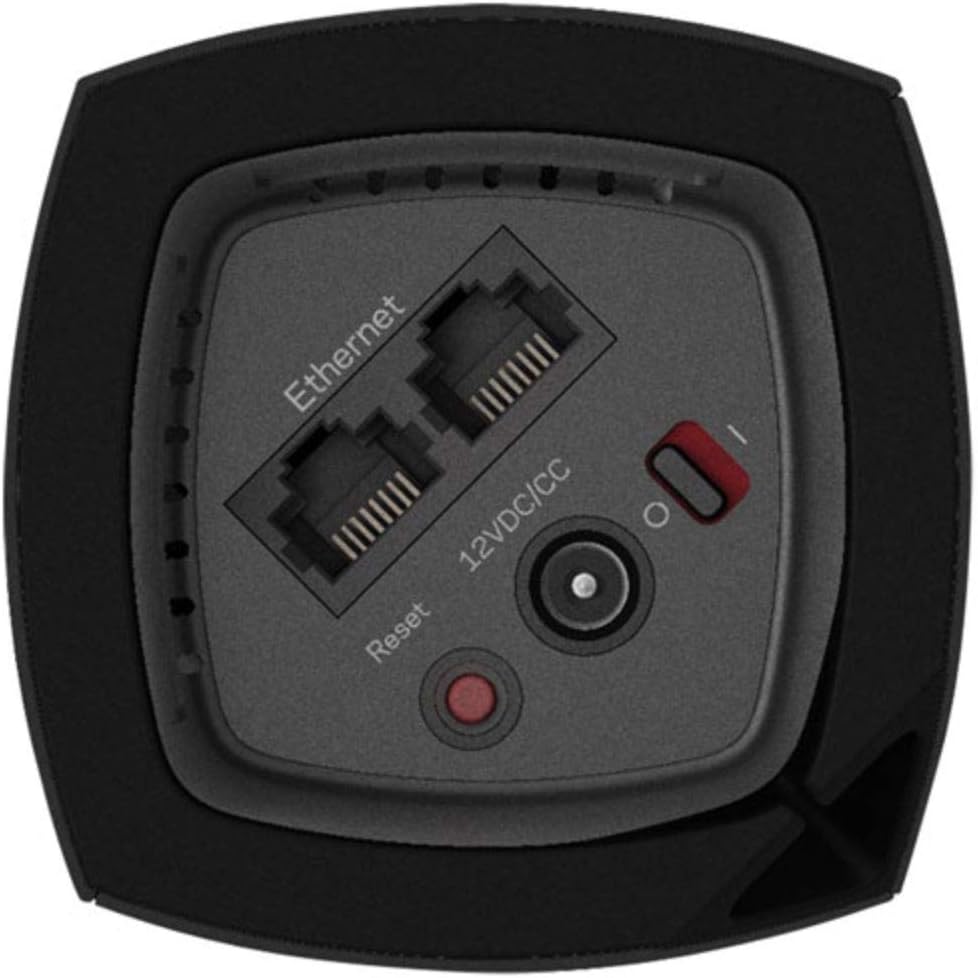
Delwedd 3.3: Gwaelod view of a Linksys Velop Tri-Band Mesh WiFi Node, illustrating the connectivity ports and controls.
The bottom of each Velop node houses the following ports and controls:
- Porthladdoedd Ethernet (2): For connecting to your modem (on the primary node) and wired devices.
- 12VDC/CC Power Input: Yn cysylltu â'r addasydd pŵer sydd wedi'i gynnwys.
- Botwm Ailosod: Used to restore factory default settings. Press and hold for 10 seconds.
- Power Switch (I/O): Turns the node on or off.
4. Cyfarwyddiadau Gosod
Setting up your Linksys Velop system is primarily done through the Linksys App on your mobile device. Ensure your internet modem is working before starting.
- Download the Linksys App: Chwiliwch am "Linksys" in the Apple App Store (for iOS) or Google Play Store (for Android) and download the application.
- Connect the Primary Node:
- Unplug your modem from its power outlet.
- Connect one end of the included Ethernet cable to the Internet port (one of the two Ethernet ports) on a Velop node.
- Cysylltwch ben arall y cebl Ethernet â phorthladd Ethernet eich modem.
- Plug your modem back into its power outlet.
- Connect the power adapter to the Velop node and plug it into a power outlet. Turn on the node using the power switch.
- Wait for the node's LED to turn solid blue (this may take several minutes).
- Launch the Linksys App: Open the Linksys App on your mobile device and follow the on-screen instructions to create a Linksys account or log in.
- Follow In-App Setup: The app will guide you through naming your Wi-Fi network (SSID) and creating a password. It will then detect and configure your primary Velop node.
- Add Additional Nodes: Once the primary node is set up, the app will prompt you to add additional Velop nodes.
- Place the next Velop node in a central location between the primary node and the area needing extended coverage. Ensure it's within range of the primary node.
- Connect the power adapter to the new node and plug it into a power outlet. Turn on the node.
- Wait for the LED to pulse blue, then follow the app's instructions to add it to your mesh network. The LED will turn solid blue when successfully connected.
- Repeat this process for any remaining nodes.
- Gwirio Cysylltiad: After all nodes are set up, check the LED status on each node. All should be solid blue for optimal performance.
5. Cyfarwyddiadau Gweithredu
Your Linksys Velop system creates a single, seamless Wi-Fi network. Devices will automatically connect to the strongest signal as you move around your home.
5.1 Managing Your Network with the Linksys App
The Linksys App is your primary tool for managing your Velop mesh network. With the app, you can:
- View dyfeisiau cysylltiedig a'u defnydd o'r rhwydwaith.
- Set up Guest Access for visitors.
- Implement Parental Controls to manage internet access for specific devices.
- Prioritize devices for faster speeds (Device Prioritization).
- Run Speed Tests to check your internet performance.
- Access advanced settings and firmware updates.
5.2 Tri-Band Technology
The Velop AC6600 system utilizes tri-band technology (one 2.4 GHz band and two 5 GHz bands) to provide dedicated high-speed communication between nodes and connected devices. This ensures optimal performance and reduces congestion, even with multiple devices streaming or gaming simultaneously.
6. cynnal
To ensure the longevity and optimal performance of your Linksys Velop system, consider the following maintenance tips:
- Diweddariadau Cadarnwedd: Regularly check for and install firmware updates through the Linksys App. Updates often include performance improvements and security enhancements.
- Lleoliad: Ensure nodes are placed in open areas, away from large metal objects, thick walls, and other electronic devices that may cause interference. Avoid placing them inside cabinets.
- Glanhau: Gently wipe the exterior of the nodes with a soft, dry cloth. Do not use liquid cleaners or abrasive materials. Ensure ventilation holes are not obstructed.
- Cylchred Pwer: If you experience minor network issues, try power cycling your modem and all Velop nodes (unplug for 10 seconds, then plug back in, starting with the modem).
7. Datrys Problemau
If you encounter issues with your Linksys Velop system, refer to the following common troubleshooting steps:
- No Internet Connection (Solid Red LED):
- Gwiriwch a yw eich modem yn gweithio'n iawn.
- Ensure the Ethernet cable is securely connected between the primary Velop node and the modem.
- Power cycle your modem and the primary Velop node.
- Weak Connection (Solid Yellow LED / Pulsing Red LED):
- Relocate the affected node closer to another working Velop node or the primary node.
- Ensure there are no major obstructions (e.g., thick walls, large appliances) between nodes.
- Use the Linksys App's Node Placement Tool (if available) to find optimal locations.
- Methu cysylltu â Wi-Fi:
- Verify you are using the correct Wi-Fi network name (SSID) and password.
- Restart your device (phone, laptop, etc.).
- Ensure the Velop nodes are powered on and have a solid blue LED.
- Cyflymder Araf:
- Run a speed test through the Linksys App to check your internet service provider's speed.
- Check for any background downloads or streaming on other devices.
- Ensure nodes are optimally placed and have a strong connection (solid blue LED).
- Ailosod Ffatri: If all else fails, you may need to perform a factory reset.
- With the node powered on, press and hold the Reset button on the bottom for 10 seconds.
- The LED will flash red, then turn off. Release the button.
- The node will restart with factory default settings, requiring a full re-setup via the Linksys App.
For further assistance, visit the official Linksys support websafle: www.linksys.com/support
8. manylebau
| Nodwedd | Manylyn |
|---|---|
| Enw Model | Velop (WHW0303B-CA) |
| Brand | Linksys (Belkin AP) |
| Technoleg Wi-Fi | Tri-Band (2.4 GHz + 5 GHz + 5 GHz) |
| Safon Wi-Fi | Wi-Fi 5 (802.11ac) |
| Combined Speed | AC6600 (3 x AC2200 nodes) |
| Cwmpas | Hyd at 6000 troedfedd sgwâr (pecyn o 3) |
| Ethernet Ports per Node | 2 x Gigabit Ethernet |
| Dull Rheoli | Linksys App (Android, iOS) |
| Protocol Diogelwch | WPA2-PSK |
| Cof RAM | 512 MB |
| Pwysau Eitem | 6 pwys (ar gyfer y pecyn o 3) |
9. Gwarant a Chefnogaeth
Linksys products come with a manufacturer's limited warranty. For specific warranty terms and conditions, please refer to the documentation included with your product or visit the official Linksys websafle.
For technical support, product registration, and frequently asked questions, please visit:
You can also contact Linksys customer service through the contact information provided on their support page.