
1. Rhagymadrodd
Thank you for choosing the Gembird MUS-6B-01 Optical USB Mouse. This manual provides essential information for setting up, operating, maintaining, and troubleshooting your new mouse. Please read these instructions carefully to ensure optimal performance and longevity of your device.

Image: The official Gembird brand logo, featuring the company name in a stylized font with a geometric design.
2. Cynnyrch Drosview
The Gembird MUS-6B-01 is a reliable 6-button optical USB mouse designed for comfortable and precise navigation. Its ambidextrous design makes it suitable for both left and right-handed users.
Nodweddion Allweddol:
- Olrhain Optegol: Provides smooth and accurate cursor control.
- 6 Botymau: Includes standard left/right click, scroll wheel, DPI adjustment, and two side buttons for enhanced functionality.
- Cysylltedd USB: Simple plug-and-play connection to your computer.
- Dyluniad Ambidextrous: Comfortable for both left and right-handed users.
Cydrannau:
- Botwm Cliciwch ar y Chwith
- Botwm Cliciwch ar y Dde
- Scroll Wheel (also functions as a middle click button)
- Botwm Addasu DPI
- Botwm Ymlaen (Ochr)
- Botwm Yn Ôl (Ochr)
- Optical Sensor (underside)
- USB Connector (at the end of the cable)
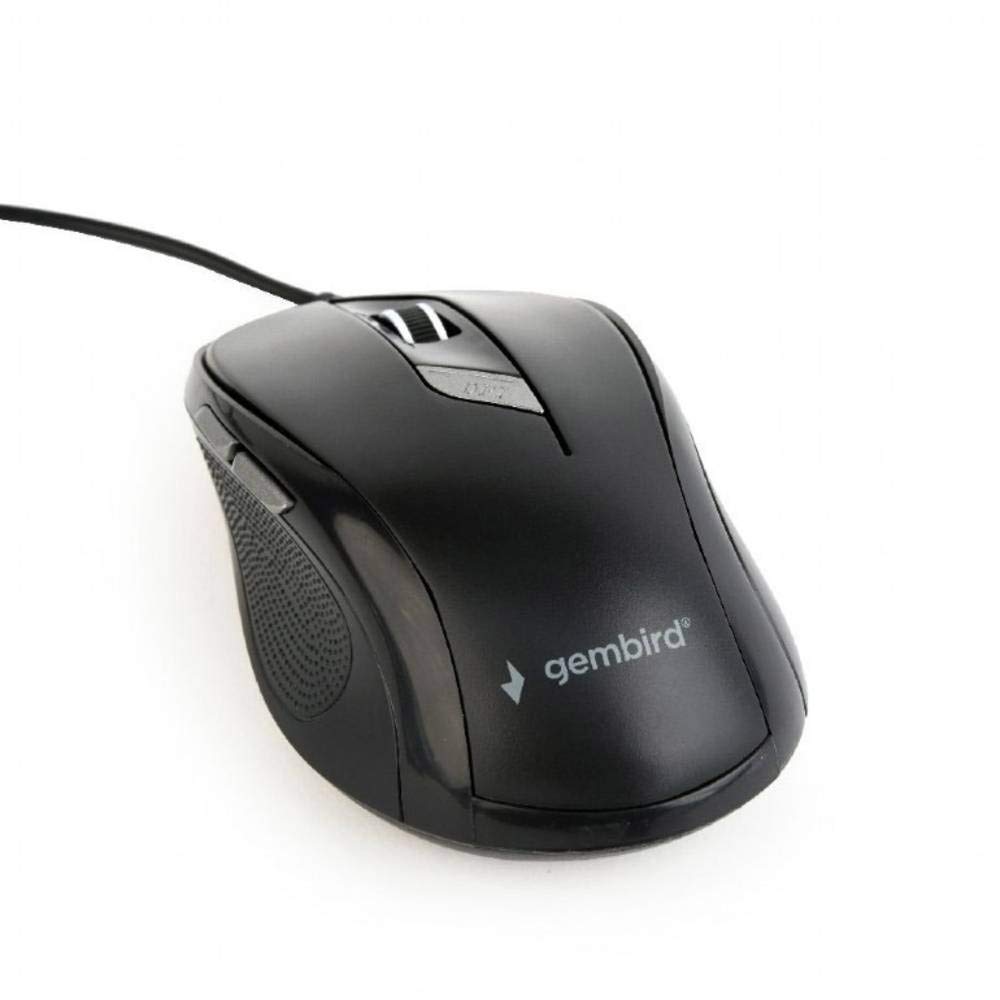
Delwedd: O'r brig i lawr view of the Gembird MUS-6B-01 optical USB mouse. The mouse is black with a matte finish, featuring a scroll wheel, left and right click buttons, a DPI button, and two side buttons. A black USB cable extends from the front of the mouse.
3. Gosod
Setting up your Gembird MUS-6B-01 mouse is a simple plug-and-play process.
Camau Gosod:
- Dewch o hyd i borth USB sydd ar gael ar eich cyfrifiadur.
- Plug the USB connector of the Gembird MUS-6B-01 mouse firmly into the USB port.
- Your operating system (Windows, Linux) will automatically detect and install the necessary drivers. This process may take a few moments.
- Unwaith y bydd y gyrwyr wedi'u gosod, mae'r llygoden yn barod i'w defnyddio.
No additional software installation is typically required for basic functionality.
4. Cyfarwyddiadau Gweithredu
Familiarize yourself with the functions of each button on your Gembird MUS-6B-01 mouse.
Swyddogaethau Sylfaenol:
- Cliciwch ar y chwith: Primary action, selecting items, opening files.
- Cliciwch ar y dde: Opens context menus, provides additional options.
- Olwyn Sgroliwch: Sgroliwch i fyny neu i lawr drwy ddogfennau a web tudalennau.
- Clic Canol (Pwyso Olwyn Sgrolio): Often used to open links in new tabs or for specific application functions.
Swyddogaethau Uwch:
- Botwm Addasu DPI: Located behind the scroll wheel, this button allows you to cycle through different sensitivity (DPI) settings. Press it to change the cursor speed to suit your preference.
- Botwm Ymlaen (Ochr): Typically navigates forward in web porwyr neu file fforwyr.
- Botwm Yn Ôl (Ochr): Typically navigates backward in web porwyr neu file fforwyr.
The functionality of the side buttons may vary depending on the application or operating system settings. Some operating systems allow customization of these buttons.
5. cynnal
Proper care will help extend the life of your Gembird MUS-6B-01 mouse.
Glanhau:
- Datgysylltwch y llygoden o'ch cyfrifiadur cyn glanhau.
- Defnyddiwch d. meddal, ychydigamp, lint-free cloth to wipe the surface of the mouse.
- For stubborn dirt, a small amount of mild soap solution can be applied to the cloth (not directly to the mouse).
- Use a cotton swab or compressed air to clean around the scroll wheel and between buttons.
- Ensure the optical sensor on the underside is clean and free of dust or debris.
- Do not use harsh chemicals, abrasive cleaners, or immerse the mouse in water.
Storio:
When not in use for extended periods, store the mouse in a clean, dry environment away from extreme temperatures and direct sunlight.
6. Datrys Problemau
If you encounter issues with your Gembird MUS-6B-01 mouse, try the following troubleshooting steps:
| Problem | Ateb Posibl |
|---|---|
| Llygoden ddim yn ymateb |
|
| Erratic or jumpy cursor movement |
|
| Botymau ddim yn gweithio |
|
7. manylebau
Detailed technical specifications for the Gembird MUS-6B-01 Optical USB Mouse:
| Nodwedd | Manyleb |
|---|---|
| Brand | Gembird |
| Enw Model | MUS-6B-01 |
| Technoleg Cysylltedd | Gwifrog (USB) |
| Technoleg Canfod Symudiad | Optegol |
| Nifer y Botwm | 6 |
| Cyfeiriadedd Llaw | ambidextrous |
| Systemau Gweithredu Cydnaws | Linux, Windows 7, Windows XP (a fersiynau mwy newydd) |
| Llwyfan Caledwedd | Cyfrifiadur Personol |
| Hyd Cebl | 5.0 metr |
| Pwysau Eitem | 74 gram |
| Deunydd | Plastig |
| Lliw | Du |
| Batris Angenrheidiol | Nac ydw |
8. Gwybodaeth Diogelwch
Cofiwch gadw at y canllawiau diogelwch canlynol:
- Peidiwch ag amlygu'r llygoden i ddŵr na lleithder gormodol.
- Osgoi gollwng neu orfodi'r llygoden i effeithiau cryf.
- Peidiwch â cheisio dadosod na thrwsio'r llygoden eich hun. Cyfeiriwch at bersonél gwasanaeth cymwys.
- Cadwch y ddyfais i ffwrdd o dymheredd eithafol a golau haul uniongyrchol.
- Gwaredu gwastraff electronig yn gyfrifol yn unol â rheoliadau lleol.
9. Gwarant a Chefnogaeth
Gembird products are designed for reliability and performance. For specific warranty terms and conditions, please refer to the warranty card included with your product or visit the official Gembird website. For technical support or further assistance, please contact your retailer or the Gembird customer service department.