
Rhagymadrodd
This manual provides instructions for the setup, operation, and maintenance of your Zelotes T20 Ergonomic Vertical Mouse. Please read this manual thoroughly before using the product to ensure proper function and longevity.
Cynnyrch Drosview
The Zelotes T20 is an ergonomic vertical mouse designed to promote a natural hand and wrist posture, reducing strain during extended use. It features adjustable DPI settings and multiple programmable buttons for enhanced control.

Figure 1: Zelotes T20 Ergonomic Vertical Mouse. This image displays the overall design of the mouse, highlighting its vertical orientation and LED lighting.
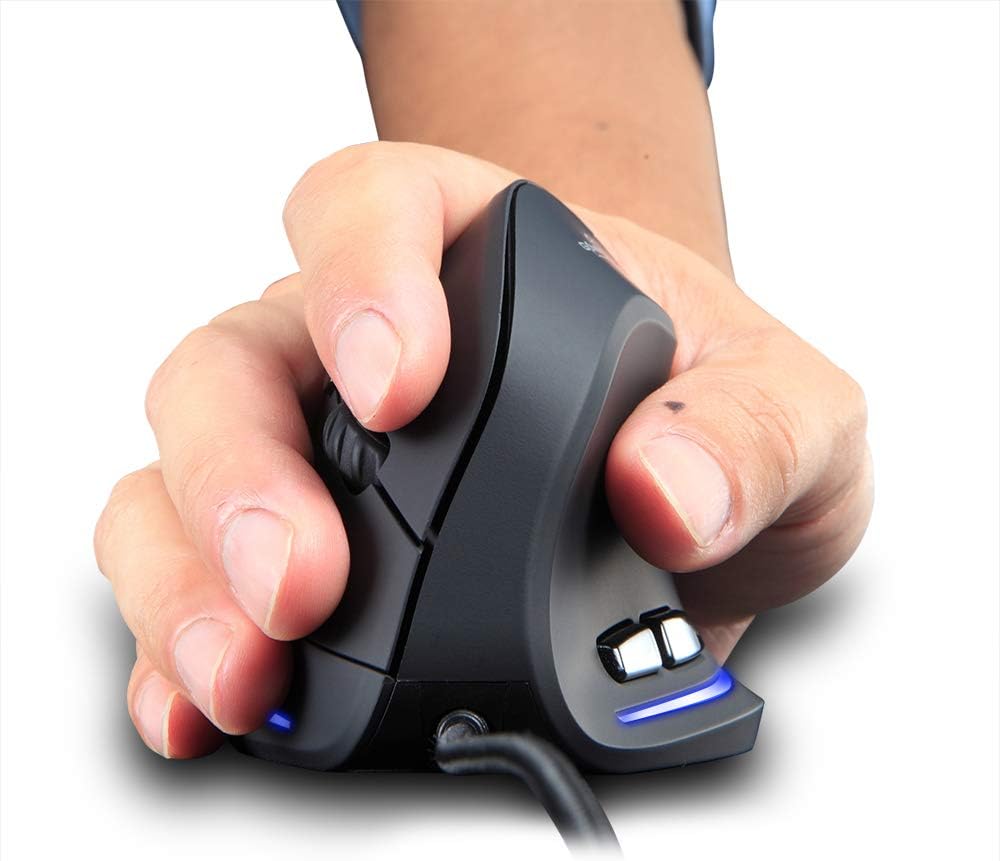
Figure 2: Proper hand placement on the Zelotes T20 mouse. This image illustrates how the vertical design allows for a natural handshake grip, intended to reduce wrist strain.

Figure 3: Ergonomic comparison. This diagram contrasts the natural wrist posture with a vertical mouse against the twisted posture often associated with traditional horizontal mice, emphasizing fatigue reduction.
Cynnwys Pecyn
Gwiriwch fod yr holl eitemau yn bresennol yn y pecyn:
- 1 x Zelotes Ergonomic Vertical Mouse
- 1 x Llawlyfr Cyfarwyddiadau (y ddogfen hon)
Gosod
- Cysylltwch y Llygoden: Plug the USB cable of the Zelotes T20 mouse into an available USB port on your computer.
- Gosod Gyrrwr: The mouse is plug-and-play. Your operating system should automatically detect and install the necessary drivers. No additional software installation is typically required.
- Tynnu Ffilm Amddiffynnol: Before use, locate and remove the protective film from the "Bigfoot pads" on the underside of the mouse for optimal gliding performance.

Figure 4: Underside of the mouse. This image shows the Teflon material pads and indicates the location of the protective film that should be removed before initial use.
Cyfarwyddiadau Gweithredu
Swyddogaethau Botwm
The Zelotes T20 mouse features 6 buttons for various functions:
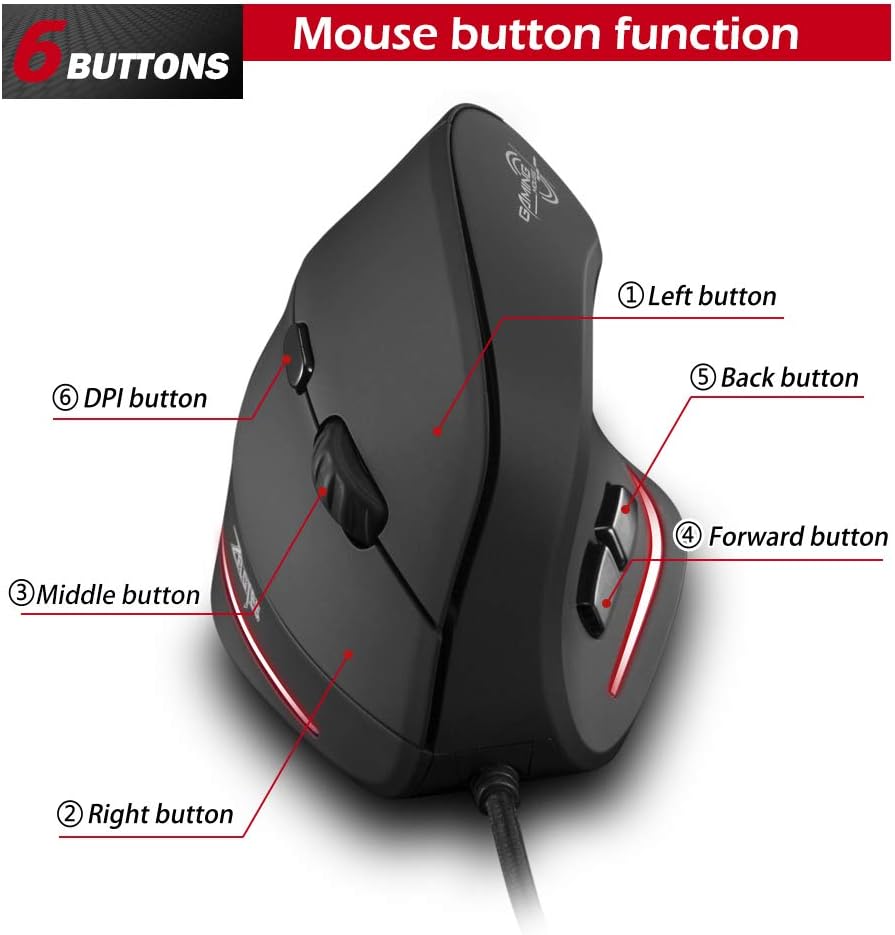
Figure 5: Mouse button layout. This diagram labels each of the six buttons: Left, Right, Middle (scroll wheel click), Forward, Back, and DPI adjustment button.
- Botwm Chwith: Swyddogaeth clic chwith safonol.
- Botwm De: Swyddogaeth clic dde safonol.
- Botwm Canol (Olwyn Sgrolio): Olwyn sgrolio y gellir ei chlicio ar gyfer swyddogaethau clic canol.
- Botwm Ymlaen: Yn llywio ymlaen yn web porwyr neu file fforwyr.
- Botwm Cefn: Yn llywio yn ôl i mewn web porwyr neu file fforwyr.
- Botwm DPI: Adjusts mouse sensitivity (DPI).
Addasu DPI (Sensitifrwydd)
The mouse offers four adjustable DPI settings to suit different tasks and preferences. Press the DPI button (Button 6 in Figure 5) to cycle through the settings. Each DPI level is indicated by a specific LED light color:
- 1200 DPI: Blue light hint
- 1600 DPI: Dark purple light hint
- 2400 DPI: Red light hint
- 3200 DPI: Light purple light hint
The light will stay on for approximately 3 seconds when switching DPI settings to indicate the current level.

Figure 6: DPI adjustment and LED indicators. This image illustrates the DPI button and the color coding for each of the four sensitivity settings.
Using Forward/Back Keys
The dedicated Forward and Back buttons (Buttons 4 and 5 in Figure 5) provide quick navigation. These buttons are designed to streamline browsing through web pages or folders, reducing the need for on-screen clicks.

Figure 7: Forward and Back navigation buttons. This image highlights the placement of the forward and back buttons, designed for convenient web a file mordwyo.
Cynnal a chadw
- Glanhau: Defnyddiwch frethyn meddal, sych i lanhau wyneb y llygoden. Ar gyfer baw ystyfnig, defnyddiwch frethyn ychydig yn sych.amp cloth can be used, ensuring no liquid enters the mouse.
- Cynnal a Chadw Synhwyrydd: Cadwch y synhwyrydd optegol ar ochr isaf y llygoden yn lân ac yn rhydd o lwch neu falurion i sicrhau olrhain cywir.
- Gofal Cebl: Osgowch blygiadau miniog neu dynnu gormodol ar y cebl USB i atal difrod.

Figure 8: Mouse surface texture. This image provides a close-up view of the mouse's surface, described as smooth for comfortable handling.
Datrys problemau
- Llygoden Ddim yn Ymateb:
- Gwnewch yn siŵr bod y cebl USB wedi'i blygio'n ddiogel i borthladd USB sy'n gweithio ar eich cyfrifiadur.
- Rhowch gynnig ar blygio'r llygoden i mewn i borthladd USB gwahanol.
- Ailgychwyn eich cyfrifiadur.
- Olrhain Anghywir:
- Glanhewch y synhwyrydd optegol ar ochr isaf y llygoden.
- Ensure you are using the mouse on a suitable surface (e.g., a mouse pad). Highly reflective or transparent surfaces may cause issues.
- Adjust the DPI setting using the DPI button.
- Botymau Ddim yn Gweithio'n Gywir:
- Gwiriwch fod y llygoden wedi'i chysylltu'n iawn.
- Profwch y llygoden ar gyfrifiadur arall i benderfynu a yw'r broblem gyda'r llygoden neu osodiadau'r cyfrifiadur.
Manylebau
| Nodwedd | Manylyn |
|---|---|
| Model | T20 |
| Rhif Botwm | 6 botymau |
| System Olrhain | Optegol |
| Hyd Cebl USB | 1.8m |
| Gweithio Cyftage / Cyfredol | 5V/100mA |
| Bywyd Botwm | 5 miliwn o weithiau |
| Bywyd Rholer | 1.2 million turns |
| Dimensiynau Cynnyrch (L x W x H) | 110 x 72 x 75 mm (4.33 x 2.83 x 2.95 modfedd) |
| Pwysau Cynnyrch | 160 ± 5g (5.6 ounces) |
| Cydraniad (DPI) | 1200-1600-2400-3200 |
| Cyfradd Dychwelyd (Cyfradd Pleidleisio) | 125Hz |
| Cydweddoldeb | Windows 2000/ME/XP (x64)/Vista/7/8/10, Mac OS X (over V10.4), Linux |

Figure 9: Product dimensions. This image provides detailed measurements of the mouse from various angles.
Gwarant a Chefnogaeth
Am wybodaeth am warant neu gymorth technegol, cyfeiriwch at swyddfa’r gwneuthurwr websafle neu cysylltwch â'u hadran gwasanaeth cwsmeriaid. Cadwch eich derbynneb prynu fel prawf o brynu.