
Tenda MW3 3PK
Tenda Nova Mesh WiFi System MW3 User Manual
Model: MW3 3PK | Brand: Tenda
1. Cynnyrch Drosview
The Tenda Nova MW3 is a whole-home mesh WiFi system designed to eliminate Wi-Fi dead zones and provide stable, high-speed internet coverage throughout your home. This 3-pack system covers up to 3,500 sq.ft, offering a seamless roaming experience with a single network name and password.

Image: The Tenda Nova MW3 3-pack system, showcasing ei ddyluniad cryno a modern.
Nodweddion Allweddol:
- Whole Home Coverage: Provides up to 3,500 sq.ft. coverage, ideal for replacing traditional Wi-Fi extenders and routers.
- Crwydro di-dor: All units work together under a single network name and password, ensuring devices automatically connect to the strongest signal.
- Cynhwysedd Uchel: Supports up to 40 devices simultaneously with fast AC1200 Dual Band Wi-Fi, powered by MU-MIMO and Beamforming technology.
- Rhwydwaith Diogel: Utilizes WPA2-PSK encryption to protect your network and devices.
- Gosodiad Hawdd: Quick setup, monitoring, and management via the Tenda Wi-Fi APP.
2. Beth sydd yn y Bocs
Upon unboxing your Tenda Nova MW3 system, you should find the following components:
- 3 x NOVA MW3 Identical Mesh Points
- 3 x Addasyddion Pwer
- 1 x Gigabit Ethernet Cable
- 1 x Canllaw Gosod Cyflym
Fideo: Dros benview of the Tenda Nova MW3 (3-pack) Whole Home Mesh Router Wi-Fi System, including its coverage capabilities and plug-and-play setup.
3. Cyfarwyddiadau Gosod
Initial Setup (Main Unit):
- Connect the Main Unit: Choose one Nova unit to be your main router. Connect its WAN/LAN port to your modem using the provided Ethernet cable.
- Pŵer Ymlaen: Plug the power adapter into the main Nova unit and an electrical outlet. Wait for the LED indicator to turn solid green, indicating it's ready.
- Download Tenda Wi-Fi App: Chwiliwch am "Tenda Wi-Fi" in your mobile device's app store (iOS or Android) and download the application.
- Ffurfweddu Rhwydwaith: Open the Tenda Wi-Fi app and follow the on-screen instructions to set up your new mesh network. You will create a Wi-Fi name (SSID) and password.

Image: The Tenda Wi-Fi app simplifies the setup process, allowing for quick network configuration.
Ychwanegu Unedau Ychwanegol:
- Place Units: Place the remaining Nova units in desired locations to extend coverage. For optimal performance, ensure they are within range of another Nova unit and not too far from each other (ideally within two rooms or 10 meters).
- Pŵer Ymlaen: Plug in the additional Nova units. They will automatically connect to the existing mesh network. The LED indicator will turn solid green once connected.
- Gwirio Cysylltiad: Use the Tenda Wi-Fi app to verify that all units are connected and functioning correctly. The app will display the network topology.

Image: Illustration of how multiple Nova units provide comprehensive Wi-Fi coverage throughout a home.
4. Nodweddion Gweithredu
Crwydro di-dor:
The Nova MW3 system ensures a truly seamless online experience. As you move around your home, your devices will automatically connect to the strongest Nova unit without any interruption or need to manually switch networks. This creates a single, unified Wi-Fi network.

Image: Seamless roaming ensures continuous connectivity as you move between Nova units.
Wi-Fi Band Deuol:
The system operates on both 2.4GHz and 5GHz frequency bands. The 2.4GHz band offers wider coverage, while the 5GHz band provides faster speeds for demanding tasks like streaming and gaming. The system intelligently assigns devices to the optimal band for performance.

Image: The Nova MW3 supports both 2.4GHz and 5GHz Wi-Fi bands for flexible connectivity.
Rhwydwaith Wi-Fi diogel:
The Nova MW3 uses WPA2-PSK encryption to secure your wireless network, protecting it from unauthorized access and potential hacker attacks. You can also set up a guest network to provide internet access to visitors without compromising your main network's security.
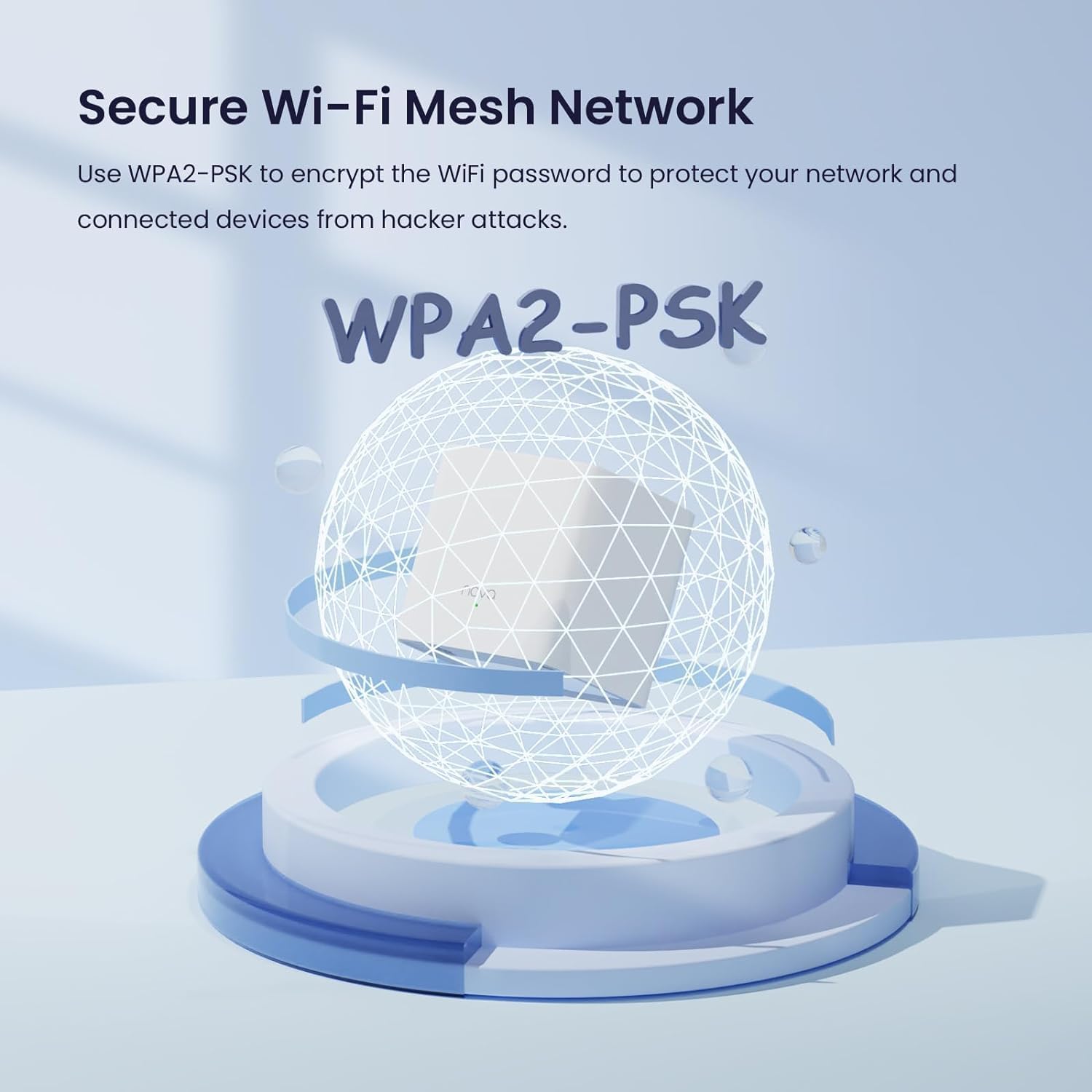
Image: WPA2-PSK encryption ensures a secure Wi-Fi environment.
Rheolaeth Rhieni:
Manage your children's online time and supervise content access directly through the Tenda Wi-Fi app. This feature allows you to set schedules for internet access and block inappropriate websafleoedd.
Yn cefnogi Dyfeisiau Lluosog:
The Nova MW3 system is capable of providing a high-speed Wi-Fi network for up to 40 devices simultaneously, ensuring a lag-free experience for all your connected gadgets, from smartphones to smart home devices.

Image: The Tenda Nova MW3 system supports connectivity for over 40 devices simultaneously.
Yn gweithio gydag Amazon Alexa:
Integrate your Nova MW3 system with Amazon Alexa for convenient voice control. You can manage certain network functions, such as enabling the guest network, using simple voice commands.

Image: The Tenda Nova MW3 system is compatible with Amazon Alexa for voice control.
5. cynnal
To ensure optimal performance and longevity of your Tenda Nova MW3 system, consider the following maintenance tips:
- Diweddariadau Firmware Rheolaidd: Check the Tenda Wi-Fi app periodically for firmware updates. Keeping your system updated ensures you have the latest features, security patches, and performance improvements.
- Ailgychwyn cyfnodol: If you experience any network slowdowns or connectivity issues, a simple reboot of all Nova units can often resolve the problem. Unplug the power adapters, wait for 30 seconds, and then plug them back in.
- Lleoliad Gorau: Ensure your Nova units are placed in open areas, away from obstructions like large metal objects, thick walls, and other electronic devices that might cause interference.
- Glendid: Keep the units clean and free from dust accumulation, which can affect ventilation and performance. Use a soft, dry cloth for cleaning.
6. Datrys Problemau
Problemau ac Atebion Cyffredin:
- Dim Cysylltiad Rhyngrwyd:
- Check if the main Nova unit's WAN/LAN port is correctly connected to your modem.
- Ensure your modem is working correctly. Try rebooting your modem.
- Verify your internet connection type in the Tenda Wi-Fi app (e.g., Dynamic IP, PPPoE).
- Spotty Wi-Fi or Weak Signal:
- Relocate Nova units closer to each other or to areas with weak signals.
- Avoid placing units near large electronic appliances (microwaves, cordless phones) or metal objects.
- Ensure there are no excessive physical obstructions (thick walls, multiple floors) between units.
- Dyfeisiau heb gysylltu:
- Gwiriwch a yw'r cyfrinair Wi-Fi a gofnodwyd yn gywir.
- Ensure the device's Wi-Fi adapter is enabled.
- Try restarting the device you are trying to connect.
- Cyflymder Rhyngrwyd Araf:
- If your incoming broadband speed is more than 100Mbps, consider upgrading to a higher-performance mesh system like the Nova MW6 for optimal results.
- Check for network congestion (too many devices streaming/downloading simultaneously).
- Perform a speed test using the Tenda Wi-Fi app to diagnose the issue.
7. manylebau
| Nodwedd | Manylyn |
|---|---|
| Dimensiynau Cynnyrch | 3.54 x 3.54 x 3.66 modfedd |
| Pwysau Eitem | 1.16 pwys |
| Rhif Model | MW3 3PK |
| Brand | Tenda |
| Enw Model | Nova MW3 3-pack |
| Nodweddion Arbennig | Beamforming, Guest Mode, Parental Control |
| Dosbarth Band Amlder | Band Deuol |
| Safon Cyfathrebu Di-wifr | 802.11ac |
| Dyfeisiau Cydnaws | Ffôn clyfar |
| Amlder | 5 GHz |
| Defnyddiau a Argymhellir | Cartref, Gemau, Busnes |
| Technoleg Cysylltedd | Wi-Fi, Ethernet |
8. Gwarant a Chefnogaeth
Tenda products typically come with a standard manufacturer's warranty. Please refer to your product packaging or the official Tenda websafle ar gyfer telerau ac amodau gwarant penodol.
Cymorth Technegol:
For technical assistance or product inquiries, please contact Tenda support:
- E-bost: cefnogaeth.usa@tenda.cn
- Ffôn: +1(800) 570-5892 (Monday - Sunday, 10 AM - 6 PM EST)
Ask a question about this manual
Ask about setup, troubleshooting, compatibility, parts, safety, or missing instructions. Manuals+ will review the question and use this page’s manual context to help answer it.