
Rhagymadrodd
The THINKWARE F200 Dash Cam is designed to record high-quality video footage of your journeys. Featuring Full HD 1080P recording, Wide Dynamic Range (WDR), and built-in Wi-Fi, it provides reliable video evidence and convenient access to recordings and settings via your smartphone. This manual provides essential information for the proper installation, operation, and maintenance of your F200 Dash Cam.
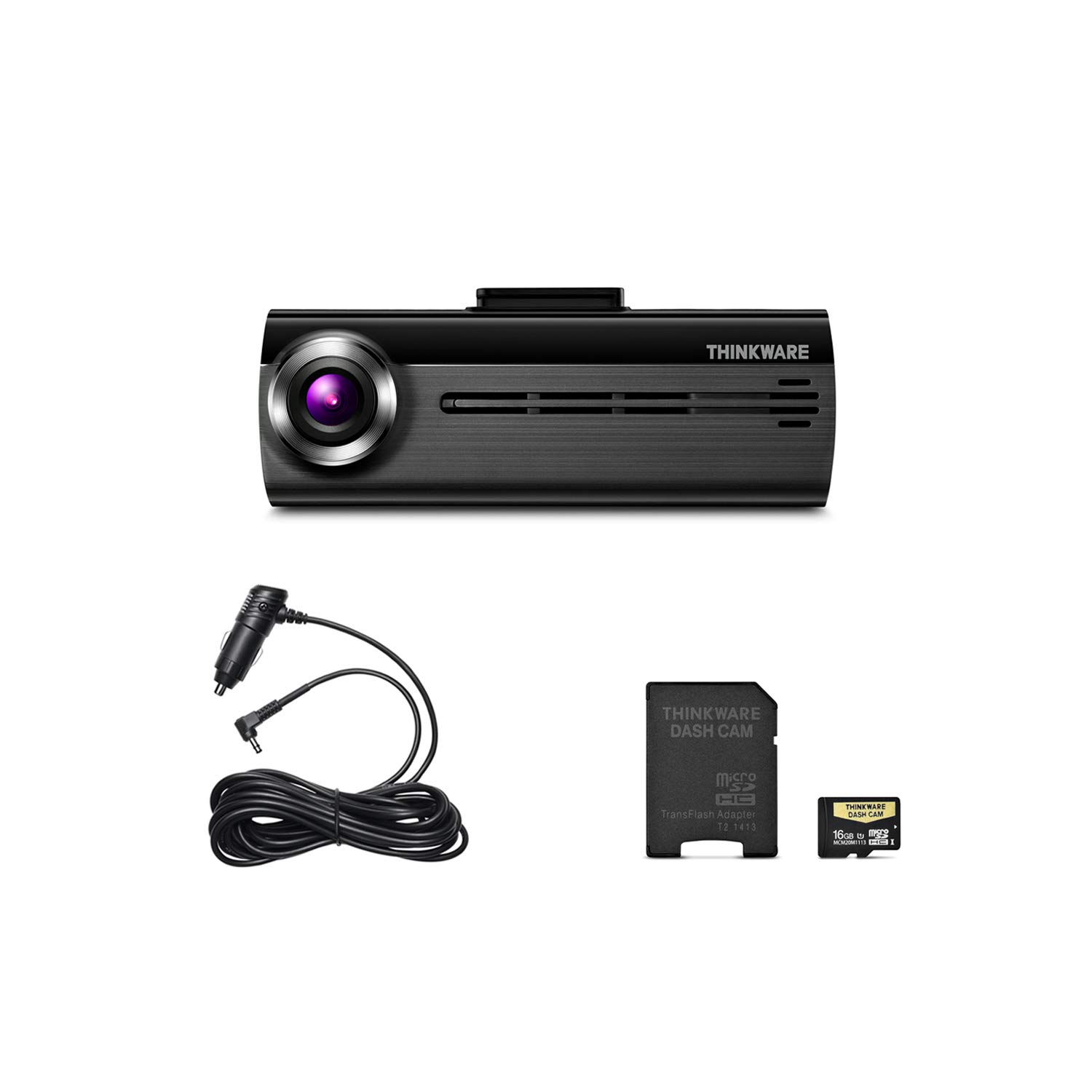
Image: The main unit of the THINKWARE F200 Dash Cam, a compact black device with a front-facing camera lens.
Cynnwys Pecyn
Gwiriwch fod yr holl eitemau yn bresennol yn eich pecyn cynnyrch:
- Main Dash Cam Unit (THINKWARE F200)
- Windshield Mount with Extra 3M Tape
- Cigarette Power Cable (12V)
- Adhesive Cable Clips (3ea)
- THINKWARE 16GB MicroSD Card with SD Card Adapter
- Quick Start Guide/Warranty Information
- CS Information
Video: An unboxing video demonstrating the contents of the THINKWARE F200 Dash Cam package, including the main unit, cables, mount, and memory card.
Gosod
1. Mewnosod Cerdyn MicroSD
Before mounting, insert the provided MicroSD card into the designated slot on the dash cam. Ensure the card is inserted correctly until it clicks into place.
2. Mowntio'r Dash Cam
- Clean the windshield area where the dash cam will be mounted. Ensure it is free of dust and grease.
- Attach the 3M adhesive tape to the windshield mount.
- Position the dash cam mount on the windshield, ideally behind the rearview drych i osgoi rhwystro eich view. Press firmly for at least 30 seconds to ensure a secure attachment.
- Slide the F200 main unit onto the mounted bracket.
3. Cysylltiad Pwer
Connect the cigarette power cable to the dash cam's power input port. Route the cable neatly along the edge of the windshield and dashboard, using the adhesive cable clips to secure it. Plug the other end into your vehicle's 12V power outlet (cigarette lighter socket).
4. Troi ymlaen yn gychwynnol
Once connected, start your vehicle. The dash cam will power on automatically and begin continuous recording. A voice prompt will confirm operation.
Cyfarwyddiadau Gweithredu
Cofnodi Modelau
The F200 Dash Cam supports various recording modes:
- Cofnodi Parhaus: Automatically records when the vehicle is in motion. Older files are overwritten by newer ones when the memory card is full.
- Cofnodi Digwyddiad: Activated by sudden impacts or changes in speed (G-sensor). These files yn cael eu hamddiffyn rhag cael eu trosysgrifo.
- Recordio â Llaw: Initiated by pressing the REC button on the dash cam. These files are also protected.
- Motion Detection Recording (Parking Mode): Records when motion is detected around the parked vehicle. Requires hardwiring cable (sold separately) for continuous power.
- Energy Saving Parking Mode: Reduces power consumption by putting the dash cam into a low-power state and waking up to record only when an impact is detected. Requires hardwiring.
Wi-Fi Connectivity and Mobile App
The built-in Wi-Fi allows you to connect your smartphone to the dash cam for easy management:
- Download the THINKWARE DASH CAM Link app from your smartphone's app store (iOS or Android).
- On the dash cam, press the Wi-Fi button to activate Wi-Fi mode. A voice prompt will confirm.
- On your smartphone, go to Wi-Fi settings and connect to the THINKWARE network (e.g., "Thinkware_F200_XXXX"). The default password is "123456789".
- Open the THINKWARE DASH CAM Link app. You can now view byw footage, download recorded videos, change dash cam settings, and update firmware.

Image: A smartphone displaying the THINKWARE Dash Cam app interface, connected to a dash cam unit, illustrating Wi-Fi connectivity and mobile management.
Cynnal a chadw
Rheoli Cerdyn MicroSD
Regularly format the MicroSD card to ensure optimal performance and prevent data corruption. This can be done through the mobile app or the PC Viewer software. It is recommended to format the card at least once a month.
Diweddariadau Cadarnwedd
Keep your dash cam's firmware updated to benefit from new features and performance improvements. Firmware updates can be performed via the mobile app or by downloading the update file to the MicroSD card and inserting it into the dash cam.
Glanhau'r Lens
Gently clean the dash cam lens with a soft, lint-free cloth to ensure clear video recording. Avoid using abrasive materials or harsh chemicals.
Datrys problemau
- Nid yw Dash Cam yn troi ymlaen:
Ensure the power cable is securely connected to both the dash cam and the vehicle's 12V outlet. Check if the vehicle's 12V outlet is functioning. If hardwired, verify the hardwiring connection. - Recording issues (no recording or corrupted files):
Format the MicroSD card. If the issue persists, try using a new, high-quality MicroSD card. Ensure the card is properly inserted. - Problemau cysylltiad Wi-Fi:
Ensure the dash cam's Wi-Fi is activated. Restart both the dash cam and your smartphone. Verify you are connecting to the correct THINKWARE Wi-Fi network and using the correct password. - Ansawdd fideo gwael:
Clean the dash cam lens and the windshield area where it is mounted. Ensure the dash cam is securely mounted and not vibrating. - Voice prompts are too loud/quiet or not heard:
Adjust the volume settings via the mobile app.
Manylebau
| Nodwedd | Manyleb |
|---|---|
| Enw Model | THINKWARE F200 |
| Datrysiad Dal Fideo | 1080p Full HD (Front) |
| Maes Of View | 140 Gradd |
| Technoleg Cysylltedd | Wi-Fi |
| Nodwedd Arbennig | Ystod Deinamig Eang |
| Math Mowntio | Mount Gludiog |
| Pwysau Eitem | 1.94 owns |
| Dimensiynau Cynnyrch | 33.9 x 0.9 x 1.3 modfedd |
| Cydrannau wedi'u Cynnwys | Main Dash Cam Unit, Windshield Mount, Cigarette Power Cable, Adhesive Cable Clips, 16GB MicroSD Card with Adapter, Quick Start Guide |
Gwarant a Chefnogaeth
Gwybodaeth Gwarant
The THINKWARE F200 Dash Cam comes with a one-year manufacturer's warranty. This warranty covers units sold at authorized retailers only. Please retain your proof of purchase for warranty claims. Note that the device is pre-loaded with firmware and GPS data specific for use within the US only, and proper device operation cannot be guaranteed outside this region.
Cefnogaeth i Gwsmeriaid
For technical assistance, troubleshooting, or warranty inquiries, please refer to the contact information provided in your Quick Start Guide or visit the official THINKWARE website. You can also find additional resources and FAQs on the THINKWARE support page.