
1. Rhagymadrodd
This manual provides essential information for the safe and efficient operation of your Digi International WR21-L52A-DE1-TB Cellular Wireless Router. Please read this manual thoroughly before installation and use, and retain it for future reference. This device is designed to provide reliable cellular connectivity for various applications.
2. Gwybodaeth Diogelwch
- Cyflenwad Pŵer: Use only the power adapter supplied with the device. Using an incorrect adapter may damage the device and void the warranty.
- Awyru: Ensure adequate ventilation around the router. Do not block ventilation openings.
- Amgylchedd: Avoid exposing the device to extreme temperatures, humidity, direct sunlight, or corrosive environments.
- Gwasanaethu: Peidiwch â cheisio agor na thrwsio'r ddyfais eich hun. Cyfeiriwch bob gwasanaethu at bersonél cymwys.
- Antenâu: Ensure antennas are securely connected before powering on the device.
3. Cynnwys Pecyn
Gwiriwch fod yr holl eitemau yn bresennol yn y pecyn:
- Digi International WR21-L52A-DE1-TB Cellular Wireless Router
- Addasydd Pŵer
- Antennas (quantity may vary)
- Cebl Ethernet
- Canllaw Cychwyn Cyflym (os yw wedi'i gynnwys)
Os oes unrhyw eitemau ar goll neu wedi'u difrodi, cysylltwch â'ch gwerthwr ar unwaith.
4. Cynnyrch Drosview
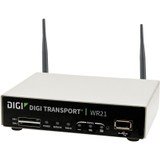
Delwedd: Blaen view of the Digi International WR21-L52A-DE1-TB Cellular Wireless Router. This image displays the compact form factor of the device, likely showing ports for antennas, power, and network connections.
The Digi International WR21-L52A-DE1-TB is a robust cellular wireless router designed for reliable and secure connectivity. It features multiple connectivity options and is suitable for various industrial and enterprise applications requiring remote access and data transfer over cellular networks.
5. Gosod
5.1. Gosod Cerdyn SIM
- Sicrhewch fod y llwybrydd wedi'i bweru i ffwrdd a'i ddatgysylltu o'r ffynhonnell bŵer.
- Locate the SIM card slot(s) on the device. Refer to the device's physical markings for exact location.
- Insert the activated cellular SIM card into the slot with the gold contacts facing down and the notched corner oriented correctly. Push until it clicks into place.
- If applicable, secure the SIM card tray or cover.
5.2. Cysylltiad Antena
- Identify the cellular antenna ports (typically labeled 'MAIN' and 'DIV' or similar).
- Screw the provided cellular antennas onto the corresponding ports until finger-tight. Do not overtighten.
- Gosodwch yr antenâu ar gyfer derbyniad signal gorau posibl.
5.3. Cysylltiad Pwer
- Cysylltwch yr addasydd pŵer â phorthladd mewnbwn pŵer y llwybrydd.
- Plygiwch yr addasydd pŵer i mewn i allfa drydanol addas.
- The router will power on automatically or may require pressing a power button. Observe the LED indicators for power status.
5.4. Cysylltiad Rhwydwaith (Dewisol)
- To connect a device via Ethernet, plug one end of an Ethernet cable into an available LAN port on the router.
- Plug the other end of the Ethernet cable into the network port of your computer or other network device.
6. Cyfarwyddiadau Gweithredu
6.1. Pweru Ymlaen / I ffwrdd
- Pŵer Ymlaen: Connect the power adapter. The device will typically power on automatically. Observe the power LED.
- Pwer i ffwrdd: Disconnect the power adapter from the electrical outlet. For controlled shutdown, refer to the device's web interface or specific documentation for a software shutdown procedure if available.
6.2. Wrth gael mynediad i'r Web Rhyngwyneb
- Ensure your computer is connected to the router via Ethernet or Wi-Fi (if enabled).
- Agor a web porwr (e.e., Chrome, Firefox, Edge).
- Enter the router's default IP address (e.g., 192.168.1.1 or 192.168.0.1) into the address bar and press Enter. Refer to the Quick Start Guide or device label for the exact default IP address.
- Enter the default username and password when prompted. These are typically found on a label on the device or in the Quick Start Guide.
- Upon successful login, you will access the router's configuration interface.
6.3. Ffurfweddiad Sylfaenol
O fewn y web rhyngwyneb, gallwch chi ffurfweddu gwahanol osodiadau:
- Cellular Settings: Verify APN settings, signal strength, and connection status.
- Gosodiadau Rhwydwaith: Configure LAN IP address, DHCP server, and port forwarding.
- Diogelwch: Change default login credentials, configure firewall rules, and VPN settings.
- Diweddariad Cadarnwedd: Check for and apply firmware updates to ensure optimal performance and security.
7. cynnal
- Glanhau: Defnyddiwch frethyn meddal, sych i lanhau tu allan y llwybrydd. Peidiwch â defnyddio glanhawyr hylif na aerosolau.
- Diweddariadau Cadarnwedd: Gwiriwch y gwneuthurwr yn rheolaidd websafle ar gyfer diweddariadau cadarnwedd. Mae cadw'r cadarnwedd wedi'i ddiweddaru yn sicrhau'r nodweddion, y clytiau diogelwch a'r gwelliannau perfformiad diweddaraf.
- Amodau Amgylcheddol: Ensure the router is operating within its specified temperature and humidity ranges to prevent overheating or damage.
8. Datrys Problemau
8.1. No Cellular Connection
- Verify the SIM card is correctly inserted and activated with your cellular provider.
- Check antenna connections and ensure they are positioned for optimal signal.
- Mewngofnodwch i'r web interface to check cellular signal strength and connection status.
- Ailgychwynnwch y llwybrydd.
8.2. Methu Mynediad Web Rhyngwyneb
- Ensure your computer is directly connected to the router via Ethernet.
- Verify your computer's IP address is in the same subnet as the router (e.g., if router is 192.168.1.1, computer should be 192.168.1.x).
- Rhowch gynnig ar glirio storfa eich porwr neu ddefnyddio porwr gwahanol.
- If you forgot the password, a factory reset might be necessary (refer to specific device documentation for this procedure, as it will erase all configurations).
8.3. Cyflymder Cysylltiad Araf
- Check cellular signal strength in the web interface. Weak signal can lead to slow speeds.
- Ensure antennas are properly positioned and unobstructed.
- Verify your cellular data plan has not reached its data cap or is being throttled.
- Restart the router and connected devices.
9. manylebau
| Nodwedd | Disgrifiad |
|---|---|
| Model | WR21-L52A-DE1-TB |
| Brand | Digi Rhyngwladol |
| Protocol Cysylltedd | Cellog |
| Technoleg Cysylltedd | USB |
| Dull Rheoli | Anghysbell |
| Nodwedd Arbennig | WPS |
| Dyfeisiau Cydnaws | Cyfrifiadur Personol |
| Defnyddiau a Argymhellir | Cartref |
| UPC | 747356312219 |
10. Gwarant a Chefnogaeth
For detailed warranty information, please refer to the warranty card included with your product or visit the official Digi International website. Technical support is available through the manufacturer's support channels. Please have your product model number (WR21-L52A-DE1-TB) and serial number ready when contacting support.