
BenQ EX3501R
BenQ EX3501R Ultrawide Curved Gaming Monitor User Manual
Model: EX3501R
1. Gosod
1.1 Dadbacio'r Monitor
Tynnwch yr holl gydrannau o'r pecynnu yn ofalus. Gwnewch yn siŵr bod yr holl eitemau a restrir isod yn bresennol:
- BenQ EX3501R Monitor
- Stand Monitor (Sylfaen a Gwddf)
- Addasydd Pŵer
- Cord Pŵer
- Cebl HDMI
- Cebl DisplayPort
- Cebl USB-C
- Llawlyfr Defnyddiwr (y ddogfen hon)
1.2 Cydosod y Stand
Dilynwch y camau hyn i gysylltu'r stondin â'ch monitor:
- Rhowch y monitor wyneb i lawr ar frethyn meddal, glân i atal crafiadau.
- Attach the stand neck to the back of the monitor. Ensure it clicks securely into place.
- Connect the stand base to the neck, tightening any screws as indicated in the quick start guide.

Ffigur 1: Blaen view of the BenQ EX3501R monitor with its stand.
1.3 Cysylltu Ceblau
Connect the necessary cables to the monitor and your computer. The monitor supports various input options:
- Pwer: Cysylltwch yr addasydd pŵer â'r monitor ac yna ag allfa bŵer.
- Mewnbwn Fideo: Use either the HDMI, DisplayPort, or USB-C cable to connect your computer to the monitor.
- USB-C: The USB-C port supports video, data transfer, and power delivery, allowing for a single-cable connection with compatible devices.
- Porthladdoedd USB 3.0: Utilize the integrated USB 3.0 ports for connecting peripherals.
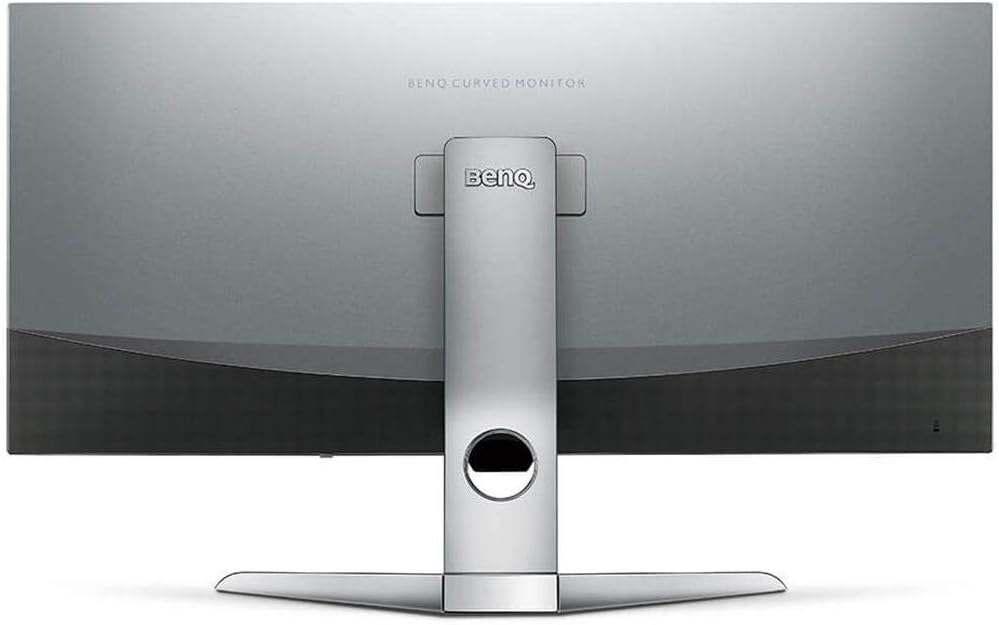
Ffigur 2: Cefn view of the monitor displaying the connectivity ports.
2. Gweithredu'r Monitor
2.1 Pŵer Ymlaen/Diffodd
Press the power button, usually located on the bottom right side of the monitor, to turn it on or off. The power indicator light will illuminate when the monitor is active.
2.2 Llywio Arddangosfa Ar y Sgrin (OSD)
Use the joystick or buttons located on the monitor's underside to navigate the On-Screen Display (OSD) menu. This menu allows you to adjust various settings such as brightness, contrast, color modes, and input sources.
2.3 Display Features and Eye-Care Technology
The BenQ EX3501R incorporates several technologies designed to enhance viewing experience and reduce eye strain:
- Brightness Intelligence Plus (B.I.+): This patented technology automatically senses ambient lighting conditions and adjusts the screen's brightness and color temperature to provide optimal viewing comfort and protect your eyes during extended use.
- Golau Glas Isel: Filters out harmful blue light emissions to reduce eye fatigue. Multiple levels of blue light reduction are available.
- ZeroFlicker™: Eliminates screen flickering at all brightness levels, further reducing eye strain and discomfort.
- HDR (Amrediad Dynamig Uchel): Offers enhanced brightness and contrast, bringing greater detail and vibrancy to HDR video content.
Fideo 1: Dros benview of BenQ's Eye-Care technology, including Low Blue Light, ZeroFlicker, and Brightness Intelligence Plus, demonstrating how these features work to reduce eye strain and adjust screen settings automatically based on ambient light.
2.4 Datrysiad a Chyfradd Adnewyddu
The monitor features a QHD (3440x1440) resolution and a 100Hz refresh rate, providing a smooth and detailed visual experience. The 21:9 ultrawide aspect ratio offers ample screen space for multitasking, such as viewing multiple documents side-by-side without needing a second monitor.
2.5 AMD FreeSync
For a fluid gaming experience, the monitor supports AMD FreeSync technology, which synchronizes the monitor's refresh rate with your graphics card's frame rate to eliminate screen tearing and stuttering.
3. cynnal
3.1 Glanhau'r Monitor
To maintain optimal performance and appearance, regularly clean your monitor:
- Sgrin: Sychwch y sgrin yn ysgafn gyda lliain meddal, di-flwff. Ar gyfer staeniau ystyfnig, defnyddiwch doddiant glanhau penodol i'r monitor wedi'i roi ar y lliain, nid yn uniongyrchol ar y sgrin.
- Tu allan: Use a soft, dry cloth to wipe dust and debris from the monitor casing and stand.
Avoid using abrasive cleaners, waxes, or solvents as they can damage the monitor's surface.
3.2 Awgrymiadau Gofal Cyffredinol
- Peidiwch â rhwystro agoriadau awyru ar y monitor.
- Ceisiwch osgoi gosod y monitor mewn golau haul uniongyrchol neu ger ffynonellau gwres.
- Triniwch y monitor yn ofalus i atal difrod corfforol.
4. Datrys Problemau
If you encounter issues with your BenQ EX3501R monitor, refer to the following common troubleshooting steps:
4.1 No Display or Black Screen
- Gwnewch yn siŵr bod y cebl pŵer wedi'i gysylltu'n ddiogel â'r monitor a'r soced pŵer.
- Verify that the video cable (HDMI, DisplayPort, or USB-C) is firmly connected to both the monitor and your computer.
- Gwiriwch a yw'r ffynhonnell fewnbwn gywir wedi'i dewis yn newislen OSD y monitor.
- Ailgychwyn eich cyfrifiadur.
4.2 Flickering or Unstable Image
- Ensure the ZeroFlicker™ feature is enabled in the OSD menu.
- Check for loose video cable connections.
- Diweddarwch eich gyrwyr cerdyn graffeg i'r fersiwn diweddaraf.
- If using AMD FreeSync, ensure it is properly configured in your graphics card settings.
4.3 Color or Brightness Issues
- Addaswch osodiadau disgleirdeb, cyferbyniad a lliw drwy'r ddewislen OSD.
- Enable or disable Brightness Intelligence Plus (B.I.+) to see if it resolves the issue.
- Perfformiwch ailosodiad ffatri drwy'r ddewislen OSD.
5. manylebau
Key technical specifications for the BenQ EX3501R monitor:
| Nodwedd | Manyleb |
|---|---|
| Maint Sgrin | 35 modfedd |
| Cydraniad Sgrin Max | 3440 x 1440 Pixels (QHD Ultrawide) |
| Cymhareb Agwedd | 21:9 |
| Cyfradd Adnewyddu | 100 Hz |
| crymedd | 1800R |
| Math o Banel | VA (Aliniad Fertigol) |
| Cysylltedd | USB-C, HDMI, DisplayPort |
| Nodweddion Arbennig | AMD FreeSync, Brightness Intelligence Plus, Low Blue Light, ZeroFlicker |
| Pwysau Eitem | 21.3 pwys |
| Dimensiynau Cynnyrch | 6.88 x 3.47 x 12.93 modfedd |
6. Gwarant a Chefnogaeth
6.1 Gwarant Cynnyrch
The BenQ EX3501R monitor typically comes with a 3-year manufacturer's warranty. Please refer to the warranty card included in your product packaging for specific terms and conditions, or visit the official BenQ websafle am wybodaeth warant fanwl.
6.2 Cefnogaeth i Gwsmeriaid
For further assistance, technical support, or warranty claims, please contact BenQ customer service. You can find contact information and support resources on the official BenQ websafle: www.benq.com/en-us/support.html
Dogfennau Cysylltiedig - EX3501R
 |
BenQ EX Series LCD Monitor Quick Start Guide Get started quickly with your BenQ EX Series LCD Monitor. This guide provides essential setup instructions, connection diagrams, and important information for your new display. |
 |
BenQ EX Series LCD Monitor Quick Start Guide Quick start guide for the BenQ EX Series LCD Monitor, including setup instructions, connection diagrams, and wall mounting procedures. |
 |
BenQ MOBIUZ EX Series LCD Monitor User Manual: Setup, Features, and Support Comprehensive user manual for the BenQ MOBIUZ EX Series LCD Monitor, covering setup, advanced features like HDR and FreeSync, connectivity, OSD menu navigation, and troubleshooting. Visit Support.BenQ.com for the latest updates and support. |
 |
Llawlyfr Defnyddiwr Monitor LCD Cyfres G BenQ gyda Thechnoleg Gofal Llygaid Comprehensive user manual for BenQ G Series LCD Monitors, covering setup, operation, safety, and troubleshooting. Features Eye Care Technology, Flicker-Free, and USB-C. Supports models GW2490, GW2790, GW2790QT, GW3290QT. |
 |
BenQ E Series LCD Monitor User Manual - Setup, Features, and Troubleshooting Comprehensive user manual for BenQ E Series LCD Monitors. Learn about setup, hardware assembly, display adjustments, Eye Care features, HDR technology, and troubleshooting tips for optimal performance. |
 |
BenQ Display Pilot 2 Software Release Notes Comprehensive release notes for BenQ Display Pilot 2 software, detailing version updates, bug fixes, and feature enhancements for various BenQ monitor models compatible with macOS. |
Ask a question about this manual
Ask about setup, troubleshooting, compatibility, parts, safety, or missing instructions. Manuals+ will review the question and use this page’s manual context to help answer it.