
1. Rhagymadrodd
This manual provides essential information for the safe and efficient use of your Alienware AW3418DW 34.1-inch Curved Gaming Monitor. This monitor features a WQHD (3440x1440) resolution, a 120Hz refresh rate (overclocked), and NVIDIA G-SYNC technology for an immersive gaming experience. Please read this manual thoroughly before operating the device.
2. Gwybodaeth Diogelwch
- Always disconnect the power cable from the wall outlet before cleaning the monitor.
- Peidiwch ag amlygu'r monitor i law na lleithder er mwyn osgoi peryglon tân neu sioc.
- Peidiwch ag agor y monitor casing. Nid oes unrhyw rannau y gall y defnyddiwr eu gwasanaethu y tu mewn. Cyfeiriwch yr holl waith cynnal a chadw at bersonél gwasanaeth cymwys.
- Rhowch y monitor ar arwyneb sefydlog, gwastad i'w atal rhag cwympo.
- Sicrhewch awyru digonol o amgylch y monitor. Peidiwch â rhwystro agoriadau awyru.
- Defnyddiwch yr addasydd pŵer a'r ceblau a gyflenwir gyda'r monitor yn unig.
3. Cynnwys Pecyn
Gwiriwch fod yr holl gydrannau yn bresennol yn y pecyn:
- Alienware AW3418DW Monitor
- Monitor Stand (Base and Riser)
- Cebl Pŵer
- Cebl DisplayPort
- Cebl HDMI
- Cebl USB 3.0 i fyny'r afon
- Documentation (Quick Setup Guide, Safety Information)
4. Gosod
4.1 Gosodiad Corfforol
Carefully remove the monitor and its components from the packaging. Place the monitor face down on a soft cloth or cushion to prevent scratches.
Atodi'r Stondin
- Atodwch y codwr stondin i banel y monitor nes ei fod yn clicio i'w le.
- Attach the stand base to the stand riser and tighten the captive screw.

Ffigur 4.1: Blaen view of the Alienware AW3418DW monitor with its stand attached.

Ffigur 4.2: Ochr view of the Alienware AW3418DW monitor with its stand.
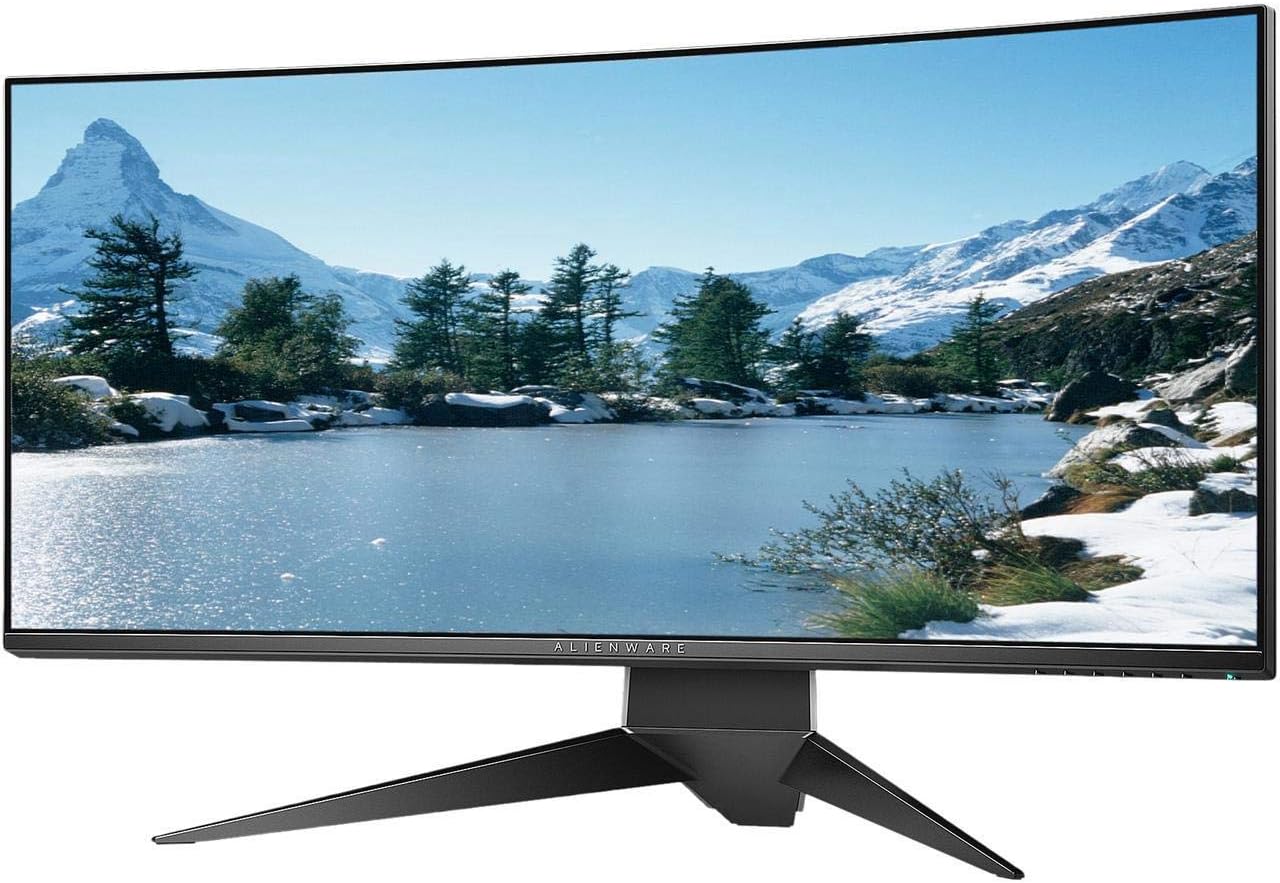
Ffigur 4.3: Cefn view of the Alienware AW3418DW monitor showing the stand and AlienFX lighting.
Mowntio VESA
The monitor supports VESA mounting (100 x 100 mm). Remove the stand riser by pressing the release button and then attach the VESA-compatible mount to the monitor using appropriate screws. Ensure the mount can support the monitor's weight of 26.1 pounds (without stand).

Figure 4.4: Monitor dimensions for VESA mount compatibility.
4.2 Cysylltu Ceblau
Connect the necessary cables to your monitor and computer.
- Cebl Pwer: Cysylltwch y cebl pŵer â phorthladd pŵer y monitor ac yna â soced wal.
- Cebl fideo: Connect either the DisplayPort cable or the HDMI cable from your computer's graphics card to the corresponding port on the monitor. For optimal performance, especially for 120Hz refresh rate and G-SYNC, use the DisplayPort connection.
- Cebl USB i Fyny'r Afon: Connect the USB 3.0 upstream cable from your computer to the monitor's upstream USB port to enable the monitor's USB hub functionality.
- Porthladdoedd USB i lawr yr afon: Connect your USB devices (e.g., keyboard, mouse, webcam) to the four USB 3.0 downstream ports on the monitor.
5. Cyfarwyddiadau Gweithredu
5.1 Pŵer Ymlaen/Diffodd
Pwyswch y botwm pŵer sydd wedi'i leoli ar y monitor i'w droi ymlaen neu i ffwrdd. Bydd y LED pŵer yn dangos statws y monitor.
5.2 Llywio Arddangosfa Ar y Sgrin (OSD)
The On-Screen Display (OSD) menu allows you to adjust various monitor settings. Use the control buttons, typically located on the bottom right or rear of the monitor, to navigate the OSD.
- Pwyswch fotwm rheoli i actifadu'r ddewislen OSD.
- Defnyddiwch y botymau llywio (i fyny/i lawr/chwith/dde) i symud trwy opsiynau'r ddewislen.
- Press the select button to confirm a selection or enter a sub-menu.
- Use the back/exit button to return to the previous menu or exit the OSD.
5.3 Gosodiadau Arddangos
Addaswch y gosodiadau arddangos ar gyfer y gorau posibl viewing and gaming performance.
- Penderfyniad: Set your computer's display resolution to 3440x1440 for the native WQHD experience.
- Cyfradd Adnewyddu: The monitor supports up to 120Hz refresh rate (overclocked). Ensure your graphics card drivers are updated and the refresh rate is set in your operating system's display settings or graphics control panel.
- NVIDIA G-SYNC: For tear-free and smooth gameplay, enable G-SYNC in your NVIDIA Control Panel. This feature synchronizes the monitor's refresh rate with your GPU's frame rate.
- Disgleirdeb/Cyferbyniad: Adjust these settings in the OSD menu to suit your environment and preference.
5.4 AlienFX Lighting
Customize the AlienFX lighting zones on your monitor through the OSD menu or Alienware Command Center software (if installed on your PC). You can select colors, effects, and synchronize lighting with other Alienware devices.
5.5 USB Hub Usage
The monitor acts as a USB 3.0 hub, providing convenient access to four downstream USB ports for connecting peripherals. Ensure the USB upstream cable is connected to your computer for this feature to function.
6. cynnal
6.1 Glanhau'r Monitor
- Always unplug the monitor from the electrical outlet before cleaning.
- Defnyddiwch frethyn meddal, di-lint yn ysgafn dampwedi'i lanhau â dŵr neu lanhawr sgrin nad yw'n sgraffiniol.
- Peidiwch â chwistrellu glanhawr yn uniongyrchol ar y sgrin.
- Sychwch y sgrin yn ysgafn i gael gwared â llwch a staeniau.
- Glanhewch y tu allan casing gyda lliain meddal, sych.
6.2 Storio
If storing the monitor for an extended period, disconnect all cables, carefully disassemble the stand (if applicable), and store it in its original packaging in a cool, dry place.
7. Datrys Problemau
Os byddwch chi'n dod ar draws problemau gyda'ch monitor, cyfeiriwch at y camau datrys problemau cyffredin canlynol:
- Dim Arddangosfa: Ensure all power and video cables are securely connected. Check if the monitor is powered on and the correct input source is selected in the OSD.
- Flickering/Stuttering: Verify that your graphics drivers are up to date. Ensure G-SYNC is properly configured in the NVIDIA Control Panel. Check for interference from other electronic devices.
- Datrysiad/Cyfradd Adnewyddu Anghywir: Adjust the display settings in your operating system or graphics control panel to the native resolution (3440x1440) and desired refresh rate (up to 120Hz).
- picsel marw: The Alienware AW3418DW comes with a Premium Panel Guarantee. Refer to the warranty information for details on pixel policy.
- Porthladdoedd USB Ddim yn Gweithio: Ensure the USB 3.0 upstream cable is connected from the monitor to your computer.
8. manylebau
| Nodwedd | Manyleb |
|---|---|
| Brand | Llestri estron |
| Rhif Model | AW3418DW |
| Maint Sgrin | 34.1 modfedd |
| Datrysiad | WQHD (3440 x 1440 Picsel) |
| Cymhareb Agwedd | 21:9 |
| Cyfradd Adnewyddu | 120 Hz (Overclocked) |
| Amser Ymateb | 4 o filieiliadau |
| Technoleg Sync Addasol | NVIDIA G-SYNC |
| Math Arddangos | LED IPS |
| crymedd | 1900R |
| Disgleirdeb | 300 cd/m² |
| Cymhareb Cyferbyniad | 1000:1 |
| Viewongl ing | 178 Gradd |
| Cysylltedd | 1x DisplayPort (1.2), 1x HDMI (1.4), 4x USB 3.0 Downstream, 1x USB 3.0 Upstream |
| Pwysau Eitem | 26.1 Pounds (without stand) |
| Math Mowntio | VESA Compatible (100 x 100 mm) |
9. Gwarant a Chefnogaeth
Your Alienware AW3418DW monitor is covered by a 3 Years Limited Hardware Warranty a 3 Years Advance Exchange Service, gan gynnwys a Premium Panel Guarantee. The Premium Panel Guarantee ensures a free panel replacement during the limited hardware warranty period even if only one bright pixel is found.
For technical support, warranty claims, or additional information, please visit the official Alienware or Dell support website. You may also find updated drivers and firmware there.
Cymorth Ar-lein: www.dell.com/cefnogi