
1. Rhagymadrodd
The EZCAP USB 3.0 HDMI Video Capture Card is designed to capture full HD 1080p video and audio at 60 frames per second. This device allows you to record or stream high-definition video sources, such as game consoles, cameras, or set-top boxes, directly to your computer. It features a plug-and-play UVC (USB Video Class) operation, eliminating the need for driver installation on compatible Windows, Mac, and Linux systems. It supports various third-party software for capturing and live streaming.
2. Cynnwys Pecyn
Gwiriwch fod yr holl eitemau yn bresennol yn eich pecyn:
- 1 x EZCAP USB 3.0 HDMI Video Capture Card (Model ezcap287)
- 1 x Cebl USB 3.0
- 1 x Llawlyfr Defnyddiwr
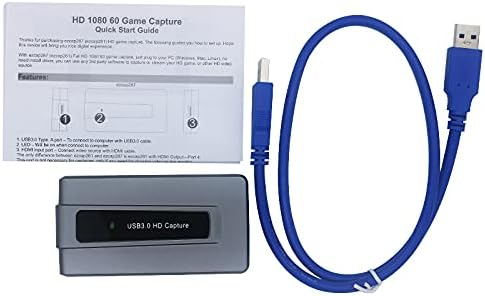
Ffigur 2.1: Package contents including the capture card, USB 3.0 cable, and manual.
3. Cynnyrch Drosview
The EZCAP USB 3.0 HDMI Video Capture Card is a compact device designed for ease of use. It features an HDMI input port for connecting your video source and a USB 3.0 output port for connecting to your computer.

Ffigur 3.1: Brig view of the EZCAP USB 3.0 HDMI Video Capture Card, showing the 'ezcap' logo and 'USB3.0 HD Capture' text.

Ffigur 3.2: Blaen view of the capture card, highlighting the HDMI input port.

Ffigur 3.3: Cefn view of the capture card, showing the USB 3.0 output port and ventilation slots.
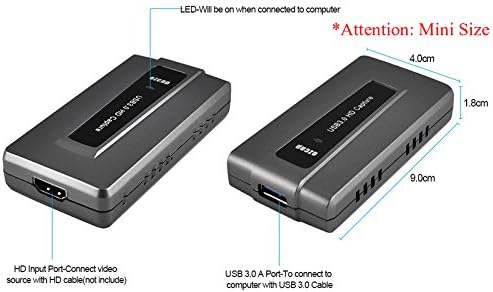
Ffigur 3.4: Diagram illustrating the compact dimensions of the capture card: approximately 9.0 cm (length) x 4.0 cm (width) x 1.8 cm (height).
4. Gosod
Follow these steps to connect your EZCAP USB 3.0 HDMI Video Capture Card:
- Cyswllt Ffynhonnell Fideo: Use an HDMI cable (not included) to connect your video source (e.g., game console, camera, set-top box) to the HDMI Input port on the capture card.
- Cysylltu â Chyfrifiadur: Use the provided USB 3.0 cable to connect the USB 3.0 A-Port on the capture card to a powered USB 3.0 port on your computer.
- Dangosydd Pŵer: The LED indicator on the capture card will illuminate when successfully connected to the computer.

Ffigur 4.1: Connection diagram showing how to connect a camera, video conference device, game console (Xbox, PS3/PS4), or set-top box via HDMI to the capture card, which then connects to a desktop or notebook computer via USB.
5. Cyfarwyddiadau Gweithredu
The EZCAP USB 3.0 HDMI Video Capture Card operates as a UVC device, meaning no specific drivers are required for most operating systems. You will need third-party software to capture or stream video.
5.1. Cydnawsedd Meddalwedd
This device is compatible with a wide range of video capture and streaming software. Some commonly used applications include:
- OBS Studio (Windows, OS X, Linux)
- Windows Media Encoder (Windows)
- Amgodiwr Adobe Flash Media Live (Windows, OS X)
- VLC (Windows, OS X, Linux)
- Wirecast (Windows, OS X)
- vMix (Windows)
- Potplayer (Windows)
- QuickTime Broadcaster / Player (OS X)
The device also supports development interfaces such as DirectShow (Windows), DirectSound (Windows), V4L2 (Linux), ALSA (Linux), and QuickTime (OS X).
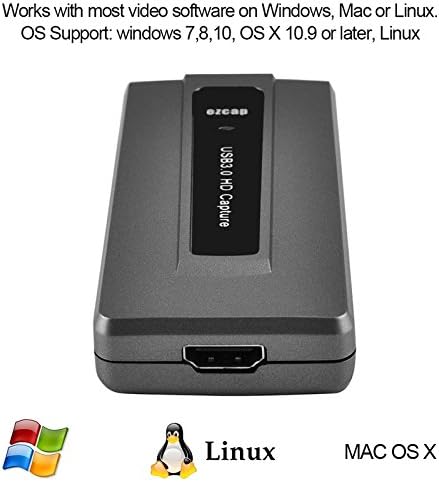
Ffigur 5.1: The capture card is compatible with Windows (7, 8, 10), Mac OS X 10.9 or later, and Linux systems.
5.2. Recording and Streaming
Once connected and recognized by your chosen software, you can configure the software to capture or stream the HDMI input. The device supports recording quality up to 1080p at 60 frames per second.
For live streaming, the device can be used with platforms such as Twitch, YouTube, DailyMotion, and Hitbox.

Ffigur 5.2: The capture card supports Full HD 1080p video capture and streaming via its SuperSpeed USB 3.0 interface.
6. Gofynion System
Er mwyn sicrhau perfformiad gorau posibl, dylai eich system gyfrifiadurol fodloni'r gofynion lleiaf canlynol:
- System Weithredu: Windows 7, 8, 10; OS X 10.9 or later; Linux
- Processor (PC): Intel Core i5-3400 or higher
- Graphics Card (PC): NVIDIA GT630 or equivalent
- Processor (Notebook): Intel Core i7-3537U 2.0 GHz or higher
- Graphics Card (Notebook): NVIDIA GT735 or equivalent
- Processor (Mac): i5 quad-core or above
- Graphics Card (Mac): VGA card supporting DirectX 10
- RAM: 4GB neu fwy
- Porth USB: Powered USB 3.0 port with Intel chipset (e.g., Renesas, Fresco host controller)
- Cerdyn Sain: Required for audio processing
7. manylebau
| Rhyngwyneb | USB 3.0 |
| Mewnbwn Fideo | HDMI |
| Mewnbwn Sain | HDMI |
| Datrysiad Dal Fideo | Up to 1080p @ 60fps |
| Penderfyniadau a Gefnogir | 720x480 (60p), 720x576 (50p), 1280x720p (50p/60p), 1920x1080 (50i/60i), 1920x1080 (24p/25p/30p/50p/60p) |
| Cydweddoldeb System Weithredu | Windows 7/8/10, OS X 10.9+, Linux |
| Nodwedd Arbennig | HDMI input, USB 3.0 high-speed output to PC |
8. Datrys Problemau
If you encounter issues with your EZCAP USB 3.0 HDMI Video Capture Card, consider the following:
- Dim Arwydd: Ensure all HDMI and USB 3.0 cables are securely connected. Verify that your video source is powered on and outputting a signal. Check the input settings within your capture software.
- Dim Sain: Confirm that the audio output from your HDMI source is enabled and not muted. Check audio input settings in your capture software.
- Poor Performance/Lag: Ensure your computer meets the minimum system requirements, especially for processor, RAM, and USB 3.0 port. Try using a different USB 3.0 port. Close unnecessary applications running in the background.
- Meddalwedd Ddim yn Canfod Dyfais: Verify that your operating system recognizes the device (it should appear as a UVC device). Try restarting your computer and capture software. Ensure your capture software is up-to-date.
- LED Indicator Not On: Confirm the USB 3.0 cable is properly connected to a powered USB 3.0 port on your computer.
9. cynnal
The EZCAP USB 3.0 HDMI Video Capture Card requires minimal maintenance. Keep the device clean and free from dust. Avoid exposing it to extreme temperatures, humidity, or direct sunlight. Do not attempt to disassemble the device, as this will void any potential warranty.
10. Gwarant a Chefnogaeth
For warranty information and technical support, please refer to the documentation provided with your purchase or contact the manufacturer directly. Details regarding warranty periods and support channels are typically available on the manufacturer's official websafle neu drwy eich manwerthwr.