
1. Rhagymadrodd
This user manual provides detailed instructions for the Linksys EA9500 Max-Stream AC5400 MU-MIMO Gigabit Router. The EA9500 is designed to provide high-speed Wi-Fi connectivity across multiple devices simultaneously, utilizing Tri-Band technology and MU-MIMO capabilities. This document covers the physical setup, initial configuration, operational guidelines, maintenance tips, and troubleshooting steps to ensure optimal performance of your router.
2. Cynnwys Pecyn
Gwiriwch fod eich pecyn yn cynnwys yr eitemau canlynol:
- Linksys Max-Stream AC5400 MU-MIMO Gigabit Router
- Addasydd Pŵer
- Cebl Ethernet
- Canllaw Cychwyn Cyflym (heb ei gynnwys yn y llawlyfr digidol hwn)
3. Cynnyrch Drosview
3.1 Blaen View

Ffigur 1: Blaen view of the Linksys EA9500 router. This image displays the router's top surface with ventilation grilles, a central Linksys logo, and eight adjustable external antennas. The central panel illuminates to indicate operational status.
The front of the Linksys EA9500 router features a series of LED indicators that provide information about the router's status, including power, internet connectivity, and Wi-Fi activity for each band. The eight external antennas are designed to optimize wireless signal coverage.
3.2 Cefn View (Ports and Buttons)
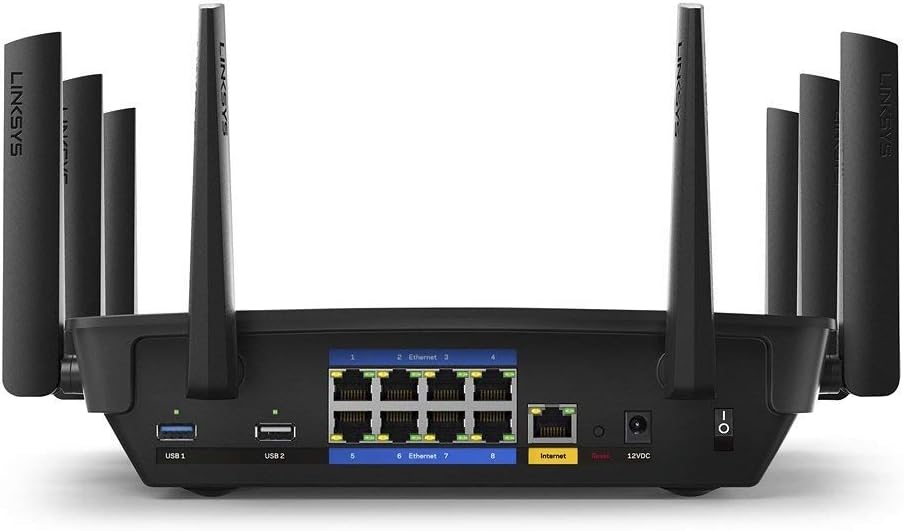
Ffigur 2: Cefn view of the Linksys EA9500 router. This image highlights the various ports and buttons located on the back panel, including USB ports, Ethernet ports, the Internet (WAN) port, power input, and the power switch.
The rear panel of the EA9500 router provides all necessary connection points:
- USB 3.0 Port (USB 1): For connecting external storage devices or printers.
- USB 2.0 Port (USB 2): For connecting external storage devices or printers.
- Porthladdoedd Ethernet (1-8): Eight Gigabit Ethernet ports for wired connections to computers, gaming consoles, smart TVs, and other network devices.
- Porthladd Rhyngrwyd (WAN): Yn cysylltu â'ch modem i gael mynediad i'r rhyngrwyd.
- Power Input (12VDC): Yn cysylltu â'r addasydd pŵer sydd wedi'i gynnwys.
- Newid Pwer: Yn troi'r llwybrydd ymlaen neu i ffwrdd.
- Botwm Ailosod: Recessed button to restore factory default settings (use a paperclip, press and hold for 10 seconds).
- Botwm WPS: Ar gyfer cysylltu dyfeisiau sy'n gydnaws â WPS yn hawdd.
4. Cyfarwyddiadau Gosod
Follow these steps to set up your Linksys EA9500 router:
- Dadbacio'r Llwybrydd: Tynnwch y llwybrydd a'r holl ategolion o'r pecynnu yn ofalus.
- Lleoli'r Llwybrydd: Place the router in a central location in your home or office, away from obstructions and devices that may cause interference (e.g., cordless phones, microwave ovens).
- Cysylltu â Modem:
- Pŵer oddi ar eich modem.
- Connect one end of the included Ethernet cable to the Internet (WAN) port on the back of the EA9500 router.
- Connect the other end of the Ethernet cable to the Ethernet port on your modem.
- Pwer Cysylltu:
- Connect the power adapter to the 12VDC power input port on the router.
- Plygiwch ben arall yr addasydd pŵer i mewn i allfa bŵer.
- Turn on the router using the power switch.
- Modem Pŵer Ymlaen: Power on your modem and wait for it to establish an internet connection (this may take a few minutes).
- Ffurfweddiad Cychwynnol:
- Connect a computer or mobile device to the router's Wi-Fi network (SSID and password are typically found on a label on the bottom of the router) or via an Ethernet cable to one of the Gigabit Ethernet ports.
- Agor a web porwr a llywio i linksyssmartwifi.com neu'r cyfeiriad IP diofyn (e.e., 192.168.1.1).
- Follow the on-screen instructions to complete the setup process, including setting up your Wi-Fi network name (SSID) and password, and creating an administrator password for the router.
- Alternatively, download and use the Linksys App for guided setup.

Ffigur 3: The Linksys App interface. This image shows the "Device Prioritization" screen within the app, illustrating how users can manage and prioritize connected devices for optimal network performance.
5. Cyfarwyddiadau Gweithredu
The Linksys EA9500 router offers advanced features for an optimized network experience.
5.1 Tri-Band Wi-Fi

Ffigur 4: Tri-Band Wi-Fi speed distribution. This diagram shows the router providing three distinct Wi-Fi bands: one 2.4 GHz band and two 5 GHz bands, allowing for a total speed of up to 5.3 Gbps and efficient allocation of bandwidth to various device types.
The EA9500 operates on three distinct Wi-Fi bands: one 2.4 GHz band and two 5 GHz bands. This Tri-Band configuration allows for greater network capacity and reduced congestion, enabling multiple devices to connect simultaneously without significant performance degradation. The 2.4 GHz band is suitable for basic internet use and older devices, while the 5 GHz bands provide higher speeds for demanding applications like 4K video streaming and online gaming.
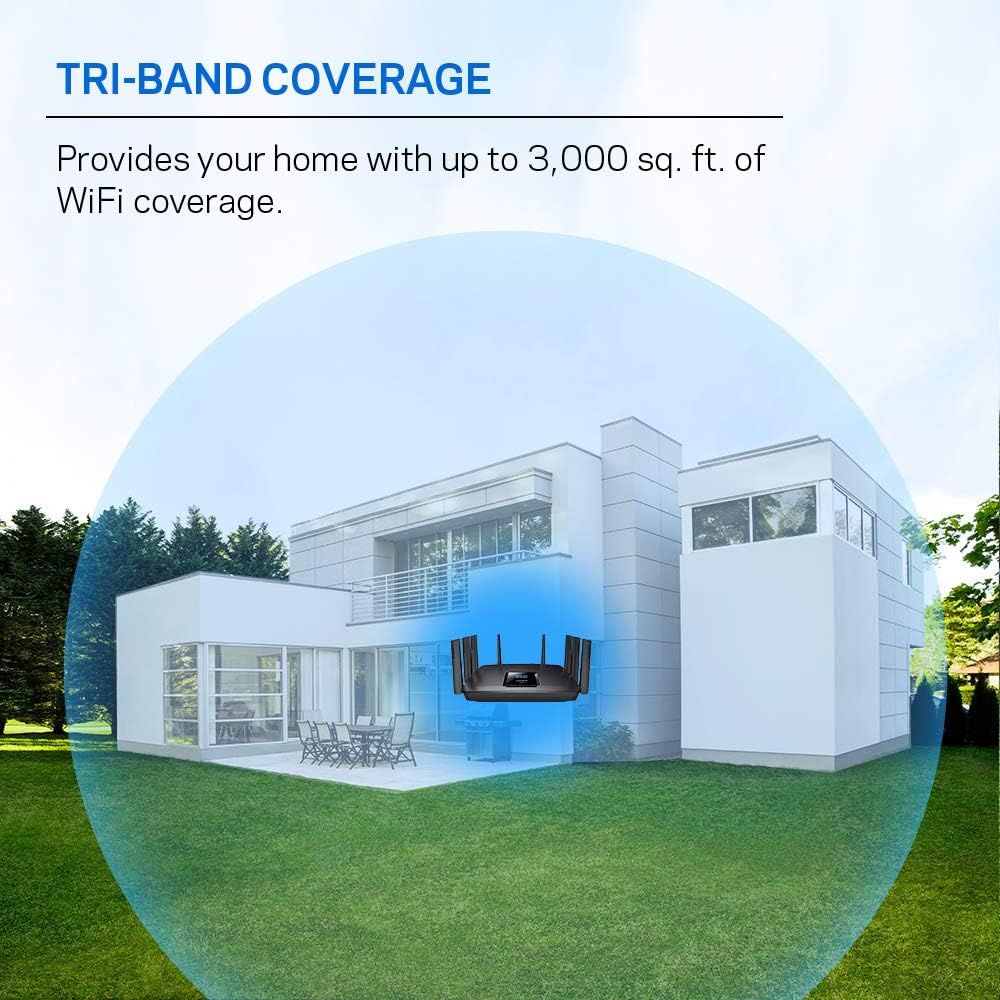
Ffigur 5: Tri-Band coverage illustration. This image depicts a house with the router centrally located, demonstrating how the Tri-Band Wi-Fi provides extensive coverage throughout the home, up to 3,000 sq. ft.
5.2 Technoleg MU-MIMO

Ffigur 6: MU-MIMO vs. Traditional Wi-Fi. This diagram illustrates how MU-MIMO (Multi-User, Multiple-Input, Multiple-Output) technology allows the router to communicate with multiple devices simultaneously, providing each device with a dedicated high-speed connection, unlike traditional Wi-Fi which serves devices sequentially.
MU-MIMO (Multi-User, Multiple-Input, Multiple-Output) technology enables the router to communicate with multiple compatible devices simultaneously, rather than sequentially. This ensures that each connected device receives its own dedicated, high-bandwidth Wi-Fi stream, improving overall network efficiency and performance, especially in environments with many active devices.
5.3 Beamforming Technology

Ffigur 7: Beamforming technology in action. This image shows the router directing focused Wi-Fi signals towards connected devices, enhancing signal strength and range for each device, rather than broadcasting a general, dispersed signal.
Beamforming technology focuses the Wi-Fi signal directly to your connected devices, instead of broadcasting it in a general, dispersed pattern. This results in stronger, more reliable connections, improved range, and reduced interference, particularly beneficial for devices located further from the router.
5.4 Cysylltiadau Wired
The EA9500 features eight Gigabit Ethernet ports, providing wired speeds up to 10 times faster than standard Ethernet. These ports are ideal for connecting devices that require stable, high-speed connections, such as desktop computers, gaming consoles, network-attached storage (NAS) devices, and smart televisions.
5.5 Porth USB
The router includes one USB 3.0 port and one USB 2.0 port. These ports can be used to connect external storage devices (e.g., USB hard drives, flash drives) to create network-attached storage (NAS) for file sharing, or to connect USB printers for network printing.
6. cynnal
- Diweddariadau Cadarnwedd: Regularly check for and install the latest firmware updates from the Linksys support websafle. Mae diweddariadau cadarnwedd yn aml yn cynnwys gwelliannau perfformiad, clytiau diogelwch, a nodweddion newydd.
- Glanhau Corfforol: Keep the router clean and free of dust. Use a soft, dry cloth to wipe the exterior. Ensure ventilation openings are not blocked to prevent overheating.
- Lleoliad Gorau: Ensure the router remains in a central location, elevated, and away from large metal objects or other electronic devices that could interfere with the Wi-Fi signal.
- Wrthi'n ailgychwyn: Periodically rebooting the router (power cycling) can help resolve minor network issues and improve performance.
7. Datrys Problemau
If you encounter issues with your Linksys EA9500 router, try the following troubleshooting steps:
- Dim Cysylltiad Rhyngrwyd:
- Check all cable connections between the modem and router, and between the router and your devices.
- Power cycle both your modem and router (unplug power, wait 30 seconds, plug back in modem first, then router).
- Verify that your modem is receiving an internet signal from your Internet Service Provider (ISP).
- Cyflymderau Wi-Fi Araf:
- Gwnewch yn siŵr bod eich dyfeisiau wedi'u cysylltu â'r band Wi-Fi priodol (5 GHz ar gyfer cyflymderau uwch).
- Gwiriwch am ymyrraeth gan ddyfeisiau electronig eraill.
- Diweddaru cadarnwedd y llwybrydd a gyrwyr y dyfais.
- Consider using the Linksys App to prioritize bandwidth for critical devices.
- Intermittent 2.4 GHz Connectivity:
- If devices on the 2.4 GHz band frequently disconnect or fail to connect, try changing the 2.4 GHz Wi-Fi channel in the router settings to a less congested one (e.g., 1, 6, or 11).
- Gwnewch yn siŵr bod cadarnwedd y llwybrydd yn gyfredol.
- Perform a factory reset if the issue persists after other troubleshooting steps.
- Methu Mynediad i Gosodiadau'r Llwybrydd:
- Gwnewch yn siŵr bod eich dyfais wedi'i chysylltu â rhwydwaith y llwybrydd.
- Ceisiwch gael mynediad linksyssmartwifi.com or the default IP address (192.168.1.1).
- Cliriwch storfa a chwcis eich porwr, neu rhowch gynnig ar borwr gwahanol.
- If you forgot your administrator password, you may need to perform a factory reset.
- Ailosod Ffatri: If all other troubleshooting fails, a factory reset can restore the router to its original settings. To do this, with the router powered on, press and hold the recessed Reset button on the rear panel for approximately 10 seconds using a paperclip until the power LED flashes. After resetting, you will need to reconfigure the router.
8. manylebau
| Nodwedd | Manylyn |
|---|---|
| Brand | Linksys |
| Enw Model | EA9500 |
| Math Di-wifr | 802.11ac |
| Dosbarth Band Amlder | Tri-Band (2.4 GHz, 5 GHz, 5 GHz) |
| Technoleg Cysylltedd | Ethernet, Wi-Fi |
| Porthladdoedd Ethernet | 8 x Gigabit Ethernet |
| Porthladdoedd USB | 1 x USB 3.0, 1 x USB 2.0 |
| Nodwedd Arbennig | WPS, MU-MIMO, Beamforming |
| Dyfeisiau Cydnaws | Consol Gemau, Cyfrifiadur Personol, Argraffydd, Camera Diogelwch, Teledu Clyfar, Thermostat Clyfar, Ffôn Clyfar, Tabled |
| Dimensiynau Cynnyrch | 14 x 5 x 7 modfedd |
| Pwysau Eitem | 1.5 pwys |
| Cyftage | 120 folt |
| System Weithredu | Linksys OS |
9. Gwarant a Chefnogaeth
This Linksys EA9500 router, being a Certified Refurbished product, typically includes a 90-day warranty from the manufacturer. For specific warranty details, please refer to the documentation provided with your purchase or contact the seller.
For further assistance, technical support, or to download the latest firmware and user guides, please visit the official Linksys support websafle: www.linksys.com/support.