
1. Rhagymadrodd
The HP LaserJet Pro M203dw is a reliable monochrome laser printer designed for efficient printing in home and small to medium business environments. It offers fast two-sided printing, wireless connectivity, and can be managed through the HP Smart app. This manual provides essential information to help you set up, operate, and maintain your printer.
Mae nodweddion allweddol yn cynnwys:
- Reliable monochrome printing
- Wireless printing capabilities (Wi-Fi, Wi-Fi Direct, AirPrint)
- Automatic two-sided (duplex) printing
- LED control panel for easy operation
- Cyflymder argraffu cyflym o hyd at 30 tudalen y funud
- Compatibility with HP Smart app for mobile printing and management
2. Gosod
2.1. Dadbacio'r Argraffydd
Tynnwch yr holl gydrannau o'r pecynnu yn ofalus. Gwnewch yn siŵr bod yr eitemau canlynol yn bresennol:
- Argraffydd HP LaserJet Pro M203dw
- Toner Cartridges (HP Black LaserJet Toner Starter Cartridge ~1000 page yield)
- HP LaserJet Imaging Drum (~23,000 pages)
- Poster Gosod
- Support Flyer
- Canllaw Gwarant
2.2. Troi ymlaen yn gychwynnol
Connect the power cord to the printer and then to a grounded electrical outlet. Press the power button to turn on the printer. Allow the printer to initialize.
2.3. Toner Cartridge Installation
Open the toner access door. Remove the new toner cartridge from its packaging. Gently shake the cartridge to distribute the toner. Remove any protective tabs or seals from the cartridge. Insert the cartridge into the printer until it clicks into place. Close the toner access door.
2.4. Llwytho Papur
Open the input tray and extend it if necessary. Load a stack of paper into the tray, ensuring it is aligned with the paper guides. Adjust the guides to fit the paper size snugly. Close the input tray.
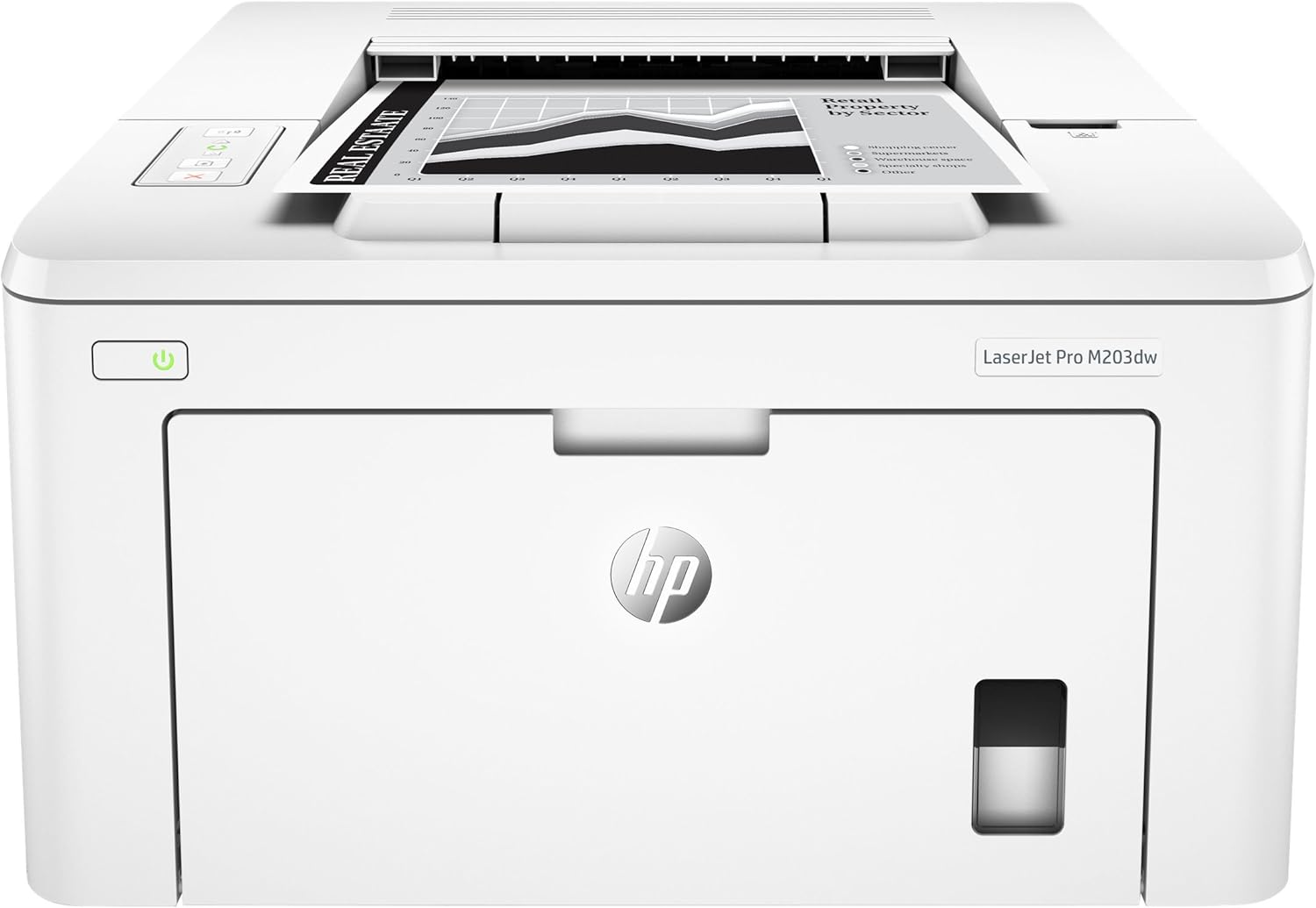
Figure 1: HP LaserJet Pro M203dw with paper loaded in the input tray.
2.5. Cysylltedd
The HP LaserJet Pro M203dw offers multiple connectivity options:
- Di-wifr (Wi-Fi): Connect the printer to your wireless network for printing from multiple devices. Follow the instructions on the printer's control panel or use the HP Smart app for guided setup.
- Wi-Fi Uniongyrchol: Print directly from your mobile device to the printer without needing a network router.
- Ethernet: Use the built-in Ethernet port to connect the printer to a wired network for stable and secure connections.
- USB 2.0: Connect the printer directly to your computer using a USB cable for a direct connection.
For mobile printing, download the HP Smart app on your smartphone or tablet. The app facilitates easy setup, scanning from your smartphone, ordering toner, and printing from cloud services like iCloud, Dropbox, and Google Drive.
3. Gweithrediad
3.1. Argraffu Sylfaenol
Once connected, you can print documents from your computer or mobile device. The printer supports speeds of up to 30 pages per minute for monochrome prints. It also features automatic two-sided (duplex) printing, allowing you to save paper and time by printing on both sides of a page automatically.
3.2. Panel Rheoli
The printer features an intuitive LED control panel with several buttons for various functions:
- Botwm Di-wifr: Indicates Wi-Fi status and can be used for wireless setup.
- Golau Rhybudd: Illuminates to indicate errors or issues (e.g., paper jam, low toner).
- Botwm Bwydo Papur: Used to manually feed paper or resume printing after an error.
- Cancel Button (X): Stops the current print job.
4. cynnal
4.1. Toner Replacement
When the toner is low or depleted, the printer's warning light may illuminate. To replace the toner cartridge, open the front access door, carefully remove the old cartridge, and insert a new original HP toner cartridge (e.g., HP 30A or 30X for high yield). Ensure it clicks into place before closing the door.
4.2. Glanhau
Regularly clean the exterior of the printer with a soft, lint-free cloth. For internal cleaning, refer to the detailed instructions in the full user guide to prevent dust and toner buildup, which can affect print quality.
5. Datrys Problemau
5.1. Problemau Cyffredin
- Jamiau Papur: If a paper jam occurs, the warning light will activate. Follow the instructions on the printer's display or refer to the full user guide for steps to clear the jam from various access points.
- Problemau Cysylltedd: If the printer is offline or not connecting, check your network connection, ensure the printer is within range of your Wi-Fi router, and restart both the printer and your router. Use the HP Smart app for network diagnostics.
- Materion Ansawdd Argraffu: If prints are faded or streaky, check the toner level and consider replacing the cartridge. Ensure you are using genuine HP toner for optimal results.
6. manylebau
| Nodwedd | Disgrifiad |
|---|---|
| Brand | HP |
| Enw Model | LaserJet Pro M203dw |
| Technoleg Argraffu | Laser |
| Allbwn Argraffydd | Unlliw |
| Cyflymder Argraffu Uchaf (Monochrom) | 30 ppm |
| Argraffu Deublyg | Awtomatig |
| Technoleg Cysylltedd | Wi-Fi, USB, Ethernet |
| Cynhwysedd Taflen Mewnbwn Uchaf | 250 o daflenni |
| Pwysau Eitem | 15.2 pwys |
| Dimensiynau Cynnyrch | 14.6"D x 16"W x 8.8"H |
| Cydrannau wedi'u Cynnwys | Printer, Toner Cartridges, Imaging Drum, Setup Poster, Support Flyer, Warranty Guide |
7. Gwarant a Chefnogaeth
The HP LaserJet Pro M203dw comes with a one-year limited hardware warranty. For technical assistance and support, HP offers 24-hour, 7 days a week web cefnogaeth.
Am lawlyfr defnyddiwr mwy manwl, cyfeiriwch at y ddogfen PDF swyddogol: HP LaserJet Pro M203dw User Manual (PDF)