
Vivolink VLCP8B
Vivolink Control Panel 8 Button (VLCP8B) User Manual
Model: VLCP8B
Rhagymadrodd
This manual provides detailed instructions for the installation, operation, and maintenance of the Vivolink Control Panel 8 Button, model VLCP8B. Please read this manual thoroughly before using the device to ensure proper functionality and safety.
Gwybodaeth Diogelwch
Dilynwch ragofalon diogelwch sylfaenol bob amser wrth ddefnyddio'r cynnyrch hwn i leihau'r risg o dân, sioc drydanol ac anaf i bobl. Cadwch y llawlyfr hwn i gyfeirio ato yn y dyfodol.
- Peidiwch â gwneud y ddyfais yn agored i leithder neu dymheredd eithafol.
- Peidiwch â cheisio dadosod na newid y ddyfais. Cyfeiriwch yr holl waith cynnal a chadw at bersonél cymwys.
- Ensure the power supply used is compatible with the device's specifications.
- Cadwch y ddyfais i ffwrdd o feysydd magnetig cryf.
Cynnwys Pecyn
Gwiriwch fod yr holl eitemau yn bresennol yn y pecyn:
- Vivolink Control Panel 8 Button (VLCP8B)
- Sgriwiau Mowntio (os yn berthnasol)
- Canllaw Cychwyn Cyflym (os yn berthnasol)
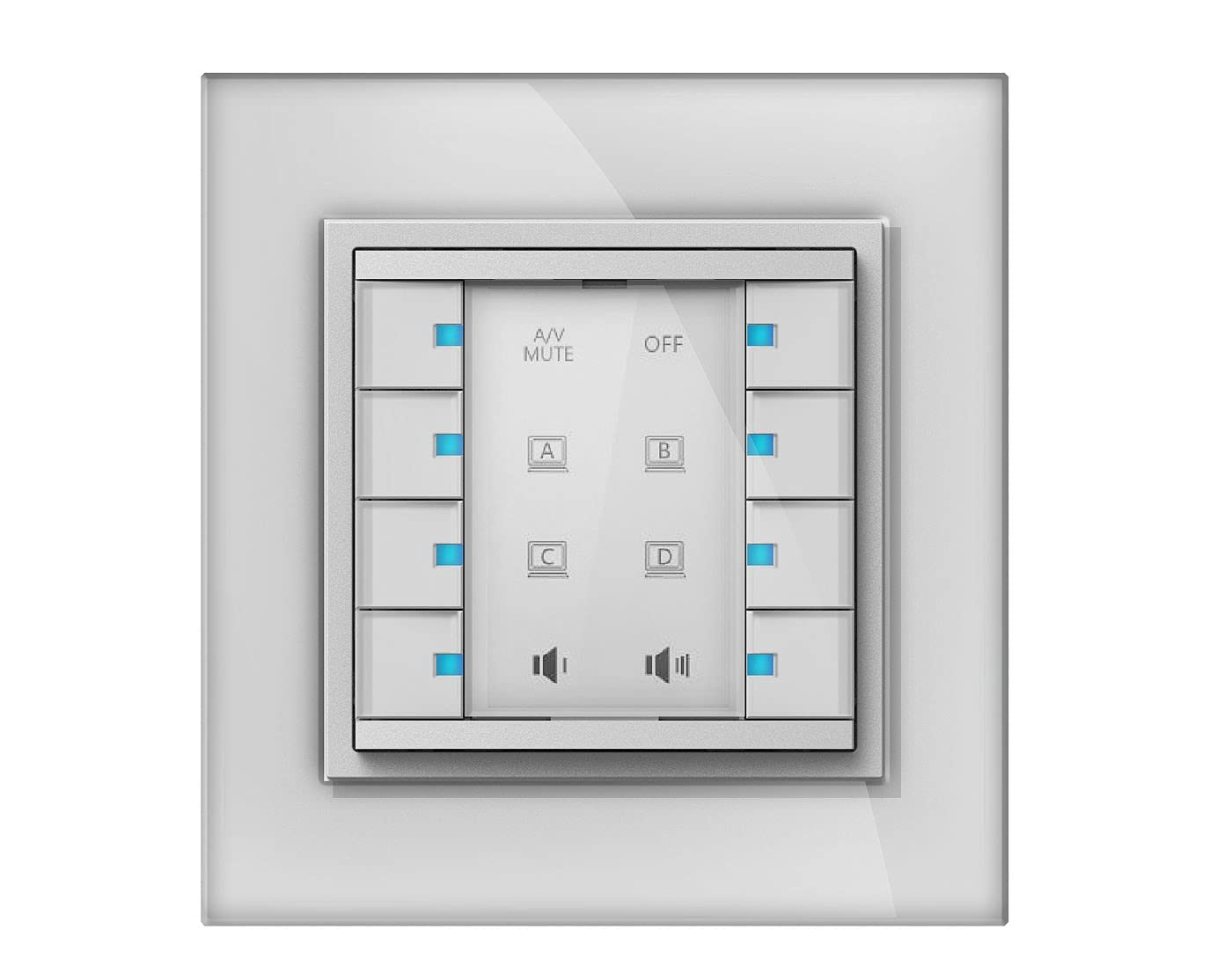
Image: The Vivolink Control Panel 8 Button, model VLCP8B, showing its front face with eight distinct buttons arranged in a grid.
Gosod
1. Gosod Corfforol
The VLCP8B control panel is designed for wall mounting or integration into a standard equipment rack. Ensure the mounting surface is stable and can support the device's weight.
- Dewiswch leoliad: Select a suitable location that allows for easy access and visibility, away from direct heat sources or excessive dust.
- Mowntio: Use appropriate screws and anchors (not always included) to secure the control panel to the desired surface. Refer to the mounting template if provided with the physical product.
2. Cysylltiadau
Connect the necessary cables to the control panel. The specific connections will depend on the system it is integrating with.
- Cysylltiad Pwer: Connect the power adapter (if external) or power cable to the designated power input port.
- Rheoli Cysylltiadau: Connect control cables (e.g., Ethernet, RS-232, USB) from the VLCP8B to the devices it will control, following the system's wiring diagram.
3. Pweru Ymlaen
Once all physical and control connections are securely made, connect the power supply to an electrical outlet. The device should power on automatically, indicated by status lights (if present).
Cyfarwyddiadau Gweithredu
The Vivolink Control Panel 8 Button is designed for intuitive operation. Each of the eight buttons can be programmed to perform specific functions within your integrated system.
1. Basic Button Functions
Each button on the VLCP8B typically corresponds to a pre-programmed action. Pressing a button will trigger its assigned function.
- Gwasg Sengl: Activates the primary function assigned to that button.
- Gwasg Hir: Some buttons may have a secondary function activated by pressing and holding for a few seconds. Refer to your system's configuration for specific long-press functions.
2. Customization and Programming
The functionality of the 8 buttons is determined by the system's programming. Customization is typically performed using dedicated software or a control system interface, not directly on the panel itself. Consult your system integrator or the Vivolink support website for programming guides and software tools.
Common functions that can be assigned to buttons include:
- Power On/Off for connected devices (e.g., projector, display)
- Source Selection (e.g., HDMI 1, VGA, DisplayPort)
- Volume Control (Up/Down/Mute)
- Lighting Scene Recall
- Macro Execution (a sequence of commands)
Cynnal a chadw
Regular maintenance ensures the longevity and optimal performance of your Vivolink Control Panel.
- Glanhau: Use a soft, dry cloth to wipe the surface of the control panel. For stubborn marks, a slightly damp cloth with a mild, non-abrasive cleaner can be used. Ensure no liquid enters the device.
- Diweddariadau Cadarnwedd: Periodically check the Vivolink support website for firmware updates. Updates can improve performance, add features, or resolve issues. Follow the provided instructions carefully when performing firmware updates.
- Arolygiad: Periodically inspect cables and connections for any signs of wear or damage.
Datrys problemau
If you encounter issues with your Vivolink Control Panel, refer to the following common problems and solutions:
| Problem | Achos Posibl | Ateb |
|---|---|---|
| Nid yw'r panel yn troi ymlaen. | Dim cyflenwad pŵer na chysylltiad diffygiol. | Check power cable connection to the panel and the electrical outlet. Ensure the outlet is functional. |
| Nid yw botymau yn ymateb. | Incorrect programming or communication issue. | Verify the control system's programming. Check control cable connections. Restart the control system and the panel. |
| Incorrect function triggered. | Button misconfiguration. | Review the button assignments in the control system's programming interface. |
If the problem persists after attempting these solutions, contact Vivolink technical support or your system integrator.
Manylebau
- Model: VLCP8B
- Brand: Vivolink
- Botymau: 8 botwm rhaglenadwy
- Cysylltedd: (Assumed, based on typical control panels: e.g., Ethernet, RS-232, USB) - Specifics not provided in source data.
- Cyflenwad Pŵer: (Assumed, based on typical control panels: e.g., DC 5V) - Specifics not provided in source data.
- Dimensiynau: (Not provided in source data)
- Pwysau: (Not provided in source data)
Note: Detailed technical specifications may be available on the official Vivolink product page or in a separate technical datasheet.
Gwarant a Chefnogaeth
Vivolink products are designed for reliability and performance. For information regarding warranty terms and conditions, please refer to the warranty card included with your product or visit the official Vivolink websafle.
For technical assistance, troubleshooting, or service inquiries, please contact Vivolink customer support or your authorized dealer. Provide your product model (VLCP8B) and serial number (if applicable) when seeking support.
Vivolink Official Websafle: www.vivolink.net
Ask a question about this manual
Ask about setup, troubleshooting, compatibility, parts, safety, or missing instructions. Manuals+ will review the question and use this page’s manual context to help answer it.