
Weintek eMT3070A1WK
Llawlyfr Defnyddiwr HMI Graffig MT8100iE Weintek 10.2"
Model: eMT3070A1WK
1. Rhagymadrodd
The Weintek MT8100iE is a 10.2-inch Human Machine Interface (HMI) designed for industrial automation applications. It features an 800 x 480 TFT industrial-grade LCD and is built to fully support major PLCs such as Rockwell, Siemens, Mitsubishi, and Omron. This manual provides essential information for the proper installation, operation, and maintenance of your MT8100iE HMI.
2. Gwybodaeth Diogelwch
Please read and understand all safety instructions before operating the device. Failure to comply may result in injury or damage to the equipment.
- Gwnewch yn siŵr bod y cyflenwad pŵer wedi'i ddatgysylltu cyn gwneud unrhyw osodiad neu waith cynnal a chadw.
- Only qualified personnel should install and service this equipment.
- Do not expose the device to excessive moisture, dust, or extreme temperatures.
- Verify correct wiring and connections to prevent electrical hazards.
- The front panel is NEMA4/IP65 compliant, but ensure proper sealing during installation to maintain this rating.
3. Cynnwys Pecyn
Gwiriwch fod yr holl eitemau yn bresennol yn y pecyn:
- MT8100iE HMI Unit
- Bracedi Mowntio (4x)
- Pŵer Connector
- Llawlyfr Defnyddiwr (y ddogfen hon)
- CD-ROM with EasyBuilder Pro Software (or download link)
4. Cynnyrch Drosview
Familiarize yourself with the components and interfaces of the MT8100iE HMI.
4.1 Blaen View

Ffigur 4.1: Blaen view of the MT8100iE HMI, showing the 10.2-inch TFT LCD touchscreen and the power indicator LED at the top left.
4.2 Ochr View
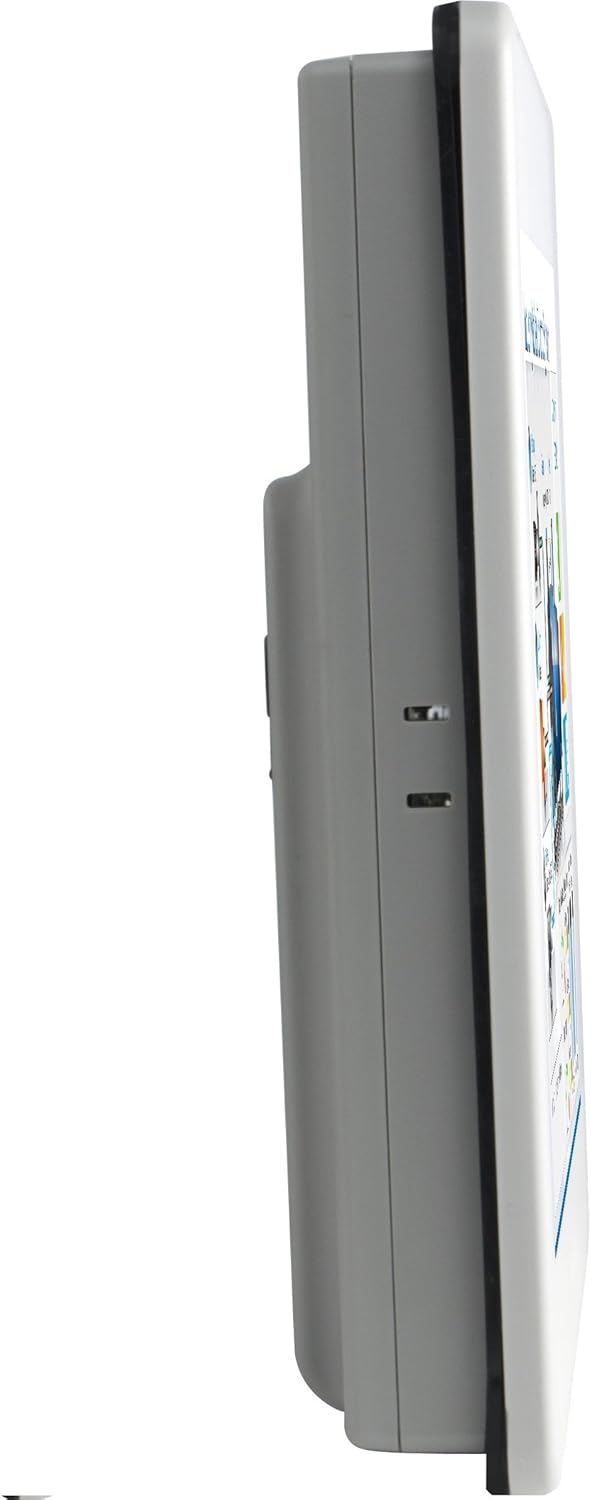
Ffigur 4.2: Ochr profile of the MT8100iE, illustrating its compact form factor suitable for panel mounting.
4.3 Cefn View

Ffigur 4.3: Cefn view of the MT8100iE, highlighting the mounting holes for panel installation, the fuse holder for power protection, and the system reset button.
4.4 Porthladdoedd Cyfathrebu

Ffigur 4.4: Gwaelod view of the MT8100iE, detailing the various communication ports including USB, Ethernet, COM1 (RS-232), and COM2 (RS-485 2W/4W).
5. Gosod
5.1 Mowntio Paneli
- Cut an opening in the control panel according to the dimensions provided in the installation guide (refer to the separate installation template for precise measurements).
- Insert the MT8100iE HMI into the cutout from the front.
- From the rear of the panel, insert the four mounting brackets into the slots on the HMI unit.
- Tighten the screws on the mounting brackets evenly until the HMI is securely fastened to the panel. Do not overtighten.
5.2 Cysylltiad Pwer
- Connect a 24V DC power supply to the power input terminal block on the rear of the HMI.
- Ensure correct polarity (+ and -).
- Secure the connection firmly.
5.3 Cysylltiadau Cyfathrebu
- Porthladdoedd cyfresol: Use the COM1 (RS-232) and COM2 (RS-485 2W/4W) ports to connect to PLCs or other serial devices. Refer to your PLC's documentation for specific wiring diagrams.
- Porthladd Ethernet: Connect an Ethernet cable to the RJ45 port for network communication with PLCs or for remote access.
- Porthladdoedd USB: Use the USB host ports for connecting USB flash drives for project transfers or other peripherals.
6. Cyfarwyddiadau Gweithredu
6.1 Pweru Ymlaen
Once all connections are secure, apply power to the HMI. The power indicator LED will illuminate, and the HMI will boot up, displaying the configured project.
6.2 Project Download
To load a new project or update an existing one:
- Create or modify your HMI project using the EasyBuilder Pro software on a PC.
- Connect the PC to the HMI via Ethernet or USB.
- In EasyBuilder Pro, use the 'Download' function to transfer the project to the HMI.
- The HMI will restart with the new project loaded.
6.3 Gweithrediad Sgrin Gyffwrdd
The MT8100iE features a resistive touchscreen. Use your finger or a non-sharp stylus to interact with the on-screen elements such as buttons, input fields, and displays.
6.4 PLC Communication
The HMI is designed to communicate with various PLCs. Ensure the communication settings (protocol, baud rate, station ID, etc.) configured in your EasyBuilder Pro project match those of your connected PLC.
7. cynnal
Regular maintenance ensures optimal performance and longevity of your HMI.
- Glanhau: Defnyddiwch feddal, damp cloth to clean the screen and casing. Do not use abrasive cleaners or solvents. Ensure no liquid enters the device.
- Diweddariadau Cadarnwedd: Periodically check the Weintek website for firmware updates to ensure your HMI has the latest features and bug fixes.
- Amnewid ffiws: If the HMI does not power on, check the fuse located on the rear panel. Replace it with a fuse of the same type and rating if necessary. Always disconnect power before replacing the fuse.
- Amodau Amgylcheddol: Sicrhewch fod yr amgylchedd gweithredu yn aros o fewn yr ystodau tymheredd a lleithder penodedig i atal difrod.
8. Datrys Problemau
Mae'r adran hon yn darparu atebion i broblemau cyffredin y gallech ddod ar eu traws.
| Problem | Achos Posibl | Ateb |
|---|---|---|
| HMI does not power on. | Dim cyflenwad pŵer, gwifrau anghywir, ffiws wedi chwythu. | Check power connection, verify wiring polarity, replace fuse if blown. |
| Nid yw'r sgrin gyffwrdd yn ymatebol. | Screen calibration issue, hardware fault. | Perform screen calibration (refer to EasyBuilder Pro documentation), contact support if issue persists. |
| Cannot communicate with PLC. | Incorrect communication settings, wrong cable, PLC offline. | Verify communication protocol, baud rate, and station ID in EasyBuilder Pro. Check cable connections. Ensure PLC is powered on and running. |
| Project download fails. | Network issue, incorrect IP address, firewall blocking. | Check network cable, verify HMI and PC IP addresses are in the same subnet. Temporarily disable firewalls for testing. |
9. manylebau
| Nodwedd | Disgrifiad |
|---|---|
| Rhif Model | eMT3070A1WK |
| Maint Sgrin | 10.2 modfedd |
| Datrysiad | 800 x 480 |
| Cymhareb Agwedd | 1.66:1 |
| Arwyneb y Sgrin | Sglein |
| Cof | Cof Fflach 128 MB Mewnol |
| Cloc Amser Real (RTC) | Oes |
| Graddfa Panel Blaen | NEMA4/IP65 Compliant |
| Porthladdoedd Cyfresol | COM1 RS-232 / COM2 RS-485 (2W/4W) |
| Hysbysiad E-bost | Status e-Mail notification feature |
10. Gwarant a Chefnogaeth
Weintek products are manufactured to high quality standards. For warranty information and technical support, please refer to the official Weintek website or contact your authorized distributor. Keep your purchase receipt as proof of purchase for warranty claims.
For software downloads, drivers, and additional resources, visit the official Weintek support portal.
Ask a question about this manual
Ask about setup, troubleshooting, compatibility, parts, safety, or missing instructions. Manuals+ will review the question and use this page’s manual context to help answer it.