
1. Cynnyrch Drosview
The Comfast CF-WR150N is a versatile 150M high-speed 802.11n wireless device designed to enhance and extend your Wi-Fi network. It functions as a personal assistant for your existing router, improving transfer rates and expanding coverage.
This device supports three primary operating modes: Access Point (AP), Repeater, and Router, offering flexible solutions for various networking needs. It is backward compatible with all 802.11b/g/n devices.
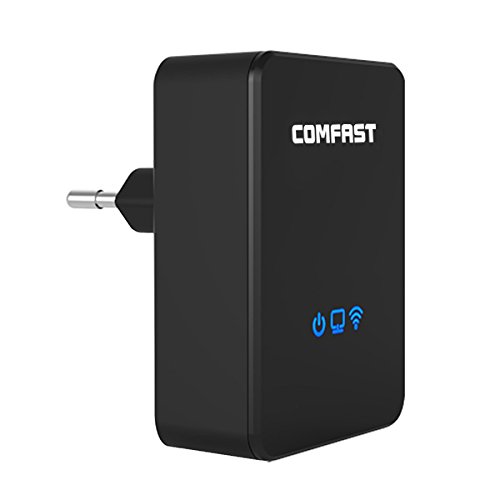
Ffigur 1.1: Blaen view of the Comfast CF-WR150N Wireless Repeater.
2. Cynnwys Pecyn
Before proceeding with setup, please verify that all items are present in the package:
- 1 x Comfast CF-WR150N Wireless Repeater
- 1 x Cebl Rhwydwaith (Cebl Ethernet)
- 1 x Llawlyfr Defnyddiwr (y ddogfen hon)
- 1 x Cerdyn Gwarant
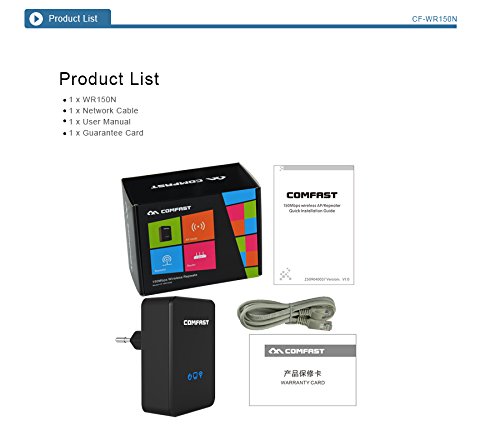
Figure 2.1: Contents included in the Comfast CF-WR150N product package.
3. Cydrannau Dyfais
Familiarize yourself with the various parts and indicators of the CF-WR150N device:
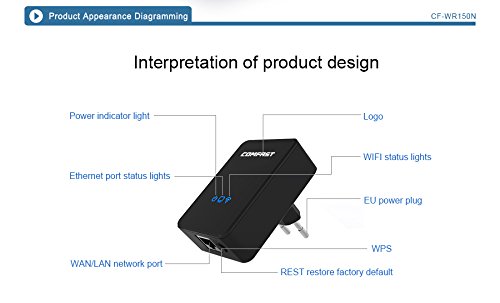
Figure 3.1: Detailed diagram of the CF-WR150N's external components and indicators.
- Golau Dangosydd Pwer: Yn dynodi statws pŵer.
- Ethernet Port Status Lights: Indicate activity on the WAN/LAN port.
- WAN/LAN Network Port: Used for wired connections.
- EU Power Plug: For connecting to a power outlet.
- Botwm WPS: For quick and secure wireless setup.
- REST (Reset) Button: Fe'i defnyddir i adfer gosodiadau diofyn ffatri.
- Logo: Comfast brand logo.
- WIFI Status Lights: Nodwch weithgarwch rhwydwaith diwifr.
4. Gosod a Chyfluniad
The Comfast CF-WR150N can be configured to operate in three distinct modes: Access Point (AP) Mode, Repeater Mode, and Router Mode. Choose the mode that best suits your network requirements.
4.1. General Setup Steps
- Pŵer Ymlaen: Plug the CF-WR150N into a standard power outlet. Wait for the power indicator light to stabilize.
- Cysylltu â Dyfais:
- Cysylltiad diwifr: On your computer or mobile device, search for available Wi-Fi networks. Connect to the network named "COMFAST_XXXX" (where XXXX are the last four digits of the device's MAC address). No password is required for the initial connection.
- Cysylltiad â gwifrau: Connect your computer directly to the CF-WR150N's WAN/LAN port using the provided Ethernet cable.
- Mynediad Web Rhyngwyneb: Agor a web browser and enter the default IP address (usually 192.168.10.1 or 192.168.1.254) into the address bar. Refer to the label on the device or the quick start guide for the exact IP.
- Mewngofnodi: Enter the default username and password (typically "admin" for both).
- Dewiswch Modd Gweithredu: Once logged in, you will be prompted to select the desired operating mode (AP, Repeater, or Router).
4.2. Operating Modes Explained
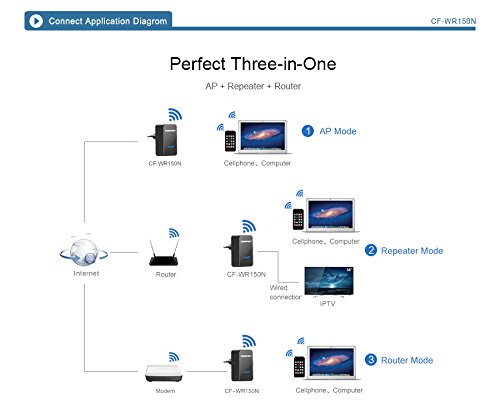
Figure 4.1: Application diagram showing AP, Repeater, and Router modes.
- Modd AP (Pwynt Mynediad): In this mode, the CF-WR150N connects to a wired network (e.g., from a modem or router) and broadcasts a new wireless network. This is ideal for adding Wi-Fi capability to a wired-only network.
- Repeater Mode (Range Extender): This mode extends the coverage of an existing wireless network. The CF-WR150N connects wirelessly to your main router's Wi-Fi signal and re-broadcasts it, effectively eliminating Wi-Fi dead zones.
- Modd y Llwybrydd: When configured as a router, the CF-WR150N connects directly to your internet service provider's modem via the WAN/LAN port and creates a new wireless network, providing internet access to connected devices.
4.3. WPS Setup (Wireless Protected Setup)
For a quick and secure wireless connection to your existing router in Repeater Mode, you can use the WPS function:
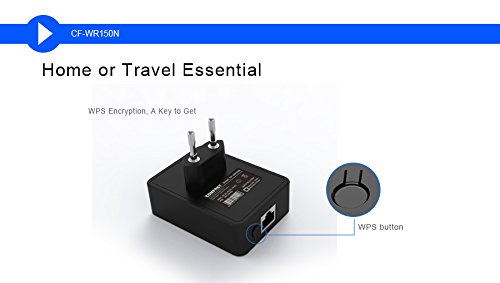
Figure 4.2: Location of the WPS button on the CF-WR150N.
- Plug the CF-WR150N into a power outlet near your main router.
- Pwyswch y botwm WPS ar eich prif lwybrydd.
- Within two minutes, press the WPS button on the CF-WR150N.
- The devices will automatically establish a secure connection. The Wi-Fi status light on the CF-WR150N will indicate a successful connection.
5. Gweithrediad a Defnydd
Once configured, the CF-WR150N operates automatically based on the selected mode. Ensure the device is placed in an optimal location for signal coverage.
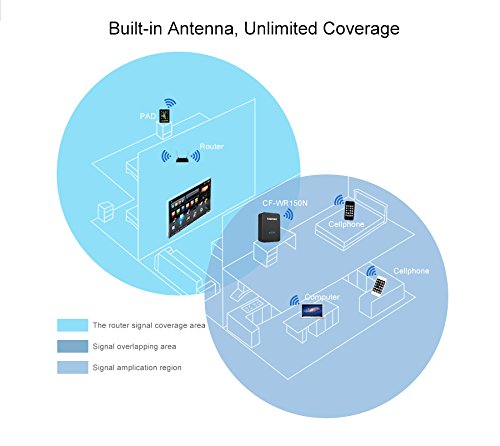
Figure 5.1: Illustration of signal coverage extension with the CF-WR150N.
For Repeater Mode, place the CF-WR150N approximately halfway between your router and the area where you need improved Wi-Fi signal. Avoid placing it in areas with significant interference or physical obstructions.
6. cynnal
To ensure optimal performance and longevity of your Comfast CF-WR150N, consider the following maintenance tips:
- Diweddariadau Cadarnwedd: Periodically check the Comfast official website for any available firmware updates. Updating firmware can improve performance, add new features, and fix bugs.
- Glanhau: Cadwch y ddyfais yn lân ac yn rhydd o lwch. Defnyddiwch frethyn meddal, sych i sychu'r tu allan. Peidiwch â defnyddio glanhawyr hylif na aerosolau.
- Awyru: Ensure the device has adequate ventilation to prevent overheating. Do not cover the device or place it in an enclosed space.
- Ailgychwyn: If you experience network issues, a simple restart of the device (unplugging and re-plugging after 10 seconds) can often resolve minor glitches.
7. Datrys Problemau
This section addresses common issues you might encounter with your Comfast CF-WR150N.
| Problem | Achos Posibl | Ateb |
|---|---|---|
| Methu cyrchu'r web rhyngwyneb rheoli. | Incorrect IP address, device not powered on, or network configuration issue. |
|
| No internet access after setup. | Incorrect mode configuration, weak signal (Repeater Mode), or ISP issue. |
|
| Frequent disconnections or slow speeds. | Interference, poor placement, or network congestion. |
|
| Forgot login password or device settings are corrupted. | Password forgotten or misconfiguration. |
|
8. manylebau
| Nodwedd | Manylyn |
|---|---|
| Brand | Comfast |
| Rhif Model | CF-WR150N |
| Math o Gysylltedd | Wi-Fi |
| Math Di-wifr | 802.11b, 802.11g, 802.11n |
| Safon Cyfathrebu Di-wifr | 802.11b, 802.11g, 802.11n |
| Cyfradd Trosglwyddo Data | 150 Megabits Per Second (as per product description, not 750 from spec list) |
| Dosbarth Band Amlder | Single-Band (implied by 802.11n 150M, Dual-Band from spec list seems incorrect for 150M) |
| Nodweddion Arbennig | Access Point Mode, LED Indicator |
| Pwysau Eitem | 180 g |
| Dimensiynau Pecyn | 13.8 x 10.4 x 6.2 cm |
| Dyddiad Cyntaf Ar Gael | 1 Gorffennaf 2014 |
Note: Data Transfer Rate and Frequency Band Class are based on the primary product description. Some specification lists may contain discrepancies.
9. Gwarant a Chefnogaeth
For detailed information regarding the product warranty, please refer to the Cerdyn Gwarant included in your product package. This card contains specific terms, conditions, and duration of the warranty.
For technical support, troubleshooting assistance beyond this manual, or service inquiries, please contact Comfast customer support through the channels provided on the Guarantee Card or the official Comfast websafle.