
Rhagymadrodd
The ADATA S102PRO is a high-performance USB 3.0 flash drive designed for fast and reliable data storage and transfer. Its durable design and high-speed interface make it ideal for everyday use, allowing you to carry important files, documents, photos, and videos with ease.
Gosod
Follow these steps to begin using your ADATA S102PRO USB Flash Drive:
- Adnabod Porth USB: Locate an available USB port on your computer. For optimal performance, use a USB 3.0 port (often colored blue internally). The ADATA S102PRO is backward compatible with USB 2.0 ports, but data transfer speeds will be limited to USB 2.0 rates.
- Tynnwch y Cap: Carefully remove the protective cap from the USB flash drive to expose the USB connector.
- Mewnosod y Drive: Insert the USB connector firmly into the USB port on your computer. Ensure it is inserted correctly; do not force it.
- Adnabyddiaeth System: Your operating system (Windows, macOS, Linux) should automatically detect and install the necessary drivers. A notification may appear indicating that the device is ready for use. The drive will typically appear as a removable disk or volume in your file fforiwr.
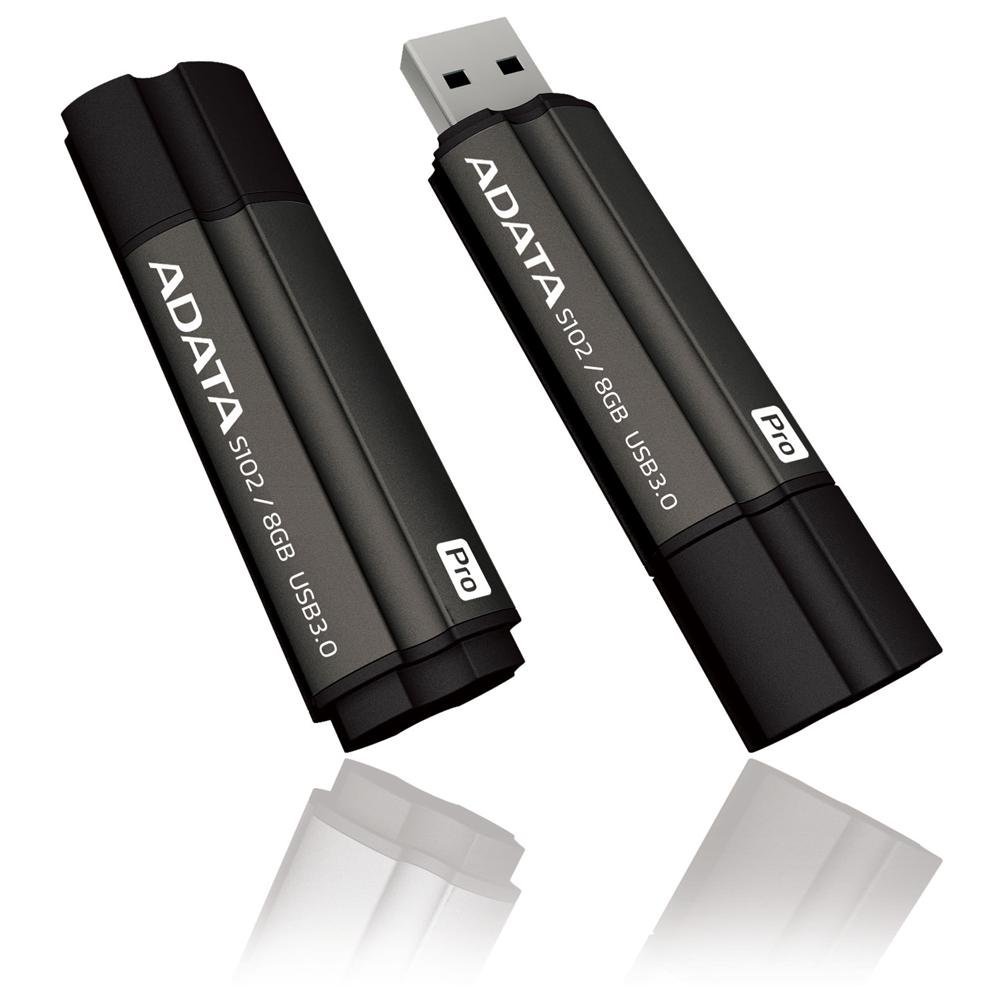
Image: The ADATA S102PRO USB Flash Drive shown with its protective cap on and with the cap removed, revealing the USB 3.0 connector. This illustrates the physical appearance and how to prepare the drive for insertion.
Gweithredu
Once the ADATA S102PRO is recognized by your computer, you can begin transferring files:
- Mynediad i'r Gyriant:
- Windows: Open "This PC" or "My Computer" and locate the drive listed under "Devices and drives" (e.g., "Removable Disk" or a drive letter like E:).
- MacOS: The drive icon will appear on your desktop or in the Finder sidebar under "Locations."
- Trosglwyddo Files:
- I gopïo files i the flash drive, drag and drop them from your computer's folders into the flash drive's window.
- I gopïo files rhag the flash drive, drag and drop them from the flash drive's window to a folder on your computer.
- You can also use the standard copy (Ctrl+C / Command+C) and paste (Ctrl+V / Command+V) functions.
- Tynnu'r Gyriant yn Ddiogel: Mae'n hanfodol cael gwared ar y gyriant fflach yn ddiogel cyn ei dynnu'n gorfforol er mwyn atal llygredd data.
- Windows: Click the "Safely Remove Hardware and Eject Media" icon in the system tray (bottom-right corner), then select your flash drive and click "Eject." Wait for the "Safe to Remove Hardware" message.
- MacOS: Drag the drive icon from the desktop to the Trash, or click the Eject button next to the drive name in the Finder sidebar. Wait for the icon to disappear before removing the drive.
Cynnal a chadw
Proper care will help ensure the longevity and reliability of your ADATA S102PRO USB Flash Drive:
- Protect the Connector: Always keep the protective cap on the USB connector when the drive is not in use to prevent dust, dirt, and physical damage.
- Osgoi Amodau Eithafol: Do not expose the drive to extreme temperatures, direct sunlight, high humidity, or strong magnetic fields.
- Ymdrin â Gofal: Avoid dropping the drive or subjecting it to strong impacts.
- Do Not Remove During Transfer: Never unplug the drive while data is being read from or written to it. Always follow the safe removal procedure.
- Copïau Wrth Gefn Rheolaidd: While flash drives are reliable, it is always recommended to back up critical data to another storage device or cloud service.
Datrys problemau
If you encounter issues with your ADATA S102PRO, try the following solutions:
- Gyriant Heb ei Adnabod:
- Gwnewch yn siŵr bod y gyriant wedi'i fewnosod yn llawn yn y porthladd USB.
- Rhowch gynnig ar borth USB gwahanol ar eich cyfrifiadur.
- Profwch y gyriant ar gyfrifiadur arall i ddiystyru problem sy'n benodol i'r cyfrifiadur.
- Check your computer's Device Manager (Windows) or System Information (macOS) to see if the drive is listed, even if it doesn't appear in File Archwiliwr/Canfyddwr.
- Cyflymderau Trosglwyddo Araf:
- Ensure you are connected to a USB 3.0 port for optimal performance. USB 2.0 ports will limit speeds.
- Trosglwyddo llawer o bethau bach filegall fod yn arafach na throsglwyddo ychydig o bethau mawr files.
- Close other applications that might be using system resources or performing disk operations.
- Cannot Write Files to Drive:
- Gwiriwch a yw'r gyriant yn llawn. Dileu'r pethau diangen. files or transfer them to another location.
- Sicrhau y file system (e.g., FAT32, NTFS, exFAT) is compatible with your operating system and allows writing. If formatted as NTFS on macOS, you may only have read access without third-party software.
- Check for any software-based write protection or permissions issues on your computer.
Manylebau
| Brand | ADATA |
| Enw Model | S102PRO |
| Rhif Model | AT806-4G-CPK |
| Cynhwysedd Storio Cof | 4 GB |
| Rhyngwyneb Caledwedd | USB 3.0 (Cydnaws yn ôl â USB 2.0) |
| Gwneuthurwr | A-DATA TECHNOLOGY (USA) CO. L |
| UPC | 842243005080 |
| ASIN | B004AVOGW8 |
Gwarant a Chefnogaeth
For detailed warranty information, product registration, and technical support, please visit the official ADATA websafle. Fel arfer, gallwch ddod o hyd i adnoddau cymorth, Cwestiynau Cyffredin, a gwybodaeth gyswllt ar gyfer gwasanaeth cwsmeriaid yno.
ADATA Official Websafle: www.adata.com